AlwaysUp and
Service Protector are
both designed to keep your applications functioning 24/7. While they can monitor and take action when a wide range of events occur (for example, your program uses too much RAM or CPU), not all
failure detection capabilities are built in. For example, if your program doesn't operate correctly when another program has stopped, there is no way for AlwaysUp or Service Protector to find out about the special relationship and
stop/restart your application.
Fortunately both AlwaysUp and Service Protector can be extended to "plug in" your own arbitrary, failure detection logic. All you have to do is supply an executable (or batch file) that can detect the failure and communicate that
situation to AlwaysUp or Service Protector via a return/exit code. We call these small, targeted failure detection programs Sanity Check Plugins.
A Sanity Check Plugin can be an executable written in any language (C++, C#, VB, Delphi, etc.) or can be a DOS batch file. The only requirement is that it exits with a special code.
Feel free to construct your own plugins, specific to your situations, or simply use one that we have already written (below).
Available Sanity Check Plugins
We have developed a few Sanity Check Plugins that can be used freely. Each will signal AlwaysUp or Service Protector to:
 Stop/restart your application if a specified program is not running
Command Line Usage
CheckProgramIsRunning.exe <program-name>
where
<program-name> is the name of an executable, as seen in Task Manager
Example
To check if Microsoft Word is running, use:
CheckProgramIsRunning.exe winword.exe
Downloads
CheckProgramIsRunning.exe (490 KB)
Stop/restart your application if a particular file has not changed for a while
Command Line Usage
CheckFileChanged.exe <file-name> <num-minutes> [-e] [-v]
where
	<file-name> is the full path to the file to be checked
		- Please enclose in quotes if the path contains spaces.
		- Note that this file name can contain special macro-like
		strings that will be dynamically replaced when the program
		is run. These are:
			$DAY$ == The current day (1-31)
			$DAY2$ == The current 2-digit day (01-31)
			$MONTH$ == The current month (1-12)
			$MONTH2$ == The current 2-digit month (01-12)
			$YEAR2$ == The current 2-digit year
			$YEAR4$ == The current 4-digit year
		For example, if today is August 28 2022, then:
			C:\Files\Myfile_$MONTH$_$DAY$_$YEAR4$.log
		will expand to
			C:\Files\Myfile_8_28_2022.log
		when the utility is run.
	<num-minutes> is the number of minutes
	-e signals to return 1 (a failure) if the file doesn't exist (optional)
	-v signals to produce verbose output (optional)
Example
To check if a log file located at C:\myserver\log.txt has not been modified for the past 10 minutes:
CheckFileChanged.exe "C:\myserver\log.txt" 10
Downloads
CheckFileChanged.exe (251 KB)
Stop/restart your application if it is using too much virtual memory
Command Line Usage
CheckVMSize.exe <process-id> <vm-size> [-v]
where
	<process-id> is the numeric identifier of the process to be checked.
	<vm-size> is the memory threshold, in MB.
	-v signals to produce verbose output (optional)
Example
To check if the process with ID 4521 is using more that 100 MB of virtual memory:
CheckVMSize.exe 4521 100
Downloads
CheckVMSize.exe (249 KB)
Stop/restart your 64-bit application if it is using too much memory
Command Line Usage
CheckMemorySize64.exe <process-id> <size> [-vm] [-v]
where
	<process-id> is the numeric identifier of the process to be checked.
	<size> is the memory threshold, in MB.
	-vm indicates to check the virtual private memory instead (optional)
	-v signals to produce verbose output (optional)
Example
To check if the process with ID 4521 is using more that 3 GB of memory:
CheckMemorySize64.exe 4521 3172
Downloads
CheckMemorySize64.exe (911 KB). Note: This 64-bit application will not run on 32-bit versions of Windows.
Stop/restart your application if a specific web site/URL is not responding
Command Line Usage
check-web-server.bat
Configuration
- Download our free http-ping executable and place it in a new directory
- Download the Sanity Check batch file and place it in the same directory
- Open the batch file in a text editor and modify it to:
- specify the URL to your web server (instead of http://localhost:80)
- set the path to http-ping.exe to point to the location where you saved it
Downloads
http-ping.exe (504 KB)
check-web-server.bat (1 KB)
Stop/restart your application if a specific web site/URL is not responding or is returning a 5XX HTTP error code
Command Line Usage
check-web-server-for-5XX-errors.bat
Configuration
- Download our free http-ping executable and place it in a new directory
- Download the Sanity Check batch file and place it in the same directory
- Open the batch file in a text editor and modify it to:
- specify the URL to your web server (instead of http://localhost:80)
- set the path to http-ping.exe to point to the location where you saved it
- review the other variables (num-times-to-ping, num-seconds-between-pings) currently at their default values
Downloads
http-ping.exe (504 KB)
check-web-server-for-5XX-errors.bat (3 KB)
Stop/restart your application if a specific web site/URL returns an unexpected response
Command Line Usage
check-web-server-response.bat
Configuration
- Download our free http-ping executable and place it in a new directory
- Download the Sanity Check batch file and place it in the same directory
- Open the batch file in a text editor and modify it to:
- specify the URL to your web server (instead of http://localhost:80)
- set the path to http-ping.exe to point to the location where you saved it
- set the name of a temporary file to use for HTML responses
- set the string that, when found in the HTML response, signals an error
Downloads
http-ping.exe (504 KB)
check-web-server-response.bat (2 KB)
Stop/restart your application if it's not listening on a specific network port
Command Line Usage
check-port-listening.bat
Configuration
- Download Microsoft's free PortQry utility and extract it to a new directory
- Download the Sanity Check batch file and place it in the same directory
- Open the batch file in a text editor and modify it to:
- set the port-number variable to the port number to be checked (instead of 80)
- update the portqry-exe-path variable to specify the full path to PortQry.exe on your system
- review the other variables (machine-name, num-times-to-check, num-seconds-between-checks) currently at their default values
Downloads
PortQry
check-port-listening.bat (3 KB)
Stop/restart your application if a specific string is found in a log file
Command Line Usage
	CheckLogFileForFatalError.exe <file-name> -e <error-string>
		[-ok <ok-string>] [-v]
where
	<file-name> is the full path to the file to be checked
		- Please enclose in quotes if the path contains spaces.
		- Note that this file name can contain special macro-like
		strings that will be dynamically replaced when the program
		is run. These are:
			$DAY == The current 2-digit month (01-12)
			$MONTH == The current 2-digit day (01-31)
			$YEAR2 == The current 2-digit year
			$YEAR4 == The current 4-digit year
		For example, if today is May 26 2011, then:
			C:\Files\Myfile_$MONTH_$DAY_$YEAR4.log
		will be expanded to
			C:\Files\Myfile_05_26_2011.log
		when the utility is run.

	<error-string> is the error message to look for in the file
        There can be multiple error-strings, and at least one must be specified.

	<ok-string> is a message that signals that the software is ok.
        If it appears after all the error strings, a restart will not be
        signaled. An ok-string is not required but multiple can be specified.

	-v signals to produce verbose output (optional)

        Note: All strings are case sensitive.
Example
To check if a log file located at C:\myserver\log.txt contains the string "Server failed to process request" but only if it appears after "Server started", use:
	CheckLogFileForFatalError.exe "C:\myserver\log.txt" -e
		"Server failed to process request" -ok "Server started"
Downloads
CheckLogFileForFatalError.exe (290 KB)
Stop/restart your application if it's not using any CPU
Command Line Usage
CheckForCPUActivity.exe <process-id> <duration> [-t <percent>] [-v]
where
	<process-id> is the identifier of the process to be checked.

	<duration> is the number of seconds to monitor the CPUs. The maximum
	value is 300.

	<percent> is the threshold percent (optional). If not supplied, the
	threshold is 0%. The maximum value is 99.

	-v signals to produce verbose output (optional)
Example
To check if the process with ID 4521 uses any CPU over 60 seconds, use:
CheckForCPUActivity.exe 4521 60
Downloads
CheckForCPUActivity.exe (271 KB)
Stop/restart your application if it has been running for too long
Command Line Usage
CheckIfLongRunning.exe <process-id> <num-minutes>
where
	<process-id> is the identifier of the process to be checked.

	<num-minutes> is the "threshold" number of minutes.
Example
To check if the process with ID 4521 has been running for longer than 3 hours, use:
CheckIfLongRunning.exe 4521 180
Downloads
CheckIfLongRunning.exe (265 KB)
How to use a Sanity Check Plugin with AlwaysUp
To setup a Sanity Check Plugin with AlwaysUp:
-
Edit your application in AlwaysUp.
-
Switch to the Monitor tab.
-
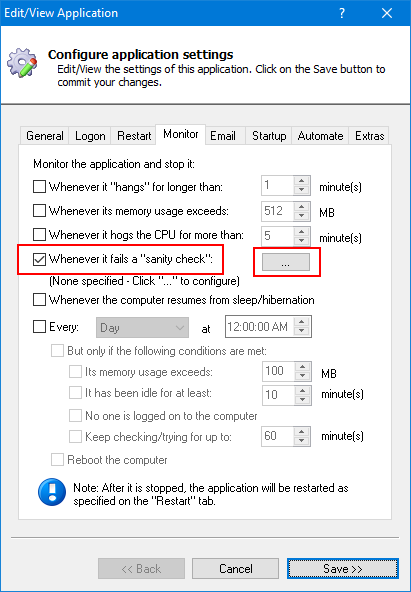
Check the Whenever it fails a "sanity check" box and click the ... button to the right:
-
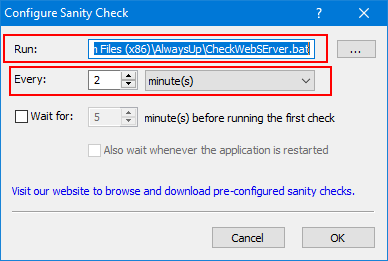
In the window that comes up:
Enter the full command line for your sanity check application (or batch file) — including any parameters. Be sure to use quotes if the path or parameters contain spaces.
Specify how often you want to run the sanity check (in seconds, minutes or hours):
-
Click OK and Save to record your settings.
How to use a Sanity Check Plugin with Service Protector
To setup a Sanity Check Plugin with Service Protector:
-
Edit your service in Service Protector.
-
Switch to the Monitor tab.
-
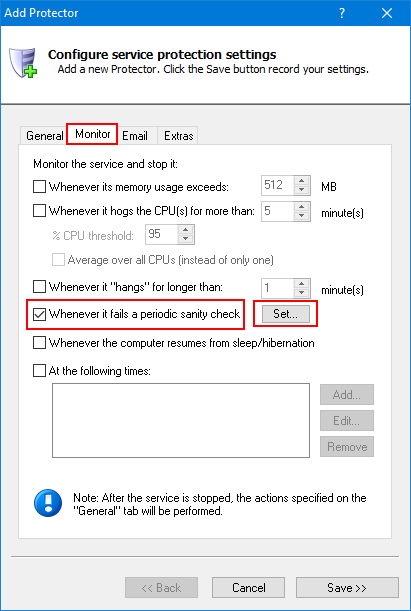
Check the Whenever it fails a periodic sanity check box and click the Set button to the right:
-
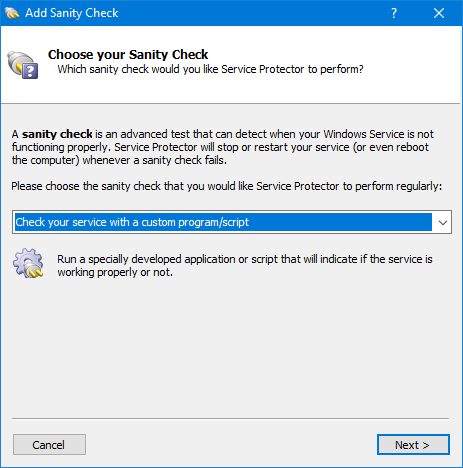
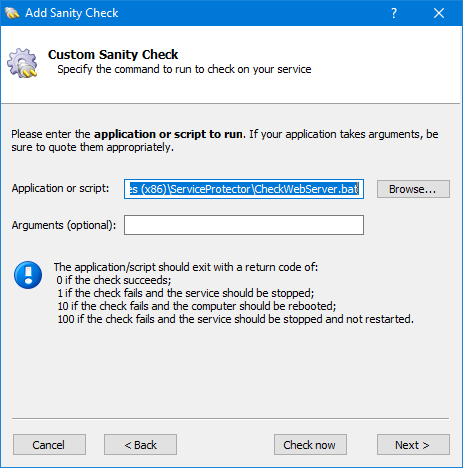
In the window that comes up, select the Check your program with a custom program/script:
Click Next to proceed.
-
Enter the full path to your sanity check program (and any arguments needed):
Click Next to proceed.
-
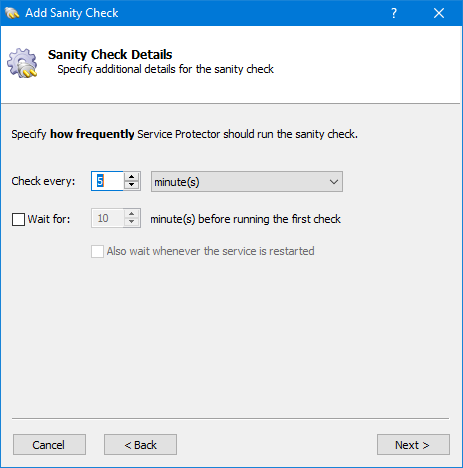
Indicate how often Service Protector should run the sanity check:
Click Next to proceed.
-
Review and confirm the summary. Finally, click Add to record your changes.
Special Command Line Parameters
AlwaysUp and Service Protector are able to pass your Sanity Check Plugins one or more "special" values.
Compose your command line with the appropriate string and AlwaysUp/Service Protector will make the
substitution before invoking your program.
| Replacement String |
Replaced With |
| $ALWAYSUP_PID |
The program identifier (PID) of your running application/service. This can be seen in the Task Manager. |
| $ALWAYSUP_EXENAME |
The name of the executable run to invoke your application. (Just the name, not the full path.) |
| $SERVICEPROTECTOR_PID |
The program identifier (PID) of your running service. This can be seen in the Task Manager. |
| $SERVICEPROTECTOR_SERVICENAME |
The name of the service being protected (the short name). |
For example, to have AlwaysUp pass your Sanity Check program the application's program identifier (PID), then your command line might resemble this:
C:\myserver\my_check.exe $ALWAYSUP_PID
If your main application is running with PID 563, then your plugin program will be invoked like this:
C:\myserver\my_check.exe 563
Writing your own Sanity Check Plugins
A Sanity Check Plugin can be an application written in any language (C++, C#, VB, Delphi, etc.) or can be DOS batch file. The only requirement is that it exits with a return code of:
- 0 when the check succeeds;
- 1 when the check fails and the application should be stopped and restarted as you have configured;
- 10 when the check fails and the computer should be rebooted;
- 100 when the check fails and your application should be stopped and not restarted;
- any other value when the check fails due to an error independent of the application being monitored
(such as an error internal to the utility), or to simply indicate failure without causing a restart.
In the last case, the application is not restarted but a message is written to the event log (and an email is sent if so configured).
Note that if the Sanity Check plugin fails to complete in 120 seconds, the application will be restarted.


 (888) 881-CORE