


|
Version 12.0 February 20 2026 786 KB EXE |
|
|

Easily find out if your website is responding and how it's performing
http-ping is a small, free,
easy-to-use Windows command line utility that probes a given URL and displays relevant statistics.
It is similar to the popular ping utility,
but works over HTTP/S instead of ICMP, and with a URL instead of a computer name/IP address. http-ping supports IPv6 addresses.
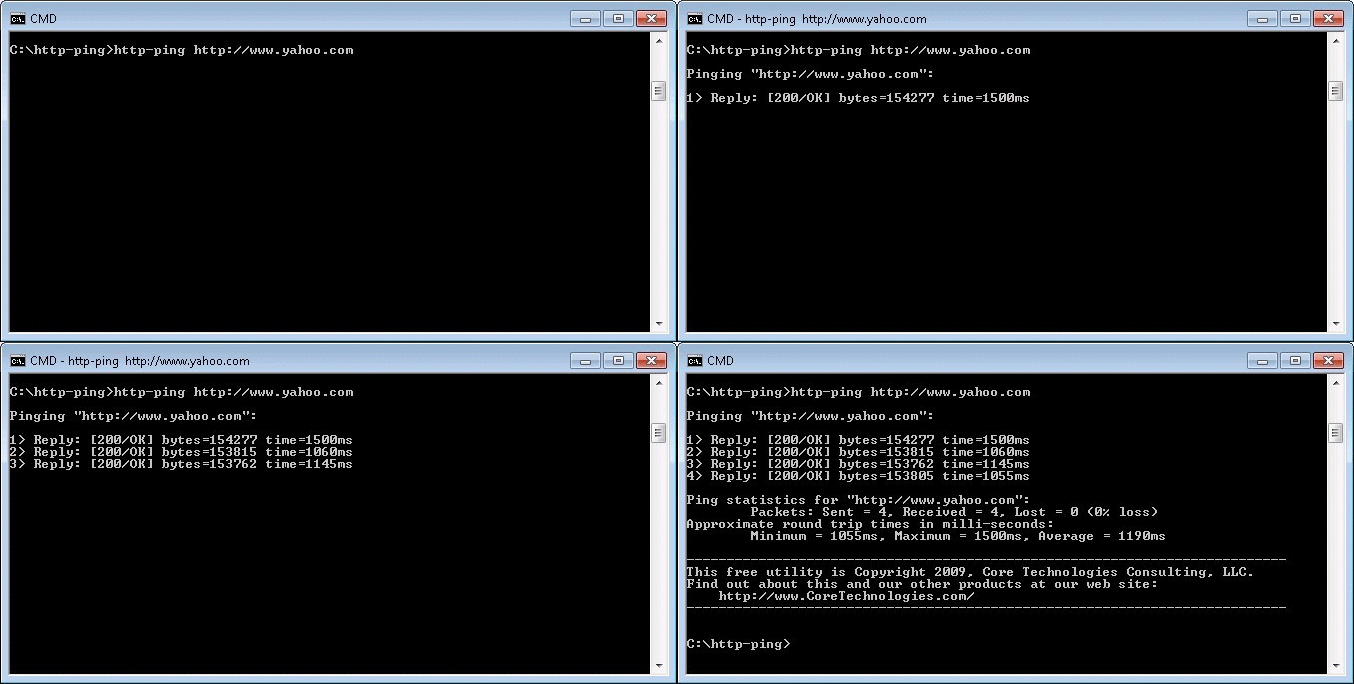
(http-ping at work — click to enlarge)
For each request, http-ping displays:
 Command-Line Optionshttp-ping offers a rich set of command line options which you can see by running "http-ping.exe /?" from a command prompt:
Upon completion, the exit code is the percentage of requests that succeeded, or either the HTTP status code, time taken, or the number of bytes transferred of the last request (or 0 if the last request failed). In a Windows batch file, you can access that exit code via the ERRORLEVEL variable (as seen here in this sample batch file used with our run as a Windows Service product, AlwaysUp). ExamplesExample #1: Your basic pingThis simple command shows how our website is performing: http-ping https://www.coretechnologies.com 
Example #2: Ping with HEAD instead of GET (to avoid downloading the content)Use the -q flag to instruct the server not to return the message-body/content on each ping. This option lessens the impact on the server and is appropriate for checking that a URL is being served. For example, this command checks that the AlwaysUp user manual PDF file is available. The -q option avoids a 1.5 MB transfer on each ping! http-ping -q https://www.coretechnologies.com/products/AlwaysUp/AlwaysUpUserManual.pdf 
Example #3: Follow redirectsIf the URL you are pinging has been moved, the result might be 301/Redirected. This is what happens if we try to access the Yahoo! website over HTTP: 
To follow the redirect and make a subsequent request to the new location, we specify the -r flag: http-ping -r http://www.yahoo.com 
(Of course, another option is to update the URL being interrogated and avoid the redirect hop, but that depends on the specific situation.) Example #4: Going through a proxy serverIf your connection to the Internet is through a proxy, you can specify the server on the command line. Here's the command line for pinging our website through one of the proxy servers mentioned in the Free Proxy List: http-ping -p http://142.4.15.25:3128 https://www.coretechnologies.com 
Example #5: Probing a server from a batch fileYou can use http-ping as part of a batch file to monitor a web server. The standard ERRORLEVEL variable will capture http-ping's exit code, which you can use to direct your script. Here's a simple example, to give you the general idea: REM Ping the web server http-ping.exe -q https://www.coretechnologies.com REM http-ping returns the percentage of pings that succeed. REM With 4 attempts, this can be 0, 25, 50, 75, or 100. IF ERRORLEVEL 0 GOTO failure IF ERRORLEVEL 25 GOTO partialsuccess IF ERRORLEVEL 50 GOTO partialsuccess IF ERRORLEVEL 75 GOTO partialsuccess IF ERRORLEVEL 100 GOTO success :partialsuccess echo Partial success! exit 0 :failure echo Failed! exit 1 :success echo Succeeded! exit 0 Enjoy! |
http-pingDownload
Our 14,000+ customers include...

| ||||||||||||||||||||||||||||||||||||||||||||||||||||