|
How to Run Any Application, Program, .EXE or Script as a Windows Service |
We'll show you how to start your app automatically at boot and keep it running 24/7 as a bulletproof service — No need to change your code
Last Updated on September 7, 2026
Sometimes, the hardest part of running an important Windows application is not the application itself.
It's keeping that application running after a reboot, after a logoff, or after an unexpected crash.
That's where Windows Services shine. A Windows Service can start automatically when your computer boots, run in the background without anyone logging in,
and continue operating through user logons and logoffs.
AlwaysUp was designed to make that setup easy.
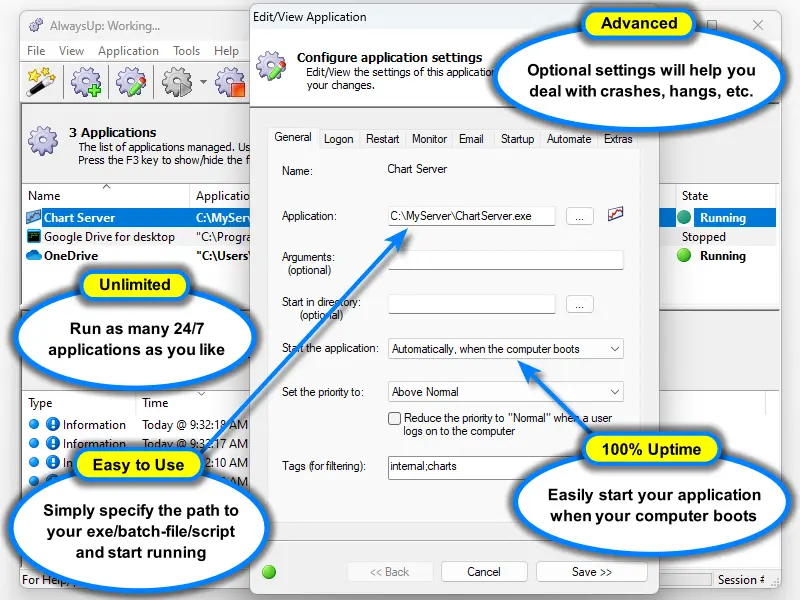
It can run virtually any application, script, batch file, shortcut or executable as a Windows Service, then monitor it constantly to keep it available 24/7.
Whether you need to run a custom .EXE, a Python script, a Java/JAR, a Node.js app,
a batch file, or a traditional GUI program in the background, this guide will show you the practical way to do it.
But before we dive in, let's go over some of the basics. That way, you can make sure that running as a service is right for you in the first place.
Why run an application as a Windows Service?
Here are the major benefits of running your app as a Windows Service:
Start automatically at boot: Your application launches when Windows starts, even after an unexpected reboot. No login required: The program can run even when no user is signed in. Indeed, it runs even if no one ever logs on. Survive logoff: Someone logging out doesn't shut the application down. It just keeps running in the background, unaffected. Improved security: You don't need to leave a user account auto-logged in just to keep a program running.
With AlwaysUp, you get additional key benefits:
Restart automatically after failure: If your application crashes, hangs, or stops responding, AlwaysUp will quickly restart it. Exceptional reliability: AlwaysUp's email alerts, sanity checks, scheduled restarts, and logging help keep critical applications healthy. Set it and forget it: As AlwaysUp babysits your program and automatically handles all failures, you'll forget that it's even there.
If your application is important enough to run all day, every day, converting it to a Windows Service with AlwaysUp is usually the right move.
What kinds of programs can run as a Windows Service?
AlwaysUp is built to run virtually any Windows application as a Service, including:
Traditional .EXE applications (32-bit and 64-bit) Console programs Batch files and command scripts Python scripts Java applications and JAR files Node.js scripts PHP, PowerShell, VBScript and other script-driven tools Many GUI applications that need to start automatically and stay running
When is a Windows Service the right choice?
Running as a Windows Service is ideal when your application:
Must run continuously Should start before anyone logs in Must keep running even after a user logs off Should restart automatically after failure Needs to operate quietly in the background Works without anyone needing to interact with it
For long-running, always-on workloads, a Windows Service is usually the most reliable and maintainable option.
When is a Windows Service NOT the right choice?
You don't need a Windows Service if your application:
Is a GUI program that you need to interact with. That's because Windows Services run invisibly in the background and you won't see their windows or tray icons on your desktop. Runs only at defined times, for example, every day at 9 AM.
You should use the Windows Task Scheduler for those cases. Must run on a regular desktop. Unfortunately some Windows programs are limited to normal login sessions because of licensing constraints, graphics card access, or other restrictions.
They cannot run in the background.
Even so, it can be difficult to know in advance if your program can run as a service or not. It's often best to try for yourself, and test the results thoroughly. We'll show you how to do that next.
How to run a program as a Windows Service with AlwaysUp (in under 5 minutes)
Installing your executable or script as a Windows Service is easy with AlwaysUp. Here's the general process, which should only take you a few minutes:
-
Download and install AlwaysUp (2 minutes)
Get the latest version from the AlwaysUp download page.
-
Start AlwaysUp (15 seconds)
Open the AlwaysUp GUI from the Start menu or desktop shortcut.
-
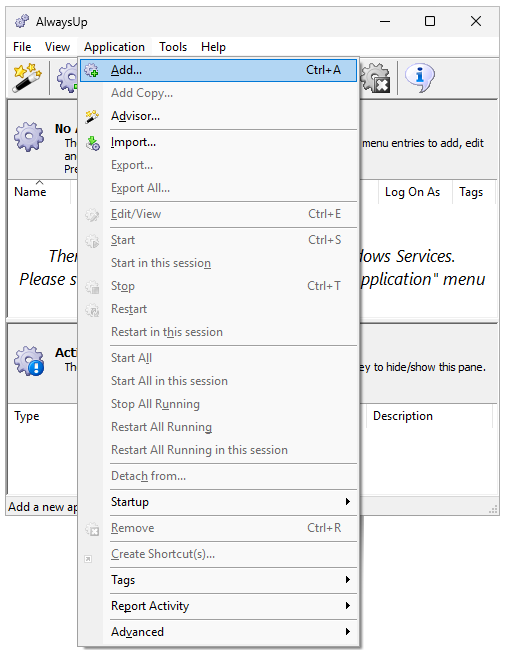
Create a new application entry (15 seconds)
Select Application > Add to open the configuration window:
-
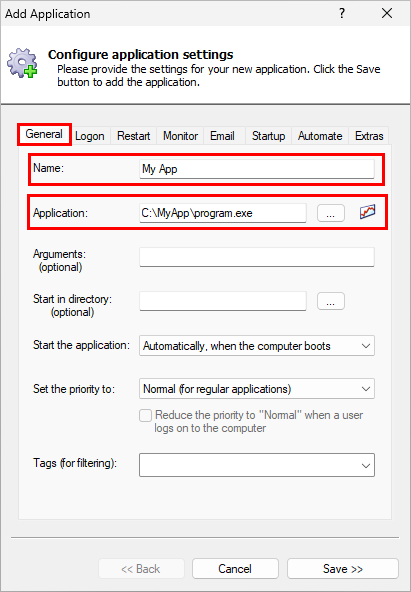
Enter your program (1 minute)
On the General tab, specify:
- a friendly name for the Service (anything you like)
- the full path to the application, script, or executable
-
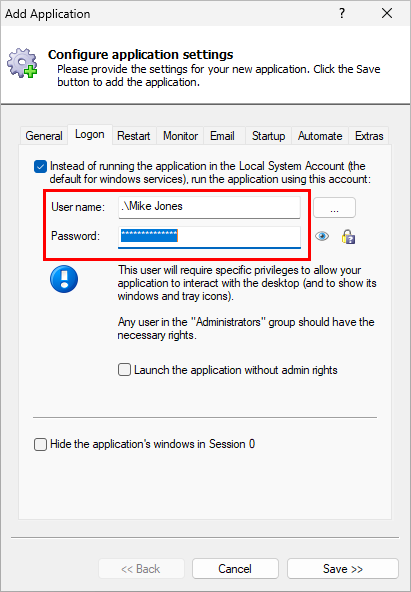
Choose the right Windows account (30 seconds)
If your application depends on a specific profile, mapped resources, environment variables, or registry settings, switch to the Logon tab
and configure the Windows account that you know runs the software successfully:
-
Save and start the Service (30 seconds)
Click Save. AlwaysUp will create the underlying Windows Service for you.
Afterwards, select Application > Start to launch your application as a service.
-
Test under real conditions (5-15 minutes)
Reboot the computer. Log off. Confirm that the application starts correctly, stays running, and behaves normally without user intervention.
That's the basic setup. For many applications, that's all you need.
Come back later if you need advanced features, such as:
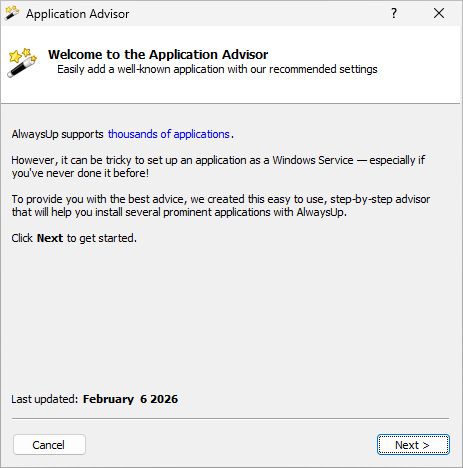
The Application Advisor will help you install popular apps as services
If you're configuring a well-known application, AlwaysUp can often save you even more time.
The AlwaysUp Application Advisor walks you through the best settings for several common application types,
including Java, Python, Node.js, batch files, WinForms, Dropbox and more:
Instead of making you guess which command line, working directory, account, or restart settings to use, the Advisor recommends the best setup and prepares the Service for you.
Examples for common application types (Python, Java, Node.js, BAT, etc.)
Need detailed instructions for a specific kind of app? Start with these step-by-step guides:
See all 160+ AlwaysUp application guides.
Common problems when moving an app into a Windows Service
If an application works fine on your desktop but fails as a Service, the cause is usually one of a few predictable issues:
-
The wrong user account is being used
Some applications need access to user-specific registry settings, certificates, network shares, or profile folders.
In that case, configure the correct account on the Logon tab.
-
The working directory isn't correct
Many applications assume they are starting in a specific folder. If the Start in directory is not set correctly,
the application may not find its config files, scripts, or dependencies.
-
Environment variables are missing
Developer tools, runtimes and scripts often depend on environment variables.
If those variables only exist in your personal account, the Service may behave differently until you run it under that account or recreate the needed environment.
-
The application expects user interaction
Dialog boxes, prompts and visible windows can cause trouble when an application is moved into the background.
AlwaysUp can help with automatic dialog dismissal and restart behavior, but you should still test carefully.
-
A child process is left behind
Some applications launch helper processes. If the parent stops but a child process keeps running, the next start attempt may fail or create duplicates.
AlwaysUp's monitoring and shutdown features help keep the application under control.
Practical tips for better 24/7 reliability & security
Use a dedicated service account when the application needs specific permissions. Set the working directory explicitly instead of assuming Windows will choose the right one. Capture console output so you have logs for troubleshooting. Turn on email alerts so you know when crashes or restarts occur. Use sanity checks for applications that can hang without actually exiting. Schedule restarts when appropriate for apps that benefit from periodic cleanup. Lock down the service so that only authorized users can start or stop it. Reboot and log off during testing before trusting the setup in production.
For more ideas, see Getting the most from your AlwaysUp Windows Services.
Frequently Asked Questions
-
Can any .EXE run as a Windows Service?
Many can, but not every executable behaves well in the background. Programs that require constant user interaction may need extra configuration or may not be suitable.
AlwaysUp is designed to make this process much easier and includes tools to improve compatibility.
-
Will the Service start before I log in?
Yes. That's one of the key benefits of using a Windows Service. Your application can start during boot, before any user signs in.
-
What if my application crashes?
AlwaysUp can detect the failure and restart the application automatically.
You can also configure email alerts, resource monitoring, scheduled restarts and custom sanity checks.
-
My application works manually but not as a Service. Why?
The most common causes are the wrong Windows account, the wrong working directory, missing permissions, or hidden dialog boxes waiting for input.
-
Can I run multiple instances of the same program?
Yes. In many cases, you can create multiple AlwaysUp entries with different names, arguments, ports, or working folders.
Why choose AlwaysUp?
AlwaysUp does more than just launch your application. It helps you keep that application healthy over time.
To learn more about the underlying architecture, visit How AlwaysUp Works.
For answers to specific questions, see the AlwaysUp FAQ.
|