
|
Version 11.5 April 4 2026 7.3 MB Installer |
|
|

Windows Service Recovery can miss hangs, manual stops and services that fail to start at boot. See how to keep your critical Windows Services available 24/7You configured Windows Service Recovery to restart your important service after a failure. But the application is still experiencing downtime. Why is that?  The problem with relying on the Recovery tab alone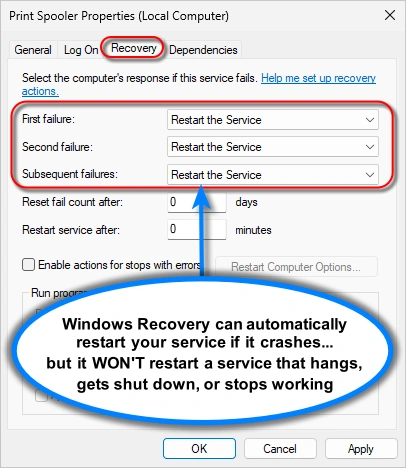
Windows Recovery is useful, but it is primarily designed to react when a service terminates abnormally. As such, it can promptly restart your service if it crashes. However, the built-in Recovery tab doesn't cover every way a critical service can become unavailable. For example, suppose an overnight update stops your database, web server or printer service. In that case, Windows sees a normal stop, so Recovery does nothing. And you have the pleasure of waking up to discover the outage the next morning. Unfortunately the gaps go well beyond negligent updates. The next section discusses where the Recovery tab falls short. Eight failures Windows Service Recovery won't handleThe truth is that Windows Service Recovery cannot restart your service if it:
How Service Protector closes the gapsTeams needing more than basic crash recovery rely on our professional Service Protector utility. It goes well beyond the Recovery tab. Service Protector is a sophisticated watchdog with a single, unambiguous mission:
Keep your important Windows Services working continuously, even if they stop or fail
It works by constantly interrogating your services to detect subtle problems, and automatically takes action to resolve them. What Service Protector can watch for (while you sleep soundly at night)Service Protector monitors your services to catch:
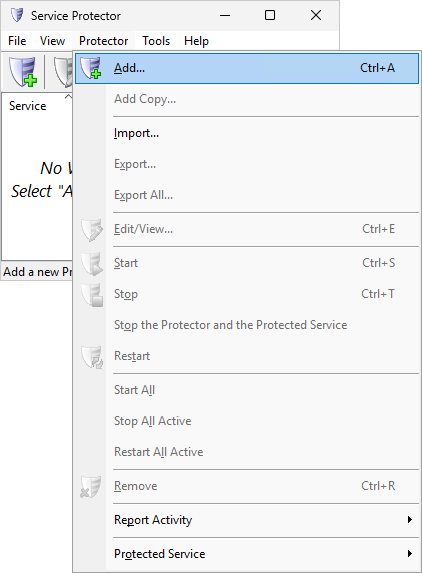
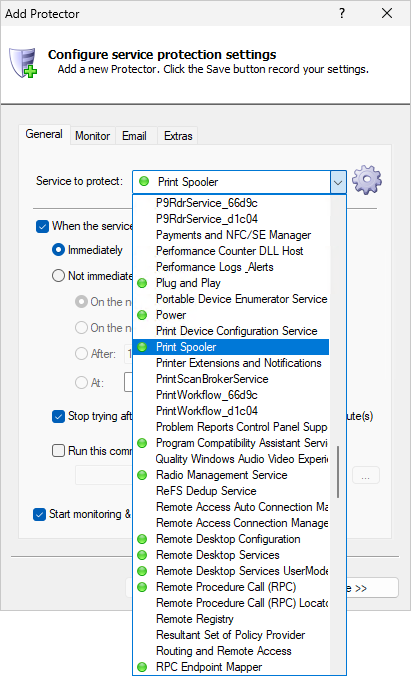
And if those extra defenses aren't enough, you can extend Service Protector with your own custom health checks. That gives you the flexibility to react to whatever challenges your unique situation brings. How to bulletproof your Windows Service (in under 3 minutes)
That's it. For most services, that's all you need. Come back later for the advanced features. Try Service Protector completely free for a month — no strings attachedDownload the free 30-day trial and put Service Protector to the test yourself, in your unique environment. Setup takes a couple of minutes, and you'll know soon if it's what you need.

Trusted by large organizations for over 20 yearsHere's a small sample of the hundreds of businesses that rely on our enterprise-grade software. You'll be in great company! 































|
Download & Try it Free!
Our 14,000+ customers include...


|