


|
Version 17.5  September 3 2026 9.2 MB Installer |
|
|

Five impactful features to help keep your mission-critical applications running 24/7 — despite hangs, crashes and other annoying interruptionsSo you've got your application running with AlwaysUp? Congratulations! Now that you're ready to elevate your setup beyond the basics, check out these five practical features of AlwaysUp. We think they'll help you on your journey to maximum reliability and 100% uptime. #1: Configure Email Notifications/AlertsWant to find out when your application crashes? Or would a daily summary of your application's CPU & memory usage be helpful? If so, head on over to the Email tab and sign up for the notifications that are of interest: 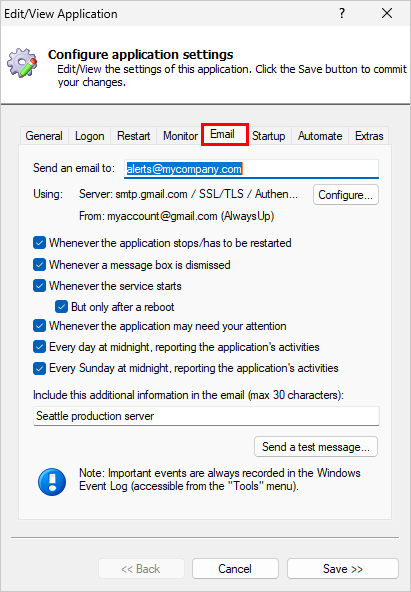
Of course, you'll have to specify one or more email addresses to receive the notifications (in the Send an email to field at the top of the window). And you'll have to click the Configure button and provide the details of your mail server. This article/guide will help you set up email in AlwaysUp.  #2: Capture your Program's Console OutputAre you running a console application that prints messages to the screen? With AlwaysUp running your application in the background — on the isolated Session 0 desktop — you won't see those messages anymore. But all is not lost. AlwaysUp can capture the console output and save it to a file. That way you can review the messages later on, to debug and troubleshoot operational issues. Capturing output is easy. Simply specify the file on the Extras tab: 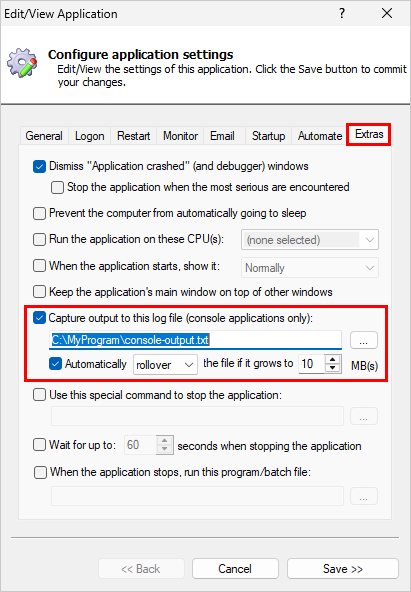
Note that there are a couple of options for handling the file if it grows too large. AlwaysUp can either:
This article explores the feature in detail. #3: Introduce a Nightly (or Weekly) RestartDoes your application become unstable if it runs for too long? Do you find yourself occasionally restarting the application to get it working again? If so, why not let AlwaysUp do that for you — automatically, at a time of your choosing? You can instruct AlwaysUp to periodically shutdown of your application on the Monitor tab. Check the Every box, choose the period from the dropdown list and enter the time. For example, this configuration will stop the application every Sunday at 2 AM (during a regularly scheduled maintenance window): 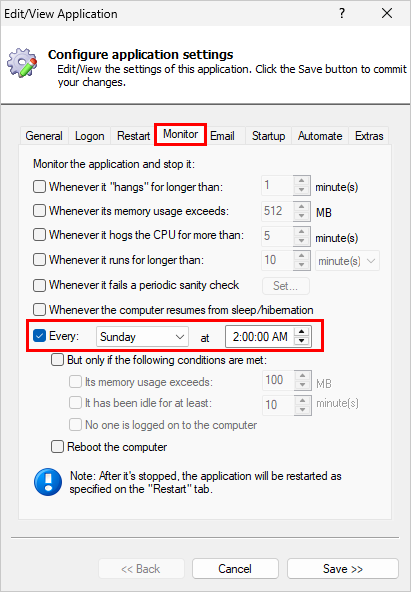
Note that after closing your application, AlwaysUp will restart it as instructed on the Restart tab. That's usually immediately (the default) but you may have configured a delay which AlwaysUp will respect. Find out more about the scheduled restarts feature and see if it's right for you. #4: Detect Non-Standard Application Failures with a "Sanity Check"AlwaysUp is very good at detecting when your application crashes. In that situation, AlwaysUp quickly restarts your application to ensure maximum uptime. However, more subtle, application-specific failures can be difficult to catch. For example, even though your application is running, you may consider it "dead" if it:
In those circumstances, you can extend AlwaysUp by plugging in your own failure detection — a sanity check. This page describes the powerful sanity check feature. There, you will discover helpful sanity checks created by our development team, as well as instructions for building your own sanity check. 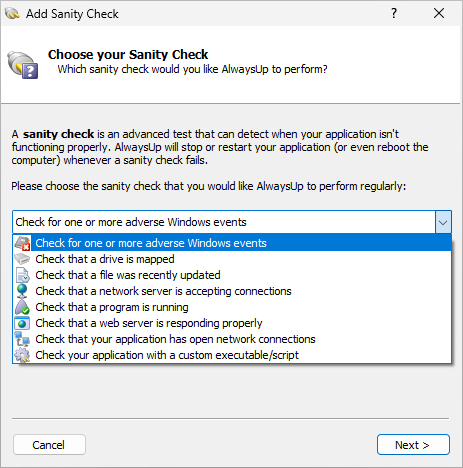
#5: Control your Applications/Services from your Web BrowserWould you like to manage your AlwaysUp applications/services when you're away from your computer? If so, install our free AlwaysUp Web Service application. It allows you to control your AlwaysUp applications from any web browser. With AlwaysUp Web Service, you can easily:
Here's a screenshot of AlwaysUp Web Service managing a few applications: 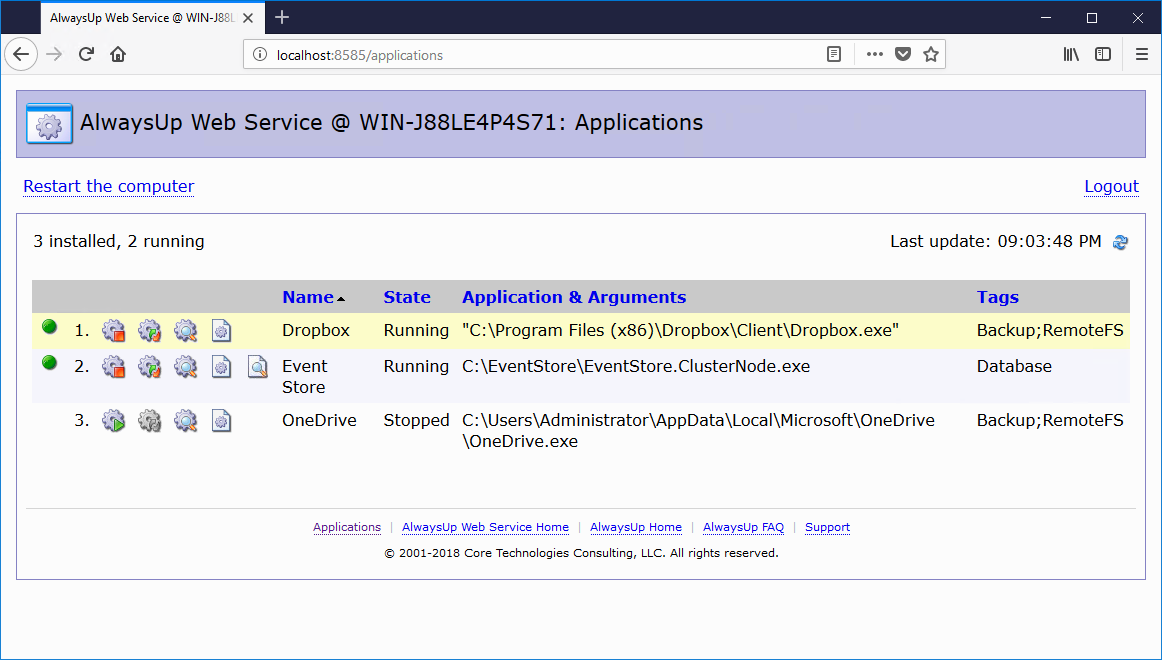
That's it for now. AlwaysUp has many more features so be sure to check them out when you have some time. The 100+ page PDF manual describes them all, in detail. Enjoy! |
Download & Try it Free!Buy it Now

| ||||||||||||


