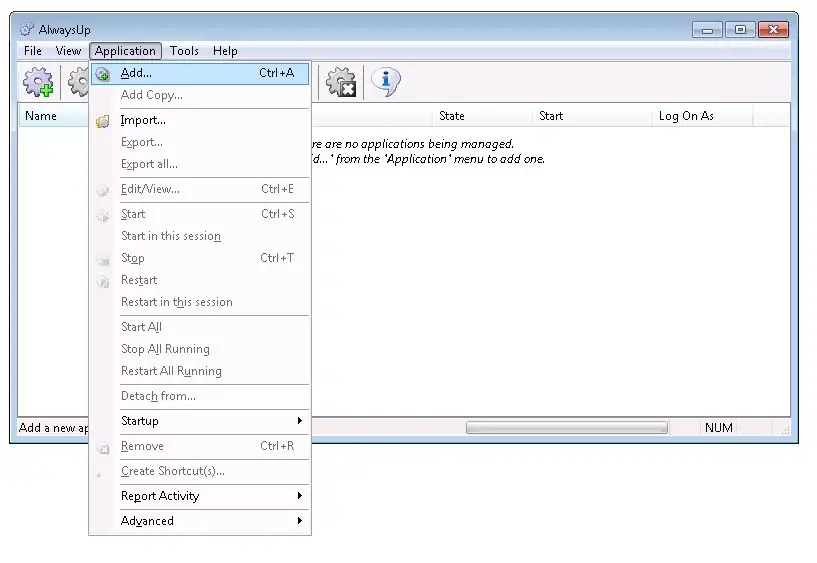
Select Application > Add to open the Add Application window:
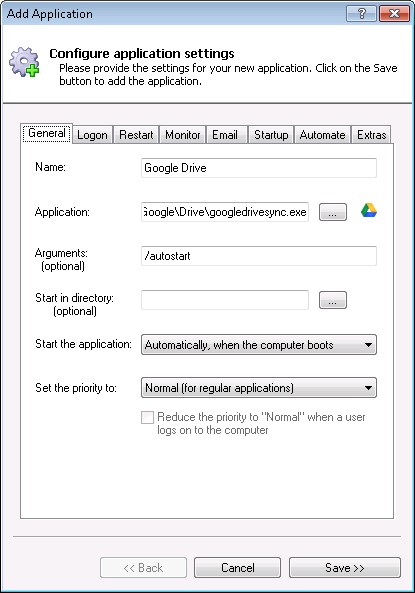
On the General tab:
In the Application field, enter the full path to the Google Drive Sync executable, googledrivesync.exe.
If you installed Google Drive in the default location, this is:
C:\Program Files\Google\Drive\googledrivesync.exe
In the Name field, enter the name that you will call the application in AlwaysUp.
We have entered Google Drive but you can specify almost anything you like.
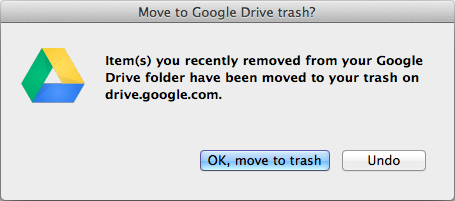
This prompt will stall Google Drive until you notice it and click OK - a real problem if you are not even logged on to see it! Furthermore, as Barry de Wit, who graciously brought this issue to our attention points out,
"If a network user deletes a file in the (shared) google drive folder on the server the message pops up on the SERVER! User interaction is required on the SERVER!"
Fortunately, Google has introduced the
"--noshow_confirmation_dialog_on_delete"
command line switch to deactivate the prompt. We recommend that you add it to the Arguments field too.
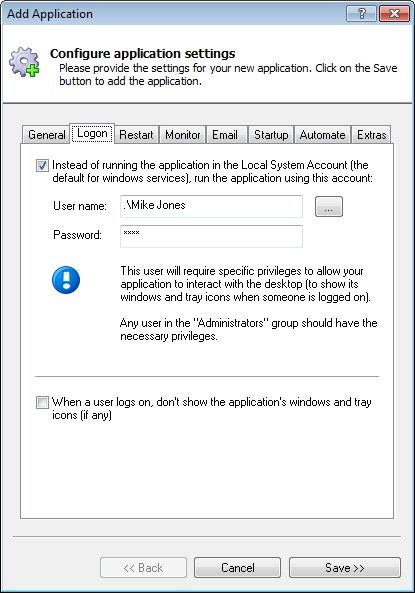
Click over to the Logon tab and enter the user name and password of the Windows account in which you installed and configured Google Drive.
Google Drive must run in this account so that it can find its settings.
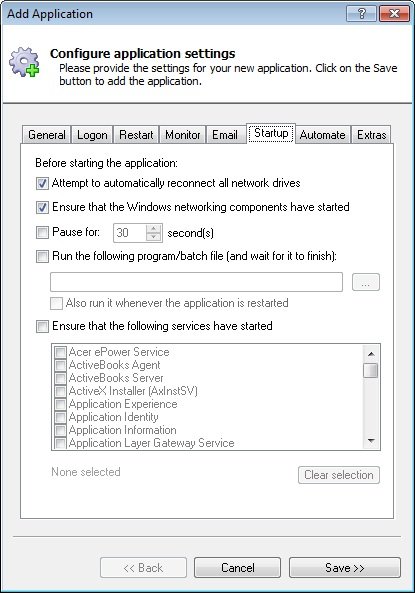
Click over to the Startup tab and check the Ensure that the Windows Networking components have started box.
This informs AlwaysUp that Google Drive needs TCP/IP networking support to do its work.
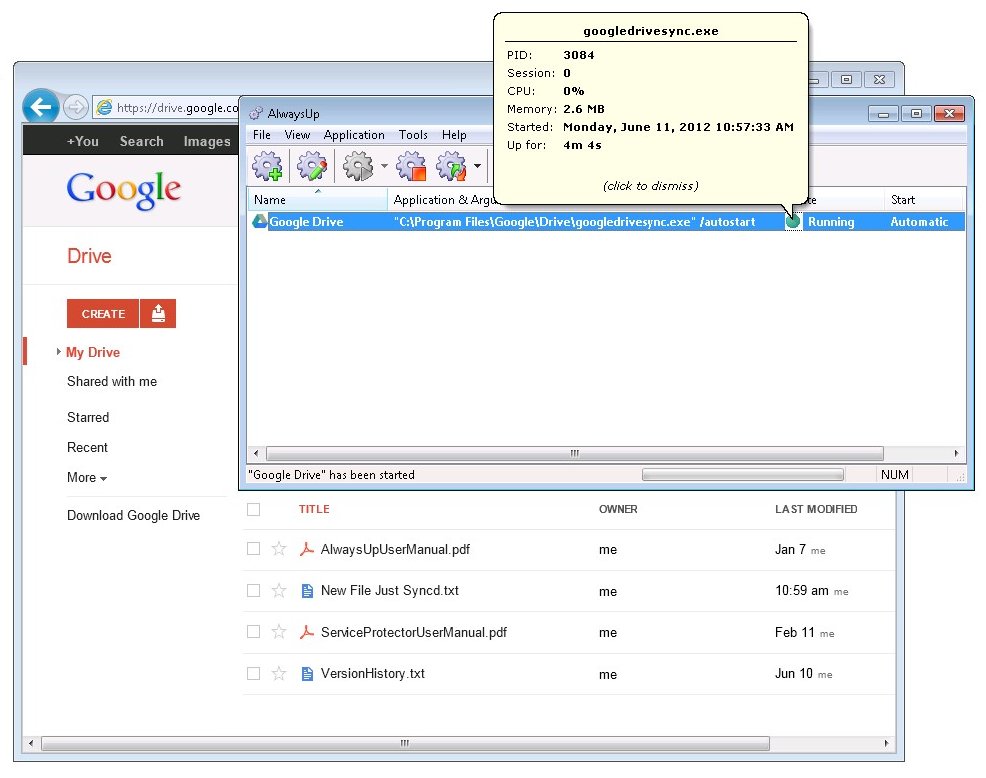
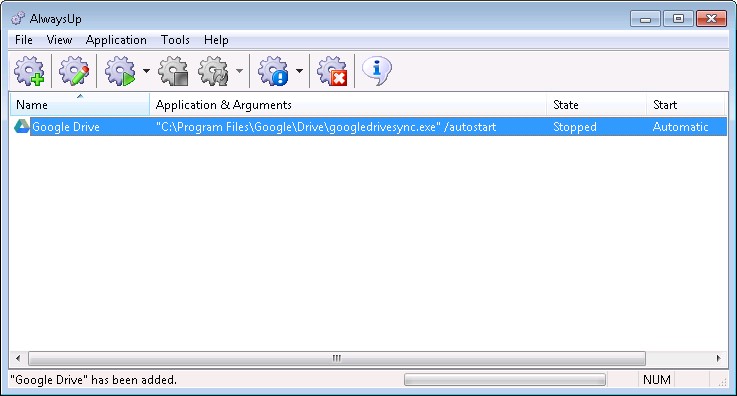
Click the Save button. In a couple of seconds, an application called Google Drive will show up in the AlwaysUp window.
It is not yet running though.
Before we start Google Drive as a Windows Service, we must prevent a second copy from starting when you log on. To do so:
Start Google Drive if necessary (Start button > All Programs > Google Drive > Google Drive)
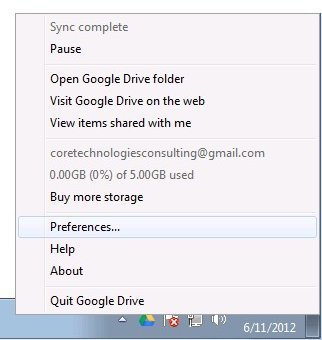
Click on the Google Drive tray icon
()
and select Preferences...
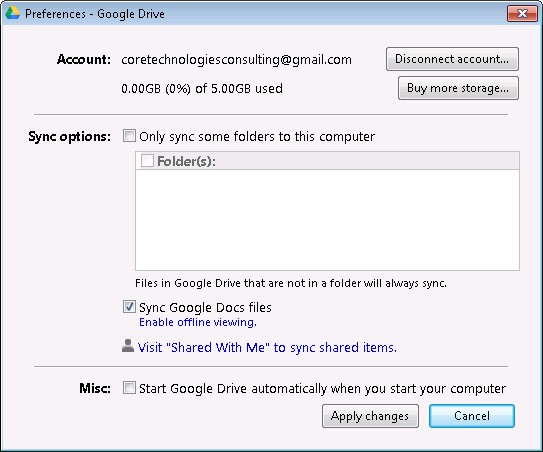
Uncheck the Start Google Drive automatically when you start your computer box near the bottom. (Note that this setting is somewhat misleading - it would only start Google Drive when you log in!)
If Google Drive is running, close it now by clicking on the tray icon and selecting Quit Google Drive from the menu.
AlwaysUp will not be able to start Google Drive properly if it is already running.
To start Google Drive from AlwaysUp choose Application > Start "Google Drive". Note that you probably won't see Google Drive's tray icon appear as it is running in the background
but synchronization should proceed normally.
On Windows 10, 8, 7, 2012, 2008 or Vista (or when connecting via RDP), you can choose Application > Restart "Google Drive" in this Session to temporarily stop Google Drive and restart it on your desktop to show Google Drive's tray icon.
(More on this in the AlwaysUp FAQ.)
That's it! Next time your computer boots, Google Drive will start up immediately, before anyone logs on.
We encourage you to edit the entry in AlwaysUp and check out the many other settings that may be appropriate for your environment.
Google Drive not working properly as a Windows Service?
Consult the AlwaysUp Troubleshooter - our online tool that can help you resolve the most common problems encountered when
running an application as a windows service.
From AlwaysUp, select Application > Report Activity > Today... to bring up a HTML report detailing the interaction between AlwaysUp and your application.
The AlwaysUp Event Log Messages page explains the more obscure messages.
Browse the AlwaysUp FAQ for answers to commonly asked questions and troubleshooting tips.


 )
and select Preferences...
)
and select Preferences...