|
How to Start any Python Script as a Windows Service |
Run your Python script when your PC boots; Re-run it periodically throughout the day
Python is a popular programming language.
AlwaysUp includes advanced tools to make Python start at boot and run 24/7.
The Application Advisor will help you install Python as a Windows Service with all our recommended settings — in just a few clicks. Simply select Advisor from the Application menu and follow the straightforward prompts.
To set up a Python script to run as a Windows Service with AlwaysUp:
-
Download and install AlwaysUp, if necessary.
-
Download and install the Windows version of Python and any extensions you require, if necessary. We recommend Python version 3.X (the latest available when this tutorial was written)
but things should work just as well with 2.X or the commercial ActivePython distribution.
We installed Python version 3.2 in C:\Python32.
-
Start AlwaysUp.
-
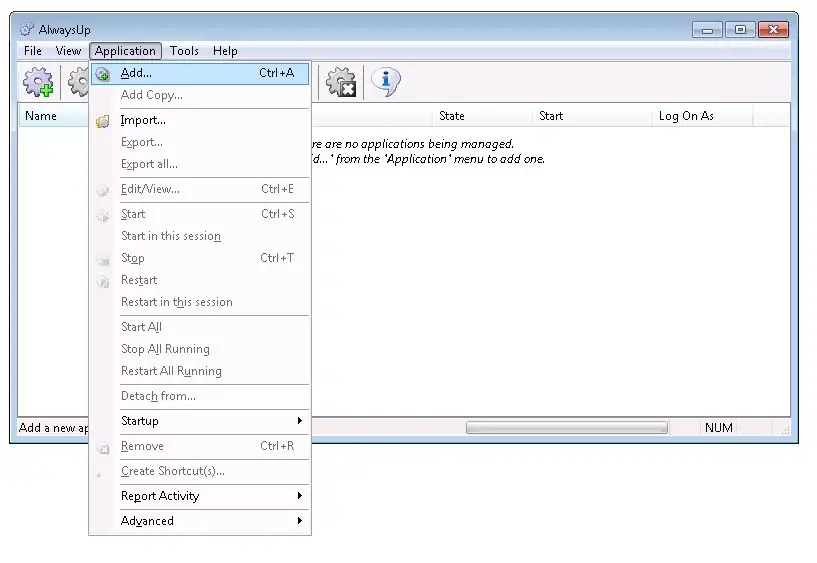
Select Application > Add to open the Add Application window:
-
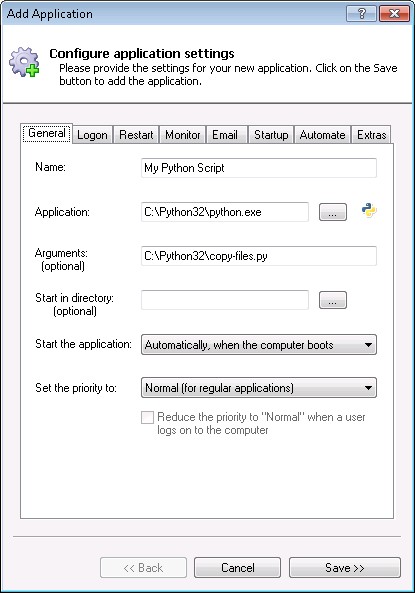
On the General tab:
-
In the Application field, enter the full path to the Python executable (python.exe). This is C:\Python32\python.exe for our installation.
-
In the Arguments field, enter the full path to your Python script. We want to run our sample script, C:\Python32\copy-files.py.
Be sure to enclose your path in double-quotes (") if it contains a space!
-
In the Name field, enter the name that you will call this application in AlwaysUp.
We have used My Python Script but you can specify virtually anything you like.
-
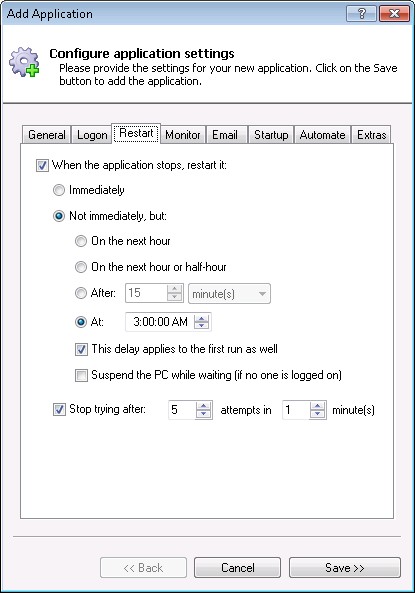
If you only want your script to run periodically (that is, not 24x7), click over to the Restart tab and choose when to run. We would like our script to be run every day at 3 AM.
-
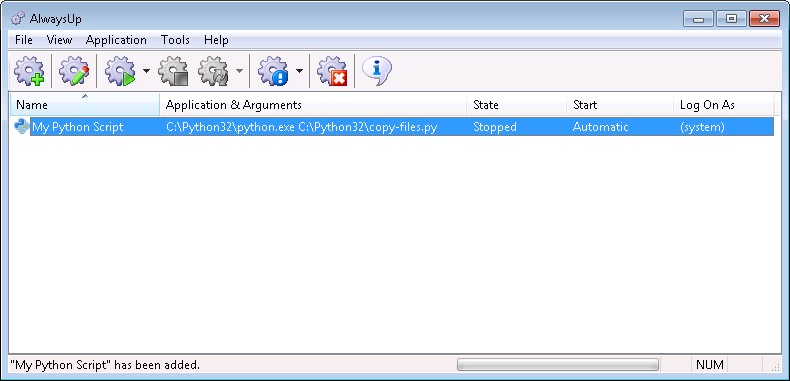
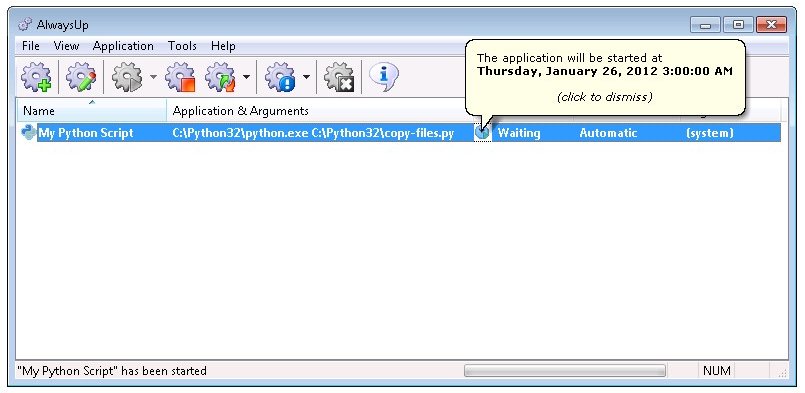
Click the Save button. In a couple of seconds, an application called My Python Script will show up in the AlwaysUp window.
It is not yet running though.
-
To start the service, which will kick off the Python script at 3 AM, choose Application > Start "My Python Script".
-
That's it! Next time your computer boots, your Python service be launched immediately, before anyone logs on. Of course by design, your script won't start until 3 AM, but that is easily changeable on the Restart tab (step 6).
We encourage you to explore the many other settings that may be appropriate for your environment.
Python script not working properly as a Windows Service?
-
Consult the AlwaysUp Troubleshooter - our online tool that can help you resolve the most common problems encountered when
running an application as a windows service.
-
From AlwaysUp, select Application > Report Activity > Today... to bring up a HTML report detailing the interaction between AlwaysUp and your application.
The AlwaysUp Event Log Messages page explains the more obscure messages.
-
If you are capturing output (via the setting on the Extras tab) but it is not coming out, add the
-u flag
to the Arguments field on the General tab. This instructs Python to "unbuffer" its output and write print statements immediately.
- Browse the AlwaysUp FAQ for answers to commonly asked questions and troubleshooting tips.
- Contact us and we will be happy to help!
|
Over 94,000 installations, and counting!
|
 |

|
Rock-solid for the past 19+ years!
|
Fully Compatible with 150+ Applications...
|

 (888) 881-CORE