By default, AlwaysUp runs your applications in
Session 0
— the background desktop hosting all Windows Services.
That's almost always the right choice for programs that must start at boot and run continuously in the background.
But running in Session 0 doesn't work in all situations.
For technical reasons, some programs (like
OneDrive and
Box Drive)
refuse to do their work in Session 0, while others need to be visible all the time.
Those outliers must run in a normal, login session where you can see them.
For those situations, you can get around Session 0 by:
setting up
automatic login
(to create a normal user session when your computer boots), and
having AlwaysUp start your applications in that interactive session.
Here's how to do that.
Step #1: Set up automatic login
Automatic logon is a Windows feature that logs you in as part of the boot process.
Instead of having to sign in after a reboot, you're automatically authenticated and taken straight to your desktop.
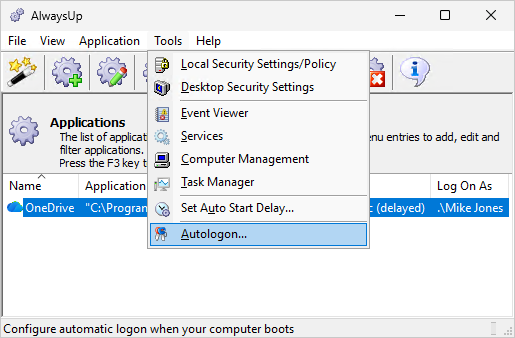
AlwaysUp provides a convenient way to activate automatic logon. Select Tools > Autologon to open the Autologon window:
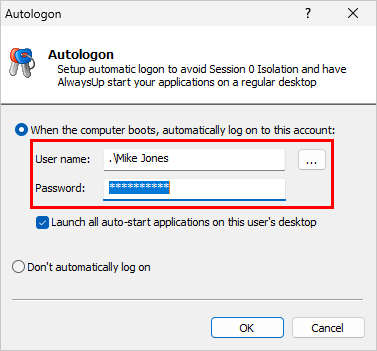
In the window, check the When the computer boots, automatically log on to this account option.
From there, enter the user name and password of your Windows account:
Click OK to save your settings and automatic logon will be in place.
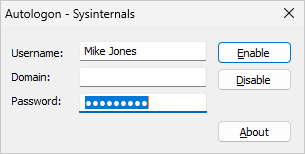
Alternatively, use Microsoft's Autologon
Note that you can also set up automatic sign in with the free
Autologon
tool from Microsoft's Sysinternals group.
Similar to AlwaysUp, it's a matter of entering your Windows account, and clicking Enable:
Step #2: Start your applications on the autologon desktop
-
Enable running on the autologon desktop
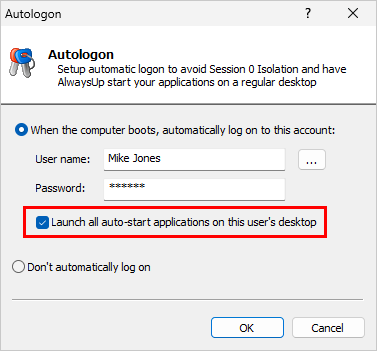
Back in the AlwaysUp Autologon window, check the Launch all auto-start applications on this user's desktop box:
With that option enabled, AlwaysUp will run all applications set to start automatically
in the auto-logon session.
-
Ensure that your applications start automatically at boot
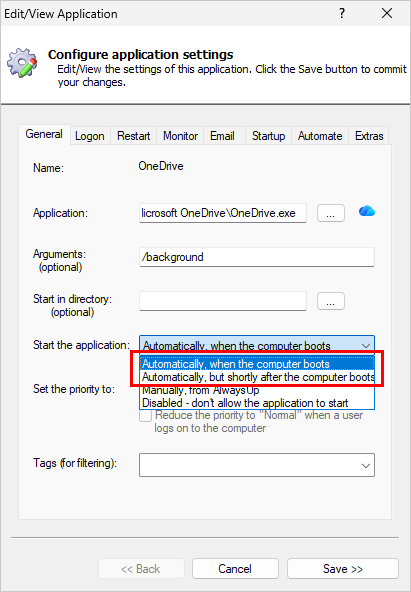
In AlwaysUp, confirm that your applications are set to start whenever your machine boots. Either of the two "Automatically" options is fine:
To be clear, applications set to start "Manually, from AlwaysUp" or "Disabled" will NOT start at boot.
As such, they won't show up on your desktop after a reboot.
Step #3: Test & Verify
To validate your setup:
Reboot your computer.
Wait for at least 7 minutes. That should be enough time for Windows to boot and log you in, and for AlwaysUp to start your applications.
If you're not at the physical computer, RDP into your machine. Be sure to use the same account you set for automatic logon.
Confirm that your applications are running visibly on your desktop.
Frequently Asked Questions
-
Is automatic logon safe?
Yes, when set up properly.
This article reviews the security aspects of automatic logon.
-
When I log in I don't see my application on the desktop. What happened?
There could be a few reasons for that:
-
You connected via RDP too soon.
The truth is that it may take several minutes for automatic login to complete.
Ensure that you're allowing enough time for everything to happen — up to 10 minutes.
-
Automatic login failed.
Check the AlwaysUp activity report for errors.
Highlight your application in AlwaysUp and select Application > Report Activity > Today to open the report in your browser.
-
AlwaysUp couldn't start your applications.
Check the AlwaysUp activity report for errors.
Highlight your application in AlwaysUp and select Application > Report Activity > Today to open the report in your browser.
-
How do I fix the "trouble starting in the autologon session" error?
That error means AlwaysUp didn't find the session created by Windows automatic logon.
The most common cause is that automatic logon isn't set up properly.
Please verify your automatic logon settings, perhaps with the help of
Microsoft's free Autologon utility.
Also, verify that you're using the same account in AlwaysUp (on the Logon tab) and in the autologon configuration.
-
It's not working. Can I get some help?
Certainly! Please get in touch and we'll be happy to help. Be sure to include your
application diagnostics report
so that we can see what's going on.