AlwaysUp Frequently Asked Questions (FAQ) and Answers
Top tips for running any executable, batch file or script 24/7 as a Windows Service with AlwaysUp
Last Updated on September 5, 2026
What is AlwaysUp?
AlwaysUp
is an advanced service wrapper
that runs any executable, batch file, or shortcut as a
Windows Service, starting it at boot
and monitoring it constantly to ensure 100% uptime.
AlwaysUp will automatically restart your application if it crashes, hangs, or uses too much memory.
It will dismiss "Application error" dialogs, and run customized "sanity checks" to ensure that your
application is available 24/7. Regular, detailed email from AlwaysUp will alert you of crashes,
scheduled restarts and other relevant events.
AlwaysUp leverages the Windows Services architecture to provide robust, low-level
application control in a secure environment. As a Windows Service, your application
can start automatically when the computer boots, survive user logons/logoffs, and
run entirely in the background without user intervention.
Get the
AlwaysUp Information Packet
— everything you need to know about the software in a single email that you can forward to others
What are Windows Services?
From the Microsoft Developer's Network (MSDN):
Microsoft Windows services, formerly known as NT services, enable you
to create long-running executable applications that run in their own
Windows sessions. These services can be automatically started when the
computer boots, can be paused and restarted, and do not [necessarily]
show any user interface. This makes services ideal for use on a server
or whenever you need long-running functionality that does not interfere
with other users who are working on the same computer.
You can also run services in the security context of a specific user
account that is different from the logged-on user or the default
computer account.
Windows Services were introduced as a part of the Windows NT operating system
in the 1990's and are supported by all current versions of Windows.
However, there are occasional exceptions.
Some legacy desktop applications
don't work when run invisibly in the background as a service.
Your best way forward is to try AlwaysUp for the free 30-day
trial period, to see if your application performs as expected. If you do encounter
a problem, please review our troubleshooting advice or
get in touch. We'll do our best to get you up and running ASAP!
How do I set up my application with AlwaysUp?
Setting up your application with AlwaysUp should be very straightforward.
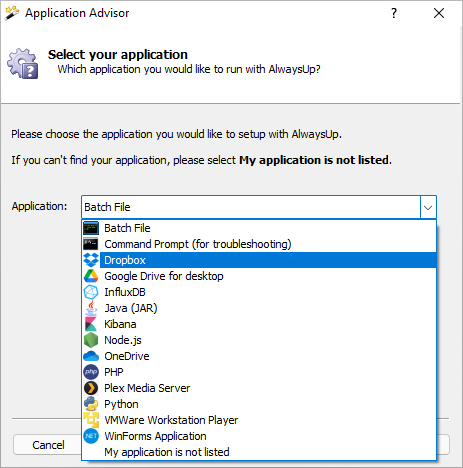
For some popular programs — such as Dropbox and Node.js — the
Application Advisor
will help you create a Windows Service in less than a minute!
This short video shows how easy it is to install and run the popular Notepad application as a Windows Service:
Why is AlwaysUp better than placing my program in the Startup Folder?
Applications placed in a user's Startup folder are only run when that user logs on.
If the user never logs on, the programs in the Startup folder are never launched.
Thus, the Startup Folder is the ideal solution for interactive applications that should start when you log in.
Your webcam software, email client, to-do list and other interactive desktop utilities are great candidates
for the Startup Folder.
In contrast, AlwaysUp creates a true
Windows Service
that starts your application immediately after your computer boots.
No one needs to log on to run your program.
This makes AlwaysUp the better choice for applications that must run 24x7 — quickly bouncing back from power
failures and other unexpected restarts of your PC.
Furthermore, running your application with AlwaysUp offers several other advantages:
Crash protection / 100% uptime: If your application terminates for any reason,
AlwaysUp will quickly start it again.
Memory & CPU monitoring: AlwaysUp can restart your application if it hogs the CPU,
uses too much memory, or hangs. You set the thresholds.
Scheduled restarts: AlwaysUp can restart your application (or reboot your computer)
at a "quiet" time to cure memory leaks, etc. and keep your application "fresh" to do its work.
Email alerts: AlwaysUp will notify you by email when your program fails and has to be
restarted.
Reports: AlwaysUp will let you know how your application has been performing
(CPU, memory, uptime).
Remote access/Web service: Start/stop/manage your application from any web browser
with our free add-on,
AlwaysUp Web Service.
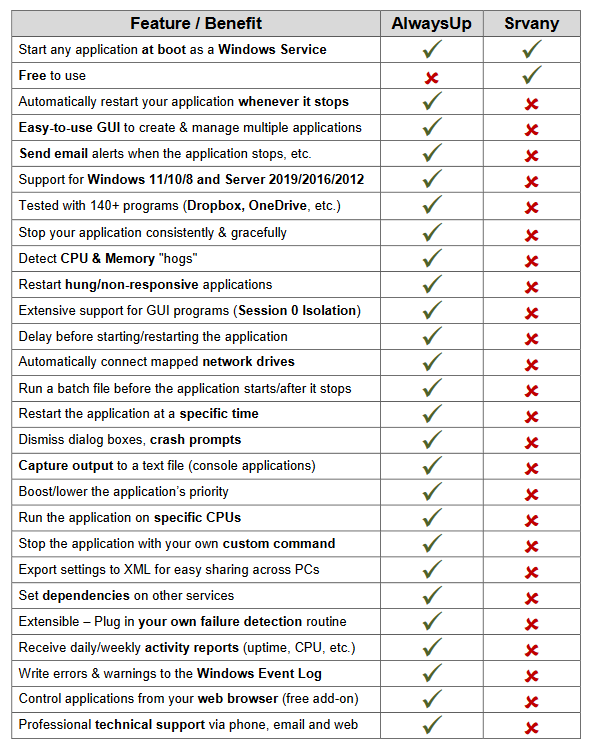
Why should I use AlwaysUp instead of Srvany?
Srvany is free and functional but it's not supported by Microsoft and lacks some major features:
In fact, AlwaysUp was created in 2004, long before powerful vibe coding tools were available.
The version history shows how our team of
senior engineers has consistently improved AlwaysUp over the years, the traditional way.
Why should I use AlwaysUp instead of a Scheduled Task?
A scheduled task is the perfect choice for running a maintenance script at specific times.
But it comes up short in 24/7, mission-critical situations better suited for Windows Services.
How can I start or stop my application from the command line (or a batch file)?
AlwaysUp creates a true/native Windows Service for each of your applications.
Like other services, these show up in the
Services Control Panel application
and can be started and stopped with the
Windows NET Command.
For example, if your application is called "Spider" in AlwaysUp, this command will start
the service and your application:
NET START "Spider (managed by AlwaysUpService)"
To stop the service and your application, use:
NET STOP "Spider (managed by AlwaysUpService)"
This short video shows how to use the NET command to start and stop Windows Services:
My application doesn't work when I start it from AlwaysUp (but it works fine when I run it normally without AlwaysUp)
This can be due to several reasons, the most common of which are:
Your application accesses files on one or more network drives.
These drives are probably only available in the account that you have logged in to.
This entry goes over the problem and solutions.
Your application accesses user-specific items from the registry.
These items are usually put in place when a user installs a program, and may not be accessible to other users/accounts.
This entry goes over the problem and the solution.
Your application needs specific environment variables to be set to work properly.
These items are usually put in place when a user installs a program, and may not be accessible to other users/accounts.
Please configure AlwaysUp (via the
Logon tab)
to run your application in a user account that has the proper environment variables set.
We recommend that you:
Consult the
AlwaysUp Troubleshooter,
which will help you work through common errors, try various configuration options, etc.
Set up the
command prompt as a Windows Service,
running visibly on your desktop, and launch your application from there.
Hopefully it will tell you what is going wrong.
Please
contact us
if you are still having trouble. We'll be happy to help.
Why doesn't AlwaysUp start my program when my computer boots?
First, please ensure that your application is set to run Automatically, when the computer boots
and NOT Manually, from AlwaysUp. This setting is available on the
General tab
when creating/editing your application.
As your computer boots, Windows starts your computer's services in
sequence, one after another. Some of these are essential services
that provide important functionality such as networking, file sharing or printing.
Your application may fail to run if it's started too soon,
before those essential services are fully loaded.
The easiest way to fix the problem is to have AlwaysUp start your application
a couple of minutes after the computer boots — after all essential services are up and running.
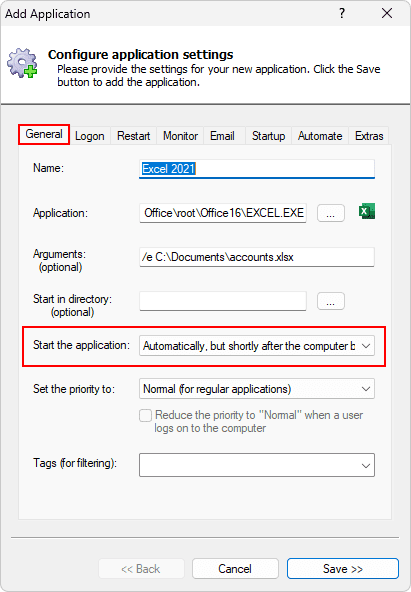
Do that by choosing Automatically, but shortly after the computer boots in the
Start the application field on the General tab:
Unable to start the application: "MyApp.exe" exited immediately after it was started
AlwaysUp is starting your application but it's exiting soon afterwards (within 1-2 seconds). This probably
means that your application does not have access to something that it needs (for example, a network
drive or access to the registry), and it closes quickly without doing anything.
Also, if you are a developer and have access to the internals of your application then we suggest adding
some debugging statements to the application to reveal why it's exiting early.
Please
contact us
if you are still having trouble and we'll be happy to help.
My application is showing times (or currency) in the wrong format. Help!
You have a couple of options to resolve the discrepancy in format:
Specify a user on the
Logon tab.
That's often an improvement, as your application will run in the context that you have been using before!
Change the
regional settings of the LocalSystem account
to whatever works for your application. Of course, this change will be visible to all your Windows Services
running in the same account, so please proceed with appropriate caution.
Why don't my application's windows or task-tray icons show up?
AlwaysUp is running your application as a Windows Service — Microsoft's
technology of choice for long-running, administrative programs that support your computer.
For security reasons, Windows Services do not run on your desktop.
They operate in the isolated Session 0 — a
separate screen/desktop/context dedicated to services.
Applications run as a Service by AlwaysUp are bound by these restrictions.
When your computer boots, only Session 0 is available and AlwaysUp will start your application there.
Any windows your application needs to show will be displayed on Session 0.
But fortunately, that's not the end of the story for AlwaysUp...
How to Show Your Windows on Your Desktop
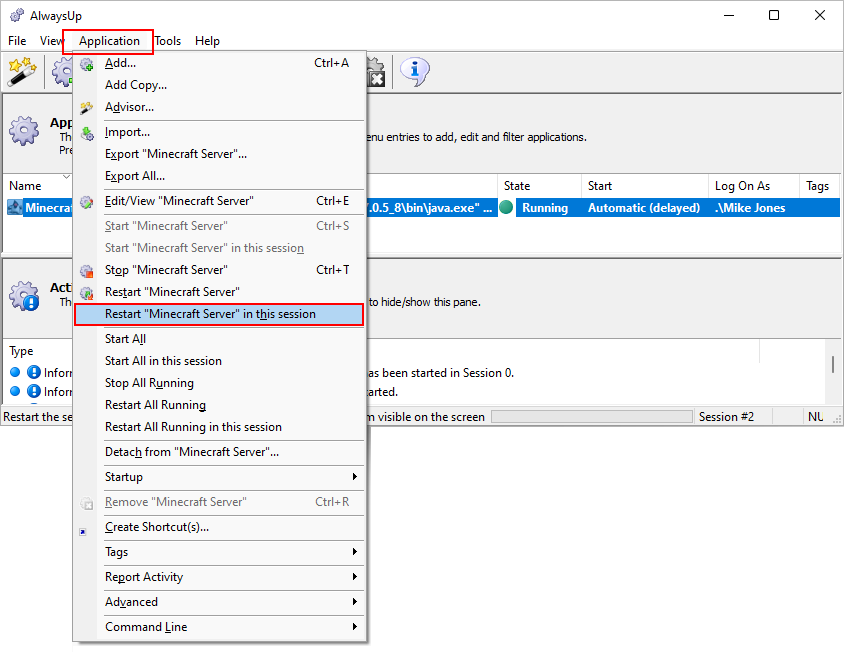
After logging in, you can instruct AlwaysUp to run your application in the current session/desktop
and make its windows and tray icons available to you by selecting Start "app" in this
session (or Restart "app" in this session)
from the Application menu. Note that restarting will temporarily stop your application.
AlwaysUp will continue to run your application on your desktop until you log out and the session closes,
at which point your application is restarted in Session 0.
What is Session 0 Isolation?
All Windows Services run in Session 0 — the session automatically created when your machine boots.
Session 0 Isolation
is a security measure that prevents any user from logging into or accessing Session 0.
Because of Session 0 Isolation, all GUI elements from a Windows Service are confined to
the "isolated" Session 0 desktop. Fortunately though, AlwaysUp is often able to get around those
restrictions and
run your applications outside of Session 0 — visibly, on your own desktop.
I hate Session 0 Isolation! How do I get AlwaysUp to automatically start my application in a "regular"
user session when my PC boots?
When your computer boots, only Session 0 is available and AlwaysUp will run your application there.
If you want to start your application in a regular interactive
session instead, we suggest that you configure your PC to automatically log in to a designated user account
(to create a viable user session) and then
have AlwaysUp automatically start your application in that session. Your users can then connect to that session
via RDP to see your application's GUI and interact with it normally.
AlwaysUp includes native support for automatically logging you in and starting your GUI applications when your PC boots.
Simply select Autologon... from the Tools menu to bring up the Autologon window,
enter the credentials of the user to be logged on and check the
Launch all auto-start applications... checkbox:
Once set up, your PC will boot, log you in, and AlwaysUp will fire up your application in the
interactive user session.
RDP'ing to the computer
as the auto-loogged-in user takes you to the already open session where your application's windows and
tray icons are available as normal.
Can I configure AlwaysUp to automatically dismiss popup windows?
Yes. AlwaysUp can work with popular automation utilities to automatically:
dismiss popups/dialogs (such as the error messages unique to your application)
fill in forms (such as a prompt for login information),
click buttons (such as the common 'are you sure' prompts)
perform almost any interactive task that a user sitting at the keyboard would normally have to do.
If all you need to do is to click a button to dismiss a popup window, then you may use our free
ClickButton program.
If your window is named "Confirm?" and you wish to click the "Yes" button, then you would specify this command line
on the
Automate tab
when configuring AlwaysUp: <full-path-to-clickbutton.exe>
ClickButton.exe "Confirm?" "Yes"
For more sophisticated demands, we recommend using the free and powerful
AutoIt.
Find out about
using AutoIt with AlwaysUp,
and please
contact us
if you need help setting up this feature.
Does AlwaysUp handle common Windows "crash" dialogs?
Yes, AlwaysUp will automatically dismiss any of the main crash dialogs that Windows throws up when an application fails.
For example, AlwaysUp handles:
Microsoft Visual C++ Runtime Library crash reports
Application Error notifications
Visual Basic runtime error dialogs
Legacy Windows crash reports
In addition to dismissing those prompts, AlwaysUp will capture the text displayed and report it to the Windows Event Logs.
That way you can troubleshoot problems later, without holding up your application in production.
I am unable to run my application from a network drive / My application cannot access network drives.
By default, AlwaysUp runs your application in the
LocalSystem
account which has restricted access to the network.
Even worse, drive letters mapped for normal users aren't usually available in the LocalSystem account.
To access a network drive from your application, you should:
Configure AlwaysUp to
log in as a user
that has access to the mapped drive, and
Check the Attempt to automatically reconnect all network drives box on the
Startup tab.
Those changes will allow your program to see persistent mapped drives (the ones that appear each time you log in) and
UNC paths that
you have permission to access.
However, your program still won't see mapped drive letters that are not persistent.
However, to use a drive letter that's not persistent, you can map the drive using the
NET USE
command before your application starts by specifying it on the
Startup tab.
For example, to map the N drive to \\myserver\data, create a batch file with the following command:
NET USE n: \\myserver\data
and specify that batch file on the
Startup tab.
Note that you may have to specify a password to the NET command if your environment requires one.
My application cannot access user-level registry settings.
By default, AlwaysUp runs your application under the
LocalSystem
account. In that case, the registry key HKEY_CURRENT_USER is associated with the LocalSystem account —
not any user currently
logged in normally/interactively. To access a specific user's profile, AlwaysUp should be configured to
run your application as that specific user (by completing the
Logon tab
when setting up your application).
When running as a given user, I get the error "The service did not start due to a logon failure".
Please ensure that the user has
Log on as a Service
privilege in the "Control Panel > Administrative Tools > Local Security Settings" application:
By default, no user accounts have the privilege to log on as a service.
Note that AlwaysUp will automatically try to grant this privilege at installation time,
but it's not always successful when the user installing the service has limited permissions.
How do I get my ODBC/database application to work?
A user-specific ODBC data source (a "user DSN") is only available to the user who created it.
To have your application
access a user DSN, AlwaysUp should be configured to run your application as the user who created the DSN by
specifying his username and password on the
Logon tab.
AlwaysUp has been registered but complains that it's not. How do I fix that?
This is most likely because the user set up to run your application (via the
Logon tab)
doesn't have full access to the AlwaysUp registry key:
If not, you may get an error like this when you try to send a test email from AlwaysUp:
How can I get AlwaysUp to send me SMS/Text messages?
We recommend using one of the many free email-to-SMS gateway services to send email from
AlwaysUp directly to your cell phone.
Here are a few that we have come across (a search will turn up many others):
For example, let's say you buy AlwaysUp today. In that case, you'll get a perpetual license to the latest version (17).
And with that, you can install and run any version 17 (or future version 18) of AlwaysUp for as long as you like, at no additional charge.
However, if you absolutely insist on sending us a payment each year, who are we to refuse?
I purchased AlwaysUp but have not received my registration information. What should I do?
After you purchase AlwaysUp from one of our payment partners, we are notified of your purchase
shortly after your credit card has passed all the necessary checks (to protect you against fraud).
This initial process usually takes a few minutes but can take up to 24 hours if the order must be handled
manually by a payment processor.
Once we receive your order, we'll email the address specified in your order within
24 hours (but typically within 5 minutes). Unfortunately though, our message may occasionally fall victim
to aggressive Spam filtering, so please check your Spam folder.
If you have not received the registration email in a timely manner, please feel free to email us
(at support@CoreTechnologies.com) or give us a call at (888) 881-CORE/2673
(toll free in the USA) or +1 510 343-3565. Please provide us with an alternate email address if you have one,
and a phone number where we can reach you.
My free 30-day trial has expired. Can I have more time to test AlwaysUp?
Sure. Please
contact us
to request an extension (for another 30 days).
How is AlwaysUp licensed?
AlwaysUp is licensed on a per-machine basis.
Each computer (physical or virtual) needs its own license.
After you buy a license, you will enter
the unique serial number for your installation and the system will generate the unique registration code
that "unlocks" AlwaysUp for that installation. That registration code will not work on a different machine.
Additional agreements for Enterprise, Site and OEM volume licenses are available from the
AlwaysUp licensing options page.
How much does AlwaysUp cost?
AlwaysUp costs $49.99 USD (one time) for use on a single machine.
In volumes of 2-9, the cost falls to $44.99 USD (a 10% discount),
and additional discounts kick in if you buy larger quantities.
Can I buy AlwaysUp through an authorized reseller?
Yes. We have relationships with many established resellers
serving the USA, Europe and beyond. Contact your desired reseller to start the purchase process.
Why is AlwaysUp so affordable ($49.99)? Some alternatives cost almost $80 per license!
Our company has priced AlwaysUp at a level that serves both the business/professional client and the casual/home customer.
We feel that $50 is acceptable in both environments.
Rest assured that while the price of AlwaysUp is on the low side when compared to competing products, the quality is not.
Be sure to try it free for 30 days to find out why our customers tell us that AlwaysUp is more reliable that the rest.
How many applications can AlwaysUp run as a service per machine? Does it cost more to run multiple applications?
A single AlwaysUp installation can run as many applications as you like. There are
no built-in restrictions or additional costs to run multiple applications.
Is an OEM version available (so that I can distribute AlwaysUp with my own applications)?
Yes, the full GUI application and more discreet
command-line components
are all available for OEM use. We offer Limited and Unlimited licenses; distribution is royalty-free.
Is a Site license available (so that I can distribute AlwaysUp freely within my organization)?
Yes. Site licensing allows you to distribute an unlimited number of
licenses of AlwaysUp throughout your organization. Furthermore, there
is no need for you to track individual licenses/registration codes and send those to us.
I would like to buy an OEM or Site license. Can I have a discount based on my previous purchases?
Yes. The discount is based on your specific situation, so please
contact us
for details.
After purchasing AlwaysUp, I am asked for the "10-digit serial number (XXXX-XXXXXX) from the registration window". Where do I find that?
The registration window comes up when you start AlwaysUp without a license. It looks like this:
Click the Register Now button to reveal the 10-digit serial number:
Click the link below the serial number to copy it to the Windows clipboard —
for easy pasting into the license assignment form (or in an email to our support team).
AlwaysUp says I am not registered even though I am. How can I resolve this?
If you have gone through the registration process and your code has been accepted,
this is probably caused by a lack of rights when accessing the AlwaysUp registry key:
Please use the regedit application to adjust permissions on that key.
Using regedit:
Navigate to the key on the left-hand side
Right-click on the key and select "Permissions..." to bring up the permissions window
Add the user(s) with full control if necessary
Please ensure that all accounts using AlwaysUp (including the ones configured to run your application on the
Logon tab)
have full access to the above registry key.
I see that you have a new version available. Do I have to pay to upgrade?
When you buy AlwaysUp, your license is valid for any release with the same
major version number or the next.
For example, if you bought version 15, you are
eligible to use (free of charge) any version 15 or version 16 release, but not a version 17 release.
Upgrading to the latest version of AlwaysUp (that is fully compatible with the newest versions of
Windows) costs $34.99 — a 30% discount.
Please purchase upgrades here.
How do I upgrade from a previous version?
We recommend that you upgrade from a previous version of AlwaysUp in one of two ways:
Uninstall the previous version of AlwaysUp then install the new.
If you take this approach, any applications/services that you have specified in AlwaysUp
will be forgotten and you will have to set them up again in the new version. You may
also have to re-enter your registration code.
Install the new version without uninstalling the previous, which will preserve all the
applications/services that you have configured using AlwaysUp.
If you choose this option, you must stop all your applications in AlwaysUp
and ensure that the Microsoft
Event Viewer
and
Services
applications are closed prior to installing or else the upgrade may fail. Also, be sure to
install in the same directory as the previous installation (by default C:\Program Files (x86)\AlwaysUp).
You should not have to re-enter your registration code.
How do I move my registered copy of AlwaysUp to another computer?
The registration code that you assigned will only work on the computer where you performed
the registration process (i.e. where you collected the serial number).
You will need to revoke the old and assign a new registration code to activate AlwaysUp
on a different computer.
To transfer your license from one computer to another:
From the email you received delivering AlwaysUp, click the Manage your order button.
That will open your order page in your web browser.
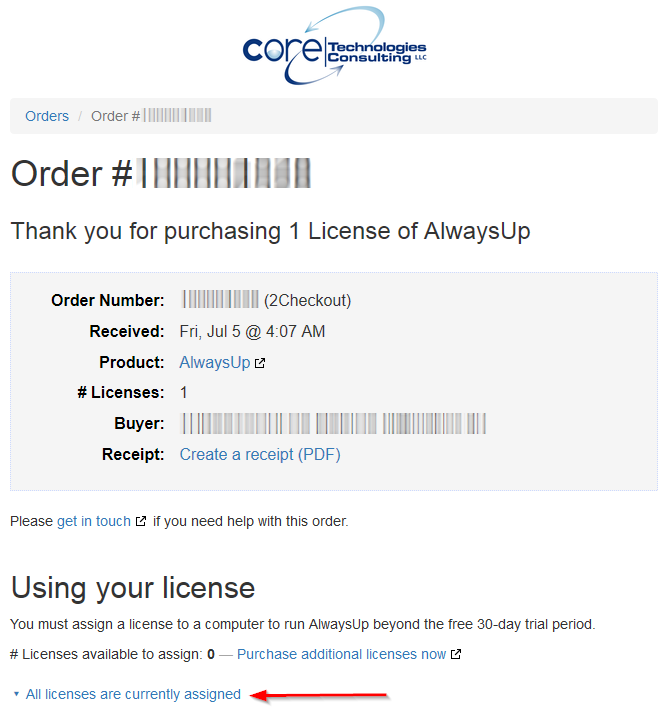
On your order page, click the link telling you how many licenses have been assigned:
The section below the link will list all the licenses that you have assigned for your order.
Find the installation/computer that you wish to decommission and click its revoke link:
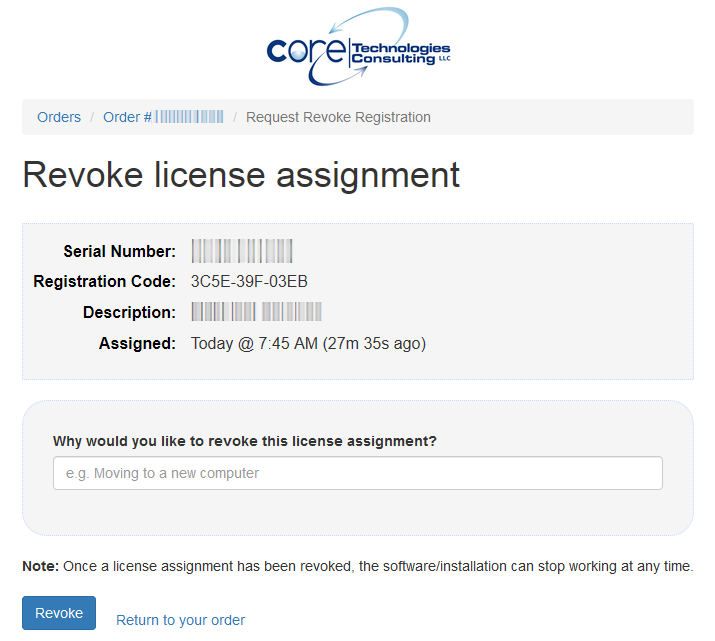
Complete the form — indicating your reason for revoking the license — and click the
Revoke button to complete the process:
Within the next 24 hours, you'll receive an email confirming that your license has been
revoked. After that, you'll be free to
assign your license
to another installation.
I re-installed Windows (or upgraded my hardware) and my registration code is no longer accepted.
What should I do?
If your serial number has changed, please follow these instructions to
get a new registration code.
(The process is the same as if you're moving your license to a new computer.)
I purchased AlwaysUp. Where can I find my Order Reference?
Your Order Reference is shown at the top of your order page:
You can get to your order page by clicking the blue Manage your order button in the email sent to you after your purchase.
Does AlwaysUp work with Windows 8 / Windows Server 2012?
Yes. Microsoft has officially certified AlwaysUp to be compatible with all editions of Windows 8 and
Windows Server 2012 (32 & 64-bit):
Note: Version 14 was the last version of AlwaysUp to support Windows 8 & Windows Server 2012.
You can download it from here.
Yes. While AlwaysUp is itself a 32-bit application, it installs and works flawlessly on 64-bit versions
of Windows 11/10, and Server 2025/2022/2019/2016. AlwaysUp has no trouble managing native 64-bit
applications either.
Use the full name of the account but with the $ character at the end (e.g. "domain\account$");
Specify a blank/empty password.
Is AlwaysUp secure?
Yes, you can rest assured that AlwaysUp is safe and secure.
That's because we take application security very seriously in our small company.
Indeed, protecting our customers from bad actors is a non-negotiable aspect of all our software.
Please review these links to find out more about our steadfast commitment to security in AlwaysUp:
Does AlwaysUp (and your company) comply with the EU General Data Protection Regulation (GDPR)?
AlwaysUp doesn't collect any personal data.
It's a simple desktop Windows utility that helps ensure that one or more nominated programs run 24/7.
As such, there are no GDPR issues related to the software.
In terms of our company, we adhere to the GDPR and other data protection regulations.
For example, the minimal data we collect to fulfill orders — your name and email address — can be purged at your request.
Please see our privacy policy for additional details.
Is AlwaysUp aligned with the EU Cyber Resilience Act (CRA)?
This article describes how AlwaysUp can help secure your commercial hardware and software
products with digital elements.
Is AlwaysUp HIPAA compliant?
The US
Health Insurance Portability and Accountability Act (HIPAA)
focuses on protecting the privacy and security of patient health information, known as Protected Health Information (PHI).
Since AlwaysUp is a straightforward desktop application that doesn't collect any PHI, HIPAA does not apply to the software.
Is AlwaysUp compliant with the Payment Card Industry Data Security Standard (PCI DSS)?
AlwaysUp doesn't handle credit card or payment information in any way.
And neither does anyone at our company, Core Technologies Consulting, LLC.
That's because all payments are accepted by a payment processor —
a third-party company responsible for taking your credit card details and charging your account.
As such, PCI-DSS does not apply to AlwaysUp or our company.
Does your company hold any information security certifications?
While our tiny company's practices are aligned with security best practices and the
ISO 27001:2022 standard,
we hold no official certifications.
Please review these links to find out more about our steadfast commitment to security in AlwaysUp:
Does AlwaysUp store any personal data — either on the computer where it's installed or in the cloud?
No. Since AlwaysUp doesn't collect any personal data, it doesn't store any either.
Furthermore, AlwaysUp only contacts the internet to
(1) check for updates or (2) send email alerts —
both of which are under the control of the software's operator.
Other than that, there is no communication "off the box".
Is your company registered with the System for Award Management (SAM) in the United States?
Yes, Core Technologies Consulting has passed the rigorous verification process and is registered with
SAM.gov
— the official U.S. Government system for organizations seeking to work with federal agencies.
In fact, we've been continuously registered with SAM.gov since 2015 and renew annually.
You can rest assured that we have what it takes to support customers in the federal sector.
Do you have a Voluntary Product Accessibility Template (VPAT) for AlwaysUp?
It delivers the full power and sophistication of the AlwaysUp GUI product, but entirely
from the Windows command line. It is most suitable for OEMs.
Is there a list of the messages that AlwaysUp may write to the Windows Application Event Log?
Yes, the list of error messages logged by AlwaysUp is here.
Windows Task Manager says that AlwaysUpService.exe generates many page faults. Should I be worried?
No.
To do its work, AlwaysUp must ask Windows about all running processes every few seconds.
Unfortunately that operation generates a handful of
page faults
(for the processes not fully mapped into memory management units), but those are the inexpensive
minor page faults
that don't hit the disk.
So even though you may see the number of page faults climbing steadily every few seconds,
rest assured that these page faults have zero performance impact on your system.
As such, you can safely ignore them.
Does AlwaysUp consume significant resources when monitoring my application?
No.
The AlwaysUp components that manage and monitor your application are designed to be
extremely frugal with machine resources. They almost always consume less than 1% of
the CPU, less than 6 MB of RAM, and don't fall victim to the "memory growth"
characteristic of many applications today.
What is a "Sanity check utility", and why would I use one?
AlwaysUp can periodically run a failure detection program (a "sanity check") to check
if your application has failed and should be restarted. This capability allows
you to extend the monitoring capabilities of AlwaysUp to cover your own unique requirements.
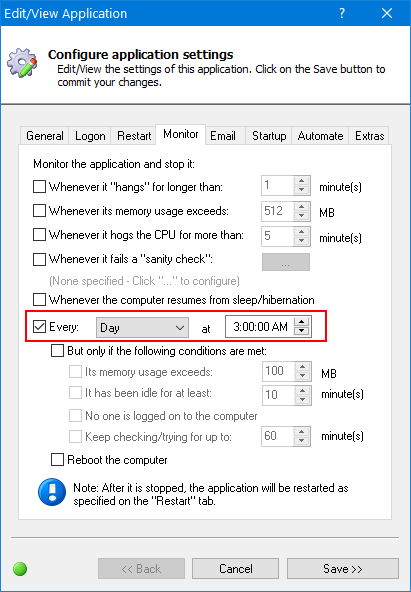
How do I restart my application every day at a set time?
You can configure a daily stop of your application in the Every section on the Monitor tab:
Once stopped, your application will restart as specified on the
Restart tab
(which is immediately, by default).
I want my application to run only at scheduled times. How can I use AlwaysUp to do that?
AlwaysUp features basic scheduling on the
Restart tab,
where your application can be set to run every hour, every half-hour, or periodically at your choosing.
To run your application in a specific time interval, use the built-in
Windows Task Scheduler.
For example, if your application named MyApp in AlwaysUp
should only run between 9 AM and 5 PM daily, you will need to set up two daily scheduled
tasks — one to start the service at 9 and another to stop it at 5. Each task should
consist of a simple batch file.
To start the AlwaysUp-created service (and your application), the batch file should contain this command:
NET START "MyApp (managed by AlwaysUpService)"
To stop the service, the batch file should contain this command:
NET STOP "MyApp (managed by AlwaysUpService)"
Be sure to replace MyApp with the name of your application.
Please let us know if you need help setting this up.
My application does not have enough time to close properly when the computer is being shut down.
How can I give it more time?
When shutting down, Windows will wait a few seconds (usually 20) for all services and the applications
managed by AlwaysUp to complete. If AlwaysUp is unable to close your application in that time frame,
Windows will forcibly terminate AlwaysUp and your application.
That may lead to undesirable results.
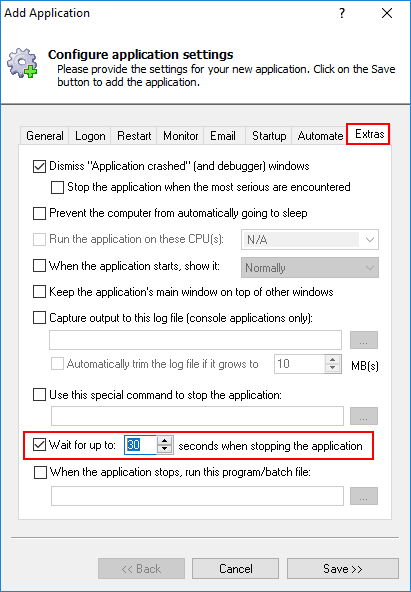
To give your application more time to safely shut down, simply enter the desired duration in the
Wait for up to field on the Extras tab:
My virus scanner tells me that AlwaysUp contains the [Some Scary Virus]. Help!
This is a false alarm. AlwaysUp does not contain any viruses or malware.
Indeed, AlwaysUp is safe and secure. You can dig into the details in
this blog article.
Furthermore, we thoroughly test our software before release and those packages are consistently
certified free of all malware by several reputable third parties. Please click the icons above to
see some recent results.
Please contact us with the details and we'll work with the makers of your
virus protection software to resolve the false alarm.
How do I export my application's settings?
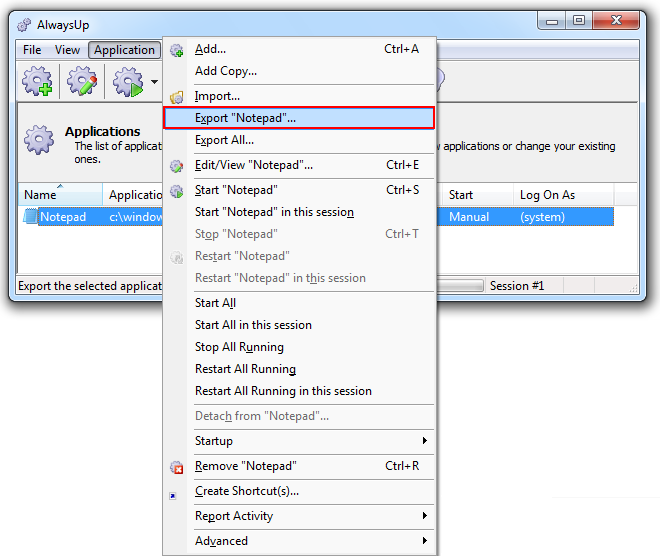
To export your application's settings to an XML file, highlight your application in AlwaysUp and select
Application > Export from the menu.
You will be prompted to enter the file name in which to save the settings:
Note that for security purposes, any passwords you specified when setting up your application with AlwaysUp will not be saved in the file.
You can later import the XML file (by choosing Application > Import) to re-create your
application's setup on any machine with AlwaysUp installed.
Exporting and then importing is a good way to copy settings from one machine to another.
How do I move my AlwaysUp applications to another machine?
You can move one or more AlwaysUp applications between computers by first exporting each service to an XML file,
then later importing the file on the destination machine.
To export your application's settings to an XML file, highlight your application in AlwaysUp and select
Application > Export from the menu. You will be prompted to enter the file name in which to save the settings.
Note that for security purposes, any passwords you specified when setting up your application with AlwaysUp will not be saved in the file.
You can later import the XML file (by choosing Application > Import) to re-create your
application's setup on any machine with AlwaysUp installed.
What does it mean to start my application "Automatically, shortly after the computer boots"?
If that option is selected on the
General tab,
Windows will start AlwaysUp and your application only after starting all the automatic services.
In practice, this means that your application will start a couple of minutes after the computer boots — after
all critical systems are up and running.
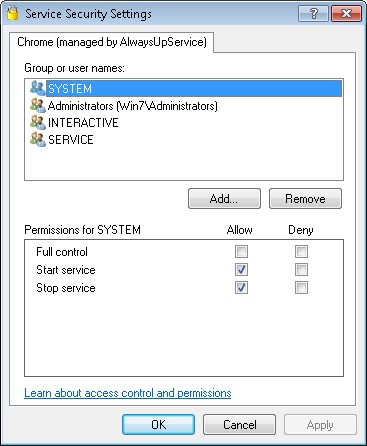
How do I allow a non-administrative user to start and stop the service AlwaysUp created?
By default, only administrators have the rights to manipulate the Windows Service created by AlwaysUp.
To allow other users to start and stop the service:
Ensure that your application is stopped in AlwaysUp
Highlight your application in AlwaysUp and select
Application > Advanced > Service Security Settings from the menu to open the Service Security Settings window:
Click the Add button and select the non-administrative account
Check the permissions boxes as necessary.
How can I install AlwaysUp silently (without any prompts)?
The AlwaysUp installer is built with the excellent
Inno Setup,
which supports silent or unattended installs via several
command line switches.
We recommend using either:
AlwaysUp_installer.exe /silent /norestart
or
AlwaysUp_installer.exe /verysilent /norestart
Note that silent installation will hang and eventually time out if an AlwaysUp component is
actively running on the machine.
Before installing, you should:
Stop all AlwaysUp services. You can use the Windows NET command,
as described here.
Terminate all processes named "AlwaysUp.exe".
Please use the
/LOG="filename"
option to troubleshoot if you run into problems installing AlwaysUp silently.
While we only support releases with the current major version and the one before,
we've saved a few old builds for your convenience.
Note that some of these old versions of AlwaysUp have not been tested and certified on current
versions of Windows. As such, we cannot support them nor guarantee their performance.
If you use them, you are on your own.
If you're operating in a commercial environment, we strongly suggest upgrading to the latest
version of AlwaysUp which has been tested extensively with all current versions of Windows,
including Windows 11/10 and Server 2025/2022.
Note that your previous purchase entitles you to
upgrade at a 30% discount — only $34.99.
That's a small cost to ensure that your application performs smoothly across Windows updates.



 Microsoft Windows services, formerly known as NT services, enable you
to create long-running executable applications that run in their own
Windows sessions. These services can be automatically started when the
computer boots, can be paused and restarted, and do not [necessarily]
show any user interface. This makes services ideal for use on a server
or whenever you need long-running functionality that does not interfere
with other users who are working on the same computer.
You can also run services in the security context of a specific user
account that is different from the logged-on user or the default
computer account.
Microsoft Windows services, formerly known as NT services, enable you
to create long-running executable applications that run in their own
Windows sessions. These services can be automatically started when the
computer boots, can be paused and restarted, and do not [necessarily]
show any user interface. This makes services ideal for use on a server
or whenever you need long-running functionality that does not interfere
with other users who are working on the same computer.
You can also run services in the security context of a specific user
account that is different from the logged-on user or the default
computer account.