
 I am test running your Always Up program on two computers to see if we like what it does. The first computer went very smoothly but I get a “Trouble Validating Account” error when saving the user on the second: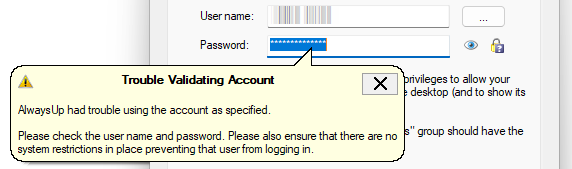
Everything looks right to me so what’s the problem? I am a member of the local Administrators group so it can’t be a permissions thing.
— Sam P
Hi Sam, thanks for trying AlwaysUp. Sorry that an error got in your way though!
After consulting with our team, we identified five conditions that could cause the trouble. Maybe one of them will apply to your situation.
So let’s review each potential reason — and finish off with an easy workaround to get you going again.

Reason #1: You’re not putting in a Windows account
Are you entering a Windows user name and password?
It may seem like a silly question, but you’d be surprised how many folks put in credentials for the application they’re trying to run with AlwaysUp.
To be clear: your Dropbox, OneDrive or Google Drive login information won’t work. You must provide a user name and password that logs you into your computer.
Reason #2: The account doesn’t have a password
For security purposes, AlwaysUp doesn’t support Windows accounts without a password. Your account must have that minimum level of protection.
If against all advice you would like to employ an account without a password, you won’t be able to enter it directly into AlwaysUp. You’ll have to resort to the workaround below.
Reason #3: The password is incorrect
By now you’ve surely double and triple checked that you’re entering the correct password for your Windows account. But have you considered any of the following possibilities?
Has someone else updated the password? If you’re working on a team, perhaps a colleague made a change recently.
Has the password expired? Many systems are configured to demand a new password every few days or weeks, and that can interfere with your use of the account.
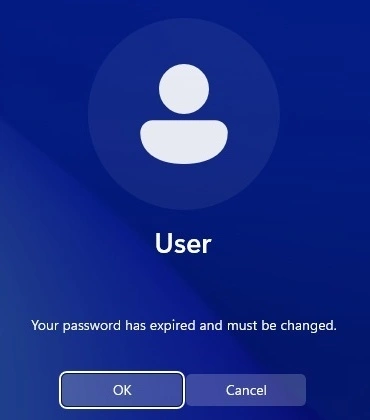
Try logging in to the computer with your user name and password and see if Windows identifies any problems with the account. If you can’t log in interactively, AlwaysUp won’t be able to run your application in the account.
Reason #4: You’re missing the domain
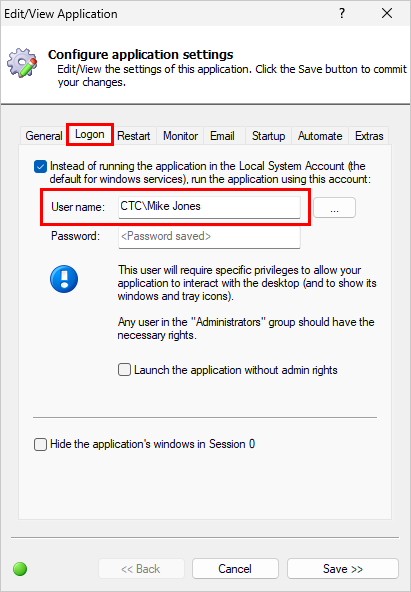
Is your account in a Windows domain? If so, you must enter the domain name as part of your user name, usually in the standard DOMAIN\USER format.
For example, we have a user called “Mike Jones” on our systems and all accounts are in the “CTC” domain. Therefore, “CTC\Mike Jones” works in AlwaysUp:
Reason #5: You’re entering a gMSA in AlwaysUp 16 or earlier
While earlier versions of AlwaysUp fully supported running in a gMSA, you could run into trouble configuring a gMSA.
The trouble would come up on the Logon tab, when AlwaysUp verifies the credentials you entered. If you left the password field blank (as you should for a gMSA) that would sometimes confuse the code because it expects each account to be properly secured (see reason #1). Inevitably, verification would fail and you couldn’t set your application to run in the gMSA.
The good news is that we fixed the problem in AlwaysUp version 17. You’ll be able to enter your gMSA just fine if you upgrade. And you’ll get many other goodies in the latest version too.
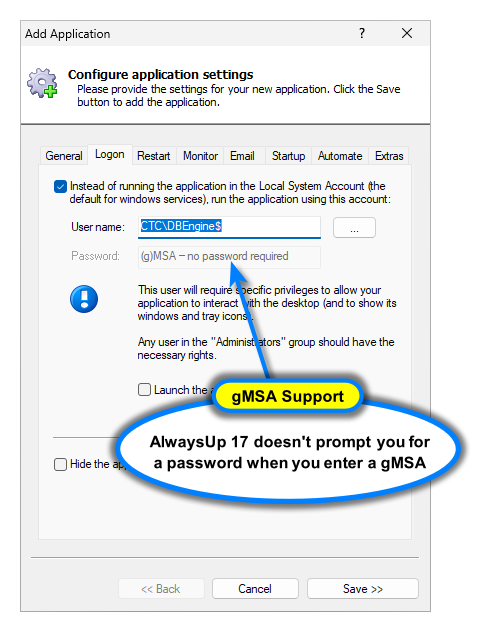
However, if upgrading isn’t an option, please execute the following workaround to apply your gMSA.
Workaround: Enter your credentials into Services.msc
Even though you cannot enter the account into AlwaysUp, all is not lost. The saving grace is that AlwaysUp creates true Windows Services — which you can manage with conventional administrative tools. And this time, the built-in Services application rides to the rescue.
To run your AlwaysUp application in a given account, step by step:
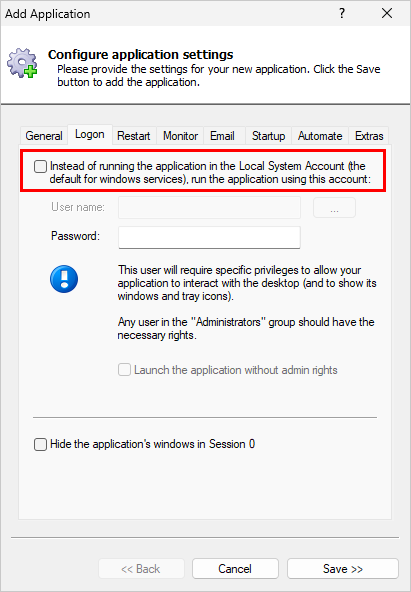
First, in AlwaysUp, stick with the Local System Account for your application so that you don’t have to enter any credentials. To do so, uncheck the box at the top of the Logon tab:

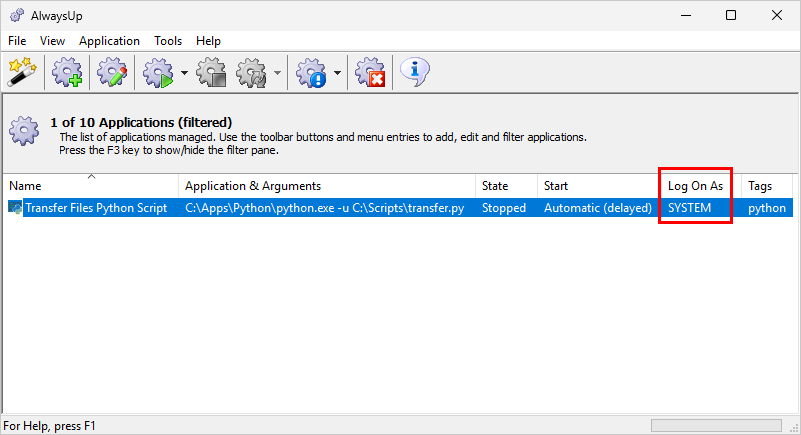
Save your application in AlwaysUp. Afterwards, you’ll notice that your application’s Log On As column says “SYSTEM”, as it did for our “Transfer Files Python Script”:

But don’t worry. We’ll soon set the correct account.
Start the Services application (run “services.msc”).
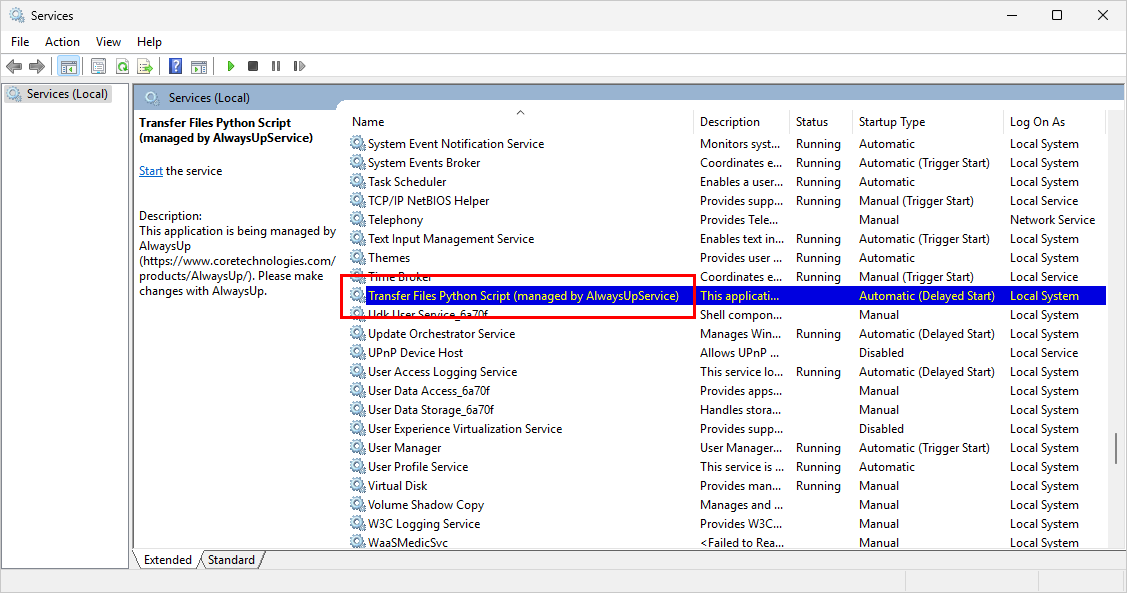
In the Services application, scroll the list to find the service that AlwaysUp created for your application. If your application is called “MyApp” in AlwaysUp, look for an entry called “MyApp (managed by AlwaysUpService)”.
For example, you can see the entry for our “Transfer Files Python Script” application here:
Double-click the service to open its properties.
Switch to the Log On tab.
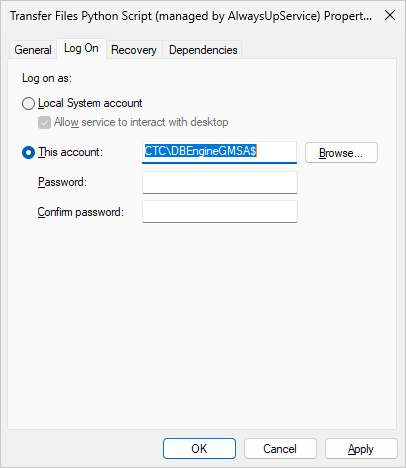
Enter the user name and password of the account you’d like to use.
To illustrate, we entered a gMSA on our server:
Click OK to save your changes.
Exit the Services application.
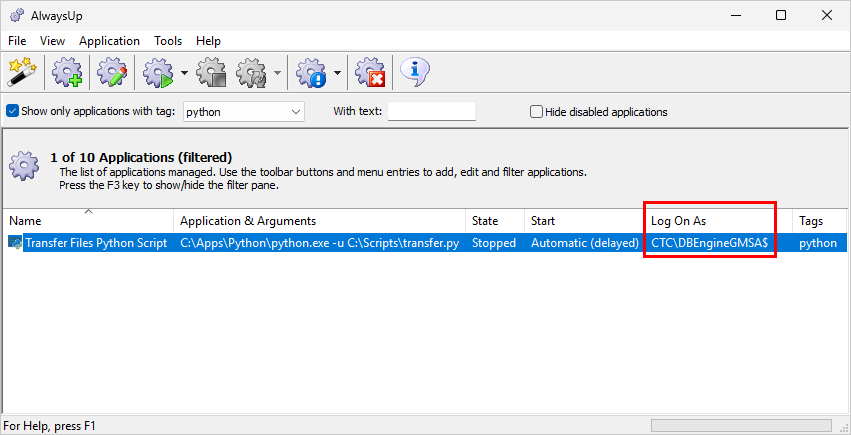
Switch back to AlwaysUp. You’ll notice that your application’s Log On As column has been updated to show the new account:
And that’s it. At this point, you’re good to go. Thanks again for trying AlwaysUp and best of luck with your application!