
What’s a “stop command”? Why would I use it?
Stopping your application in AlwaysUp triggers a multi-step shutdown process. The goal of that process is to close your application gracefully, without data loss.
Behind the scenes, AlwaysUp sends multiple standard Windows messages to tell your program to wrap up whatever it’s doing and exit. Fortunately, most programs receive those requests, save their work, and quit without any drama.
But some applications would rather take a different approach. Instead of dealing with standard Windows methods, they provide a command-line to invoke a graceful shut down.
For example:
VirtualBox allows you to power off or suspend a virtual machine by running the “VBoxManage.exe controlvm” command.
The nginx web server implements a fast shutdown when you run “nginx.exe -s stop”.
In fact, running a “stop command” is often the best way to close an application. That’s because the command often provides additional context and gives the program complete control over how to exit.
Furthermore, we can safely assume that the software implements the stop command for a good reason — and that it should be used when possible.

How do I make AlwaysUp close my application with a special stop command?
Before we get to AlwaysUp, compose the command line that you will use to stop your application:
- Start with the full path to the executable to run. Enclose it in quotes if it contains a space.
- Follow the executable with all the required parameters for the stop command. Again, be sure to quote parameters with spaces.
For example, if the VirtualBox instructions say to run “VBoxManage controlvm savestate”, your full command will look like ours:
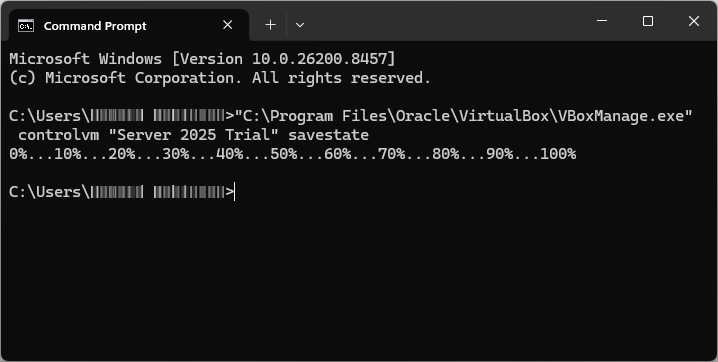
"C:\Program Files\Oracle\VirtualBox\VBoxManage.exe" controlvm “Server 2025 Trial” savestate
Or to stop nginx, this command does the trick for us:
"C:\nginx\nginx.exe" -p "C:\nginx\htdocs" -s stop
Next, confirm that your command actually does the job. Open a command prompt and ensure that running the command closes your application, as expected.
For instance, we were able to close our VirtualBox machine from the command line just fine:

Edit your application in AlwaysUp.
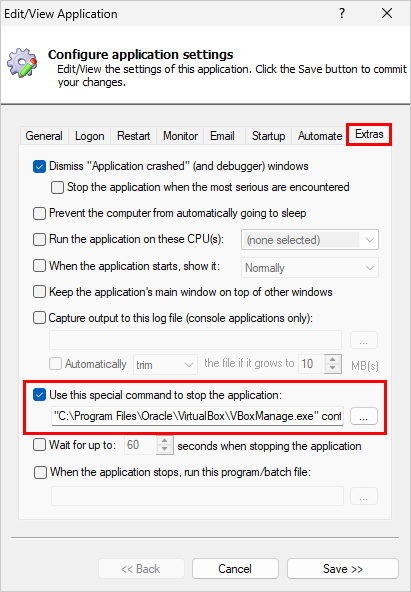
Move to the Extras tab.
Check the Use this special command to stop the application box and provide the full command you created in step 1.
We entered our VirtualBox command:

Save your changes.
And with that change in place, AlwaysUp will invoke the command whenever it needs to stop your application.
What are your best tips when using a stop command?
Tip #1: Put your stop command in a batch file
Is your stop command complex? Or does it involve multiple operations? For example, do you need to set environment variables before running a program?
If so, you should:
- create a batch file that stops your application, and
- provide that batch file to AlwaysUp on the Extras tab.
That will be easier (and less error-prone) than trying to cram a complex command line into AlwaysUp.
Tip #2: Give your program enough time to exit
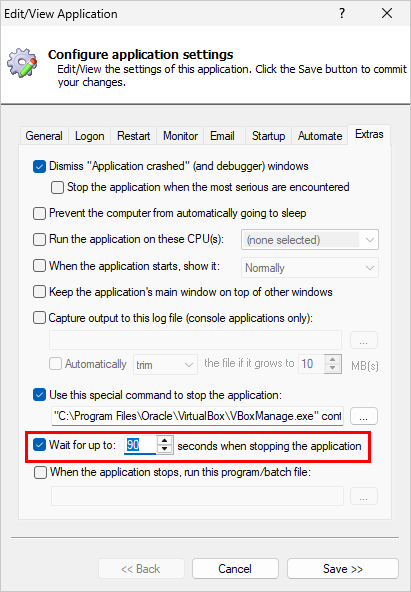
By default, AlwaysUp will wait for up to 30 seconds for your stop command to do its work. If the application is still alive after that period, AlwaysUp will fall back to its regular methods and your program may be forcibly terminated.
If your application needs more time to exit, you should set a suitable extension on the Extras tab:
Tip #3: Test your stop command from AlwaysUp
After installing the stop command, be sure to test that it works from AlwaysUp too.
Try stopping your application from AlwaysUp and make sure that your application concludes in a timely fashion, without errors.
Check:
- your application’s log files, to confirm that it shut down properly;
- the AlwaysUp activity report (select Application > Report Activity > Today to open it in your browser).