In this article…
- Windows Service security: The hidden permissions layer
- Where service permissions can hurt administrators
- What Service Security Editor reveals
- A real-world example: Diagnosing “Access is denied”
- When to update Service security (and when NOT to)
- Trouble starting or stopping a service remotely?
- Start seeing what Windows is hiding
To the casual observer, a Windows Service seems simple on the surface. It has a name, a startup type, and maybe a logon account. But beneath that calm interface lies a complicated web of permission objects that govern who can start, stop, update, or delete Windows Services.
Most administrators never see this layer directly. But if you’re one of the unlucky few who must venture into service rights, you’ll be disappointed to learn that Windows doesn’t offer much guidance or help. Indeed, by not providing a straightforward user interface out of the box, Windows leaves us to struggle with permissions entirely from the command line.
And that’s exactly why our free Service Security Editor exists. It allows you to easily access what Windows hides — the fine-grained rights and permissions that control your critical background infrastructure.
Read on for a closer look at the hidden security layers controlling your Windows Services.

Windows Service security: The hidden permissions layer
Every Windows Service is protected by a security descriptor. That structure defines who owns the service and which accounts can:
- Start or stop it
- Update its configuration (startup type, executable path, parameters, recovery options, etc.)
- Delete or disable it
- Query its status or read its configuration
Unfortunately, those permissions are not exposed in the built-in Services application. They’re stored deep in the registry and accessible only via the SC utility and through specialized Windows APIs.
And composing the SC command is crazy complicated. According to this technical post that tries to answer a simple question, here’s the arcane command line you’d run to allow a specific user to control a given service:
As you’ll see later, Service Security Editor translates that mess into clear, human-friendly rights — “Start Service”, “Stop Service”, “Change Configuration”, etc.
Where service permissions can hurt administrators
Misconfigured service permissions are one of the most overlooked causes of:
Failed remote control: A non-admin account can’t start or stop services even when you think it should.
Security vulnerabilities: Overly permissive rights allow attackers to replace or reconfigure critical service exe’s and DLL’s.
Broken automation: Scheduled tasks or scripts fail silently because of missing rights.
Unexpected downtime: Bad things can happen when someone stops a service that should run 24/7 — intentionally or unintentionally.
What Service Security Editor reveals
Our free Service Security Editor opens this hidden world in a simple, graphical interface. With it, you can see (and adjust) exactly who controls your services.
- Easily see who can do what: Instantly see all accounts and their assigned permissions in a standard user interface.
For example, here’s Service Security Editor showing us that administrators (and no other individuals) can start, stop or update the Print Spooler service:
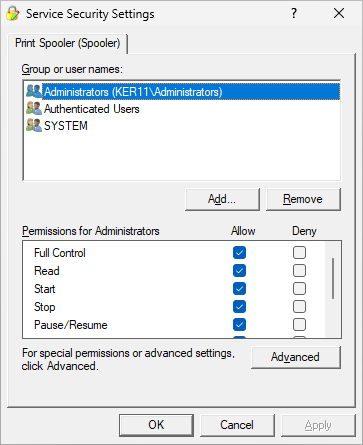

- Edit rights safely: Grant or remove Start, Stop, Pause/Resume, Configure, and Query rights without touching low-level SDDL strings.
Just check the right boxes instead of fighting with complex, error-prone strings (like A;;CCDCLCSWRPWPDTLOCRSDRCWDWO;;;BA) at the command line.
- Understand ownership: See which account owns the service (often SYSTEM) and what that implies for administrative control.
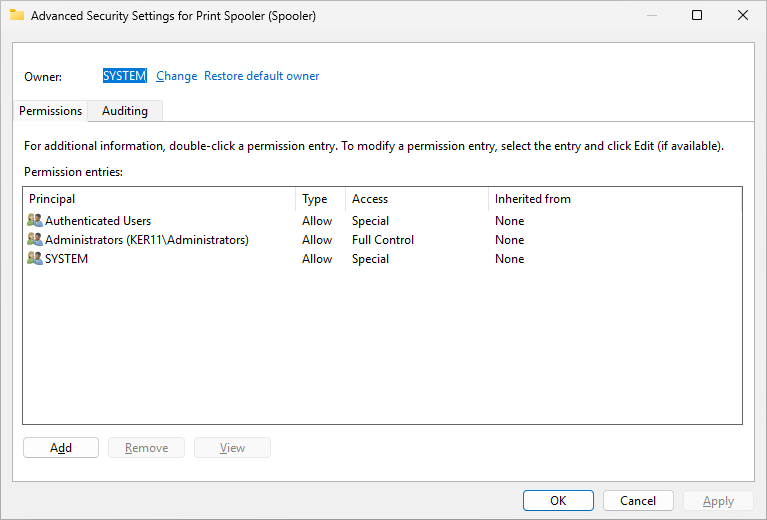

- Compare services: Spot inconsistencies in permissions across critical infrastructure.
In short, it’s like having a “security microscope” for your Windows Services.
A real-world example: Diagnosing “Access is denied”
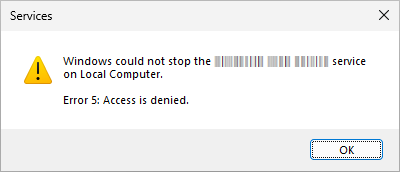
One customer reported that a custom monitoring script running in a domain account couldn’t stop a troublesome service. Even though the account was part of the powerful Administrators group, Windows still denied access.
Using Service Security Editor, they quickly spotted the problem. The “Stop” right was missing for everyone except SYSTEM. It turns out that the service’s discretionary access control list (DACL) had been inadvertently customized.
One checkbox click later, their automation was back in business!
When to update Service security (and when NOT to)
Here are a few rules of thumb:
Do adjust when you need to delegate start/stop rights to a specific user or group (e.g. for a monitoring tool).
Do update if a third-party installer locks down configuration unnecessarily.
Do document changes, to keep track of updates. Service Security Editor makes it easy; just save a screenshot before modifying any permissions.
Do not lock yourself out! For example, if you remove your rights to update a service you won’t be able to go back in and make changes afterwards.
Trouble starting or stopping a service remotely?
If you’re looking to start, stop or restart a Windows Service over the network, you may have to jump through a few extra hoops.
To be clear, it’s vital that the account has the necessary permissions to work with the service. That’s non-negotiable, and we’ve seen how Service Security Editor will help you set those correctly.
But the situation is more complicated for remote operations by non-admin users. That’s because in recent version of Windows, only users who are local administrators on a remote computer can start or stop services on that computer. This article digs into the technical details.
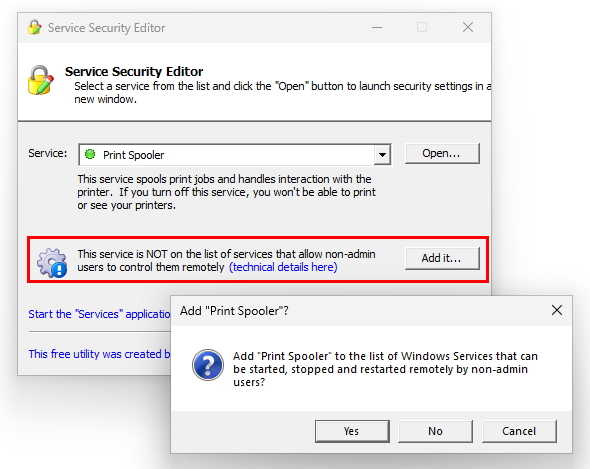
Here again, Service Security Editor will help you cut through the complexity. Instead of monkeying around with the registry, just click the Add it button to open up remote access to the service for your non-admin users:
Start seeing what Windows is hiding
The bottom line is that Windows Service permissions are too important to stay invisible.
Download the free Service Security Editor and uncover what’s really protecting (or exposing) your background services.