AlwaysUp version 17 is now available to all customers.
While the primary focus of this new release is to improve logging and monitoring capabilities for our security-conscious enterprise clients, we managed to squeeze in a couple fresh features as well. The end result is clear — higher uptime and greater security for anyone looking to run their important Windows applications 24/7.
So, without further ado, let’s dive in and review the highlights of AlwaysUp 17.

AlwaysUp will automatically restart your script if it hangs
While the vast majority of folks use AlwaysUp to run exe files, a good portion run scripts. And instead of running 24/7 continuously, those batch files, Python and PowerShell scripts are designed to perform a specific job and exit when done. It’s a beautiful arrangement, because AlwaysUp simply fires them up again a few seconds or minutes later.
However, trouble takes hold when a script gets stuck and never completes its work. In that case, the job will remain stalled — and AlwaysUp will let it continue like that, indefinitely.
For customers in that frustrating situation, introducing a periodic sanity check is a great solution. The idea is that the sanity check would eventually notice that the script isn’t doing its work and restart it.
But it can be difficult to find the right sanity check for each situation. If your script doesn’t write a log file, consume too much resources or map a drive letter, what should you install to detect the misbehavior? It’s a challenge.
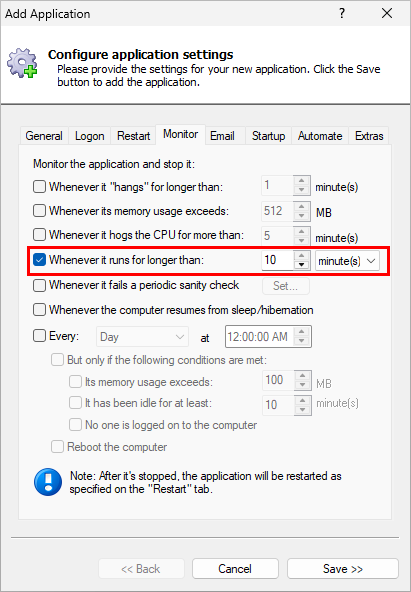
AlwaysUp version 17 introduces a new option — a simple watchdog timeout.
For example, suppose you have a batch file that typically takes about 30 seconds to do its work. To protect yourself against the script getting stuck and hanging until someone notices, you can instruct AlwaysUp to terminate and restart the batch file if it runs for longer than 5 minutes. That safety net will tolerate a long-running script (say, if it has lots of work to do) but provides a solid backstop that ensures the batch file will never flounder for too long.
The new feature is available on the Monitor tab, where it’s very easy to set:
Be sure to take advantage of it if you’re running a script that occasionally gets its knickers in a twist!
Full support for group Managed Service Accounts (gMSA)
Group Managed Service Accounts (gMSAs) have become very popular with Windows administrators. With automatic password management, support for clustered services and built-in security features, what’s not to like?
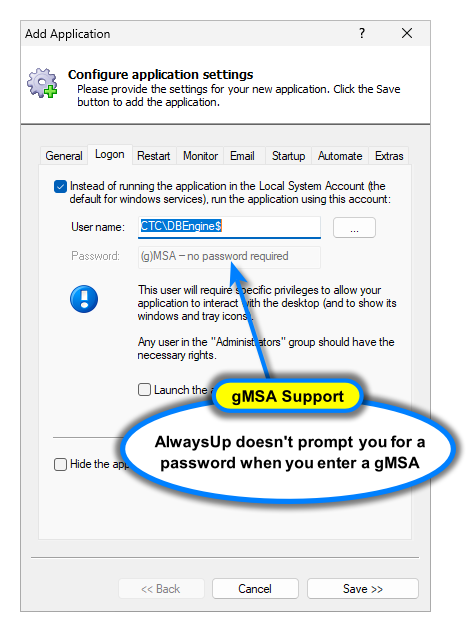
Recent versions of AlwaysUp are compatible with gMSAs but version 17 takes support up a notch. For example, AlwaysUp no longer prompts for a password when you enter a gMSA on the Logon tab:
There are several internal improvements as well, to ensure smooth operation as AlwaysUp runs your application in the gMSA.
Extensive reporting to the Windows Event Logs
The experts agree: Logging is a foundational pillar of any effective information security system. Indeed, without the systematic, automated recording of system events, it’s nearly impossible to investigate potential threats and problems. You’re flying blind.
Our team is well versed in bedrock ISO 27001 principles so we understand the importance of logging. And in AlwaysUp 17, we rewrote key components to report all sensitive operations to the standard Windows Event Logs. From there, enterprise administrators can pipe those events into Splunk, SolarWinds Security Event Manager, Graylog or any other SIEM compatible with the Windows operating system.
Here’s a quick rundown of the major changes in this area:
When writing to the Windows Application Event Log, AlwaysUp now sets a semi-unique Event ID value to classify the event. You can use that ID to trigger alerts downstream, as the data makes it to your SIEM.
The Event Log Messages page documents the identifiers associated with each record reported by AlwaysUp.
AlwaysUp sets the Task Category to “AlwaysUp Events” for every record it creates. Doing so makes it easy for you to identify and group all activity from AlwaysUp — across all applications installed as Windows Services.
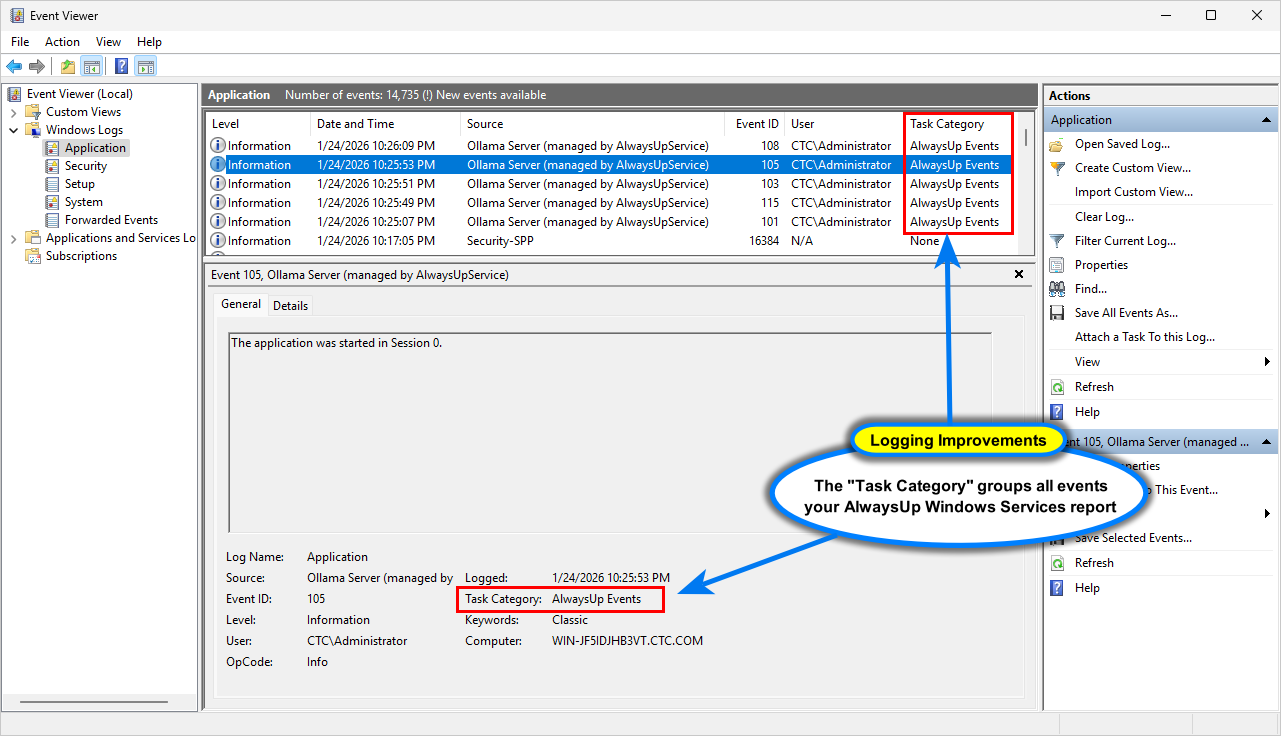

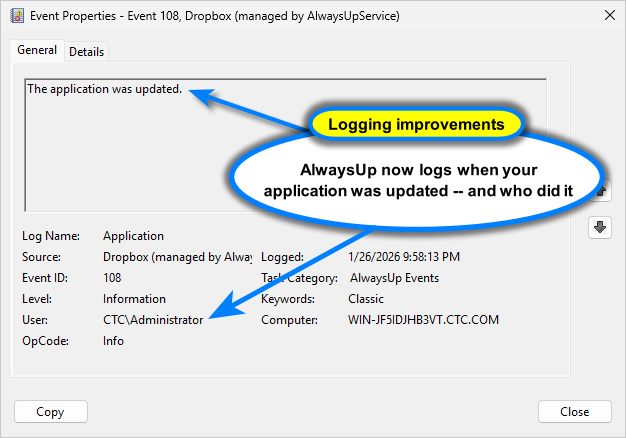
To improve oversight and accountability, AlwaysUp now reports important application/configuration updates to the event logs. For example, here is event 108 telling us that Administrator modified the Dropbox Windows Service:
In version 17, there’s now a “User” column in the Activity Pane. It tracks who performed each activity.
The Activity Detail window displays the name of the user as well:
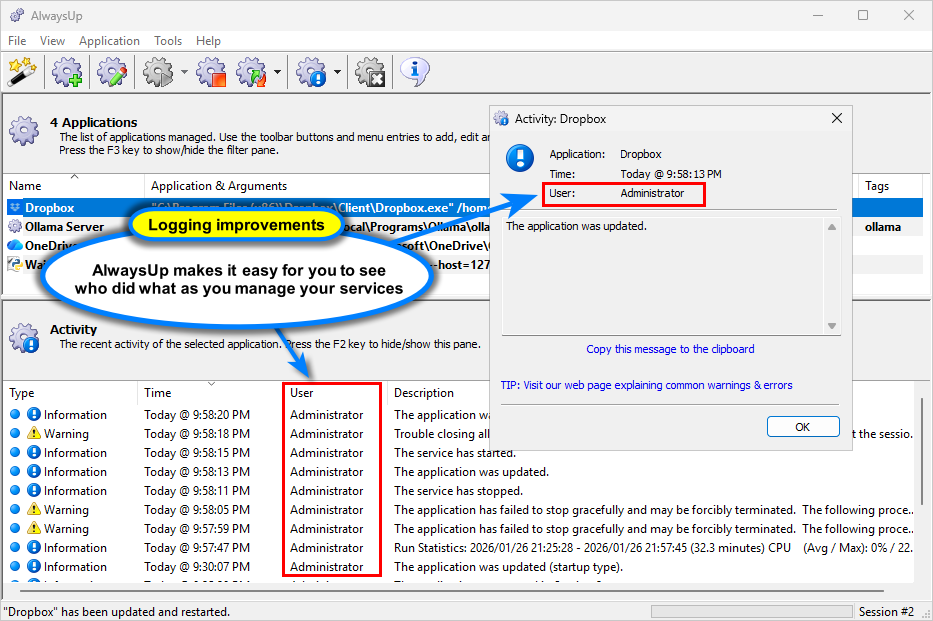
Of course, all that information is stored in the Windows Event Logs.
Autologon refinements
Several customers rely on automatic logon to run their applications in an interactive user session. Because of that, we continue to make sure that AlwaysUp works well with autologon — safely and smoothly.
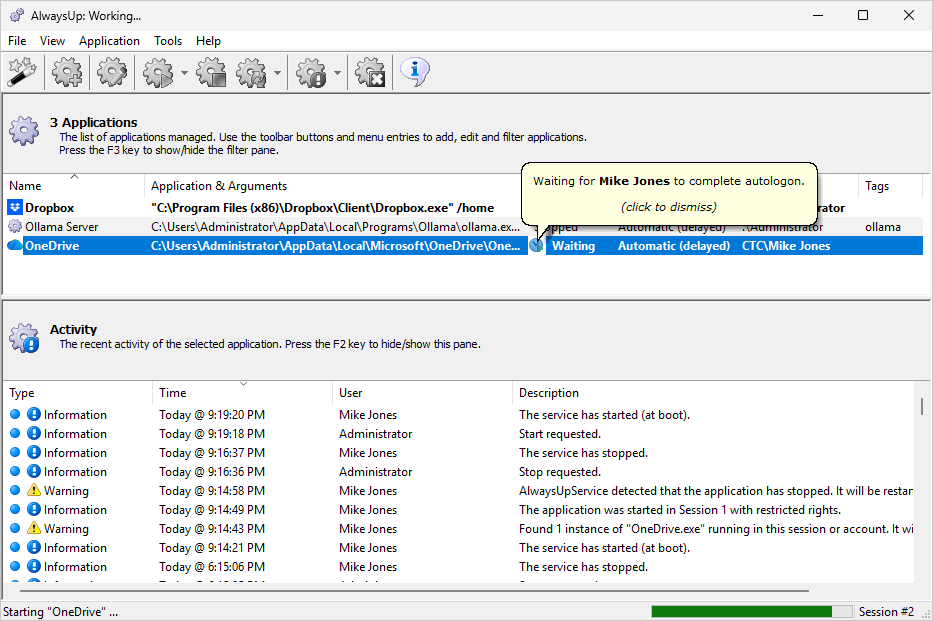
Version 17 brings one improvement in the area of feedback. If you happen to log in before autologon completes, your application will show a waiting icon that tells you what’s going on:
Behind the scenes, there are a couple of code changes that bolster security.
First, AlwaysUp now removes any leftover plain-text passwords it finds in the registry, opting for encrypted representations instead.
Second, if you disable automatic logon from AlwaysUp, the encrypted password is removed from the secure secrets repository. Even though the password remains obfuscated, there’s simply no good reason to leave it behind.
Other fixes & improvements
Customers running Python scripts as a Windows Service will notice that AlwaysUp 17 automatically closes Python scripts more gracefully now. There shouldn’t be any warnings about terminating python.exe.
Tip: If you find that your script is still being abruptly killed, be sure to update your code to catch the KeyboardInterrupt exception and exit when it’s triggered.
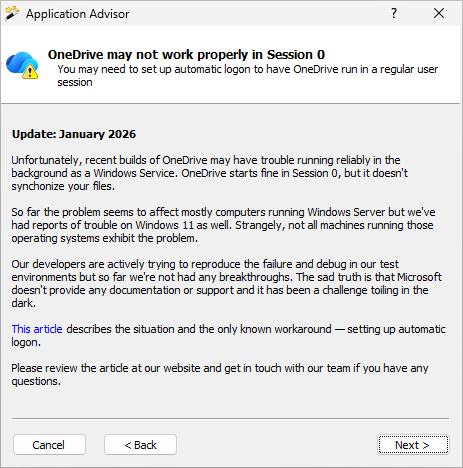
Unfortunately, new versions of OneDrive continue to experience trouble running in Session 0. And we remain flummoxed and frustrated with the folks in Redmond.
Until there’s a solution, we updated the Application Advisor to warn users setting up OneDrive as a Windows Service that automatic logon may be required:

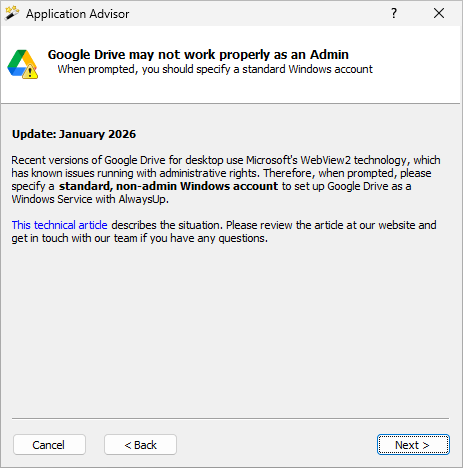
The Google Drive for desktop application now uses Microsoft’s WebView2 component, which is allergic to running as an administrator. We added a warning to that effect when installing Google Drive as a Windows Service:
To run more smoothly on Windows Secure Host Baseline (SHB) and other locked down versions of Windows, our developers rearchitected internal components to avoid conflicts related to Data Execution Prevention (DEP) and similar process mitigation technologies. But as much as we want to geek out, it’s far too technical (and boring) to go into the details now. We’ll stop here.
Finally, AlwaysUp now supports online registration. You can assign your license directly from the software; all you need is your order reference:
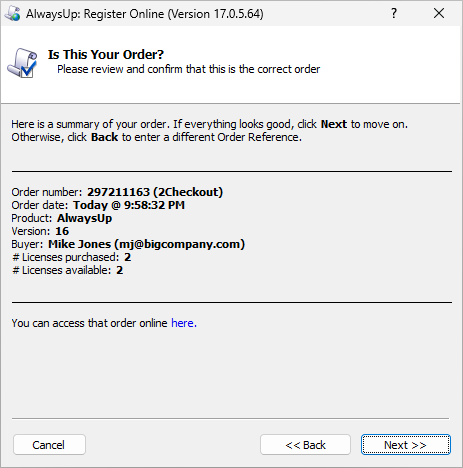
Some folks may find it more convenient than the traditional “offline” method.
As usual, please review the release notes for the full list of features, fixes and improvements included in AlwaysUp version 17.
Upgrading to AlwaysUp 17
If you bought AlwaysUp version 16 (on or after February 7 2025), you can upgrade to version 17 for free. Simply download and install “over the top” to preserve your existing applications and all settings. Your registration code will continue to work as well.
If you bought AlwaysUp version 15 or earlier (before February 7 2025), you’ll have to purchase a discounted upgrade to use version 17. Please purchase upgrades here — you’ll save 30% off the regular price.
Please see the complete upgrade policy for additional details.
Thanks for reading!