 Our team uses AlwaysUp to run a few Python scripts automatically after a reboot. Everything works fine except for one of the scripts that prints to the console. We have AlwaysUp save it for us but we noticed an issue with statements not coming out in the log file. Is there any option in AlwaysUp to make sure that all print statements are saved to the file?
— Sylvia P.
Hi Sylvia, thanks for reaching out.
It’s good to hear that you’re using AlwaysUp’s capture-console-output-to-file feature. That’s the best way to record any text that your Python script prints.
And with that feature active, the file you entered should contain every single line that Python prints:
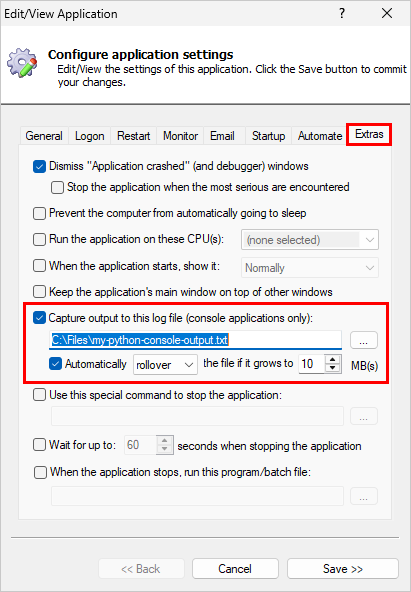
So your instincts are right: something strange is going on. You shouldn’t be missing any output.
Here’s what we found out when we investigated.

The problem: Python buffers output when not interactive
It turns out that Python handles calls to the print function based on how it’s running.
When you run Python interactively — by launching python.exe at the prompt and typing commands at it — all calls to the print function are immediately and fully processed. In that case, all print statements show up right away, as expected.
But in non-interactive scenarios — for example, when Python is invoked to process a script — Python may hold on to print output for a while before producing it. That’s called output buffering, and it’s in place to improve performance by consolidating many expensive output operations into a single one.
My guess is that you’re experiencing output buffering. Your script’s calls to print succeed, but Python is accumulating characters before efficiently printing them to the console all at once.
The good news is that if you’re happy to do without the performance benefits of output buffering, there are a few ways to ensure that print statements are processed immediately. Pick one of the three solutions we outline below to fix the problem.
Solution #1: Run Python unbuffered
To do away with all buffering when running your script, start Python in unbuffered mode.
You can do that in a couple of ways:
Specify the -u parameter on your python.exe command line, or
Set the PYTHONUNBUFFERED environment variable to 1 before launching python.exe.
Either option will do the trick.
To apply the first option, edit your Python script in AlwaysUp and add the “-u” flag to the Arguments field, like this:
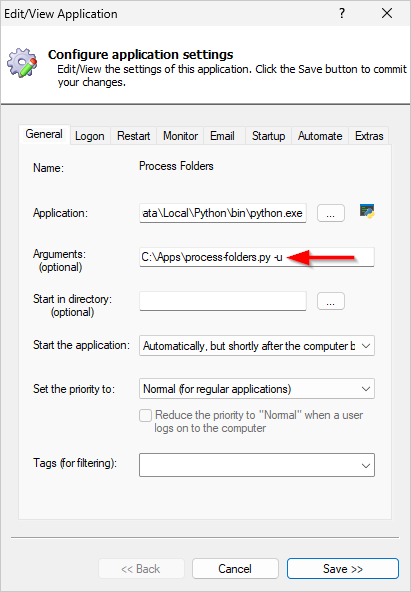
That’s probably the easiest fix to implement.
Solution #2: Update your script to call print with the “flush” parameter
Are you able to update the code?
If so, you have additional options instead of running completely unbuffered.
First, you can instruct each call to the print function to immediately produce its text. You do so by adding and setting the flush parameter to True.
For example, if you have this line of code:
Then this variation will ensure that the text is never buffered:
The benefit of this approach is that you can limit your changes to only the information that you must see immediately.
For example, you can modify only the time-sensitive printouts while still getting the performance benefits of buffering on less important output.
Solution #3: Update your script to manually flush output
If you’re unable (or unwilling) to change the print statements, you can add occasional calls to the sys.stdout.flush() function instead. When you call flush, Python will immediately output all the text it has buffered from previous calls to print.
Simply call flush whenever you need to ensure that all text sent to AlwaysUp. Here’s an example:
print("Hello, world.")
sys.stdout.flush()
Note that with this option, you have precise control over when to clear the output buffer.
For example, you can choose to call flush only after multiple prints (or function calls), like this:
print("I watch the world go round and round,")
print("and see mine turning upside down.")
print("- Genesis, Throwing it all away")
print_lyrics_copyright()
sys.stdout.flush()
You’re in charge.
So there you have it, Sylvia. Please be sure to consider each of the solutions and choose the best one for your unique environment. We recommend running Python unbuffered (solution #1) — unless you have special performance requirements.
Best of luck with your Python scripts!