Service Protector 11.5 is out!
This release enhances Service Protector’s sanity checks — advanced tools that automatically detect subtle failures and restart faulty services. Here’s what the team worked on this time around.

Automatically restart your Windows Service if another service isn’t running
Does your Windows Service rely on another service to do its work? And must that “supporting” service run all the time too?
If so, you’re in luck because Service Protector 11.5 includes a powerful way handle that situation. We created a new sanity check that:
Periodically checks if a supporting service is running, and
Promptly stops/restarts your main Windows Service if that supporting service isn’t running
To set up this new capability:
Edit your service in Service Protector.
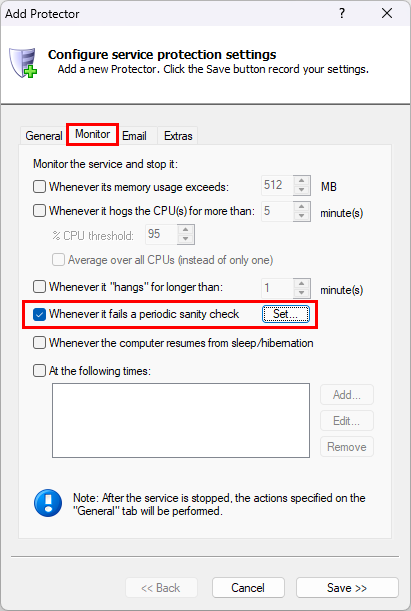
Switch to the Monitor tab. From there, check the Whenever it fails a periodic sanity check box and click the Set button on the right:

In the Add Sanity Check window that comes up, choose Check that a Windows Service is running from the dropdown:
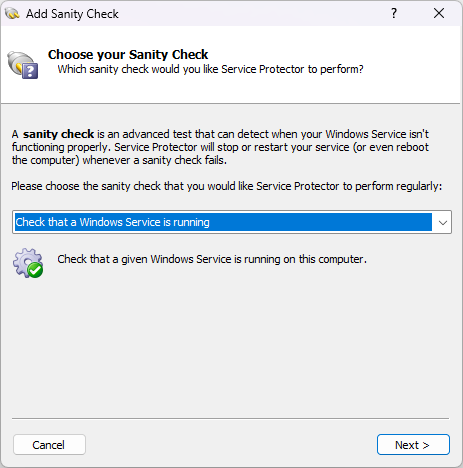
Click Next to continue.
At this point, Service Protector will show you a list of the Windows Services running on your machine. Choose the supporting service that you wish to monitor.
For example, we selected the PostgreSQL Database service on our server:
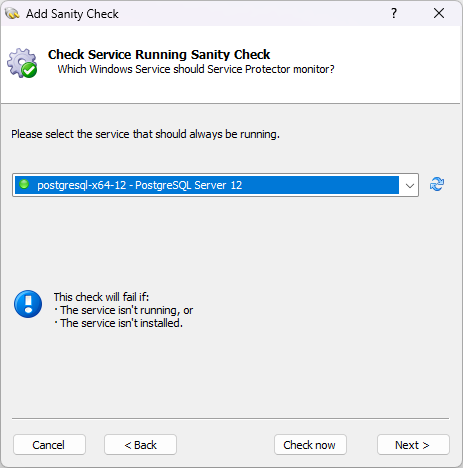
Click Next and follow the self-explanatory steps to complete the process and save your new sanity check.
That’s it. With the new sanity check in place, Service Protector will probe the supporting service every few minutes and take action if it ever stops (for any reason).
Check sub-processes for open network connections
One of the most popular sanity checks confirms that your Windows Service has open network connections. It’s great failure protection for network servers that must always be available for web browsers, mobile devices and other client software.
Previous releases of Service Protector would only interrogate the executable directly started by the service. And if that executable wasn’t connected to the network, Service Protector would quickly restart it.
That approach works for the vast majority of cases, where the service’s main executable does all the work. However, it’s insufficient for more complex situations where the top-level executable launches sub-processes to do the heavy lifting.
To illustrate the problem, let’s look at the PostgreSQL Windows Service. As a database server, it must always be listening for connections from software searching through records.
Microsoft’s Process Explorer shows us that the service starts “pg_ctl.exe”, which then starts “postgres.exe”. Additional sub-processes are spawned as well:
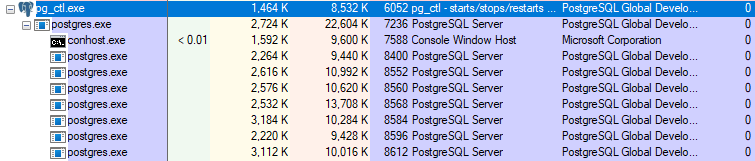
Yet when we examine the tree of processes, we see that “pg_ctl.exe” has no network connections. It turns out that “postgres.exe” handles all communication:
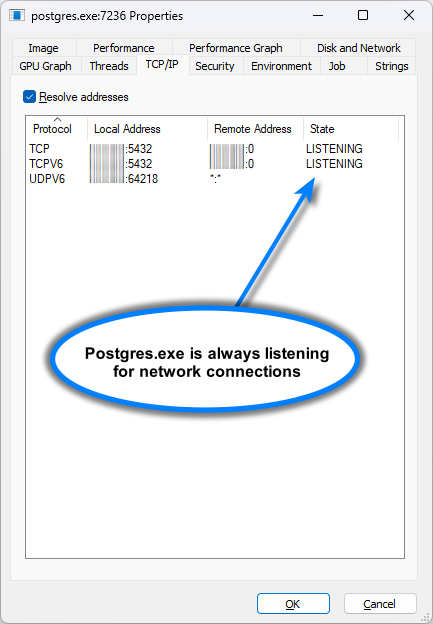
Because of that delegation, the old network connections sanity check didn’t work for PostgreSQL. Service Protector examined “pg_ctl.exe” and declared a failure because it has no connections — even though its “postgres.exe” sub-process was happily handling all requests. Oops.
Service Protector 11.5 fixes that shortcoming. Instead of interrogating the top-level process alone, 11.5 can now audit the entire tree of processes. Just check the Also check sub-processes box to enable that new capability:
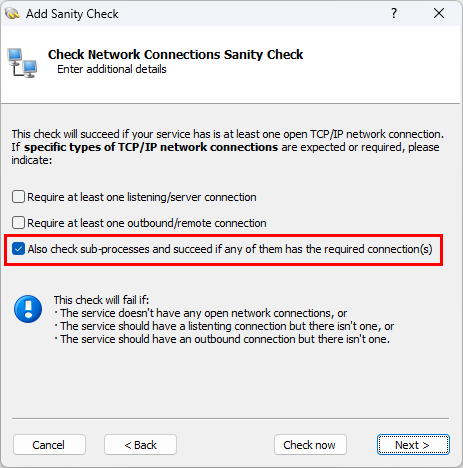
Service Protector works for PostgreSQL when the new option is activated. It notices that “postgres.exe” — which was started by “pg_ctl.exe” — has open network connections and the sanity check succeeds. Much better!
Check sub-processes for resource handle leaks
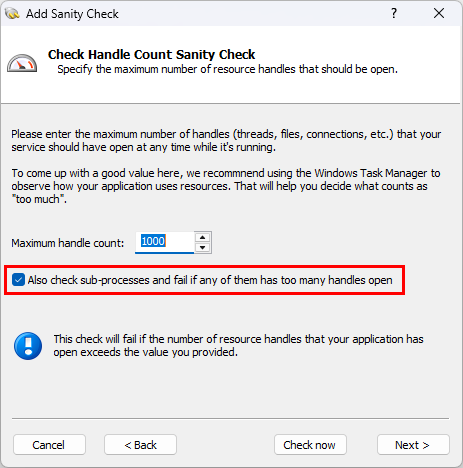
Similarly, the sanity check that detects excessive resource consumption has also been extended to cover the entire tree of processes.
When you check the Also check sub-processes box, Service Protector will visit each of the processes created by the service and declare a failure if any of them use more than the maximum number of handles:
Other fixes & improvements
As usual, this release brings a few internal enhancements as well. Most notably:
Version 11.5 improves support for group Managed Service Accounts (gMSA).
To facilitate troubleshooting, Service Protector will cite the serial number when a registration code is not accepted. It should reduce errors in the licensing process.
To run more smoothly on Windows Secure Host Baseline (SHB), our developers restructured internal code/components to avoid conflicts related to Data Execution Prevention (DEP) and similar process mitigation technologies.
As usual, please review the release notes for the full list of features, fixes and improvements included in Service Protector version 11.5.
Upgrading to Service Protector 11.5
If you purchased Service Protector version 10 (after May 10 2024), you can upgrade to version 11 for free. Simply download and install over your existing installation to preserve your existing services and all settings. That way, your registration code will continue to work.
If you bought Service Protector 9 or earlier (before May 10 2024), you will need to upgrade to use version 11.
Please buy upgrades here — at a 30% discount.
See the complete upgrade policy for more details.
Enjoy!