
A green “Running” status in Services.msc can be very reassuring. Indeed, it means that your service’s executable is still active.
But it’s NOT proof that your application is healthy — serving requests, processing jobs or accepting connections.
The truth is that even though a Windows Service is technically running, it can still be utterly useless. A lifeless zombie, dead on its feet.

The most frustrating kind of outage
Application crashes are never welcome.
But in the spectrum of failures, a clear, unambiguous crash (where the process dies) is the easiest to deal with. That’s because it’s relatively straightforward to determine when a process exits and react accordingly.
It’s far more difficult to catch failures when the service is still running but not doing its work. Conventional monitoring tools tell us that everything is fine, yet the service is actually down because customers cannot complete the tasks they need to perform.
The result? Prolonged, frustrating outages.
Common examples of “running but not working”
If we define failure as “not working”, there are a variety of ways a running Windows Service can fail.
For example, users will complain loudly when:
A network service accepts a connection but never returns a response.
A queue processor is alive but no longer consuming messages.
A database service is running but cannot accept useful work.
A web server accepts HTTPS requests but always responds with a 5XX error.
An integration service has lost access to a remote dependency.
A backup service stops uploading files to the cloud.
You can probably think of other scenarios as well.
Why Windows cannot always see the problem
Windows can easily determine whether your service has started, stopped or reported a status. It can even detect when your service process crashes — and quickly restart it.
But that’s the limit of what the operating system can do. It cannot automatically know whether every application-specific business operation is succeeding.
Keep in mind that the Windows Services system is built to manage a wide range of applications. The recovery functionality is very generic because it must support anything a programmer can dream up.
And because of that general-purpose approach, Windows doesn’t even attempt to understand how your program works. The result is that Windows never checks if your service is actually doing its job.
Service Protector checks the work, not just the process
Fortunately, Service Protector closes the gaps.
Instead of just checking if the process is alive or not, Service Protector digs in and confirms that your application is actually doing its job.
For example, Service Protector can check:
Is your service using too much memory or CPU?
Is a drive letter mapped and accessible?
Was a special file updated recently?
Is a network server accepting TCP/IP connections?
Is a web server responding properly?
Is an important/helper program or service running?
Does your service have one or more network connections open?
Was an adverse Windows event reported while your service was running?
Does your service have too many operating system handles open?
And if none of those work for you, extend Service Protector with a custom health check — a probe that works for your unique situation.
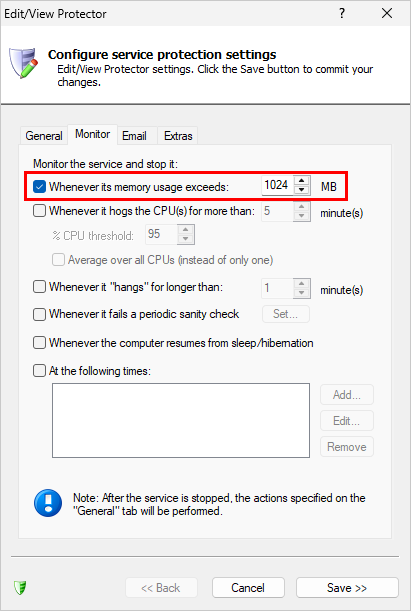
Example #1: Automatically restart your service if it’s using too much memory
If your service is a memory hog, have no fear. Service Protector will calculate the executable’s memory usage every few seconds and promptly restart it if it exceeds a specific threshold.
Just enter the threshold and you’ll be good to go:
Example #2: Automatically restart your service if it has no open network connections
Are you running a Windows Service that must always be listening for connections?
If so, Service Protector will periodically scan your server and recycle it if it’s not accepting connections.
Install a “network connections” sanity check to do the trick. Start by entering what kind of network connections are expected:
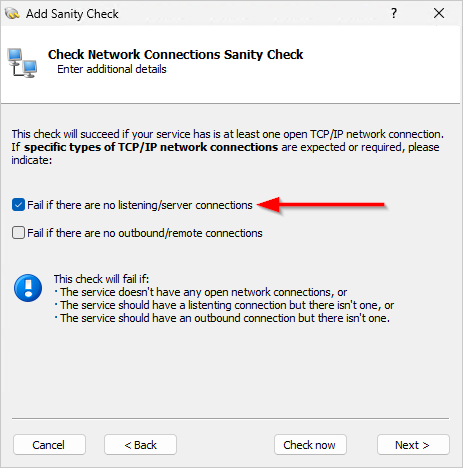
Afterwards, enter how often Service Protector should check your server and you’ll be all set.
Try Service Protector completely free for a month — no strings attached
Download the free 30-day trial and put Service Protector to the test yourself, in your unique environment. Setup takes a couple of minutes, and you’ll know soon if it’s what you need.

- 100% compatible with all current versions of Windows
- No signup necessary
- No credit card required
- No advertising of any kind
- Easy uninstall if it doesn’t solve your problem