Key topics
What’s the “Detach” feature? Why would I use it?
AlwaysUp manages the full lifecycle of every application it runs as a Windows Service. It starts each app at boot, monitors it 24/7 to keep it running, and closes it when the machine shuts down. That’s exactly the right level of babysitting necessary to ensure 100% uptime for your important programs.
But sometimes AlwaysUp can get in the way. That may happen during maintenance, when the application needs to be patched. For instance, things can get awfully messy if AlwaysUp tries to relaunch an application while its internal components are being updated!
The recommended solution? Stop your application in AlwaysUp whenever you need to take control. Once you start a fresh copy on your desktop, you’ll be free to do whatever you like.
But what if you don’t want to close the application? That is, you prefer to work with the already running process — just outside the control of AlwaysUp?
That’s where the detach feature comes in. It’s how to tell AlwaysUp to stop itself, but leave the application running.

How do I detach an application in AlwaysUp?
It’s super easy to detach an application from AlwaysUp. It’s really a single step but let’s take you through the process in great detail with a Python application running as a service on our test server.
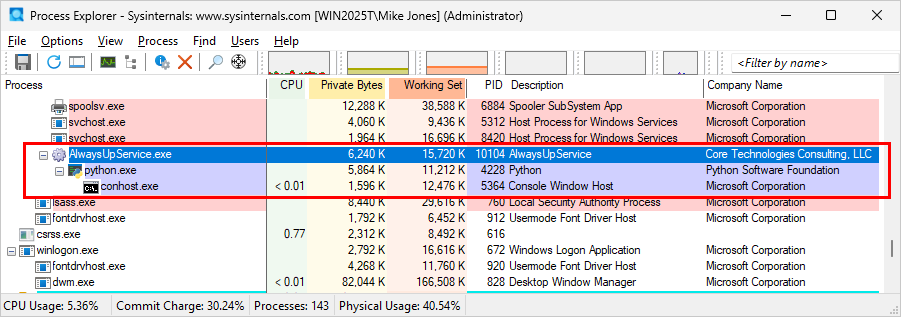
We start with AlwaysUp already running Python. Process Explorer shows us the parent-child relationship:
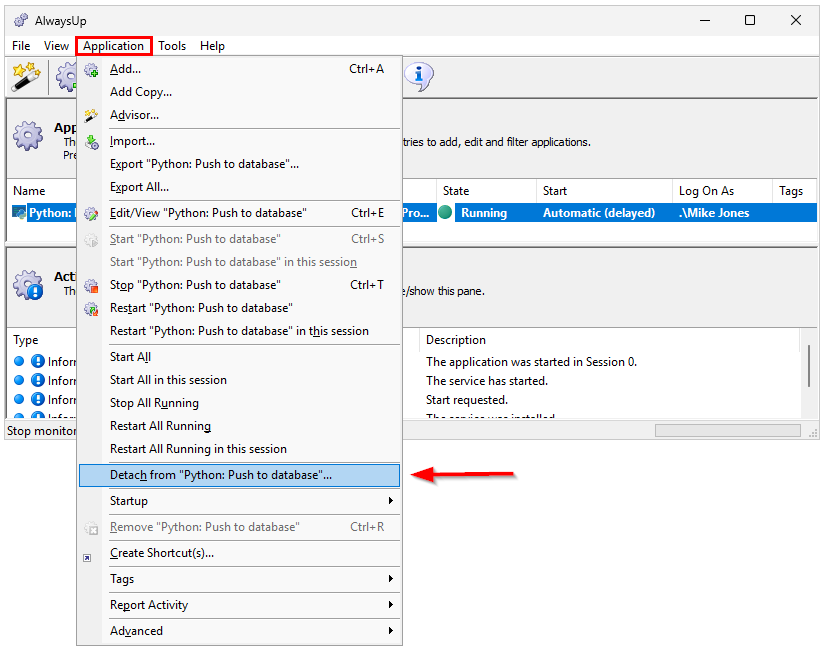
To detach AlwaysUp from Python, we select Application > Detach from the menu:
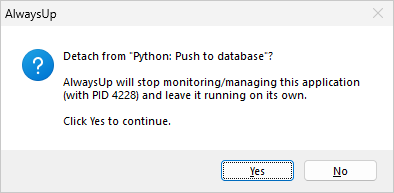
Next, AlwaysUp asks to confirm. It mentions the PID (in this case, 4228) to clearly identify the process AlwaysUp is managing:
After confirmation, AlwaysUp exits but leaves Python running. As you can see here, PID 4228 is still active but “orphaned” in Process Explorer:
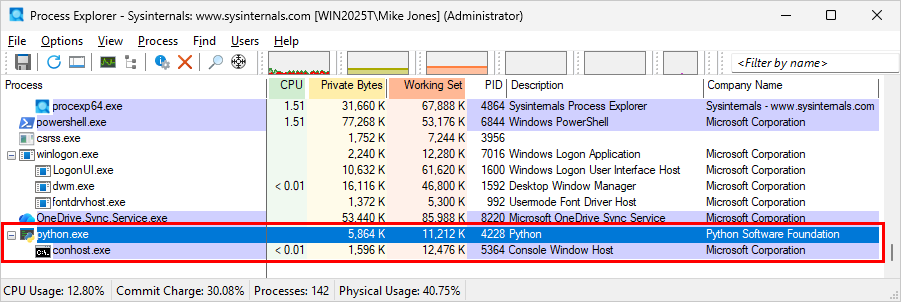
We’re now free to do whatever we like with PID 4228.
Can I detach from the AlwaysUp command line?
Yes. You can detach an application by running:
where <application-name> is the name of your application in AlwaysUp.
What are your best tips for using detach?
Tip #1: Make sure working in Session 0 is OK
Your application continues to operate normally after AlwaysUp detaches. However, it will likely be running in Session 0 — the invisible desktop where Windows Services live. As a result, your program won’t be visible on your desktop and you won’t be able to interact with it.
The lack of visibility can be problematic. For instance, how do you launch your maintenance tasks without being able to control the application’s user interface?
The reality is that for situations where you need to interact with the application, it’s better to forgo detach and restart the application normally on your desktop.
Tip #2: Have a plan to return control to AlwaysUp
Remember to restart your application in AlwaysUp once the maintenance is complete!
You don’t want to leave your system vulnerable to reboots, crashes, and other costly interruptions.