
Key topics
Why should AlwaysUp stop trying to restart my application?
Let’s be clear: AlwaysUp’s primary job is to make sure that your program is always running. At its core, the software will do everything in its power to prevent prolonged downtime, which can be costly to you and your team.
But even so, there are times when AlwaysUp isn’t able to fulfill its noble mission. And in those rare scenarios, it may be best to fail gracefully instead of continuing to fight an unwinnable battle.
Let’s explore the issue through an example.
Example: A critical network drive vanishes
In this scenario, you’ve already installed your program as a Windows Service with AlwaysUp. Even though it’s running on the PC in your cubicle, the executable sits on a network drive hosted by the file server in your office.
Overnight, a power surge knocks out the file server. It’s completely dead. Your IT team will have to restore it from a backup later that day.
Luckily your PC is still working. When it roars back to life, AlwaysUp immediately tries to start your application. But since the executable sits on the recently departed file server, AlwaysUp fails to start it. The error looks like this:
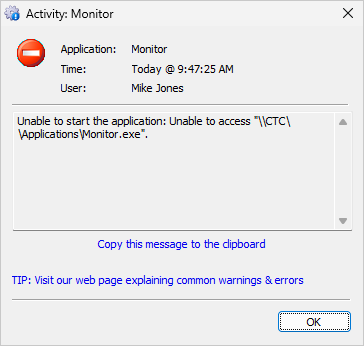
Undaunted, AlwaysUp will try again — and fail again. In fact, it will keep trying every second, thousands of times, filling up your event logs and not getting anything done. It’s the very definition of beating a dead horse, until you arrive at your desk and manually stop AlwaysUp.
To avoid that futile cycle, you should configure AlwaysUp to give up after a while. We’ll cover that prudent safety net in the next section.

How do I tell AlwaysUp when to give up restarting?
The mechanism is simple. Instruct AlwaysUp to stop trying to restart your application and exit if it fails several times over a given period.
The controls are on the Restart tab:
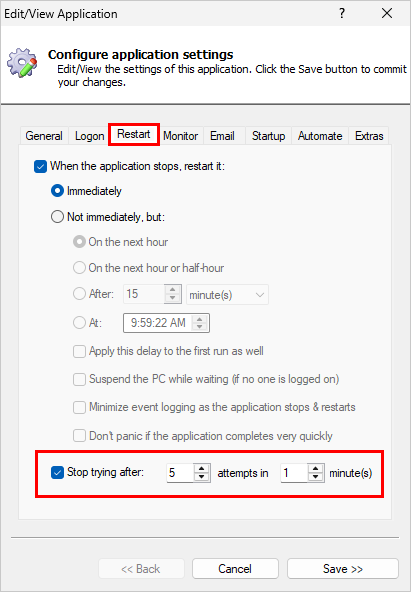
By default, AlwaysUp gives up if it fails 5 times in 1 minute. That’s proven to be a good safety net for many customers but please feel free to tune the values for your specific application.
Understand that once it hits the threshold you’ve defined, AlwaysUp will shut down. The Windows Service created to manage your application will stop. You’ll see an error like this in the activity report:
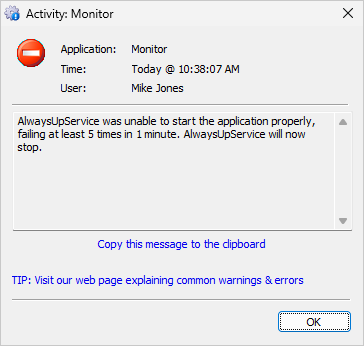
After you fix the underlying problem, you’ll have to manually restart AlwaysUp (or reboot your computer) to run your application as a service again.
What are your best tips for using the stop-restarting feature?
Tip #1: Set up email alerts to tell you when AlwaysUp gives up
If you’d like to be notified when AlwaysUp stops trying to restart your application and shuts down, you should configure email alerts.
The final email (after the stop-restarting threshold has been crossed) will clearly communicate what’s going on:
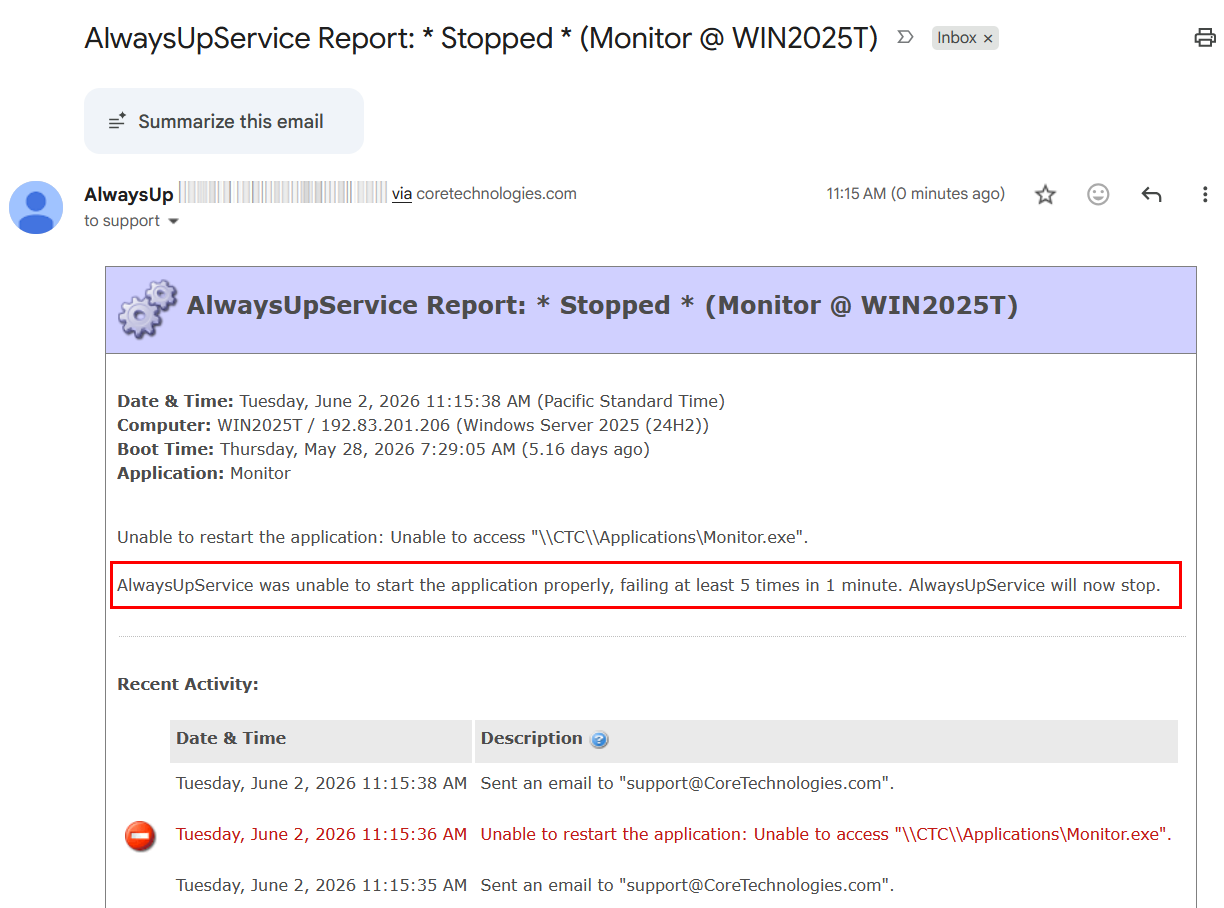
That way, you’ll know that you need to jump in to get your application going again.
Tip #2: If AlwaysUp gives up, troubleshoot your application
If your application repeatedly fails to start, it’s likely a serious problem. It’s certainly not one that AlwaysUp will be able to solve by itself.
You should jump in to troubleshoot. Here are a few things to try:
Start your application on your desktop (without AlwaysUp involved) and see if it reports any warnings or errors.
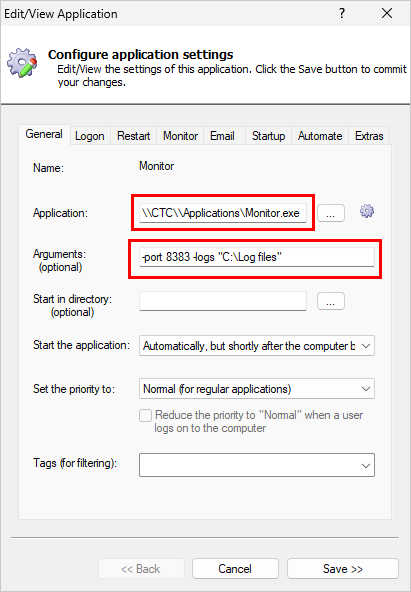
Try the same command line that AlwaysUp uses to launch your application. To do so, combine both the Application and Arguments fields, making sure to enclose the path in quotes if it contains a space:

Review any log files that your application writes.
Watch out for sneaky automatic updates that break things. For example, if an update relocates your application’s main executable file, you’ll need to update the path in AlwaysUp.