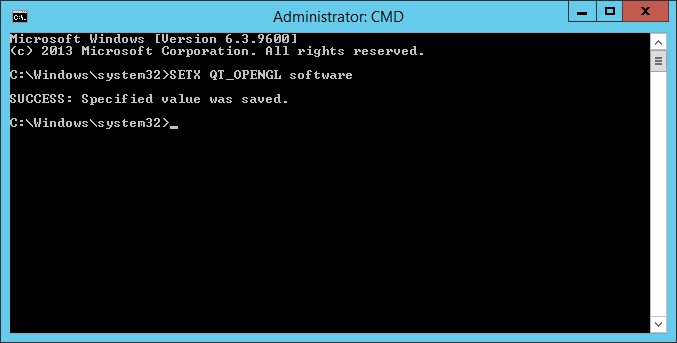
Afterwards, restart Dropbox as a service. The OpenGL prompt should be gone — a relic of an unpleasant past.
Huge thanks go to Dropbox forum user Wilson7777, who alerted the community of this remedy. His original solution is here.
Why does the fix work?
The explanation is a bit technical, but here goes…
Dropbox uses Qt — a popular cross-platform development framework.
In turn, Qt requires OpenGL — a cross-platform API for rendering 2D and 3D vector graphics.
So when you run Dropbox, both Qt and OpenGL will be started.
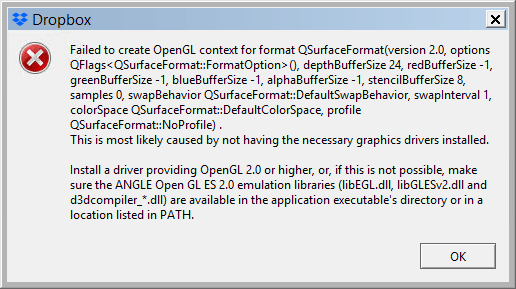
But for some unknown reason, when Dropbox is started as a Windows Service in Session 0, Qt and OpenGL fail to initialize. That failure causes Dropbox to throw up the “Failed to create OpenGL context for format QSurfaceFormat” error, which suggests that there is a problem with the computer’s graphics card/hardware.
Fortunately there is a way to instruct Qt: “Instead of using the computer’s graphics hardware for OpenGL, use software libraries”. Setting the QT_OPENGL environment variable to “software” is the way to do that.
And with the change to use software instead of hardware, Qt, OpenGL and Dropbox all start properly.
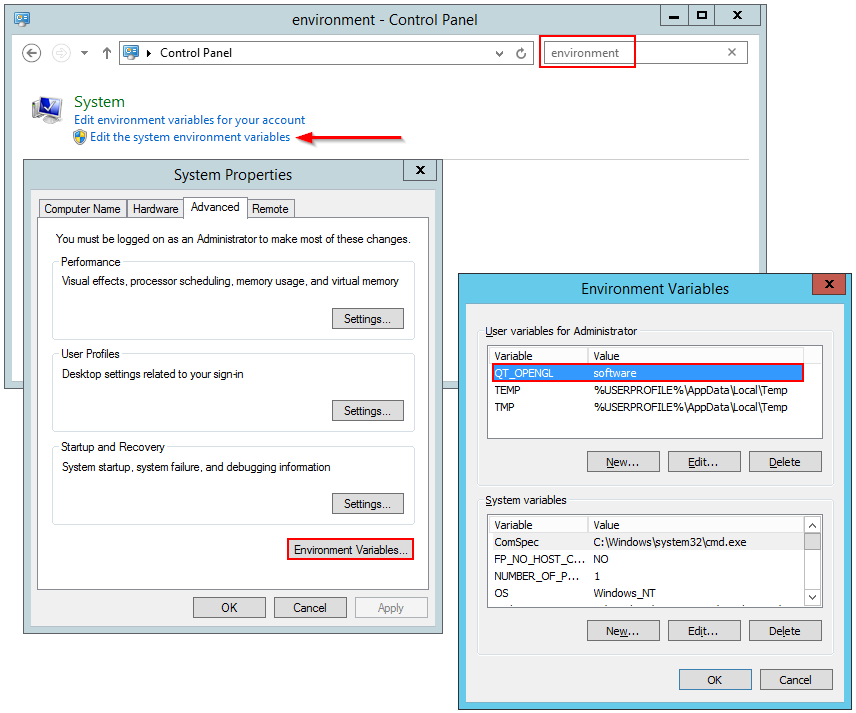
Note that when you ran the SETX command in step 2, it added the QT_OPENGL value to your environment. You can see it listed in your environment variables (available from the Control Panel):
Will this fix work for future versions of Dropbox?
We certainly hope so! But like you, we’re not sure what magic the next automatic update of Dropbox will bring…
Posted onSeptember 18, 2019 (Revised January 7, 2023)
The most recent release of Dropbox — Stable Build 81.4.195, posted the morning of September 18 — may not work properly as a Windows Service with AlwaysUp.
We are actively investigating. So far, the problem appears to be related to Session 0 — the background desktop hosting Windows Services.
When Dropbox starts in Session 0, some customers report that this error prompt stops the action:
If OK is pressed, Dropbox simply exits — without synchronizing any files.
Is there a workaround?
Yes. Please see the update from 9/25 (below) for a potential workaround. To date, it has worked for several customers.
Dropbox says to make sure that your display drivers are up to date. This has resolved the problem for some customers. Please let Dropbox know if it doesn’t work for you.
Beyond that, there are a couple other workarounds but neither is a long term solution.
If you start Dropbox in the current session (by selecting Start “Dropbox” in this session from the Application menu), Dropbox will start and your files will be synchronized. However, once you log off, Dropbox will return to Session 0 and it will cease to function again.
Another option is to run Dropbox outside of AlwaysUp, normally on your desktop. Of course, you will have to remain logged in, which is less than ideal.
Please check in the “Updates” section below for additional workarounds as they are developed.
When will this be fixed?
We’re not sure when Dropbox will fix the problem.
They seem to create new desktop client builds regularly so we have our fingers crossed that they deliver a resolution very soon.
Please let Dropbox know that you are affected
We encourage you to “nudge” the Dropbox team into action by:
posting a friendly message on the Dropbox release page expressing your frustration with this release.
The more we speak up, the better the chance of a quick fix.
We need your help!
First, can you let us know if you are experiencing trouble with the latest Dropbox? Please be sure to answer the following questions:
What version of Windows are you running?
Do you see the “OpenGL” error message when you switch to Session 0? That operation is available from the Tools menu in AlwaysUp.
Is your computer a virtual machine? If so, what is the host? (VirtualBox, Hyper-V, VMWare, etc.)
Second, can we access your system remotely to troubleshoot? We have been unable to reproduce the problem on our systems, and that has been an obstacle to us developing a solution/workaround.
Your help will be appreciated!
Updates
September 18 @ 5:38 PM Pacific: Eric Sakariasen from Connetic has come up with a clever workaround:
I found a way to work around this issue, at least in my environment,
We have Dropbox running with separate creds (a service account) I go to the cached installer for 81.4.195, in my case its:
I deny all access to the executable via NTFS permissions for that account. Then install the older 80.4.127 over the top of the current install (it kills the running version automagically). This seems to break the ability for the updater to do its magic so it will skip this version.
We can only hope the next version is up and running with a fix, if not, rinse and repeat.
This has worked for at least 3 of our customers running Dropbox.
September 18 @ 9:20 PM Pacific: So far we have thoroughly tested Dropbox version version 81.4.195 running in Session 0 on the following operating systems:
Windows Server 2019
Windows Server 2012 R2
Windows 10 (Build 1903)
None have exhibited the problem.
Here is the basic test we perform using two computers linked to the same Dropbox account:
Copy a new file into machine’s A’s Dropbox folder
Check that the file shows up on dropbox.com
Check that the file shows up in machine B’s Dropbox folder
We will continue to test other versions of Windows over the next few days.
September 19 @ 6:15 AM Pacific: The Dropbox support team suggests that the problem may be with old display drivers.
Perform the steps outlined in this post to make sure that your PC is up-to-date.
We’re not sure if it fixes the problems running in Session 0 (Dropbox doesn’t post a changelog) but it may be worth a shot. Please try it let us know if it works for you or not.
For those scratching their heads trying to resolve this OpenGL issue running the latest version of Dropbox + AlwaysUp I have successfully resolved this issue by following these steps:
1. In the Windows start menu enter the search term “environment variables” and select “Edit the system environment variables”
2. In the dialog that comes up click “Environment Variables” then click “New” in the system variables section.
3. In the dialog that comes up enter variable name = ‘QT_OPENGL’ (without the quotes) and variable value = ‘software’ (without the quotes)
Click “OK” then “OK” then “OK” to close the system properties dialogue.
Restart Dropbox within AlwaysUp and you should find the OpenGL issues are resolved if you view through session 0 and Dropbox will be synchronising your files fine.
Please try it and let us know if it works for you!
September 26 @ 7:30 AM Pacific: Customer Seth Ruppert from IMT has reported that the 9/25 fix has resolved the issue on his installations.
And other reports of success are trickling in, so setting the QT_OPENGL system environment variable to software seems to be working!
Posted onSeptember 16, 2019 (Revised December 16, 2019)
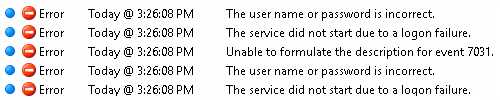
I setup AlwaysUp to run JRiver Media Center as a Windows Service but it’s simply not working. I reboot the server every week and every time AlwaysUp says it can’t log on. These errors come up, over and over:
Help!
— Anonymous
Hi — sorry to hear that the service isn’t starting for you!
From the logs you sent, the key error appears to be this one:
The service did not start due to a logon failure
Windows is saying that it cannot authenticate your account (the one you specified on the Logon tab in AlwaysUp) so it cannot start the service.
The failure is probably due to one of three problems. Answer the following questions to find a solution.
Has your Windows password expired/changed?
If you recently set a new password on your Windows account, the service may be stuck using the old one.
To update the service’s password:
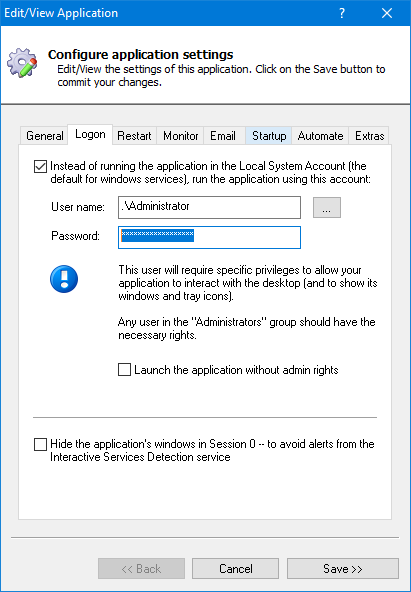
Edit your JRiver service in AlwaysUp
Switch to the Logon tab
Enter your new password:
Save your settings.
Reboot your PC and see if JRiver starts automatically. If not, read on to keep troubleshooting.
Have you specified a domain account on the AlwaysUp Logon tab?
If your service is running in a domain account, it’s possible that the service is starting too soon — before the primary domain controller is ready to accept requests.
Indeed, this can easily happen when your computer is the slow-starting domain controller!
The fix is to delay the start of the JRiver service, to allow the domain controller enough time to launch and initialize. To do so:
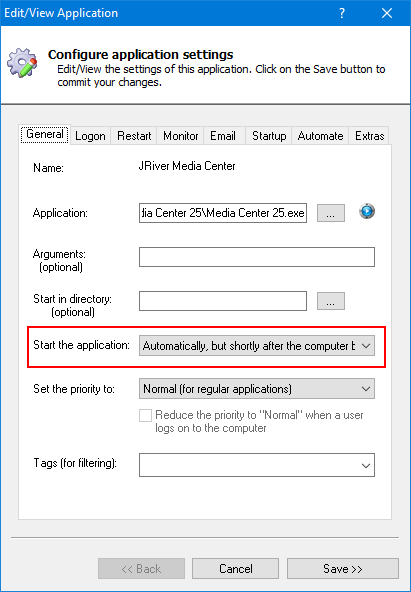
Edit your JRiver service in AlwaysUp
Set the Start the application field to Automatically, but shortly after the computer boots:
Save your settings.
Reboot and see if that does the trick!
Is your Active Directory Group Policy overwriting the Local Policy setting for the “Log on as a service” right?
This last scenario applies if your system uses Active Directory and you have specified a domain account on the AlwaysUp Logon tab.
Your Windows account may be losing the right to run as a service when an incomplete group policy overwrites the local policy. Basically, your account is “out of sync” with the Active Directory server.
If you are still seeing the error, something strange is definitely going on with your setup.
Please get in touch to schedule a remote session, where we can troubleshoot your misbehaving service. We’ll do our best to have you up and running soon!
Posted onSeptember 2, 2019 (Revised August 18, 2026)
Python is fast becoming the world’s most popular coding language. It’s no surprise that more and more administrators are turning to the simple, efficient, and ubiquitous platform for a variety of day-to-day tasks.
One question that frequently comes up on Internet forums deals with scheduling:
How do I schedule my Python script to run every hour on my Windows computer?
The Windows Task Scheduler seems like it should do the job, but unfortunately it falls short because it has no ability to restart an application at a fixed time. You would have to set up 24 tasks, one for each hour of the day. That’s far too much busy work.
You could also create a batch file that runs the script in an infinite loop and launch the batch file with Task Scheduler. That would be easier, but the lack of a fixed schedule means that you wouldn’t know the time when the script would be run. And with zero monitoring and error reporting, you would be left in the dark if the script somehow stopped running — for example, if someone accidentally terminated it. Not a very robust approach.
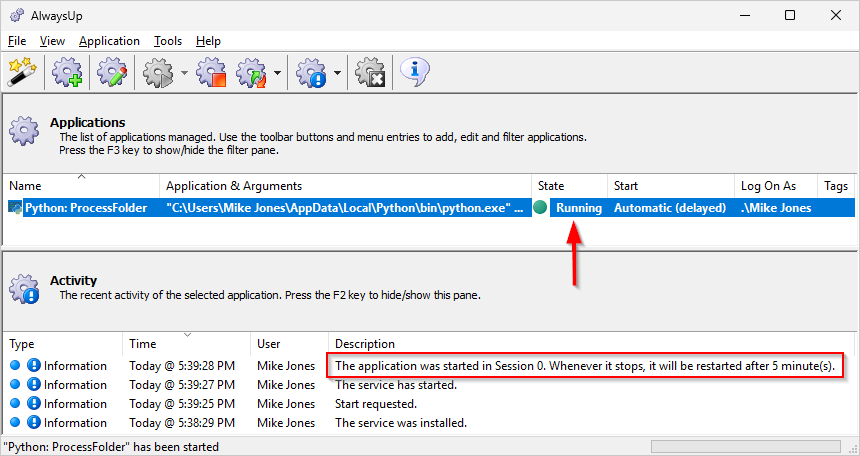
Instead, we recommend using AlwaysUp. Simply setup your Python script to run as a background Windows Service, then configure AlwaysUp to launch your script each hour on the hour. Here’s how to do that.
1. Install your Python script as a Windows Service with AlwaysUp
First, follow our step-by-step tutorial showing how to run any Python script as a Windows Service with AlwaysUp.
Your Python script will be configured to run once per day but don’t worry — we’ll adjust that in the next section.
2. Restart your Python script every hour, on the hour
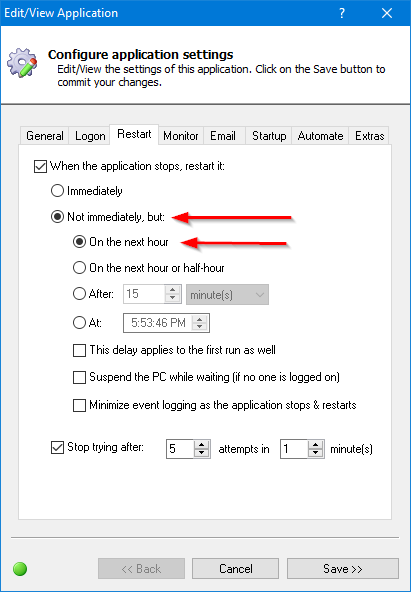
Instead of running only once per day, let’s run your script hourly. To make that change:
Edit your Python script in AlwaysUp.
Switch to the Restart tab.
Check the Not immediately and the On the next hour options:
Click the Save button to record your changes.
3. Minimize logging as your script stops and restarts in the background
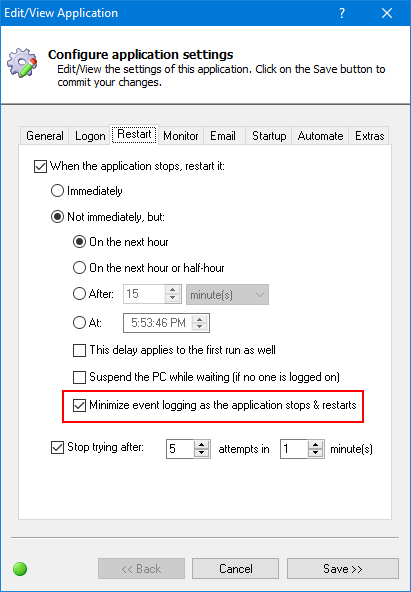
By default, AlwaysUp records detailed information (in the Windows Event Logs) whenever the application it is monitoring starts and stops. This is fine for programs designed to operate 24/7, but that logging can be overwhelming for a script that starts and stops frequently.
To reduce the writing to the Event Logs:
Edit your Python script in AlwaysUp.
Switch to the Restart tab.
Check the Minimize event logging as the application stops & starts option:
Click the Save button to record your changes.
And that’s it. From now on, your Python script will run predictably — every hour, on the hour.
Please be sure to get in touch if you have any questions about running your script as a service (or anything else).
After more than a decade in the trenches, Windows 7 and Windows Server 2008 R2 will no longer be supported. Microsoft will stop issuing updates for those operating systems on Tuesday January 14, 2020.
I’m still running Windows 7/Server 2008: What does this mean for me?
After the deadline, your computer will no longer receive Windows updates/patches. This is probably fine for new features and capabilities (who needs those anyway?), but it is potentially lethal for safety and security.
This is because any serious security flaw discovered after January 2020 will not be fixed. Attackers will have all the time they need to break into your computer.
We recommend upgrading ASAP — especially if you are working in a commercial environment. Why put you and your company at risk for a ransomware or other cyber-attack?
Will your software (AlwaysUp, Service Protector, etc.) continue to work on Windows 7/2008?
Yes. For now, all our current software will continue to work with the soon-to-be-retired versions of Windows. We will not be disabling those operating systems in any versions of our Windows Services software that you can download today.
However, at some point we will drop support for 7/2008. For example, AlwaysUp version 13 (expected in 2021) may no longer run on 7/2008. Of course, you will be able to stick with version 12 (or earlier) for as long as you like.
Will you provide support if I’m running Windows 7/2008?
Yes — up to a point. We’ll happily investigate problems on those systems, but realize that our hands will be tied if the flaw is due to a problem in the underlying (now obsolete) operating system.