The Core Technologies Blog

Professional Software for Windows Services / 24×7 Operation


Q&A: Do You Comply With The EU Cyber Resilience Act (CRA)?

Do You Comply with the EU Cyber Resilience Act (CRA)?
  I work for a large technology company based in Germany. Last year, we bought an Unlimited OEM License for AlwaysUp and integrated it into our industrial automation delivery chain.

As an important supplier, we want to ensure that your company takes a holistic approach to Cybersecurity. And in particular, we’d like to know if you’ll be implementing the new EU Cyber Resilience Act (CRA). Please provide a short statement.

If your product will comply, we can rely on that. If you cannot confirm conformity (mostly in case delivery is done outside the EU market), we may have to analyze further effects on our side and raise additional requests/requirements.

— Michael S.

Hi Michael, thanks for reaching out.

Even though we’re based in the USA, our team has been tracking this new EU regulation ever since it started taking shape in 2023. It soon became clear that the CRA would impact us since we have many customers deploying our software in the EU.

But let’s start at the beginning.


What is the Cyber Resilience Act (CRA)?

The EU Cyber Resilience Act enhances cybersecurity standards for hardware and software products by requiring manufacturers and retailers to infuse cybersecurity throughout the lifecycle of their products. It came into force in November 2024 and organizations in the European Union have until December 2027 to achieve full compliance.

Our company isn’t located in the EU and we don’t make any hardware products. But we do create software used by EU companies. As such, we must help our EU customers adhere to the CRA.

Fortunately the CRA aligns with other global standards — like ISO 27001:2022 — which we already embrace. So let’s review what we have in place today.


We’re serious about security

To understand we do today, please review this article detailing how we keep our software (and company) safe and secure. There, you’ll see that we’ve infused information security best practices throughout our processes and practices.

But even though there’s overlap with the CRA and other time-tested standards, the new regulation brings its own perspectives. It deserves dedicated examination. Therefore, from our viewpoint as a US-based software producer, we’ll review 10 major requirements of the CRA and briefly describe how we support you and other EU organizations in each area.


CRA Requirement #1: No exploitable vulnerabilities

Don’t ship software with serious flaws

How we help you to comply

It’s very important to check for malware at every stage of the software production pipeline. And, most importantly, the final product must be pristine. That’s why we engage third-party services to verify that nothing strange has crept into our software.

For example, before release, we run all our applications through Virustotal — a well-respected online virus-scanning engine owned by Google. We halt the release if any critical or high vulnerabilities are detected.

Service Protector Virustotal Summary

The bottom line: The software we provide to customers is free of major known vulnerabilities at the time it’s shipped.


CRA Requirement #2: A secure default configuration

Make software as secure as possible out-of-the-box

How we help you to comply

Both AlwaysUp and Service Protector:

  1. Must be installed by an administrator

  2. Are installed to a protected folder in “C:\Program Files (x86)” by default

  3. Must be run by an administrator

There’s no way around those important, default safeguards.

Furthermore, there are no “default passwords” of any kind.


CRA Requirement #3: Regular security updates

Establish a method of resolving vulnerabilities discovered after the software was installed

How we help you to comply

It’s company policy to issue a patch for critical and high vulnerabilities within 30 days of their discovery. Medium and Low vulnerabilities are addressed as part of regularly scheduled quarterly or annual releases.

However, as purveyors of software that must operate 24/7/365, we do not support unattended, automatic updates because they’re too dangerous. We leave it to customers to deploy updates manually — after sufficient testing and at a time of their choosing. We keep customers informed of security issues by posting security bulletins on our active blog.


CRA Requirement #4: Protection from unauthorized access

Ensure that the software is accessible only to those who are allowed to use it

How we help you to comply

AlwaysUp and Service Protector are restricted to administrators only. A standard user without admin rights cannot start either of the programs on his own.

If a standard user attempts to start AlwaysUp, Windows prompts for admin credentials:

Windows prompts for admin credentials when starting AlwaysUp

That important safeguard prevents untrusted (or untrained) individuals from updating your critical applications and services.

Furthermore, after you install your program as a service with AlwaysUp, you have the power to enforce who can start, stop, restart or edit the service.

That capability is available by selecting Advanced > Service Security Settings from the Application menu:

Open service security settings

From there, it’s easy for you to specify what each user can do. For example, here’s how we allow Hazel Jones to start or stop the service, but not to modify or delete it:

Allow Hazel to start or stop the service only

CRA Requirement #5: Data confidentiality

Maintain the confidentiality of all data processed

How we help you to comply

None of our products collect personal data.

And when our applications communicate with our servers — for example when checking for updates or assigning a license — all data is encrypted in transit over HTTPS.


CRA Requirement #6: Data integrity

Protect data collected from manipulation or modification

How we help you to comply

By design, we intentionally limit the data stored by our applications. That’s because our strong preference is to delegate all data persistence to the Windows operating system.

For example, when you set up an application with AlwaysUp:

  • Your configuration/settings are saved in the standard registry entries related to the Windows Services created

  • Any account passwords you supply are saved and protected by Windows itself (the same way it handles other passwords)

That is, there is no separate repository of data managed by AlwaysUp. And we rely on Windows to protect any settings we collect from manipulation or modification.


CRA Requirement #7: Minimize data collection

Don’t collect and process data unless it’s absolutely necessary

How we help you to comply

As mentioned before, we intentionally limit the data collected and stored by our applications. And none of our products collect personal data.

That’s by design. We simply don’t want the responsibilities, requirements and headaches that come with collecting unnecessary information!


CRA Requirement #8: Protect essential functions

Employ methods to survive cyber attacks and other onslaughts

How we help you to comply

AlwaysUp and Service Protector are all about protecting essential functions. It’s not a stretch to say that simply using our products demonstrates your commitment to surviving crashes, human error, and other exceptions — just as the CRA demands.

Our software can also help you protect your systems from cyber attacks. For example, you can have AlwaysUp run your security monitoring components 24/7. And in that scenario, even if a hacker kills your application, AlwaysUp will be there to restart protection in a few seconds.


CRA Requirement #9: Limit attack surfaces

Minimize interfaces and other points of vulnerability when designing and implementing software

How we help you to comply

Security always has a front row seat whenever we design and build software.

For example, with AlwaysUp:

  • There are no open/listening TCP/IP ports

  • All communication is encrypted in transit

  • Program settings (including passwords) are stored by the operating system and accessed via Windows API functions

  • Only administrators can run the program


CRA Requirement #10: Logging & monitoring

Implement event logging and reporting

How we help you to comply

Both AlwaysUp and Service Protector write detailed, timestamped messages to the Windows Event Logs. If you’re curious, this page documents the information, errors and warnings reported by AlwaysUp.

Specifically, AlwaysUp writes entries to the Application event log. You can browse those records using the Event Viewer:

Event Viewer shows the AlwaysUp logs

It’s important to realize that because our products support standard Windows logging methods, customers can easily feed those records into a SIEM or other central repository. As such, our logging and reporting is readily compatible with professional, enterprise systems.


Hopefully this article demonstrates our commitment to the principles behind the Cyber Resilience Act. Needless to say, we’ll continue to monitor the emerging regulation and react to any amendments introduced before 2027.

Stay safe!

Posted in Company | Tagged , , , , , | Leave a comment

How AlwaysUp Supports Your ISO 27001 ISMS

How AlwaysUp Supports Your ISO 27001 ISMS

ISO 27001 is an internationally recognized information security standard. It focuses on three core principles — confidentiality, integrity and availability (CIA) — and provides detailed guidance to help you keep your company’s information assets safe from bad actors, data breaches, extended downtime and much more.

AlwaysUp is our professional software that runs any application as a Windows Service. Today, many of the Fortune 500 companies rely on AlwaysUp to keep their key software running 24/7. And because every single one of those companies obsesses about information security, we do too. Indeed, we design and build all our software atop CIA principles.

Does your company operate an information security management system (ISMS) based on ISO 27001? If so, here are a five important Annex A controls that AlwaysUp will help you implement.


Annex A 5.15: Access Control

ISO 27001 Annex A 5.15 focuses on controlling access to information assets. Its objective is to ensure that employees only have access to the information they need to perform their duties. In other words, Annex A 5.15 is all about enforcing the principle of least privilege.

How AlwaysUp helps you control access

#1: Only admins can run AlwaysUp

AlwaysUp is restricted to administrators only. A standard user without admin rights cannot start the program on his own.

If a standard user attempts to start AlwaysUp, Windows prompts for admin credentials:

Windows prompts for admin credentials when starting AlwaysUp

That important safeguard prevents untrusted (or untrained) individuals from updating your critical applications.

#2: You can restrict access to your AlwaysUp Windows Services

After you install your program as a service with AlwaysUp, you have the power to enforce who can start, stop, restart or edit the service.

That capability is available by selecting Advanced > Service Security Settings from the Application menu:

Open service security settings

From there, it’s easy for you to specify what each user can do. For example, here’s how we allow Hazel Jones to start or stop the service, but not to modify or delete it:

Allow Hazel to start or stop the service only

#3: You can run your applications without admin rights

By default, Windows Services operate with full rights. There’s no User Account Control (UAC) in place, where an administrator can run an application without elevated rights. And that can violate the principle of least privilege.

AlwaysUp fixes that shortcoming. With AlwaysUp, you’re able to launch your application in the context of a full blown administrator yet have those powerful admin rights removed when your application runs. That’s a sure fire way to limit what your application is able to do — and protect your systems.

The option to run your application with reduced rights is available on the Logon tab:

Run your application without admin rights

Annex A 5.30: Readiness for Business Continuity

Annex A 5.30 is an organizational control focusing on business resilience. It aims to prepare you to survive the inevitable operational bumps in the road as you serve your customers.

AlwaysUp is designed to be a core component of your resilience plan. By quickly detecting failures and automatically restarting your mission-critical software, AlwaysUp reduces interruptions and downtime. And that’s great for your Recovery Time Objective (RTO).

AlwaysUp automatically restarts the Java Appointment Server

Annex A 8.9: Configuration Management

Annex A 8.9 emphasizes the need for standardized configurations in IT operations.

As ISO 27001 points out, relying on tested, predefined settings instead of having staff constantly “reinventing the wheel” is a guaranteed way to reduce risk, improve reliability and increase oversight.

How AlwaysUp helps with configuration management

#1: We’ve created guides for hundreds of applications

Did you know that our team has tested and documented how to set up over 160 popular programs with AlwaysUp? If you’re running one of those apps as a Windows Service, all you’ve got to do is follow our step-by-step instructions. There’s no need for you to re-engineer on your own.

Dropbox OneDrive Google Drive for desktop Emby Server InfluxDB Java Kibana Node.js PHP Plex Media Server Python

#2: You can easily export and import standard configurations

Once you’ve settled on a configuration that works for your application, you can export it to a file. And to re-create that application on a different computer, all you’ve got to do is import the file there.

AlwaysUp importing standard configuration files

With that approach, your team will deploy the same, standard AlwaysUp configurations every time — exactly what Annex A 8.9 encourages.


Annex A 8.15: Logging

ISO 27001 stresses the importance of logging in robust, resilient systems. As such, the standard includes Annex A 8.15 to drive the point home.

AlwaysUp is aligned with the recommendations of Annex A 8.15. As it runs your programs as services, AlwaysUp writes key information to the Windows Event Logs — the standard, centralized location where applications report important software and hardware events.

Specifically, AlwaysUp writes entries to the Application event log. You can browse those records using the Event Viewer:

Event Viewer shows the AlwaysUp logs

The bottom line is that you can rely on detailed logging from AlwaysUp when investigating incidents and providing root cause analysis to your management team.


Annex A 8.16: Monitoring Activities

As described in ISO 27001 Annex A 8.16, organizations should proactively and reactively monitor IT and security operations to prevent incidents, detect anomalies, and ensure compliance.

AlwaysUp fulfills those obligations by closely monitoring your business-critical applications and shouting whenever they misbehave.

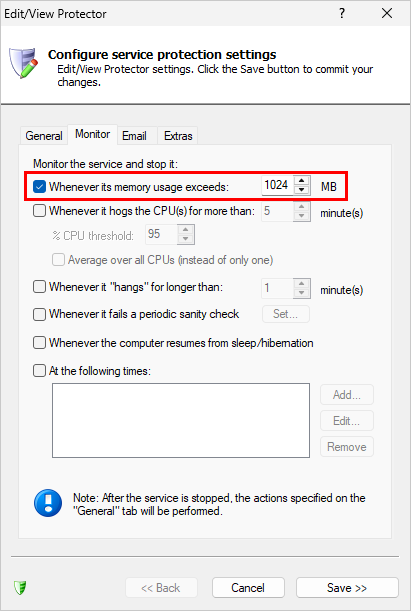
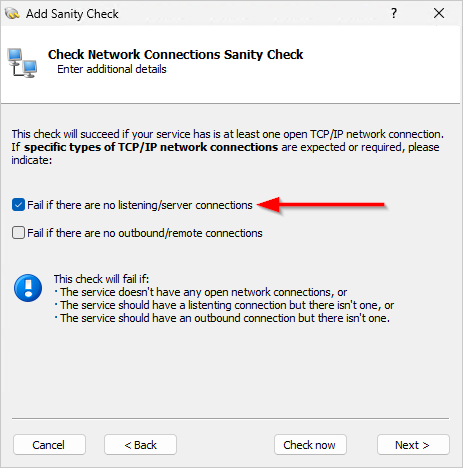
For example, AlwaysUp can detect when your application consumes too much memory, CPU or resource handles. And email from AlwaysUp will quickly alert you of the trouble, as it did here when the “Appointment Server” stopped responding to network requests:

AlwaysUp sent an email when the network sanity check failed

With those details in hand, you’ll be well positioned to investigate and determine if the situation requires your attention. For instance, is your application demanding too much CPU because it’s overloaded? Or is your network the victim of a denial-of-service attack?

In any case, AlwaysUp’s monitoring and early warning systems allow you to quickly intervene and prevent incidents before they occur. And that strengthens your security posture.


So that’s a quick look at how AlwaysUp aligns with your security best practices. Rest assured that our company will continue to follow bedrock ISO 27001 principles as we improve our software.

Finally, best of luck with your information security program! Please be sure to get in touch if you need any help with documentation or implementation.

Posted in AlwaysUp | Tagged , , , , , | Leave a comment

Q&A: Why Isn’t Automatic Login Working?

Why isn't Automatic Logon Working?

  As a workaround for recent problems running OneDrive in Session 0, we configured AlwaysUp to automatically log in and start OneDrive in the new session. I followed your instructions but it’s not working because, as far as I can see, Windows isn’t logging in automatically. What could be going wrong with auto login and how can I fix it?

— Amy

Hi Amy, thanks for reaching out.

We’re not surprised that you’ve run into trouble. For some reason, automatic login (“autologin”) remains a poorly documented feature of Windows. It’s available, but Microsoft doesn’t make it particularly easy to use.

In any case, let’s review the five most likely places where things could be going off the rails with autologin.


Problem #1: Automatic login isn’t set up properly

Autologin only works if you’ve provided a known user name and its associated password. Are you positive that you entered the correct password? If you haven’t, automatic login will silently fail.

How to fix it

Download Microsoft’s free, standalone Autologon utility and use it to set up automatic login.

It’s super easy to use. Enter the user name, domain (if applicable) and password and Autologon will save them all in the Windows registry:

Set up automatic login with Microsoft's Autologon tool

And when you click the Enable button, Autologon will verify your credentials and alert you if you put in a bad password:

Autologon confirms that the credentials you entered work

That check will eliminate some head scratching later on if you’re prone to fat-finger situations. 🙂

Note that Autologon encrypts your password in the registry. But even though that’s a good line of defense, the password may remain vulnerable to determined administrators. For more on that, please review this post discussing security issues related to automatic login.


Problem #2: Your password changed

When you set up automatic login, your user name, domain and password are all saved in the registry. If you subsequently change your password, autologin will fail because Windows keeps using your old password.

How to fix it

Simply re-run the Autologon utility and enter your new password. Autologon will save your updated password, encrypted.


Problem #3: A local or group policy is preventing automatic log on

Even though you may have set up automatic login using Autologon or another method, your intentions may be at odds with the administrator who manages your machine. In fact, that’s extremely likely if your computer is part of a corporate Windows domain.

You see, Windows enforces your company’s policies and practices through group policies — centrally-managed restrictions that apply to all company computers. And those all-powerful policies can curtail almost any feature, including autologin.

How to fix it

If you think that your local settings are being countermanded by a group policy, it’s best to raise the issue with your system/domain administrator. They can make the necessary changes to permit auto-login — but only if they agree with what you’re trying to do. Be prepared to discuss security.

Here are some resources that may be helpful as you’re working with your administrator:


Problem #4: A Logon Banner is blocking autologin

Do you have to acknowledge a legal notice or disclaimer when you sign into your computer? It may look like this:

A Windows Logon Banner

That interactive Logon Banner — which requires you to click a button whenever you sign in — will definitely hold up automatic login.

In fact, Microsoft says exactly that on this page:

 This registry change does not work if the Logon Banner value is defined on the server either by a Group Policy object (GPO) or by a local policy. When the policy is changed so that it does not affect the computer, the autologon feature works as expected.

Therefore, you (or your administrator) must update the group policy to disable the Logon Banner on your computer for automatic login to succeed.


Problem #5: AlwaysUp isn’t starting your application after autologin

It doesn’t seem this way from what you describe, but is it possible that automatic login succeeds and AlwaysUp fails to launch OneDrive in the newly-created session? That may be happening for a couple of reasons.

Reason number one is that you’re not giving Windows enough time to start AlwaysUp. For instance, if you’ve instructed AlwaysUp to start your application Automatically but shortly after the computer boots, it may take up to 5 minutes for your application to start running. If you log in too soon, you may get the impression that “nothing’s working.”

And beyond a slow start, it’s quite possible that AlwaysUp is running into a problem finding the new login session or cannot launch your program on the desktop. If any of those oddities occur, AlwaysUp will note the problem in the Windows Event Logs. Select Application > Report Activity > Past Week to generate a full report in your web browser:

Report OneDrive activity for the past week

How to fix it

First, please be patient. Automatic login may take longer than you think.

Second, review the AlwaysUp activity report for clues and take action on what you find. This page documents common errors and warnings. Please be sure to get in touch with our technical support team if you need help.

Good luck!

Posted in AlwaysUp | Tagged , , , | Leave a comment

Q&A: Why isn’t Google Drive For Desktop Working with AlwaysUp?

Why isn't Google Drive For Desktop Working with AlwaysUp?
  I installed AlwaysUp on August 8 and set up Google Drive for desktop which has been working well until last Friday. It is now displaying an error message: “Unable to restart the application: “C:\Windows\sysnative\cmd.exe” /c “”C:\Program Files\Google\Drive File Stream\Launch.bat”” exited immediately after it was started”.

I stopped the service and was able to run Google Drive for desktop manually and have it catch up on synchronization. I then quit the application, opened AlwaysUp, deleted the Google Drive and recreated it but still get the error.

Do you have any idea what could be causing this?

— Allen

Hi Allen. Sorry to hear of the trouble!

To investigate, we jumped onto our Windows Server 2025 machine and installed Google Drive for desktop (using the Application Advisor). When we launched Google Drive, we saw exactly what you did. Drive exited quickly after AlwaysUp started it:

Google Drive for desktop keeps exiting

We’d never seen that fruitless “flapping” with Google Drive before! It was time to roll up our sleeves…


The problem: Google Drive uses WebView2, which has issues

Our investigation continued with Microsoft’s superb Process Explorer. That free utility allowed us to examine how Google Drive works — both inside and out — when it’s started normally on your desktop.

True to form, Process Explorer quickly showed us that Google Drive isn’t a simple application. Instead of comprising of a single process (like a regular program), Google Drive launches a tree of 10 processes to do its work:

Google Drive for desktop in Process Explorer

What’s unusual is that some of the applications started by Drive are not created by Google. And even stranger yet, msedgewebview2.exe is from Microsoft — a component of their Edge web browser:

Microsoft Edge WebView2 process

Why does a Google product rely on Microsoft Edge — a direct competitor to its ubiquitous Chrome web browser? These are some strange bedfellows indeed!

According to the release notes, Google Drive for desktop introduced Microsoft’s WebView2 framework in the August 18, 2025 release (version 113.0):

Google Drive for desktop release notes

That’s very suspicious. Apparently WebView2 came into the picture right around the time you started having trouble running Google Drive in the background. Could that new component be the culprit?

Anyway, curiosity piqued, we switched back to running Google Drive with AlwaysUp. In that setup, we consistently observed the following disappointing pattern:

  1. AlwaysUp starts launch.bat (the batch file that starts Google Drive for desktop).

  2. The batch file spawns GoogleDriveFS.exe, the main Google Drive executable.

  3. GoogleDriveFS.exe launches msedgewebview2.exe.

  4. msedgewebview2.exe starts 5 more copies of itself, lingers for a couple of seconds then exits.

  5. GoogleDriveFS.exe restarts msedgewebview2.exe up to 5 times, each time ending in failure.

  6. GoogleDriveFS.exe eventually gives up and closes.

It seemed that the Microsoft Edge WebView2 application had trouble staying alive when run as a Windows Service with AlwaysUp. And WebView2 must be a critical component because once it closed, the main Google Drive executable did the same.

It was time to dig into WebView2…

What’s Microsoft Edge WebView2 anyway?

One of our AI overlords (Gemini) puts it this way:

 Microsoft Edge WebView2 is a component that allows developers to embed web content (like HTML, CSS, and JavaScript) into native [Windows] applications, using the Microsoft Edge (Chromium) rendering engine.

Developers use the WebView2 control to display web content directly within a native app, whether it’s a Win32, .NET, WinRT, or other application.

Many desktop applications use WebView2 to display web-based content, such as in-app browsers, ads, or rich text.

With that description in mind, it’s clear that Drive is using WebView2 to render its modern, web-based user interface. You can see WebView2 at work here:

Google Drive's web-based user interface

What’s wrong with using WebView2?

It’s all well and good to build a product atop WebView2, but our research across many articles and forum posts turned up a troubling restriction. WebView2 may not be able to run elevated.

If so, that’s a big deal for Windows Services, which typically operate with full rights. Could that be why WebView2 exits immediately after Google Drive launches it?

To test the theory, we decided to run Google Drive as an administrator. If we’re on the right track, Google Drive would fail when WebView2 protests the excessive rights:

Run Google Drive for desktop as an administrator

Yet WebView2 didn’t complain. Google Drive (and WebView2) started and synchronized files as normal.

So WebView2 can run elevated. But then why did a Microsoft employee say the opposite?

We believe he’s mostly right, but the situation is nuanced. Here’s why.

Of the 6 processes that WebView2 launched, 3 of them were created with full admin rights:

WebView2 processes started with admin rights

But 2 of them were launched without admin rights. One was even run at the lowest level possible — untrusted:

WebView2 processes started without admin rights

So, as part of normal operation, the security-conscious WebView2 launches some sub-components with maximum rights and others with minimal or zero rights.

And for some reason, particularly in the context of a Windows Service, WebView2 cannot start those limited, sandboxed sub-processes with minimal powers.

We think the problem has to do with the deeply technical subject of UAC and split tokens. But since there’s no good way to confirm our suspicions without peeking into WebView2 and Microsoft isn’t about to share the code, we decided to leave the mystery there. Our conclusion is that WebView2 can’t run as an administrator from a Windows Service.

Time to focus on potential workarounds instead.


The solution: Run Google Drive in a standard Windows account

If WebView2 is truly allergic to administrator rights, why not have AlwaysUp launch it with limited permissions? Wouldn’t that solve the problem? We tried that by checking the Launch the application without admin rights box on the Logon tab:

Have AlwaysUp launch Google Drive without admin rights

But to our dismay, that change made no difference. Google Drive still refused to run. We think it’s because WebView2 doesn’t run with a restricted token, and that’s what AlwaysUp creates as it strips away admin permissions. More technical weeds and another dead end.

What about running Google Drive in a “true” non-admin account?

To test that approach, we created a brand new standard account for “Hazel Jones”. As you can see she isn’t an administrator on the computer:

We created a new standard Windows account

Next, we logged in as Hazel, installed Google Drive for desktop and ensured that it worked well for Hazel.

Finally, we returned to AlwaysUp and switched the account on the Logon tab to Hazel:

Setup AlwaysUp to run Google Drive in the standard account

Lo and behold, once we started Google Drive in AlwaysUp, it stayed running! WebView2 was finally happy. You can see the entire process tree running happily in Session 0 here:

Google Drive running in Session 0 as a standard user

Furthermore, the “G” drive (where Google Drive mounts its cloud file system) was accessible to Hazel. We confirmed that from a standard command prompt:

The G drive is accessible

So there you have it, Allen. If you’re still unable to run Google Drive as a Windows Service with AlwaysUp, setup a regular, non-admin account and configure AlwaysUp to run Google Drive as that user. You’ll have access to your cloud files in that setup.

Posted in AlwaysUp | Tagged , , , , | Leave a comment

Service Protector 11: Resource Monitoring, Help for Slow Services, and More

Service Protector 11: Resource Monitoring, Help for Slow Services, and More

Our team released Service Protector 11.0 on October 25. Here’s what’s included in this new and improved version:

Automatically restart your Windows Service if it consumes too many resource handles

Is your Windows Service a “resource hog”? Does it chug away in the background, quietly accumulating references to files, registry keys, tokens and other operating system objects?

If left unchecked, bad things can happen in that situation. For example, your service can eventually tie up so many handles that it crashes. Or worse, it can hang, turning into a stumbling zombie that refuses to do its job.

Service Protector 11 is here to help you mitigate those tricky scenarios. It features a new sanity check that monitors resource handles and takes action when the count spikes above a given threshold.

How to monitor operating system handles with Service Protector

The “check resource handles” sanity check is very easy to use. For example, we already have the Print Spooler Windows Service protected on our server. To ensure that the service is quickly restarted if it consumes more than 500 handles, we would:

  1. Edit the Spooler service in Service Protector.

  2. Switch to the Monitor tab.

  3. Check the Whenever it fails a periodic sanity check box and click the Set button to the right:

    Activate a new sanity check to monitor your Windows Service
  4. In the “Add Sanity Check” window that pops up, choose Check that your service doesn’t have too many resource handles open from the list and click Next to proceed:

    Choose the resource handles sanity check
  5. Enter 500 in the Maximum handle count field:

    Enter the maximum resource handle count
  6. After clicking the Next button, specify how often Service Protector should check the service. Every 5 minutes is a good starting point; we can always change it later:

    Check the service regularly
  7. Moving on, confirm that the sanity check is configured as expected and click Add to confirm:

    Confirm the resource handle sanity check
  8. Save all changes in Service Protector.

And that’s it. With the sanity check keeping watch, Service Protector will automatically recycle the Spooler service if it sucks up too many resources.


Increase the time for Windows Services to start

Let’s face it — some Windows Services take ages to start. And when they dilly-dally too long, the Service Control Manager may tire of waiting and shut them down.

If this is happening on your machine, you may see events 700 and 7009 in the Event Log. That’s the telltale sign of a slow moving service.

But there’s a workaround. As described in this entry in the Windows Services FAQ, you can update a registry value to give your services more than 30 seconds to come up to speed. Today, we’re pleased to announce that Service Protector 11 makes it super easy to update that registry setting. Simply select Tools > Set Service Start Timeout and enter a duration that works better for your services:

Set the start timeout for all Windows Services

The setting applies to all services so please keep that in mind.


Register Service Protector online

Over the next few months, we’ll be rolling out a simple and straightforward online registration system. Instead of handling the serial number and registration code as you do in the offline process, you’ll have the option of doing everything from the computer where the software’s installed. Early feedback is that it’s a time-saving improvement!

Choose Register Online from the Help menu to get started. It’s self-explanatory from there on out:

Register Service Protector 11 online

Other fixes & improvements

  • The developers fixed a coding bug that truncated the descriptions of the Windows Services created by Service Protector. Fortunately the problem was purely cosmetic — operation was not affected in any way.

  • Service Protector now provides better guidance (and helpful links) when someone installs a new version that doesn’t comply with the upgrade policy. Here’s what that feedback looks like:

    Service Protector's upgrade policy enforced

As usual, please review the release notes for the full list of features, fixes and improvements included in Service Protector version 11.0.


Upgrading to Service Protector 11

If you purchased Service Protector version 10 (after May 2024), you can upgrade to version 11 for free. Simply download and install over your existing installation to preserve all services and settings. That way, your registration will continue to work.

If you bought Service Protector 9 or earlier (before May 2024), you will need to upgrade to use version 11.

Please buy upgrades here — at a 50% discount.

See the complete upgrade policy for more details.

Enjoy!

Posted in Service Protector | Tagged , , , , , , | Leave a comment