What’s new…
- Automatically restart your app if a supporting Windows Service isn’t running
- Catch HTTP error messages with the Web Server sanity check
- Sanity checks inspect your application’s entire process tree
- Control AlwaysUp from a command prompt
- Heightened logging & accountability
- Other improvements and fixes
- Version 17.5 is 100% clean & safe
- Upgrading to AlwaysUp 17.5
AlwaysUp version 17.5 — which installs any program as a robust Windows Service — is available for download. Here are the main highlights of this end-of-summer release.

Automatically restart your app if a supporting Windows Service isn’t running
Does your AlwaysUp application depend on a Windows Service? And when that service stops, will your application fail?
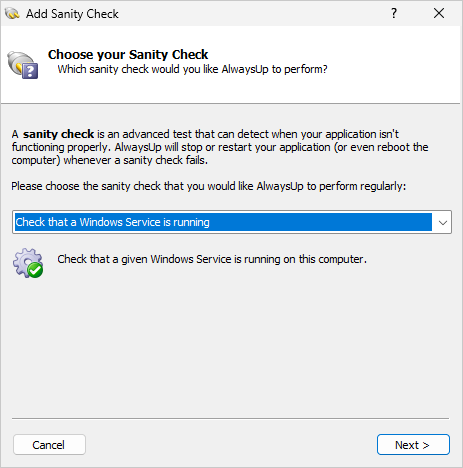
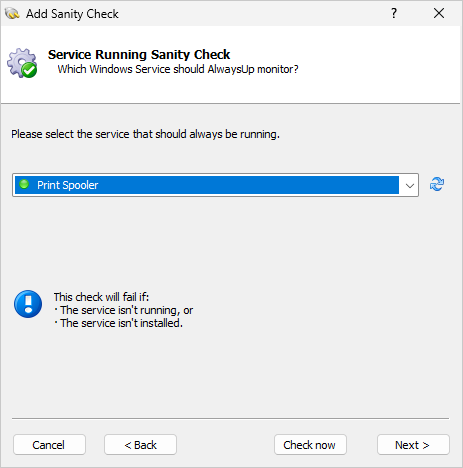
If that describes your situation, you should deploy the new “supporting service” sanity check. After you set it up, AlwaysUp will confirm that the service is running every few seconds.
Whenever AlwaysUp discovers that the service isn’t running, it will reset your application — and recycle the important service too, at your direction.
To deploy the new sanity check:
Choose Check that a Windows Service is running from the list of health checks:

On the next screen, choose the Windows Service AlwaysUp should monitor:
Catch HTTP error messages with the Web Server sanity check
Web servers can fail in unexpected ways.
And sometimes instead of crashing outright, they limp along returning valid responses (HTTP code 2XX) while spewing errors on the pages served.
Our team has retrofitted the web server sanity check to catch those faulty responses. Instead of relying on the HTTP code alone, AlwaysUp can now scan for a specific error message returned on the page. Just enter that text when configuring the sanity check:
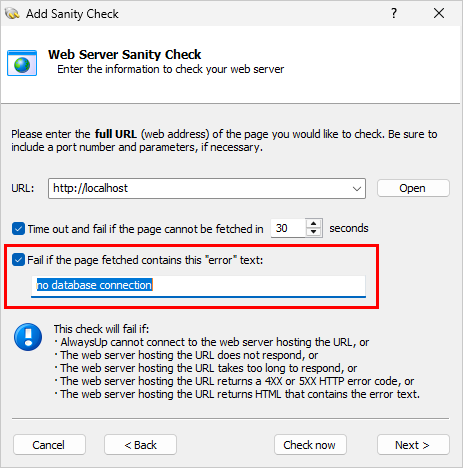
With that new capability in place, AlwaysUp will thoroughly scan the body of each web server response and promptly restart your application if the error text is found.
Sanity checks inspect your application’s entire process tree
In the real world, Windows applications often deploy multiple processes to do their work. Many times there’s a parent process (the one that was started) and one or more child processes launched to perform specific tasks.
That arrangement posed a problem for some of AlwaysUp’s most popular sanity checks. They would only check the parent process and not the child processes, and sometimes that led to false positives.
Our solution is to extend those health checks to interrogate the entire process tree — the top-level process and all its sub-processes. That’s a new option is available to you when configuring some sanity checks.
For instance, let’s look at the network connections sanity check. A new setting is available on the main configuration window. Once you activate it, AlwaysUp will search the entire process tree for connections:
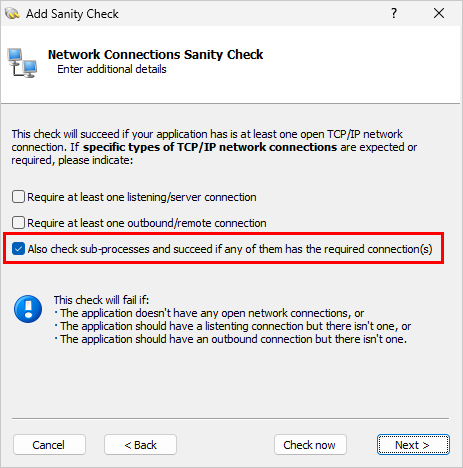
A similar option is available in the sanity check that restarts your application whenever it uses too many operating system handles. It’s new as well.
Control AlwaysUp from a command prompt
With Version 17.5, you can do much more with “AlwaysUp.exe” from an elevated command prompt.
Previous releases supported basic operations (start, stop, etc.) but XML import, XML export, detach, and help are new. Let’s explore those additions.

 XML import & export
To create a new AlwaysUp application, run:
To save an application to an XML file, run:
For example, let’s say you have an AlwaysUp called MyServer. This command will export it to “C:\AlwaysUp Apps\myserver.xml”:
As always, be sure to enclose the XML file name in quotes if it contains a space.
The XML must conform to the AlwaysUp CLT XSD.
Detach
It’s possible to stop AlwaysUp but leave your application running. That detach feature — which is available from the “Application” menu — can be useful when you need to perform application maintenance and don’t want AlwaysUp to get in the way.
To detach an application, run:
Help/usage
To see the full command line capabilities, run:
A window with the details will pop up:
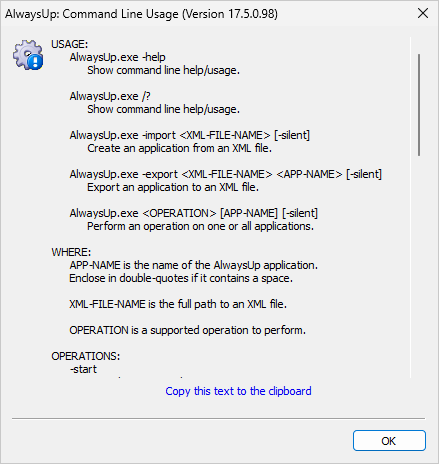
Even though these enhancements don’t rival the power and flexibility of AlwaysUp Command Line Tools (CLT), we expect customers will put them to good use!
Heightened logging & accountability
Building on the advanced logging capabilities introduced in 17.0, AlwaysUp reports additional details to the Windows Event Logs.
Most notably, instead of writing general “updated” records whenever someone edits an application, AlwaysUp mentions what was changed. To show you what we mean, here’s what the record looks like when user Mike Jones updates an application’s executable path:
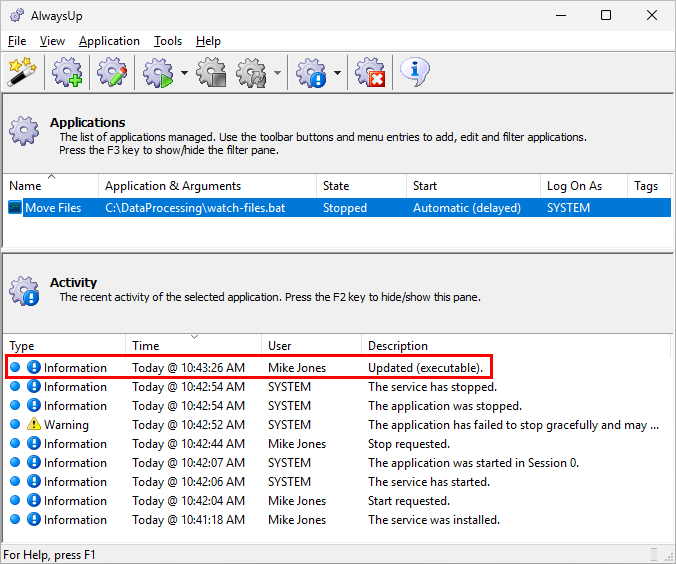
We’re confident these security-centric additions will help busy administrators as they try to figure out who did what.
Other improvements and fixes
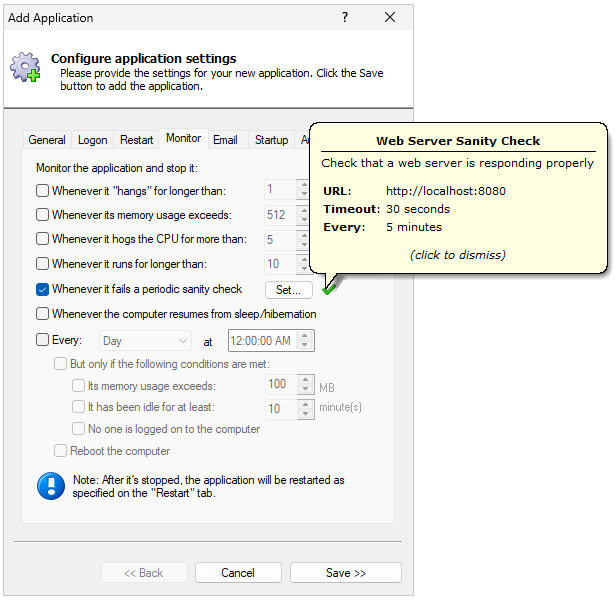
On the Monitor tab, AlwaysUp now shows the details of the sanity check when you hover over (or click) the green check mark:

For completeness, AlwaysUp writes Event Log records whenever services are controlled from the command line. You’ll see entries like “Start requested (command line)” or “Stop requested (command line)” whenever those operations are invoked.
Our developers updated the InfluxDB Application Advisor to search for the correct executable, “influxdb3.exe”.
As usual, please review the release notes for the full list of features, fixes and improvements included in AlwaysUp version 17.5.
Version 17.5 is 100% clean & safe
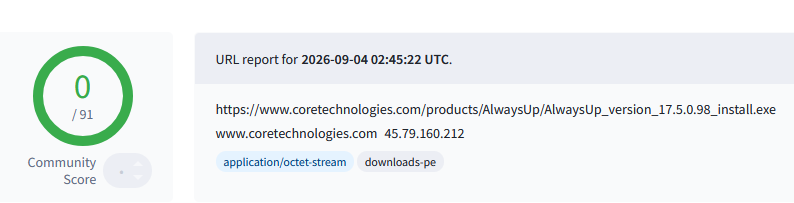
We’re pleased to report that AlwaysUp 17.5 is certified 100% clean by VirusTotal, an industry-leading malware detection site owned by Google.
As you can see from the full report, none of VirusTotal’s 91 virus detection engines found any issues at all:
Upgrading to AlwaysUp 17.5
If you bought AlwaysUp version 16 (on or after February 7 2025), you can upgrade to version 17.5 for free. Simply download and install “over the top” to preserve your existing applications and all settings. Your registration code will continue to work as well.
If you bought AlwaysUp version 15 or earlier (before February 7 2025), you’ll have to purchase a discounted upgrade to use version 17. Please buy upgrades here — you’ll save 30% off the regular price.
Please see the complete upgrade policy for additional details.
Thanks for reading!