The Core Technologies Blog

Professional Software for Windows Services / 24×7 Operation


Trouble with MT4 Build 600 and AlwaysUp?

Version 4 of the popular MetaTrader trading platform (affectionately called MT4) received a major overhaul in February. This forum post describes the many improvements in that “Build 600”, but perhaps the most dramatic changes were to the data storage layer:


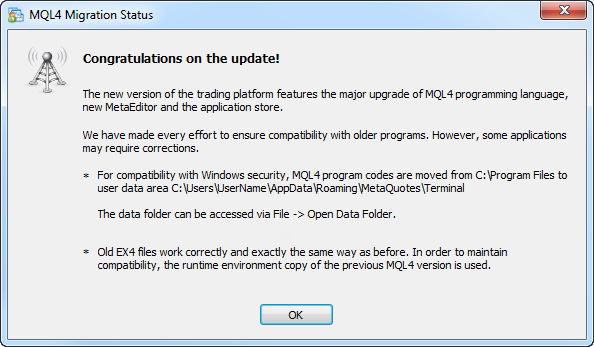
The new version of the MetaTrader 4 terminal features the updated structure of user data storage. In earlier versions all programs, templates, profiles etc. were stored directly in terminal installation folder. Now all necessary data required for a particular user are stored in a separate directory called data folder.

Unfortunately this can cause MetaTrader terminals installed under AlwaysUp to stop working!

If you are having problems running MT4 as a Windows Service with AlwaysUp, please:

  1. Make sure you have your Windows account specified on the Logon tab, as described in step 6 of our MT4 tutorial. Using the default LocalSystem account is no longer an option now that the terminal’s data is kept in a user-specific folder.
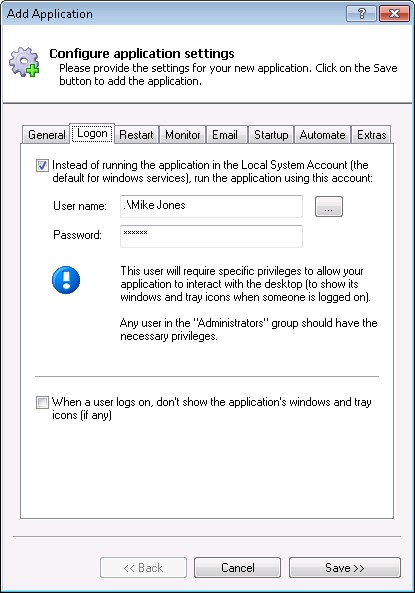
    AlwaysUp Logon Tab

  2. When upgrading to build 600, MT4 moves many files automatically but some files will need to be moved manually. Please review “Automatic Copying of MQL4 Programs When Updating from Older Builds” and ensure that all your terminal’s files are migrated to the new locations.

Following this advice has worked for all MT4 customers experiencing problems with build 600 to date. Of course, please feel free to contact us if you have any questions or remain stuck after implementing the above!


Posted in AlwaysUp | Tagged , | Leave a comment

MyFolders Rated “Top Freeware” by Computer! Totaal Magazine

Computer! Totaal Magazine

We are pleased to announce that Dutch monthly magazine Computer! Totaal has ranked MyFolders as one of their “Top 15 freeware tips” in the January 2014 issue! Our convenient, intuitive utility that will save you time when working with your favorite folders came in at #12.

Posted in MyFolders | Tagged , | 3 Comments

Essential Tools for Windows Services: Process Explorer

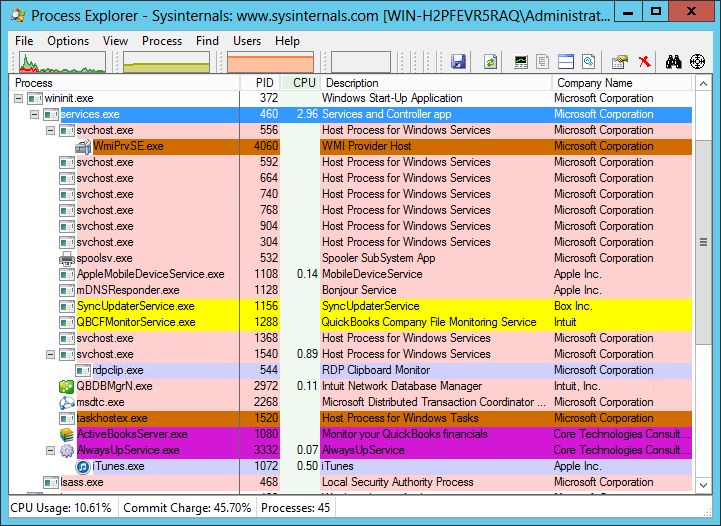
If you want to understand what’s really going on with the programs on your computer, then look no further than Microsoft’s excellent (and free) Process Explorer. Think of it as the “Task Manager on steroids”, with the ability to show all processes, threads, handles, and of course, Windows Services running on your PC.

When launched, Process Explorer shows a colorful tree of all the active processes. The interface automatically refreshes itself every few seconds to highlight processes as they come and go. All Windows Services run under the wninit.exe > services.exe branch:


Process Explorer: Services Tree

Double-clicking an entry allows you to dig into a specific process. For example, here is what is shown for spoolsv.exe, the Windows Print Spooler:


Process Explorer: Spooler Process (spoolsv.exe)

You can start, stop, restart or even change the permissions of the Spooler service from the Services tab:


Process Explorer: Spooler Service

Back on Process Explorer’s main screen, summon the Lower Pane (View > Show Lower Pane) for some serious detective work. You can review all DLLs loaded, or even better, see all the files, registry keys and other objects locked by a process by viewing Handles for the lower pane (View > Lower Pane View > Handles). Here we see that iTunes (being run as a service with AlwaysUp) is using the “counters.dat” file:


Process Explorer: iTunes Handles

And perhaps most useful of all, Process Explorer can help you track down which application is preventing you from deleting a file or folder! Choose Find > Find Handle or DLL… and search for the file by name. Here we can see that the counters.dat file used by iTunes is also being held by Explorer and QuickBooks:


Process Explorer: Search

Process Explorer has many other interesting features. Easily terminate any process (and all its sup-processes if necessary), boost the priority of any process to make it run faster, and much more. Enjoy!

Posted in Windows Services | Tagged , , | Leave a comment

Phasing out Support for Windows XP

Windows XP support ends in 2014

Support for Windows XP will end on April 8, 2014. After this date, Microsoft has announced that it will will no longer provide updates for its 12-year old operating system — even though it still commands a whopping 29% share of all desktops, second only to Windows 7’s 48%. However, facing the reality of a potential security disaster, with viruses running unchecked without the usual defensive patches, Microsoft recently relaxed their stance and extended antimalware support of XP for an extra 15 months.

Here at Core Technologies, we will start to phase out support for Windows XP this year too. We’re not planning on removing any XP-specific features and capabilities from our software, but our team will no longer be testing or certifying new software releases on XP.

Will this cause you any problems? Please let us know!

Posted in Miscellaneous | Tagged | Leave a comment

Essential Tools for Windows Services: The NET Command

If you manage Windows Services and are comfortable working from the command line, then the Windows NET.EXE command should be in your toolkit. Use it to easily start, stop, pause or restart any service from an elevated command prompt, or in a convenient script/batch file.


Using NET to stop a Windows Service

To stop a service, run:

net stop <Service-Name>

where <Service-Name> is the name of the service. Be sure to enclose it in quotes if it contains a space!

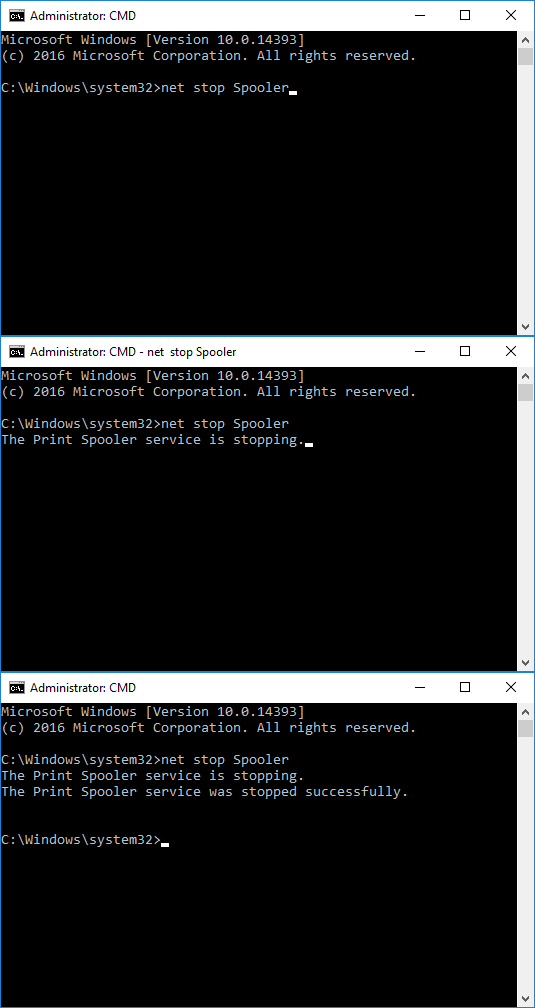
For example, to stop the Print Spooler service (named “Spooler”), run:

net stop Spooler

Here is what it looks like on our Windows Server 2016 computer:

NET: Stopping the Print Spooler Service

Notice that the NET command will wait for the service to stop before continuing. The only exception is when the service is unresponsive or takes more than 30 seconds to comply.


Starting a Windows Service with NET

To start an idle Windows Service, run:

net start <Service-Name>

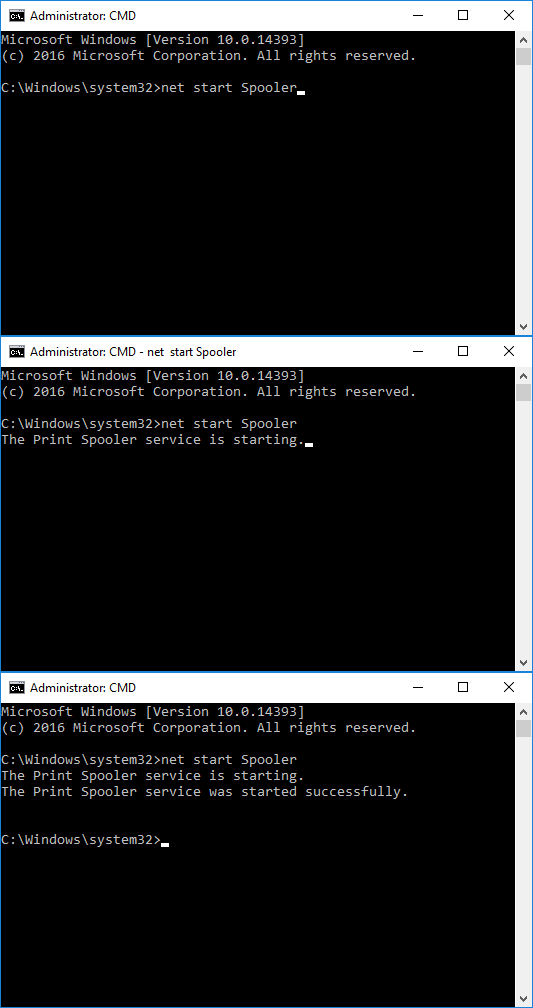
If all goes well, your service (and any other service it depends on to operate) will be started after a few seconds:


NET: Start the Print Spooler Service


How to Restart a Windows Service with NET.EXE

To restart a service, say from a batch file, chain the “net stop” and “net start” commands together like this:

net stop <Service-Name>
net start <Service-Name>


NET will also Pause and Resume Windows Services

Not all services support pause and resume, but if you have one that does, NET can come in handy there as well.

To pause a service, type:

net pause <Service-Name>

To resume a paused service, run:

net continue <Service-Name>


Frequently Asked Questions (FAQ)

  1. Why does NET START or NET STOP return “System error 5 has occurred. Access is denied”?

    That happens when you don’t have permissions to control the service.

    This article explores the problem and offers a few solutions.

  2. What service name should I use with NET START and NET STOP?

    NET accepts the display name or the official service name. Either one will work:

    Windows Service Names

    However, you must enclose the name in double-quotes (") if it contains a space.

  3. What should I do if NET STOP times out before my service stops?

    NET STOP will only wait for 30 seconds for the service to stop. If that’s not enough and the command times out, you have a few options:

    1. Wait for the service to stop on its own. It may just need a bit more than 30 seconds to wrap up its work.
    2. Use or free ServicePilot utility. It’s well suited for slower services because it will wait more than 30 seconds — however long you tell it to.
    3. Terminate the service. That may be your only option if the service is truly stuck and will never finish on its own.
  4. Can I use NET to control a service on another computer?

    No. For remote control, you can use the SC command instead.

    However, be sure to review the differences between NET and SC. SC is not a drop-in replacement for NET.

  5. What’s the difference between NET START/STOP and SC START/STOP?

    This article compares NET and SC. There are important differences!

Posted in Windows Services | Tagged , , , , | 28 Comments