What's a "sanity check" and why would I use one?
Service Protector is designed to keep your important services functioning 24/7.
To fulfill that mandate, Service Protector will quickly detect when your service crashes, hangs or even uses too
much RAM — and automatically restart it in seconds.
But as you probably know, services can fail in a variety of ways.
In fact, we've seen countless situations where an service says it's running
but when we investigate we discover that it's not actually doing any work.
The underlying process is in a vegetative state, showing up in Task Manager but otherwise dead to the world.
Fortunately, you can extended Service Protector by plugging in additional failure detection logic to identify
a range of subtle and unusual problems.
We call those extensions "sanity checks" — because they check the sanity of your services.
Today, you can choose from several predefined sanity checks that verify
basic network connectivity, check for log file activity, ensure that a web server is responding, and more.
Or you can even write your own sanity check, if no built-in option fits your needs.
Why should you use a sanity check?
To quickly identify tricky problems and ultimately reduce downtime for your mission-critical services, of course!
How do I set up a sanity check in Service Protector?
To add a sanity check to your service:
-
Edit your service in Service Protector, either by double-clicking its row or by highlighting it and selecting
Application > Edit/View from the menu.
-
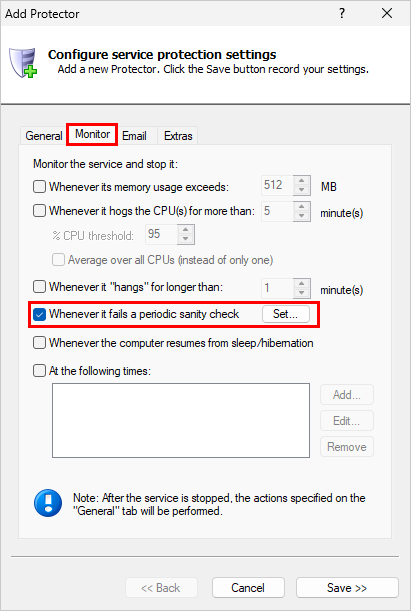
Switch to the Monitor tab.
-
Check the Whenever it fails a periodic sanity check box and click the Set button on the right:
-
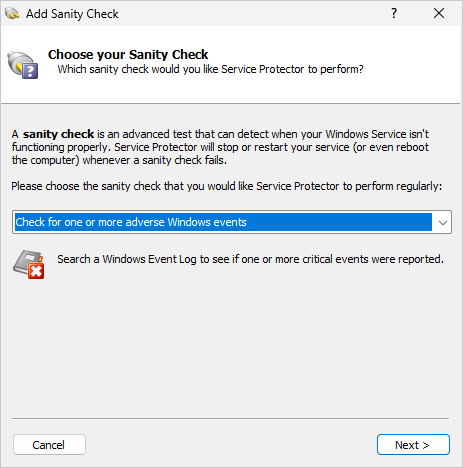
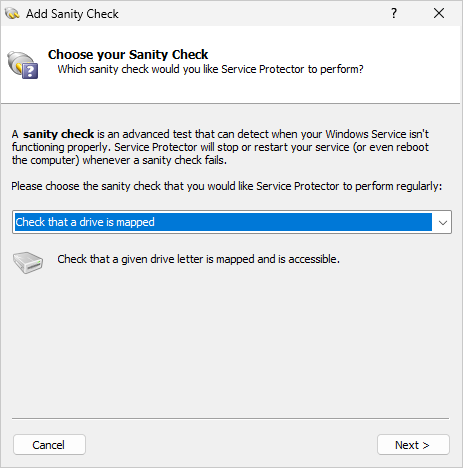
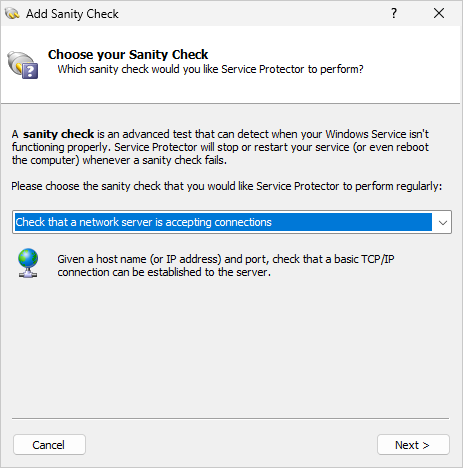
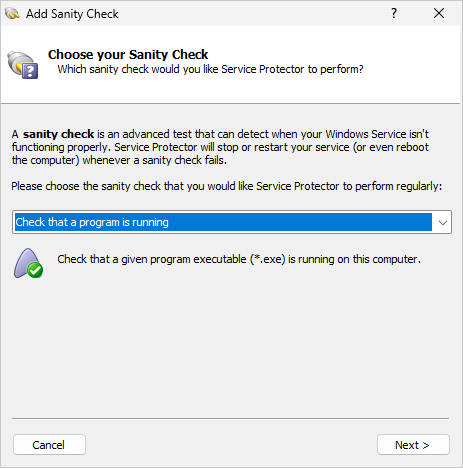
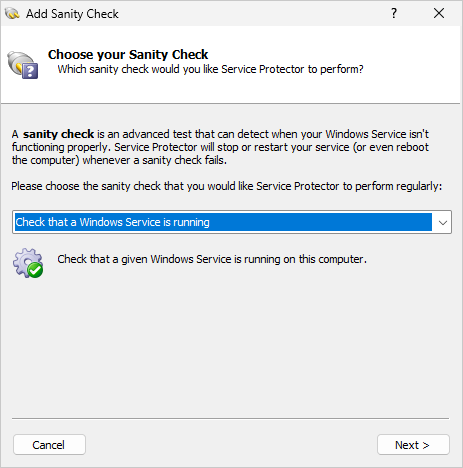
You'll be looking at the Add Sanity Check window, which will guide you through the process of adding a new sanity check:
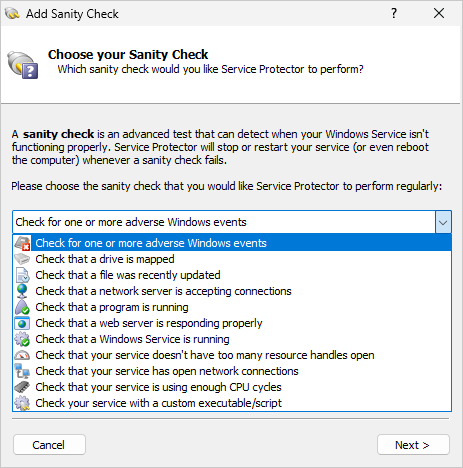
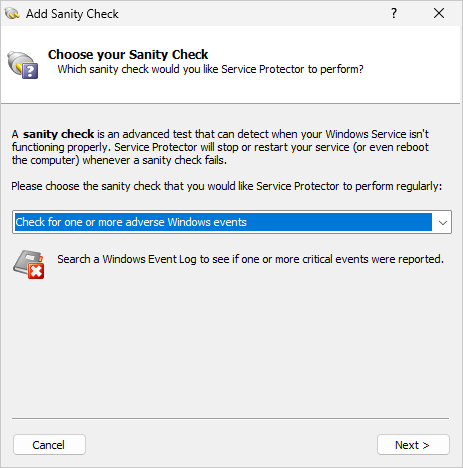
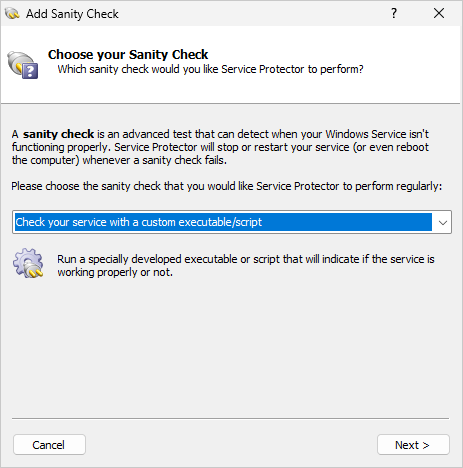
The built-in sanity checks are listed in the dropdown:
Each one is described below.
-
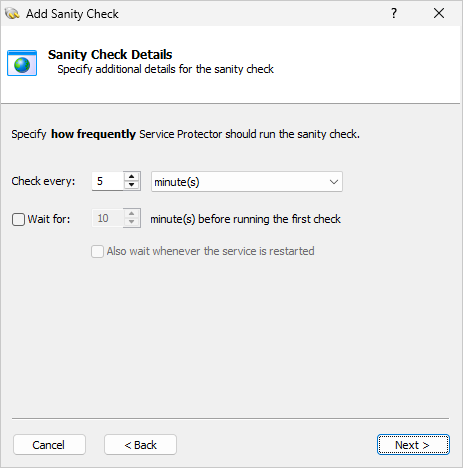
After choosing a sanity check and providing the necessary settings, you'll specify how often Service Protector should run the sanity check:
-
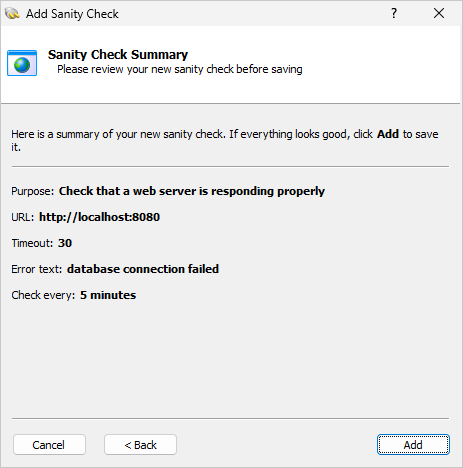
Finally, confirm your settings and click the Add button to save your new sanity check:
Built-in sanity checks
For your convenience, Service Protector comes with a few sanity checks that have helped customers before.
They're very easy to deploy and require only basic information about your service or situation to install.
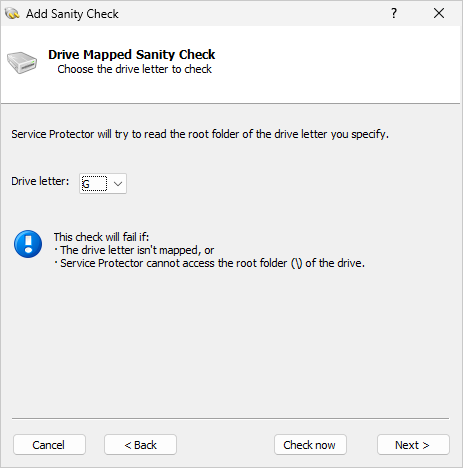
 Is a drive letter mapped and accessible?
If a specific drive needs to be accessible while your service is working, you should deploy this sanity check.
Simply choose the drive letter to monitor, and Service Protector will do the rest:
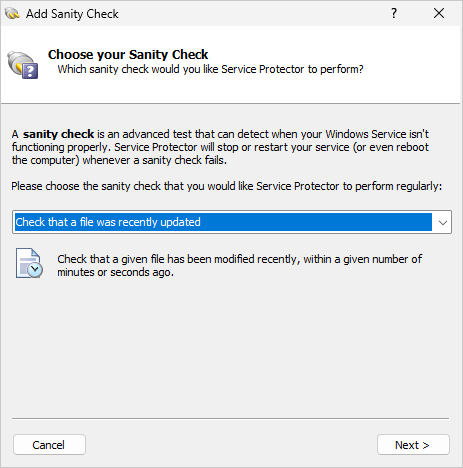
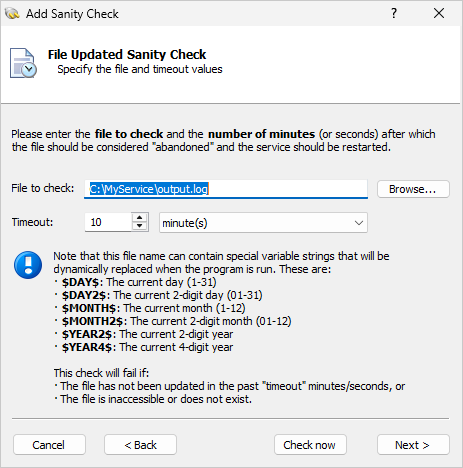
 Was a special file updated recently?
Does your service update a file while it's working normally?
If that file is not updated, does it mean that the service should be restarted?
If that strikes a chord, you should add this sanity check.
Enter the full path the file to monitor (and the timeout value) and you'll be good to go:
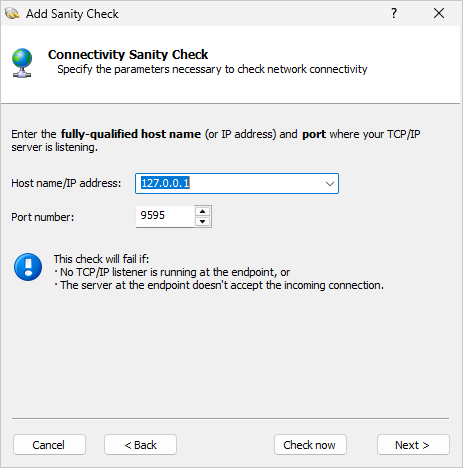
 Is a TCP/IP server accepting connections?
Use this sanity check when you want to make sure that a TCP/IP endpoint is always accepting connections. All protocols are supported.
Enter the IP address or host name of the server and the port to check:
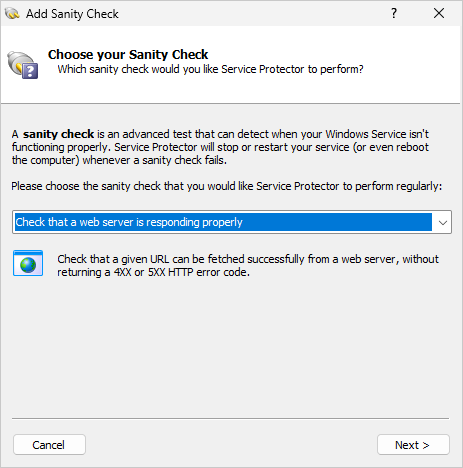
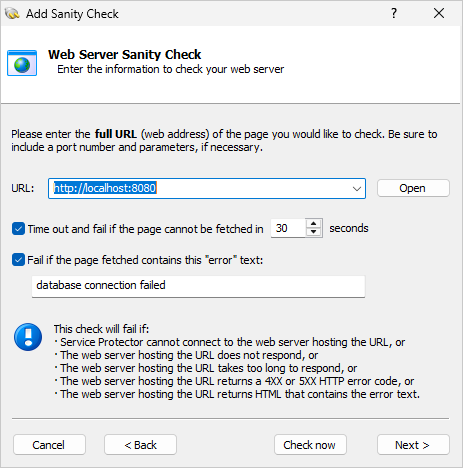
 Is a web server responding properly?
If your service implements a HTTP/HTTPS web server, this sanity check will periodically ping its URL and make sure it returns a valid response.
Enter the complete URL to fetch (including the port number, if necessary) and a timeout value to install this check:
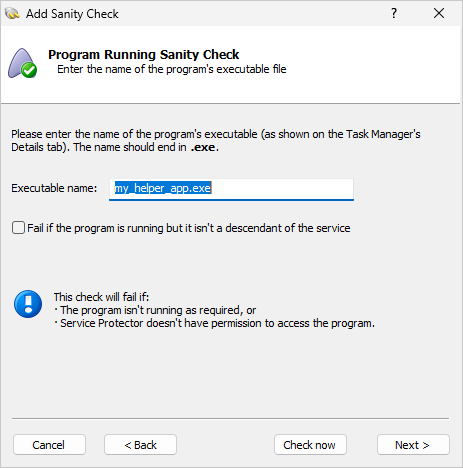
 Is an important/helper program running?
If your service relies on the presence of another program to function properly, this sanity check is for you.
You'll need to enter the name of the helper's executable, as seen in Task Manager:
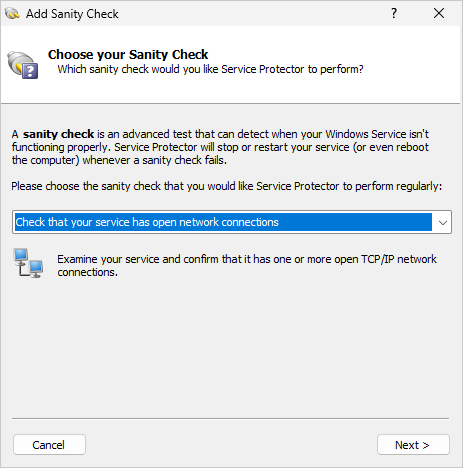
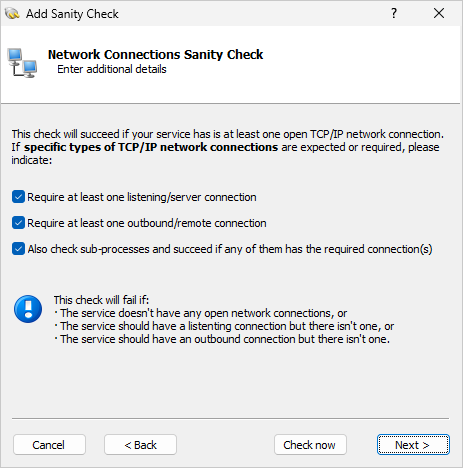
 Does your service have one or more network connections open?
If you're running a TCP/IP network server, this sanity check will confirm that it has open inbound or outbound connections (or both):
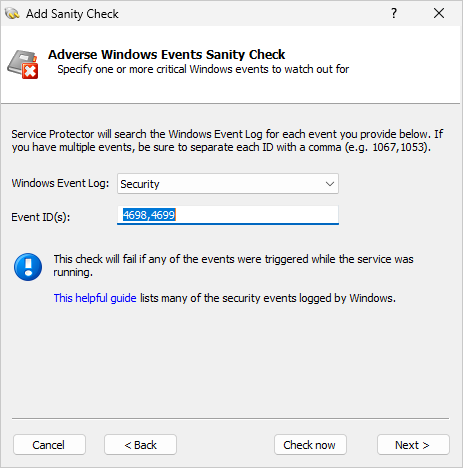
 Was an adverse Windows event reported while your service was running?
When Windows writes an event to the event logs, it can have significant impact. Use this sanity check if you'd like to stop/restart
your service whenever Windows reports one or more key events.
Select the event log and enter the numeric identifiers of the triggering events. You'll have to separate multiple IDs with commas:
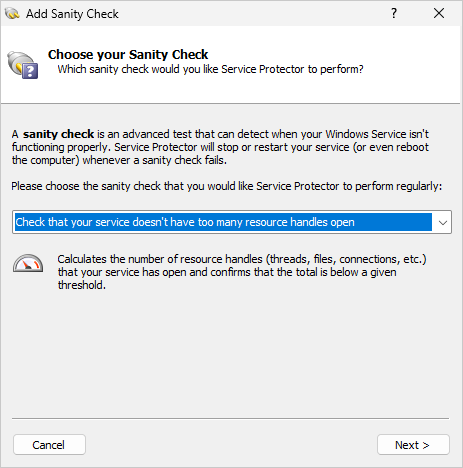
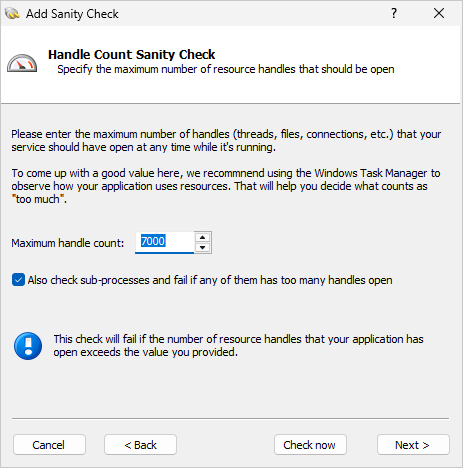
 Does your service have too many operating system handles open?
Buggy services often hold on to precious
operating system handles
and never relinquish them. Use this sanity check to monitor those "resource hogs" and restart them if they open too many handles.
You'll have to enter the maximum number of handles that your service should reasonably have open at any time:
Note: If you set that maximum value too low, Service Protector will restart your service more often than it needs to. We recommend using the
Windows Task Manager to help you tune.
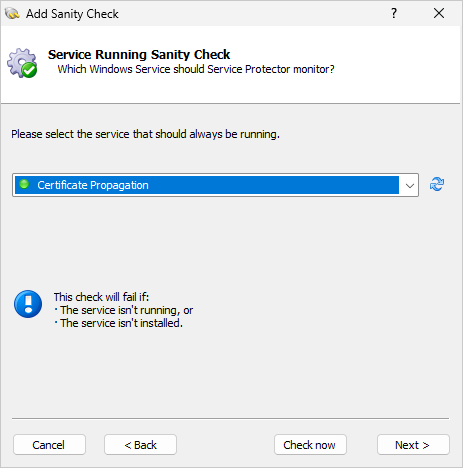
 Is an important Windows Service running?
Sometimes a service cannot do its work without help from another Windows Service. That's where this health check comes in.
Choose the supporting service from the list and Service Protector will shout if it's not running:
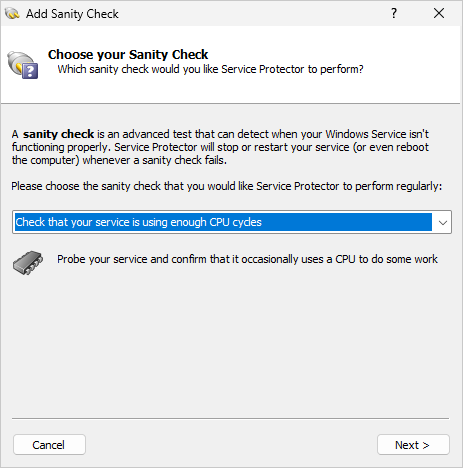
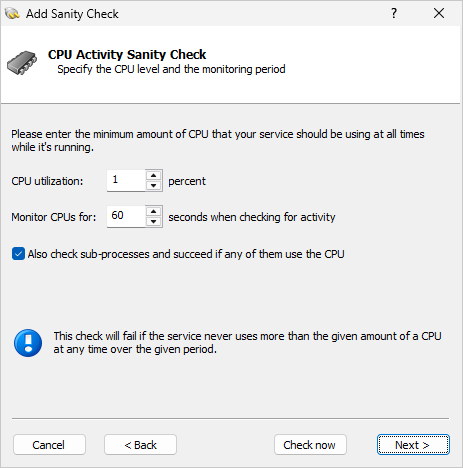
 Is your service using enough CPU?
Deadlocks and hangs can prevent a service from working. And those irregular obstacles are notoriously difficult to detect.
But there's hope. This sanity check flags a service that's suspiciously idle — using too few CPU cycles.
With that, Service Protector will restart your service if it uses less CPU than you expect:
Writing your own sanity check
If there's no built-in sanity check that detects the unique problems in your service, you can write
your own sanity checking program or script and plug it into Service Protector.
In terms of requirements, a sanity check can be either:
- an executable (*.exe) written in any programming language, or
- a Windows batch file (*.bat).
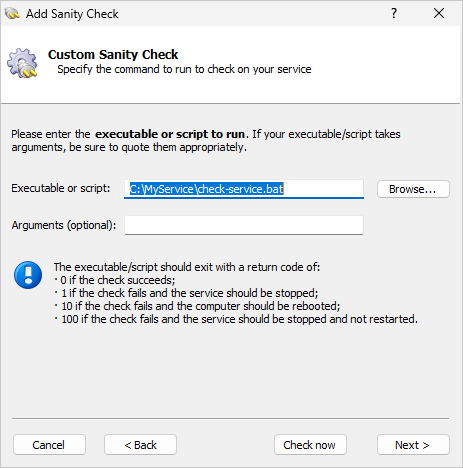
The only obligation is that it exits with a return code of:
- 0 when the check succeeds and Service Protector shouldn't do anything to the service;
- 1 when the check fails and Service Protector should stop/restart the service as you have configured;
- 10 when the check fails and Service Protector should reboot the computer;
- 100 when the check fails and Service Protector should stop your service and NOT restart it
(despite what you've configured in Service Protector);
- any other value when your utility encounters a problem independent of the service being monitored
and Service Protector shouldn't do anything to the service.
In the last case, Service Protector will not restart the service but it will write the result to the event log (and send an email if so configured).
Note that if your sanity check utility fails to complete in 120 seconds, Service Protector will stop/restart the service as configured
— same as if your utility exited with 1.
How to plug your custom sanity check into Service Protector
To have Service Protector use your sanity check, simply choose
Check your service with a custom executable/script
from the list and follow the prompts:
On the settings page, you will be asked to enter the full path to your sanity check executable or batch file.
You can enter parameters as well:
Using special command line variables in your sanity check
Service Protector can pass your sanity check utility one or more variable values.
Compose your command line with the appropriate string and Service Protector will make the
substitution before invoking your program.
| Variable |
Replaced With |
| $SERVICEPROTECTOR_PID |
The program identifier (PID) of your running service, as seen in the Task Manager, or -1 if the service isn't running. |
| $SERVICEPROTECTOR_SERVICENAME |
The name of the service being protected (the short name). |
For example, to have Service Protector pass your sanity check executable the main service's process identifier (PID),
your command line might resemble this:
C:\MyServer\my_check.exe $SERVICEPROTECTOR_PID
If your main service is running with PID 563, then, when it's time, Service Protector will invoke your sanity
check executable like this:
C:\MyServer\my_check.exe 563
Sanity checks for Service Protector 7 and earlier
If you're running a version of Service Protector before version 16, you'll have to plug in your sanity checks the "old" way
— by specifying an executable or script.
The legacy sanity check plugins page describes the previous capabilities.