Keep QuickBooks Database Server running 24/7

How to Keep QuickBooks Database Server Running 24/7 with Service Protector

Automatically restart the QuickBooks Database Server Windows Service whenever it crashes or stops for any reason. Ensure your users can access QuickBooks over the network at all times


Last Updated on September 6, 2026

QuickBooks is the most world's popular small-business accounting software. The QuickBooks Database Server is a critical component that ensures multi-user access to your financial information over the network.


To monitor & protect QuickBooks Database Server with Service Protector:

  1. Install and configure QuickBooks, if necessary. We installed QuickBooks Enterprise 24 installed on our Windows Server 2025 machine:

    QuickBooks Enterprise installed

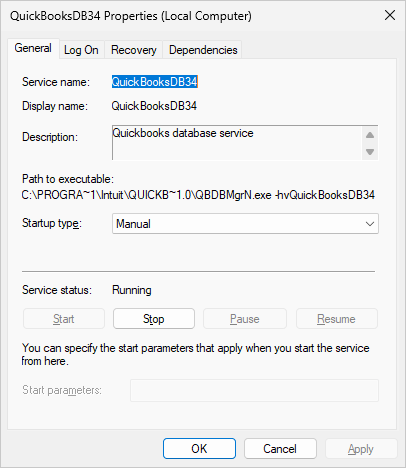
    The QuickBooks Database Server Windows Service was installed as part of the package:

    QuickBooks Database Server Windows Service

  2. Download and install Service Protector, if necessary.

  3. Start Service Protector.

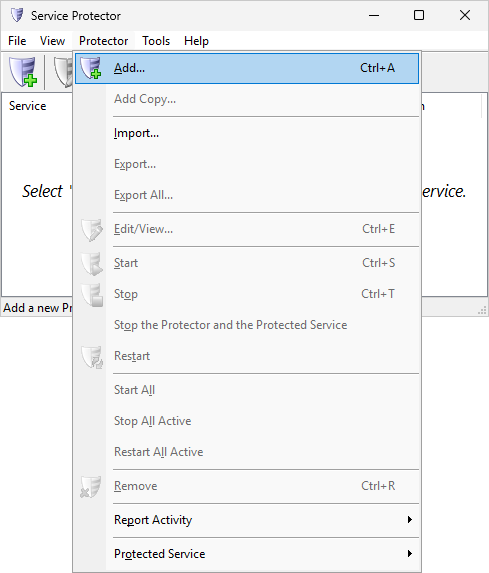
  4. Select Protector > Add to open the Add Protector window:

    Add Protector

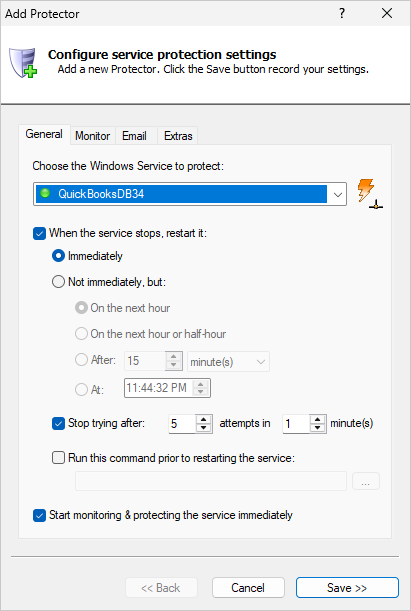
  5. On the General tab, in the Service to protect field, choose the QuickBooks Database Server windows service. This will be named QuickBooksDBXX, where XX is the version number. Note that it may not match your QuickBooks Enterprise version number.

    Our service is named "QuickBooksDB34", so we selected that:

    Select the QuickBooks Database Server Windows Service

  6. Click the Save button. In a second or two, an entry for QuickBooks will show up in the Service Protector window.

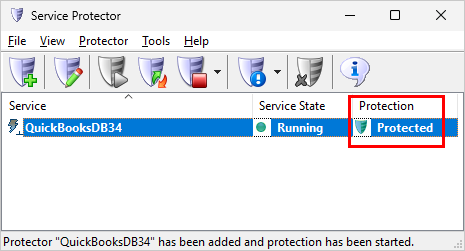
    The green shield icon indicates that the QuickBooks service is being protected:

    QuickBooks Database Server Windows Service: Protected

  7. That's it! Next time your computer boots, QuickBooks Database Server will start (as normal) and Service Protector will begin watching the service to promptly restart it if it stops for any reason.

    We encourage you to edit the QuickBooks entry in Service Protector and check out the many other settings that may be appropriate for your environment.

    For example, send email alerts when the service fails, restart the service if it gets stuck starting or stopping, and much more.


Trouble protecting the QuickBooks Database Server Windows Service?

  • From Service Protector, select Protector > Report Activity > Today to bring up an HTML report detailing the interaction between Service Protector and QuickBooks Database Server.

  • Browse the Service Protector FAQ for answers to commonly asked questions and troubleshooting tips.

  • Contact us and we will be happy to help!