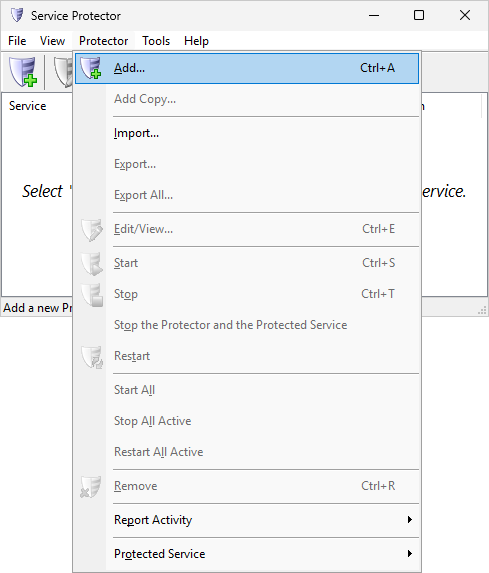
Select Protector > Add to open the Add Protector window:
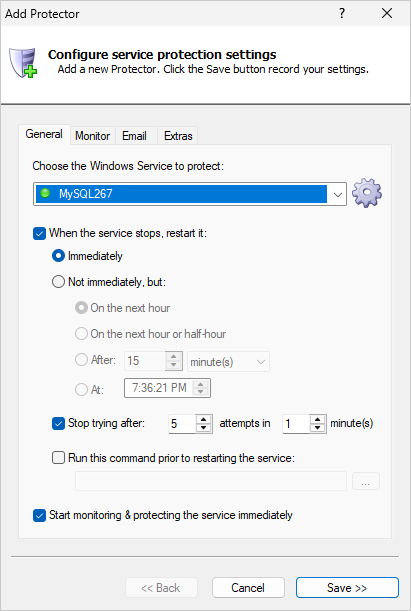
On the General tab:
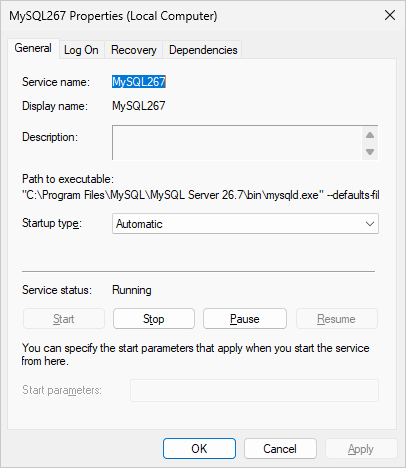
In the Service to protect field, select the MySQL service. It will probably start with MySQL, followed by the version number.
You'll notice a green circle on the left if the MySQL service is running, as it was on our server:
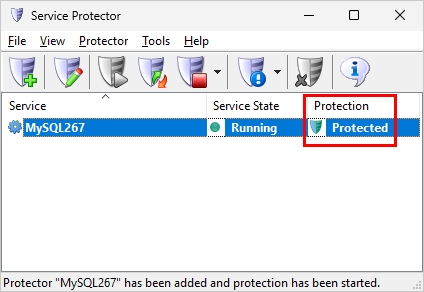
Click the Save button. In a couple of seconds, an entry for MySQL will show up in the Service Protector window.
At this point, the MySQL Windows Service is actively monitored by Service Protector:
That's it! Next time your computer boots, MySQL will start and Service Protector will begin monitoring the service and restart it if it fails.
We encourage you to edit MySQL in Service Protector and check out the many other settings that may be appropriate for your environment.
For example, send an email when the service fails, restart MySQL periodically to keep performance snappy, and much more.
Trouble protecting the MySQL Windows Service?
From Service Protector, select Protector > Report Activity > Today to bring up an HTML report detailing the interaction between Service Protector and MySQL.
Browse the Service Protector FAQ for answers to commonly asked questions and troubleshooting tips.