The Print Spooler is an important Windows Service that handles printing from all applications.
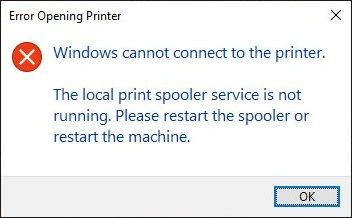
When it stops, no printing can occur and you'll see errors like this:
-
Download and install Service Protector, if necessary.
-
Start Service Protector.
-
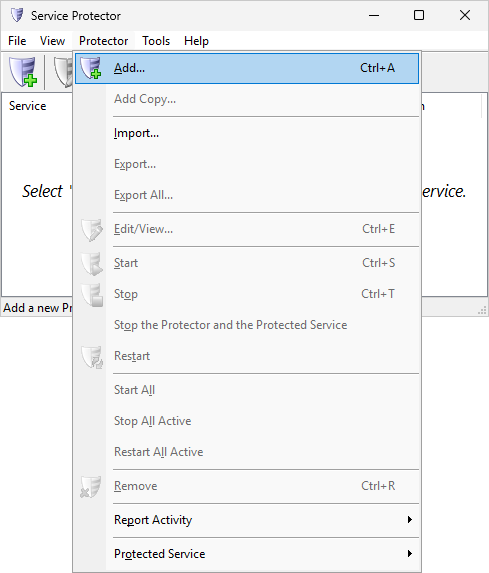
Select Protector > Add to open the Add Protector window:
-
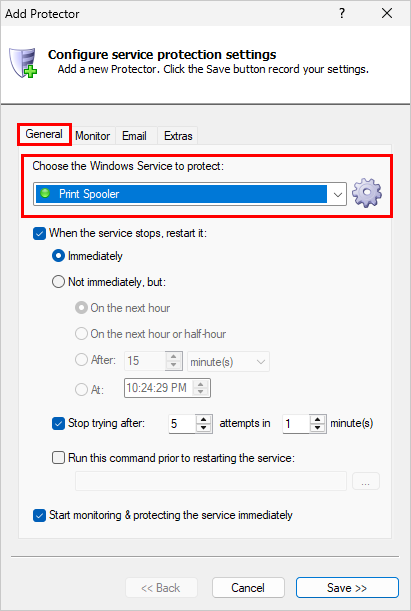
On the General tab, in the Service to protect field, choose the Print Spooler Windows Service.
You'll probably notice a green circle on the left, which means that the Print Spooler service is already running, as was the case on our server:
-
Occasionally print jobs can get stuck in the queue, putting the brakes on all printing.
If that is a concern, we recommend having Service Protector clear out the print queue folder of
all .SHD and .SPL files whenever the service stops.
In this tutorial, we'll move the files to another folder for later review. But you may choose to delete the files if you prefer.
To have Service Protector clear the spooler whenever the service stops:
-
Create a new batch file and enter the following command to move all files from the spooler folder into another location:
MOVE /Y C:\Windows\System32\spool\PRINTERS\*.*
C:\Spooler\JobsToReview\
Be sure to update the command with your actual destination folder.
-
Switch to the Extras tab in Service Protector.
-
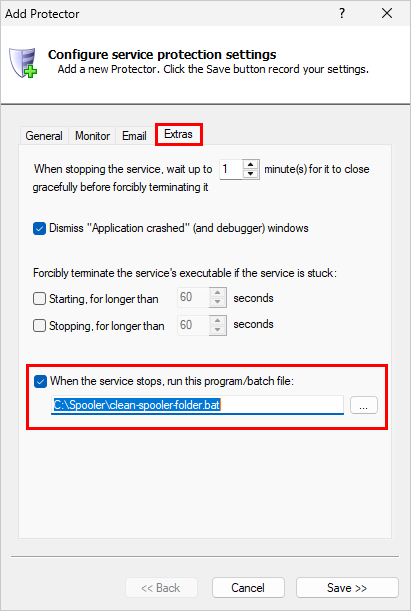
Check the When the service stops option and
enter the full path to the new batch file (which is "C:\Spooler\clean-spooler-folder.bat" on our machine).
-
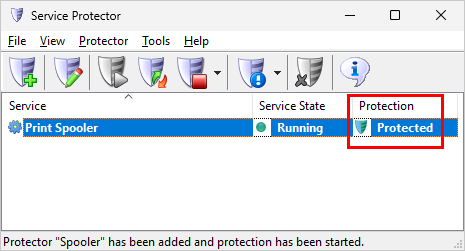
We're done configuring the Print Spooler service so click the Save button. In a few seconds, a new entry will show up in the Service Protector window.
The green shield icon indicates that the spooler is being monitored by Service Protector:
-
That's it! Next time your computer boots, the Print Spooler will start automatically and Service Protector will watch the service to promptly restart it if it fails for any reason.
We encourage you to edit the spooler entry in Service Protector and check out the many other settings that may be appropriate for your environment.
For example, send an email when the service fails, restart the spooler service at a safe time every day, and much more.