How to Keep Google Cloud Print Running 24/7 with Service Protector
Automatically restart the Google Cloud Print Windows Service when it crashes or stops for any reason. Ensure that your printer is always available to your devices, with zero downtime
Note: Google Cloud Print has been discontinued. The software is no longer supported, updated, or available for download.
This guide remains here for reference only.
Google Cloud Print gives you access to your PC's printers from any device. It runs in the background as a Windows Service.
To protect the Google Cloud Print Windows Service with Service Protector:
Using your Chrome browser, download, install and configure Google Cloud Print, if necessary.
Download and install Service Protector, if necessary.
Start Service Protector.
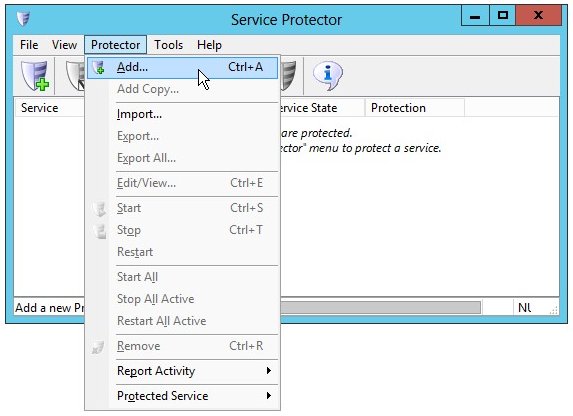
Select Protector > Add to open the Add Protector window:
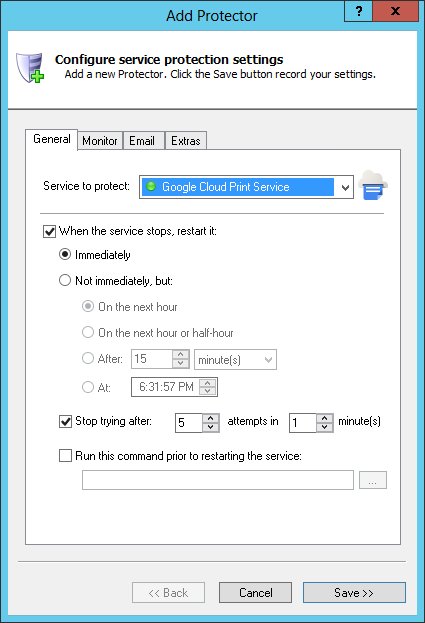
On the General tab, in the Service to protect dropdown, choose Google Cloud Print Service.
You will notice a green circle on the left if the Google Cloud Print service is already running, as pictured below.
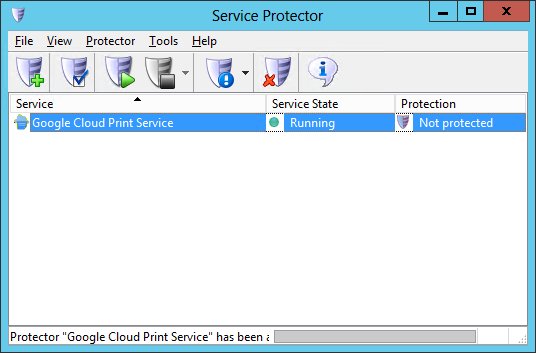
Click the Save button. In a couple of seconds, an entry for Google Cloud Print will show up in the Service Protector window.
Google Cloud Print is probably already running but it is not yet being protected by Service Protector (as pictured below).
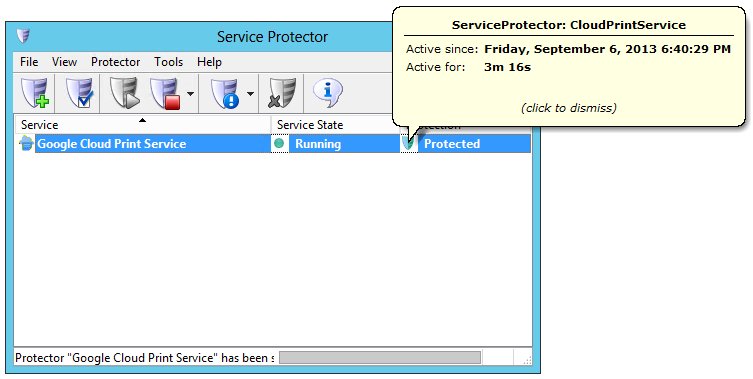
To start protection, choose Protector > Start "Google Cloud Print Service". The shield icon will go to green to indicate that Google Cloud Print is being protected, and clicking on the shield will confirm that protection is active:
That's it! Next time your computer boots, Google Cloud Print will start and Service Protector will begin monitoring the service to promptly restart it if it fails.
Note that Service Protector has many other settings to ensure that the Google Cloud Print Service operates smoothly.
For example, send an email when the service fails, restart Google Cloud Print periodically to keep performance snappy, and much more. Check them out!
Trouble protecting the Google Cloud Print Windows Service?
Consult the Service Protector FAQ for answers to commonly asked questions and troubleshooting tips.