|
How to Keep your VisualSVN Server Windows Service Running 24/7 with Service Protector |
Automatically restart VisualSVN Server whenever it stops, crashes or has trouble serving web requests. Ensure that your Subversion repositories are always available
Last Updated on October 16, 2026
VisualSVN Server is a fully-functional Subversion server for the Windows platform.
It's freely available for commercial use under the Community license.
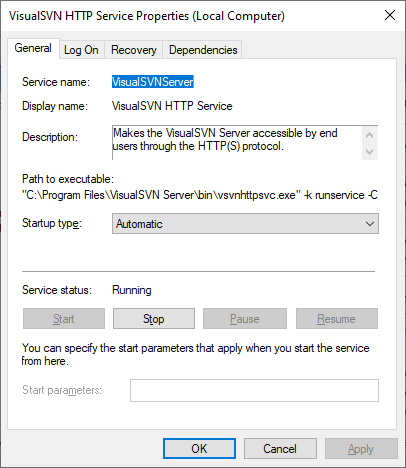
VisualSVN provides a convenient HTML web interface to your repository. That functionality is hosted by the "VisualSVNServer" Windows Service:
To monitor & protect VisualSVNServer with Service Protector:
-
Download and
install
Service Protector, if necessary.
-
Start Service Protector.
-
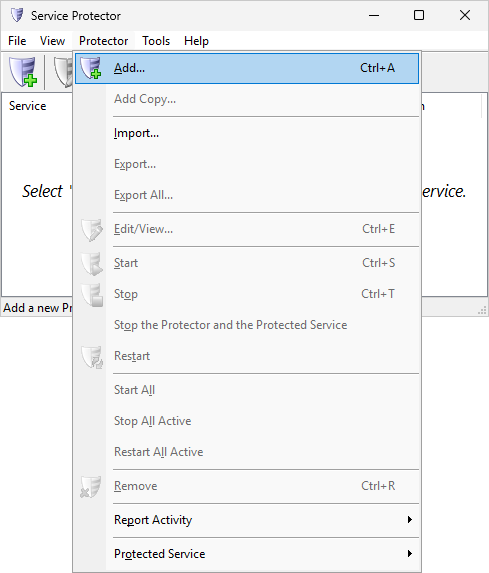
Select Protector > Add to open the Add Protector window:
-
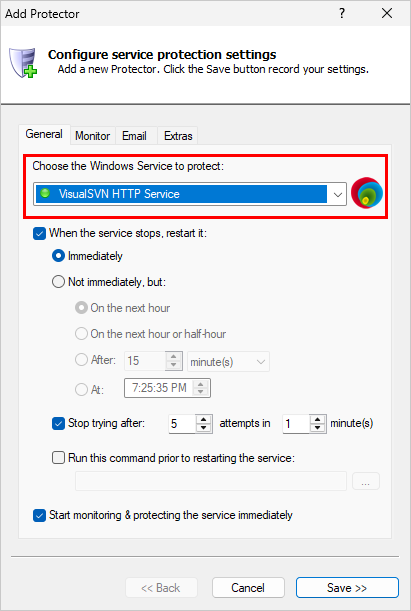
On the General tab, in the Service to protect field, select VisualSVN HTTP Service:
-
To monitor and restart VisualSVN if it stops serving HTML pages,
switch to the Monitor tab. We'll set up a health check to detect when the VisualSVN web server runs into trouble.
-
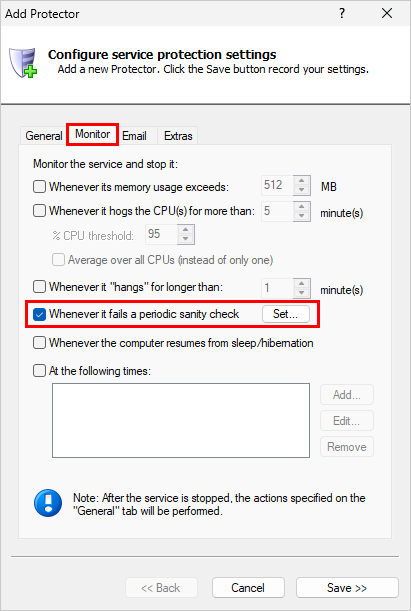
Switch to the Monitor tab. Check the Whenever it fails a periodic sanity check box and click the Set button:
-
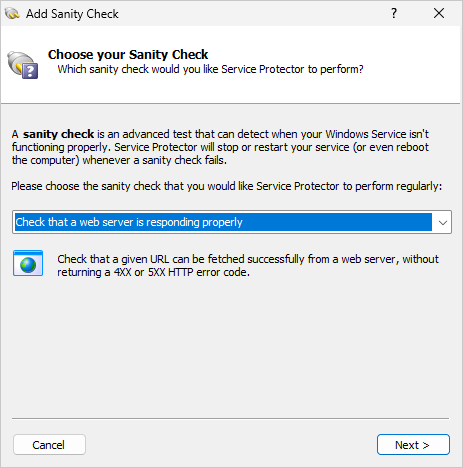
In the Add Sanity Check window, select the Check that a web server is responding properly
option and click Next to proceed:
-
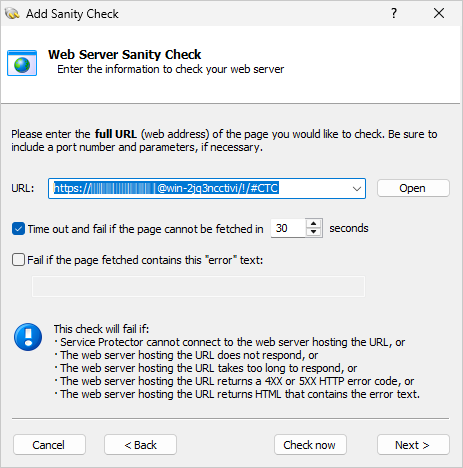
Enter the URL you use to access your VisualSVN Server. For example, you can open a repository in your browser to get the URL.
Note: In order to access a VisualSVN server web page, our URL includes a username and password that authenticates the request to the web server.
Please be sure to consider the security implications in your environment if you take the same approach!
Click Next to continue.
-
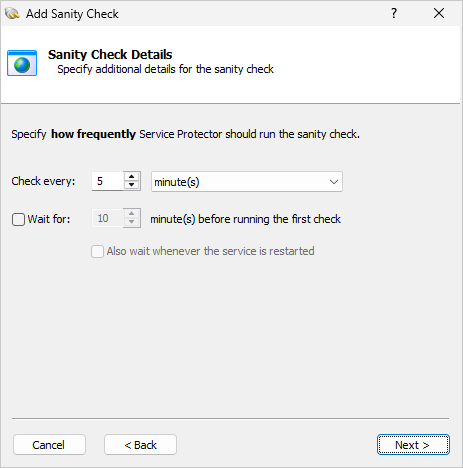
Specify how often Service Protector should verify the URL.
The default of every 5 minutes should be fine but you can check more often if you like.
After you're done, click Next to move on:
-
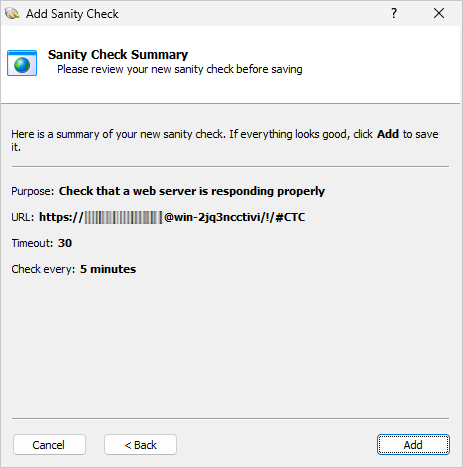
And finally, confirm your settings:
If everything looks good, click Add
to record your new sanity check and return to the Monitor tab.
-
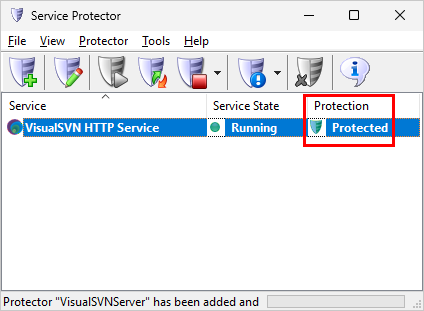
Click the Save button to record your settings. In a few seconds, an entry for VisualSVN HTTP Service
will appear in the Service Protector window.
The green shield indicates that Service Protector is already actively monitoring the Subversion server to quickly detect and mitigate failures:
-
That's it! Next time your computer boots, VisualSVN will start automatically and Service Protector will babysit the service
to promptly restart it if it terminates for any reason.
We encourage you to edit your VisualSVN HTTP Service entry in Service Protector and explore the many other settings
that may be appropriate for your Subversion environment.
For example, send an email when the service fails, schedule a regular restart to cure memory leaks,
tamp down the effects of CPU hogging, and much more.
Trouble protecting the VisualSVN Server Windows Service?
From Service Protector, select Protector > Report Activity > Today to bring up an HTML report detailing the interaction between Service Protector and VisualSVN Server.
Browse the Service Protector FAQ for answers to commonly asked questions and troubleshooting tips. Contact us and we will be happy to help!
|
Peace of mind for your important Windows Services!
|
 |

|
Step-by-step guides for 70+ Services
|