|
How to Keep the Windows Firewall Service Running 24x7 with Service Protector |
Automatically restart the Windows Firewall if it stops for any reason. Make sure that your computer is always protected from attackers
Last Updated on October 12, 2026
Microsoft's Windows Firewall defends your PC from unscrupulous forces trying to break in.
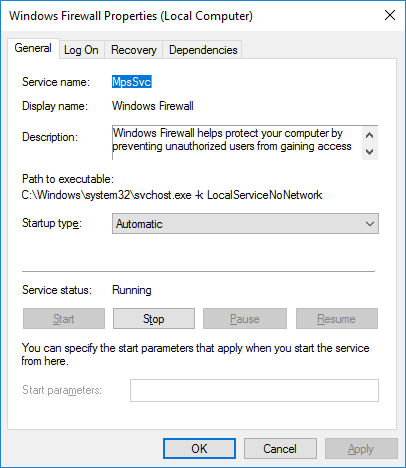
It's included with every version of Windows and runs as a service (named "MpsSvc"):
To monitor the Windows Firewall Windows Service and have Service Protector automatically restart it if it stops for any reason:
-
Download and install Service Protector, if necessary.
-
Start Service Protector.
-
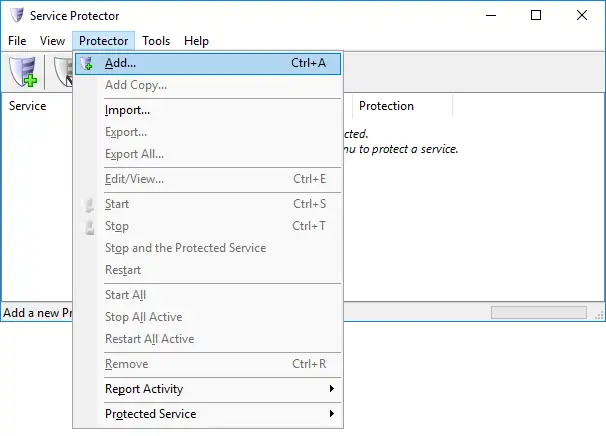
Select Protector > Add to open the Add Protector window:
-
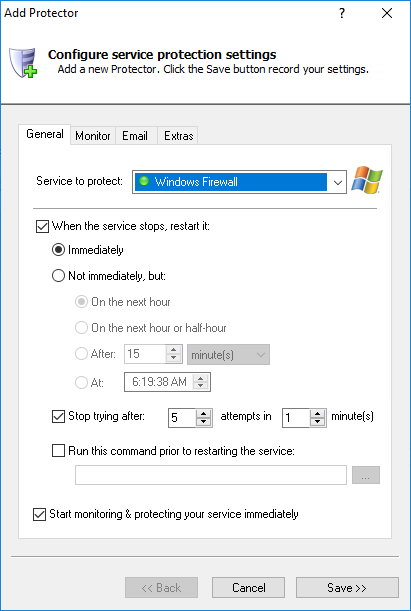
On the General tab, in the Service to protect field, choose the Windows Firewall Windows Service.
It will be called Windows Firewall (or Windows Defender Firewall on Server 2019).
You'll notice a green circle to the left of the entry if the service is already running, as was the case on our server:
-
Click the Save button to record your settings.
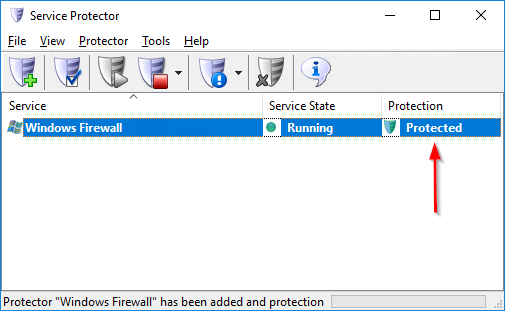
In a few seconds, an entry for Windows Firewall will show up in Service Protector's window.
The shield icon will be green, indicating that the Windows Firewall service is already being managed by Service Protector:
-
That's it! Next time your computer boots, Windows Firewall will start as normal and Service Protector
will monitor the service to quickly restart it if it stops for any reason.
And now that you have gone through the basics, please feel free to edit Windows Firewall in Service Protector
and check out the many other settings that may help your defenses to operate smoothly.
For example, send an email whenever the service stops, run a batch file to clean up before restarting the firewall, and much more.
Trouble protecting the Windows Firewall Windows Service?
From Service Protector, select Protector > Report Activity > Today to bring up an HTML report detailing the interaction between Service Protector and Windows Firewall.
Browse the Service Protector FAQ for answers to commonly asked questions and troubleshooting tips. Contact us and we will be happy to help!
|
Peace of mind for your important Windows Services!
|
 |

|
Step-by-step guides for 70+ Services
|