|
How to Install & Run Mumble Server as a Windows Service |
Automatically start your Mumble Server whenever your machine boots. No need to log on first
Last Updated on April 25, 2026
Mumble Server is the back-end component of Mumble — a popular, open source, VoIP package.
To install Mumble Server as a Windows Service with AlwaysUp:
-
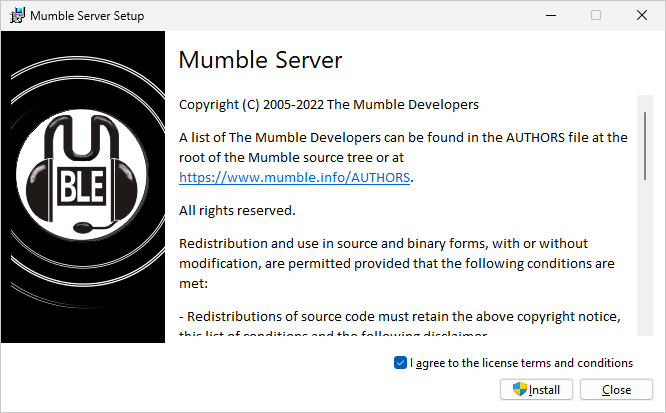
Download, install and configure Mumble Server, if necessary.
Make sure that Mumble Server runs properly. If not, it won't work as a Windows Service either!
-
Download and install AlwaysUp.
-
Start AlwaysUp.
-
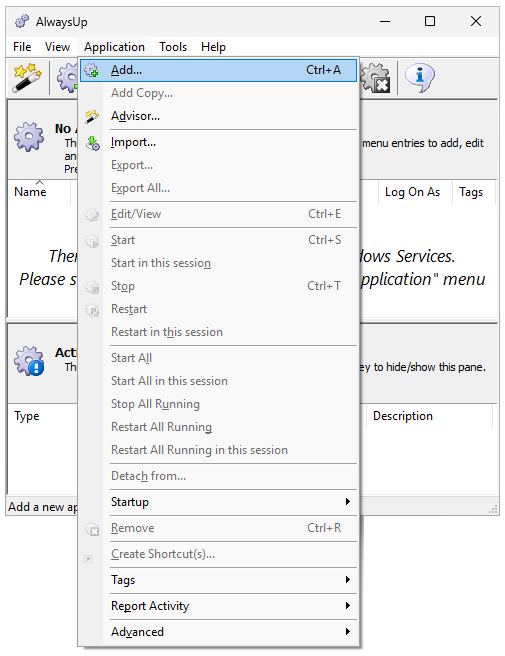
Select Application > Add to open the Add Application window:
-
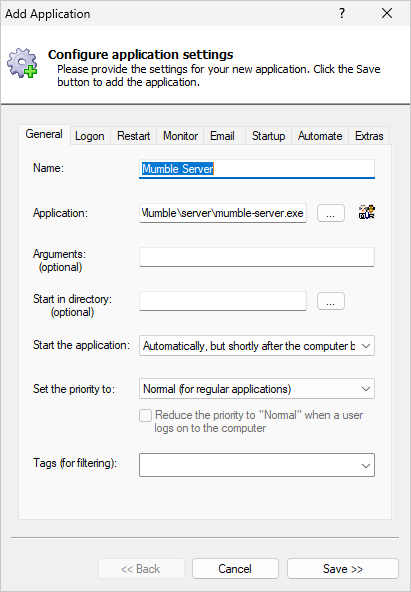
On the General tab:
-
In the Application field, enter the full path to the Mumble Server executable, mumble-server.exe.
Since we installed Mumble to the standard location on Windows Server 2025 machine, we'll specify:
C:\Program Files\Mumble\server\mumble-server.exe
-
In the Start the application dropdown, choose Automatically, but shortly after the computer boots.
With that setting, Windows will start Mumble about 2 minutes after boot — after all critical services are up and running.
-
And in the Name field, enter the name that you will call this application in AlwaysUp.
We put in "Mumble Server":
-
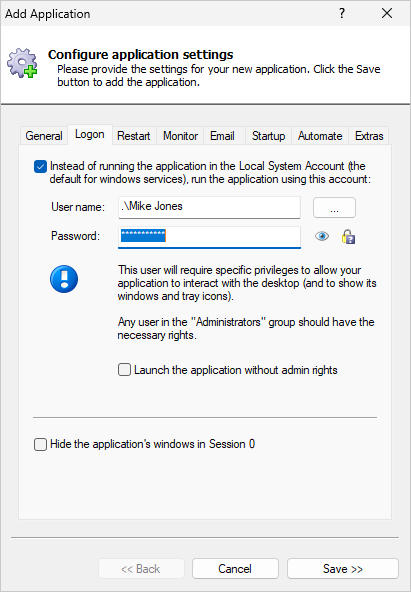
Switch to the Logon tab and enter the user name and password of the Windows account in which you installed and
configured Mumble Server. The software must run in this account so that it can find its settings.
-
We're now done configuring Mumble Server as a service, so click the Save button to record your settings.
In a couple of seconds, an application called Mumble Server (or whatever you called it) will show up in the AlwaysUp window.
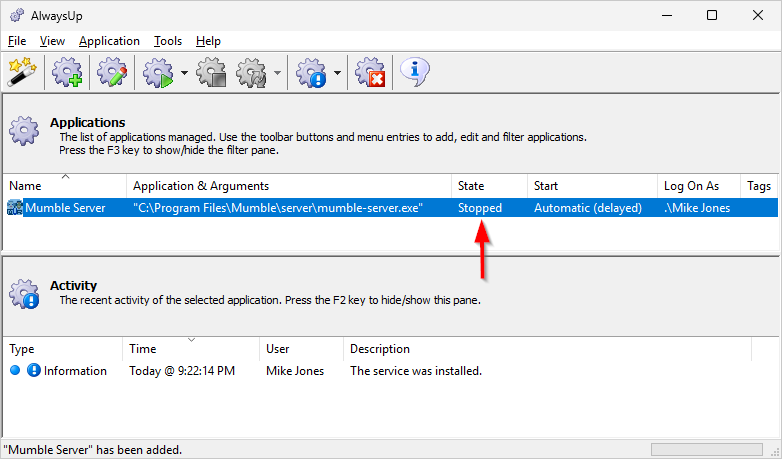
Mumble is now installed as a Windows Service. However, it's not yet running and the state will be "Stopped":
-
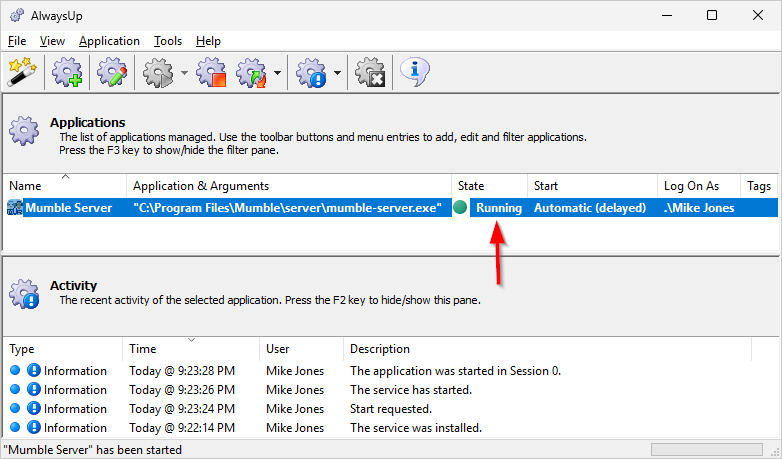
To start Mumble Server, choose Application > Start "Mumble Server" from the menu. The state should transition to Running and Mumble Server should be available in a few seconds.
Click the green "Running" circle to see a few details of the Mumble Server process:
-
That's it! Next time your computer boots, your Mumble Server service will be launched immediately, before anyone logs on.
Feel free to edit the entry in AlwaysUp and add more advanced options.
For example, you can:
Mumble Server not working properly as a Windows Service?
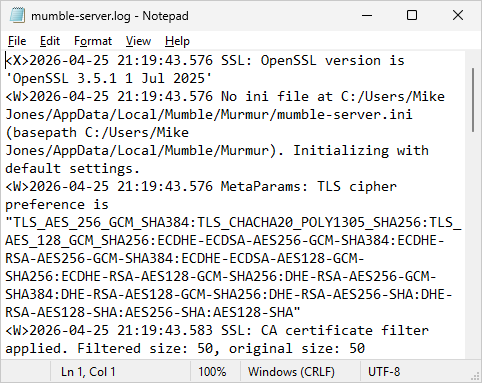
Does Mumble Server report anything interesting in its log file? Have a look at the file, which will probably be here:
C:\Program Files\Mumble\server\mumble-server.log
Consult the AlwaysUp Troubleshooter — our online tool that can help you resolve the most common problems encountered when running an application as a Windows Service.
From AlwaysUp, select Application > Report Activity > Today to bring up an HTML report detailing the interaction between AlwaysUp and Mumble Server. The AlwaysUp Event Log Messages page explains what each message means.
Browse the AlwaysUp FAQ for answers to commonly asked questions and troubleshooting tips. Contact us and we will be happy to help!
|
Over 97,000 installations, and counting!
|
 |

|
Rock-solid for the past 20+ years!
|
Fully Compatible with 160+ Applications...
|