|
How to Run LM Studio as a Windows Service with AlwaysUp |
Automatically start LM Studio headless (llmster) whenever your computer boots and keep it running 24/7 in the background. No need to log in at all
Last Updated on June 8, 2026
LM Studio
enables you to run LLMs locally, on your own hardware.
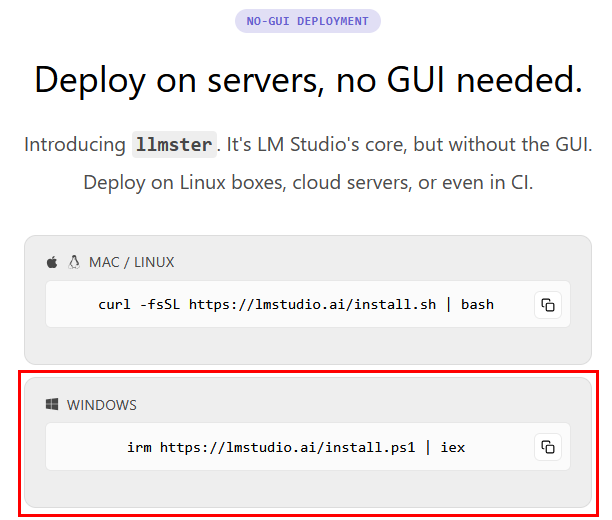
You can run LM Studio
headless, without a GUI, using the
llmster
component:
However, the server will only start after you log in. And that can be a problem if your computer reboots unexpectedly and you're not there to sign in again.
In this article, we'll show you how to fix that. Once we're done, LM Studio will start as soon as your computer boots and your AI models will be available all the time —
surviving crashes, accidental shutdowns and other annoying interruptions.
To install LM Studio llmster as a Windows Service with AlwaysUp:
-
Install LM Studio llmster, if necessary.
Make sure that you can start and connect to the server and perform whatever tasks you need to accomplish.
This is important. If llmster doesn't work now, it won't magically work as a Windows Service either.
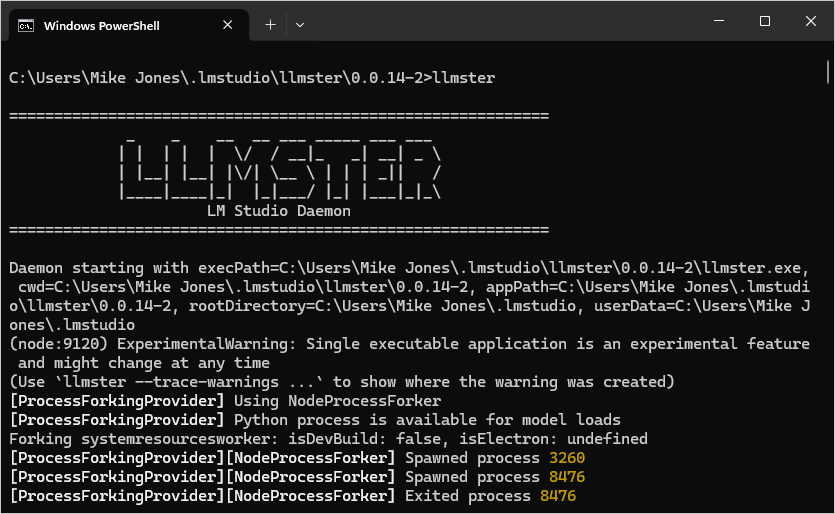
Everything looked good on our server:
-
Next, download and install AlwaysUp, if necessary.
-
Start AlwaysUp.
-
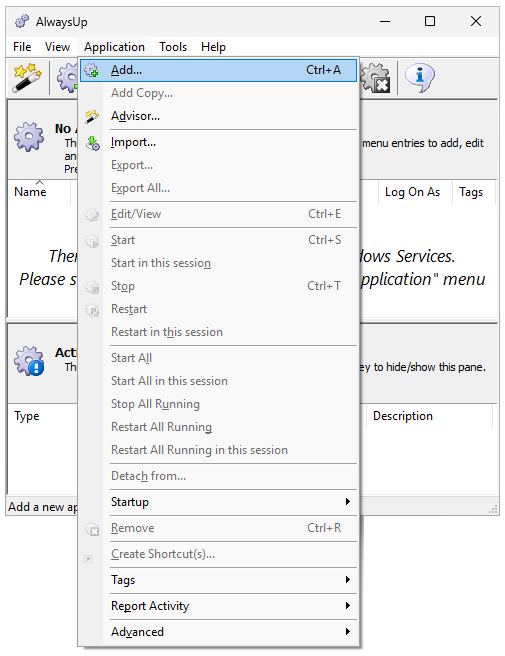
Select Application > Add to open the Add Application window:
-
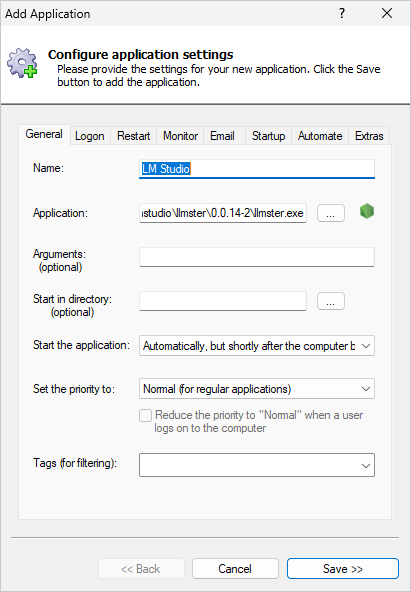
On the General tab:
-
In the Application field, enter the full path to the llmster executable, llmster.exe.
If you installed llmster in the default location, this will be:
C:\Users\<USER-NAME>\.lmstudio\llmster\<VERSION>\llmster.exe
where:
- <USER-NAME> is the name of the Windows account where you installed llmster, and
- <VERSION> is the version of LM Studio you're running.
For example, the path on our server is:
C:\Users\Mike Jones\.lmstudio\llmster\0.0.14-2\llmster.exe
-
In the Start the application field, choose Automatically, but shortly after the computer boots.
With this setting, AlwaysUp will start llmster a couple of minutes after boot — after all the machine's critical
networking services are up and running.
-
And in the Name field, enter the name that you want to give your application in AlwaysUp.
We went with "LM Studio".
-
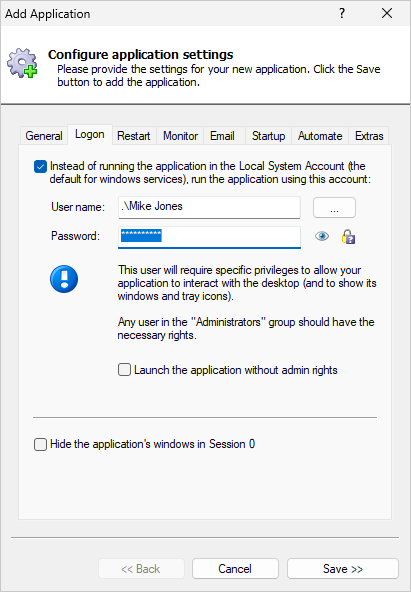
Move to the Logon tab and enter the user name and password of the Windows account where you installed llmster.
The daemon should run in this account so that it can find its private copy of
Node.js
(which powers the software) and all its settings:
-
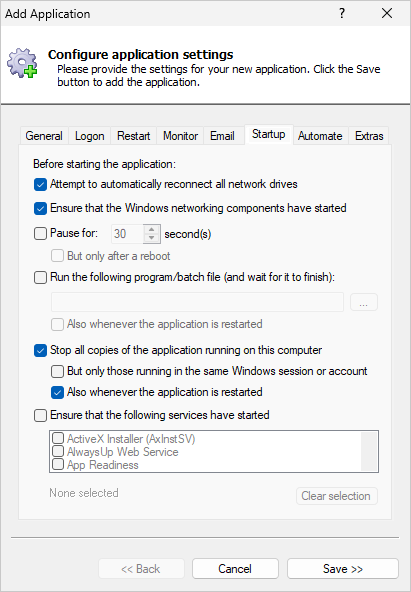
Next, switch over to the Startup tab and:
-
Check the Ensure that the Windows networking components have started box.
With that option in place, AlwaysUp will make sure that the network is up and running before it launches LM Studio.
-
Activate both the Stop all copies of the application running on this computer
and Also whenever the application is restarted options.
They will ensure that the instance of llmster launched by AlwaysUp
takes precedence over any others running on the computer (and can always get the network port).
-
When llmster is running in the background, you won't be able to see its console window.
That's because the program will be running in
Session 0,
the isolated sandbox hosting Windows Services.
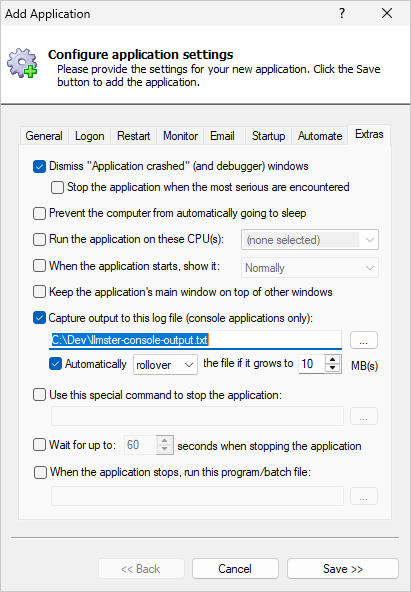
But as a workaround, AlwaysUp can capture all the text written by llmster and save it to a file. If you'd like to do that:
-
Move to the Extras tab.
-
Near the bottom of the window, check the Capture output to this log file box.
-
Enter the full path to the file where you want AlwaysUp to save llmster's console output.
-
We're done setting up LM Studio as a Windows Service so click the Save button.
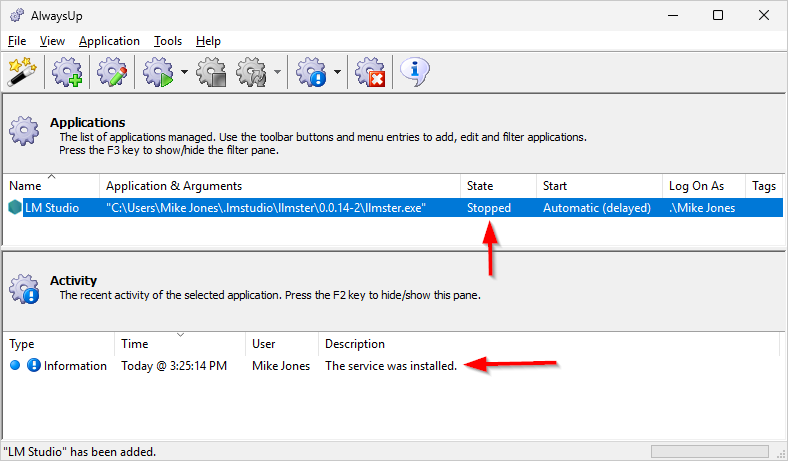
In a couple of seconds, an entry named LM Studio (or whatever you called it) will show up in the AlwaysUp window.
It's not yet running though and the state will be "Stopped":
-
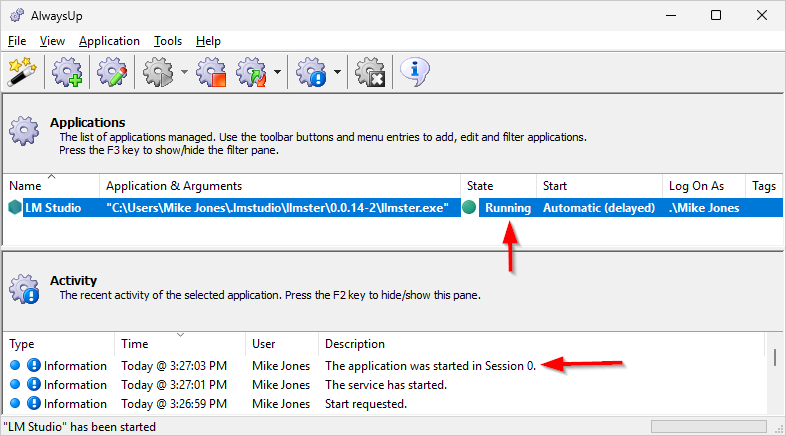
To start llmster from AlwaysUp, choose Application > Start "LM Studio".
In a few seconds, the status column will change to "Running" and llmster.exe will be chugging away in the background:
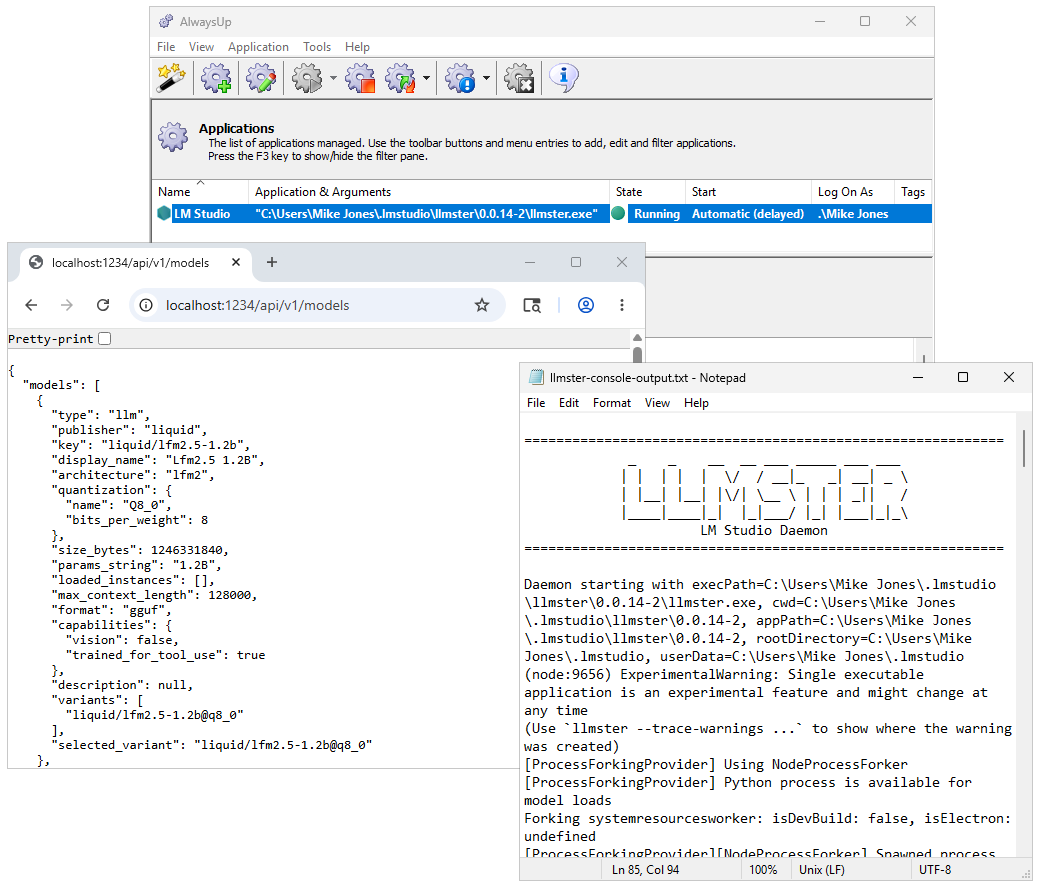
Now is an excellent time to fire up your web browser and confirm that llmster is working as expected.
Things went swimmingly on our server — and the console log file (captured in step 8) looked good too:
-
And that's it! Next time your computer boots, LM Studio will start up immediately, in the background,
without anyone needing to sign in first.
Please restart Windows now and test that everything works as expected after your computer comes back to life.
Finally, please feel free to edit LM Studio in AlwaysUp and explore the many other settings
that may be appropriate for your unique environment.
For example, you can:
LM Studio not working properly as a Windows Service?
If you captured the llmster console log file in step 8, check it for warnings and errors.
Consult the AlwaysUp Troubleshooter — our online tool that can help you resolve the most common problems encountered when running an application as a Windows Service.
From AlwaysUp, select Application > Report Activity > Today to bring up an HTML report detailing the interaction between AlwaysUp and llmster. The AlwaysUp Event Log Messages page explains what each message means.
Browse the AlwaysUp FAQ for answers to commonly asked questions and troubleshooting tips. Contact us and we will be happy to help!
|
Over 97,000 installations, and counting!
|
 |

|
Rock-solid for the past 20+ years!
|
Fully Compatible with 160+ Applications...
|