-
First, ensure that your Streamlit app starts from the command prompt and works as expected.
That's required to install it as a Windows Service.
For this tutorial, we deployed the
30 Days of AI sample application from the
Streamlit app gallery
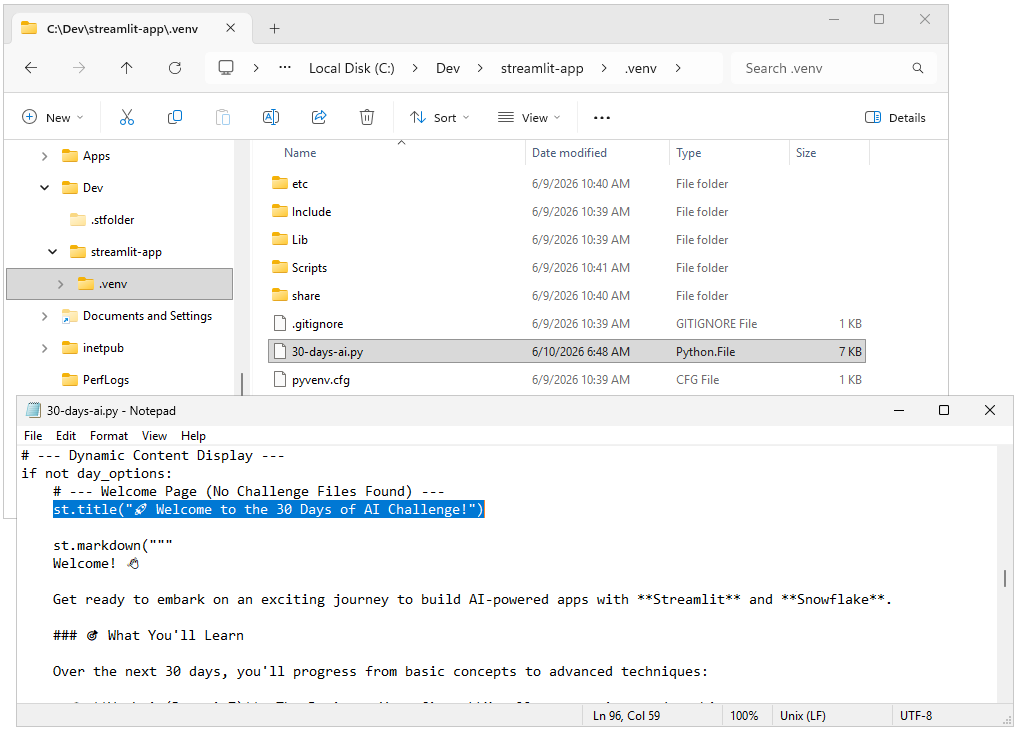
in a virtual environment in "C:\Dev\streamlit-app".
The main code is in a file named
"30-days-ai.py":
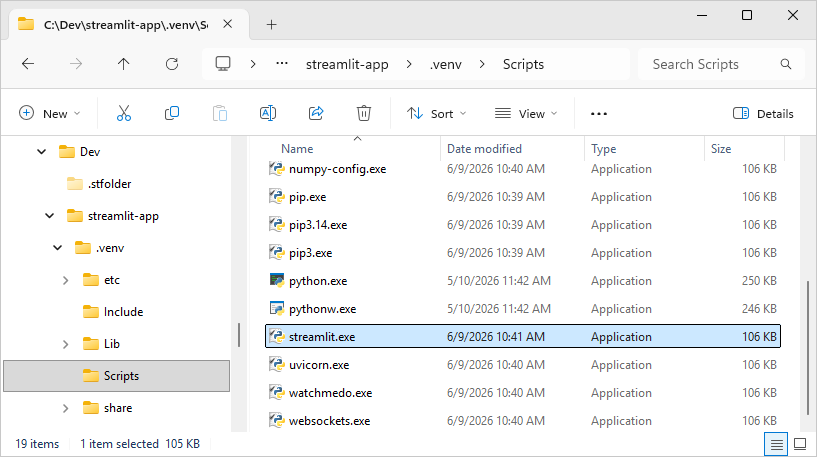
Notice that Python created the ".venv\Scripts" sub-folder as part of the installation process.
That folder contains streamlit.exe, which we'll use throughout this tutorial:
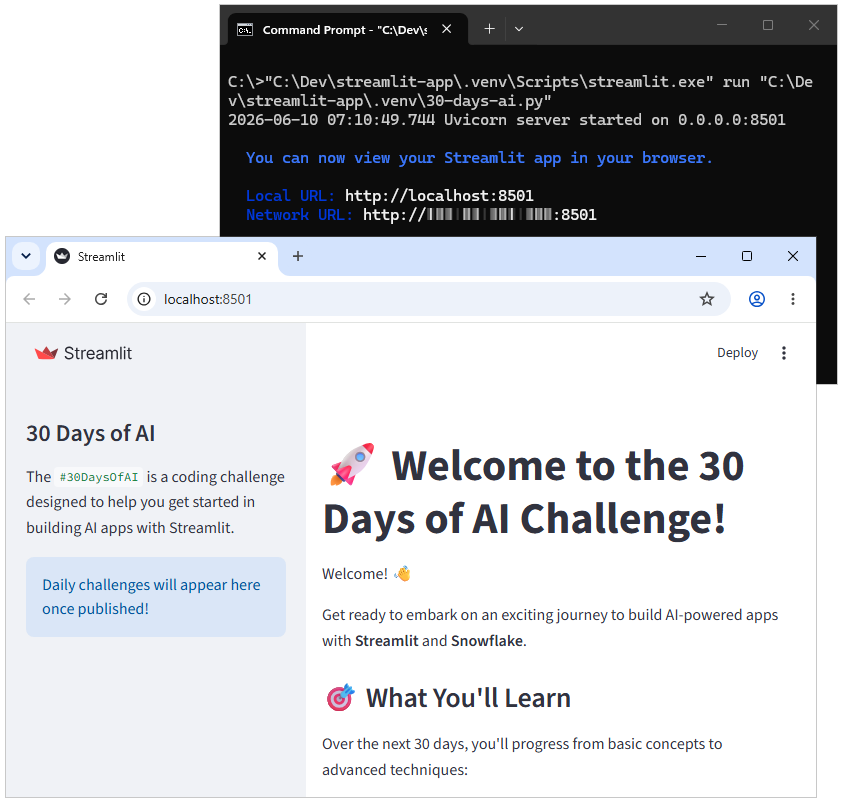
With this configuration, this is the full command line to run our application from a command prompt:
"C:\Dev\streamlit-app\.venv\Scripts\streamlit.exe" run "C:\Dev\streamlit-app\.venv\30-days-ai.py"
We verified that our command line started Streamlit and the simple application worked as expected:
Please ensure that you can run your Streamlit application command line, as we did.
This is important: If you can't get Streamlit working like this, it won't work with AlwaysUp either.
-
Download and install AlwaysUp, if necessary.
-
Start AlwaysUp.
-
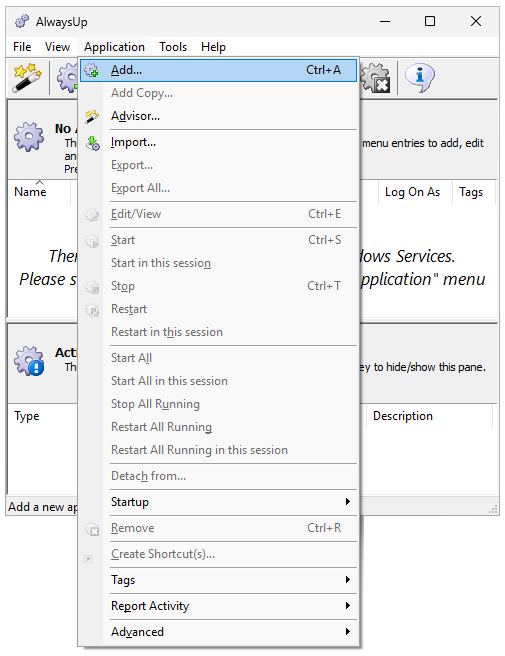
Select Application > Add to open the Add Application window:
-
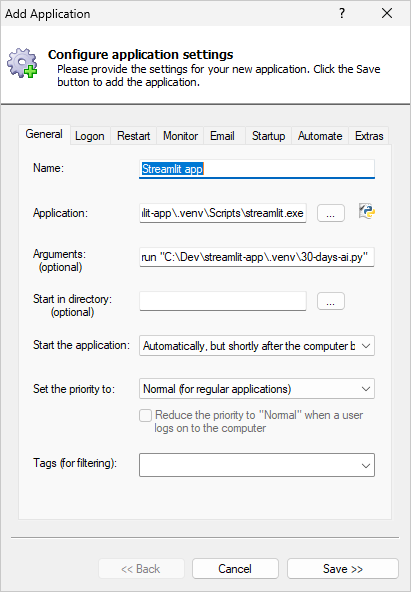
On the General tab:
-
In the Application field, enter the full path to the Streamlit executable, streamlit.exe.
You found this when you built your command line in step 1.
-
In the Arguments field, enter the parameters for your command line that starts your Streamlit application (from step 1).
-
In the Start the application field, select Automatically, but shortly after the computer boots.
This setting — which delays Streamlit by a couple of minutes after a reboot — will ensure that critical system services
(like networking and security) are ready and waiting when AlwaysUp launches Streamlit.
-
And in the Name field, enter the name that you will call the application in AlwaysUp.
We have used Streamlit app but feel free to specify another name if you like.
-
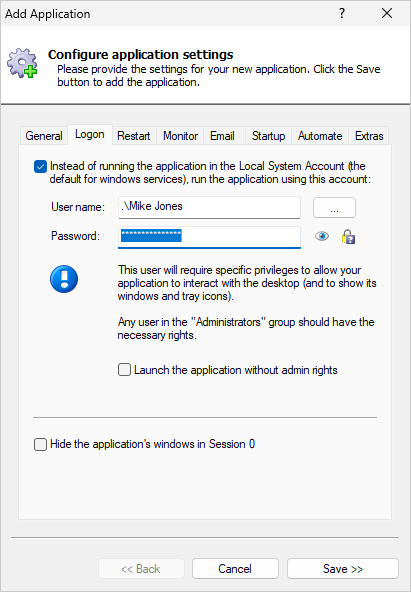
Move to the Logon tab and enter the user name and password of the Windows account where you installed Python and Streamlit.
-
We're done configuring Streamlit so click the Save button to record your settings.
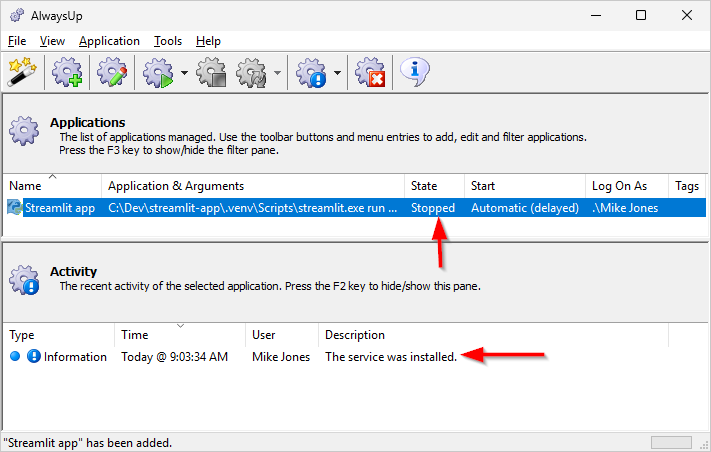
In a couple of seconds, an entry named Streamlit app (or whatever you called it) will show up in the AlwaysUp window.
It is not yet running though and its state will be "Stopped":
-
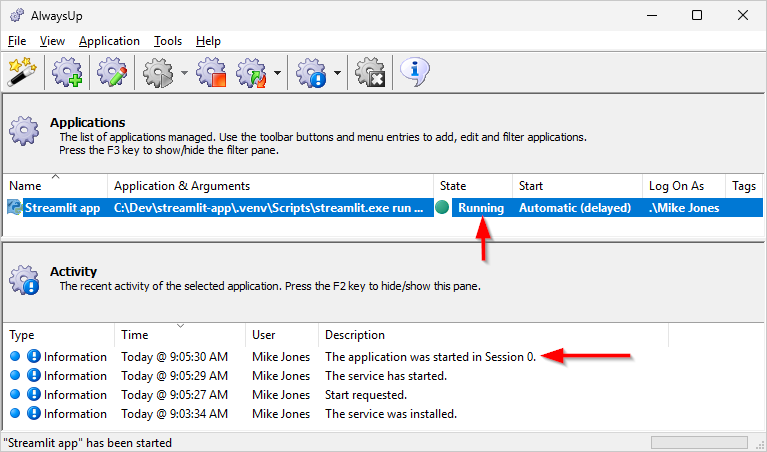
To start Streamlit, choose Application > Start "Streamlit app".
The state should soon transition to "Running" and Streamlit will be working in the background
(in Session 0):
And with Streamlit running as a Windows Service, please confirm that your Streamlit app is available from your browser.
-
That's it! Next time your computer boots, your Streamlit application will start up immediately, in the background, without anyone needing to log on.
Please restart your PC now and test that everything works as expected after Windows comes back to life.
And please feel free to edit Streamlit in AlwaysUp and explore the many other settings that may be appropriate for your environment.
For example, you can: