|
How to Install Prometheus as a Windows Service with AlwaysUp |
Automatically launch Prometheus in the background whenever your computer reboots. Make sure that your monitoring & alerting runs 24/7
Last Updated on September 11, 2026
Prometheus is a leading open-source event monitoring and alerting solution.
To install Prometheus as a Windows Service with AlwaysUp:
-
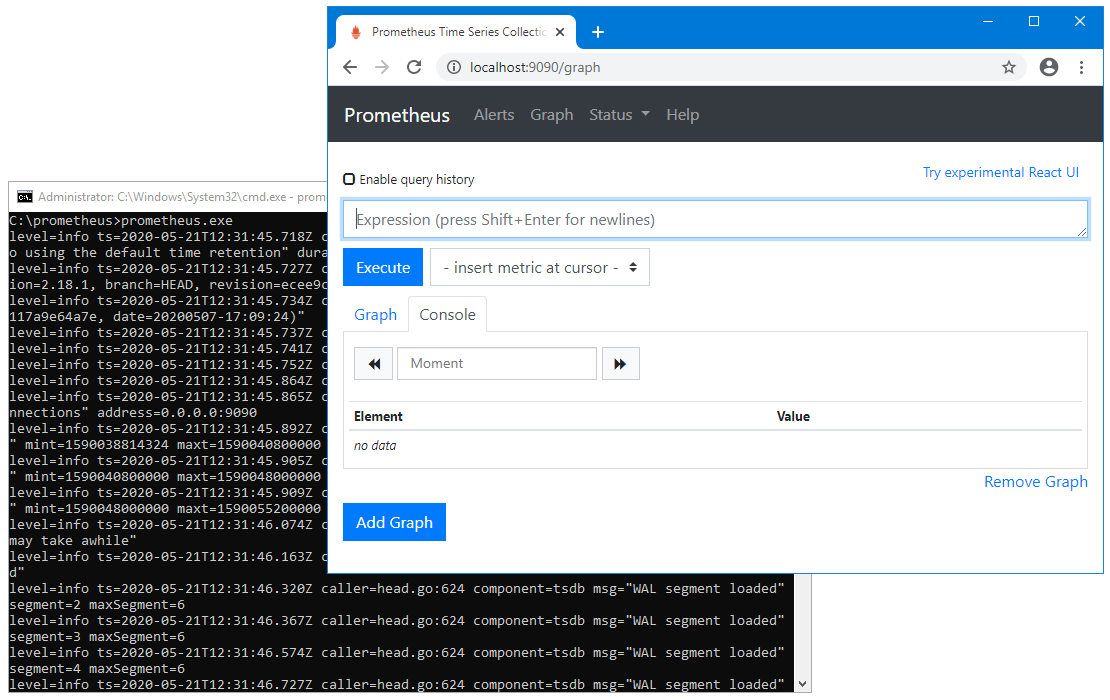
If necessary, install and configure Prometheus. Ensure that everything works as you expect when you run "prometheus.exe" from a Windows command prompt:
-
Download and install AlwaysUp, if necessary.
-
Start AlwaysUp.
-
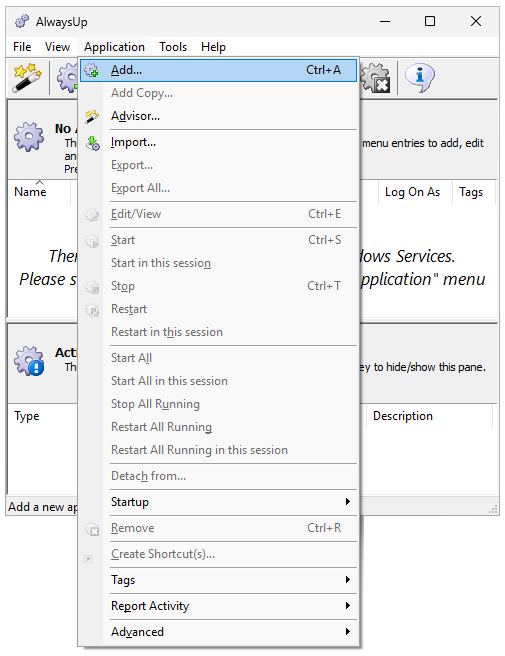
Select Application > Add to open the Add Application window:
-
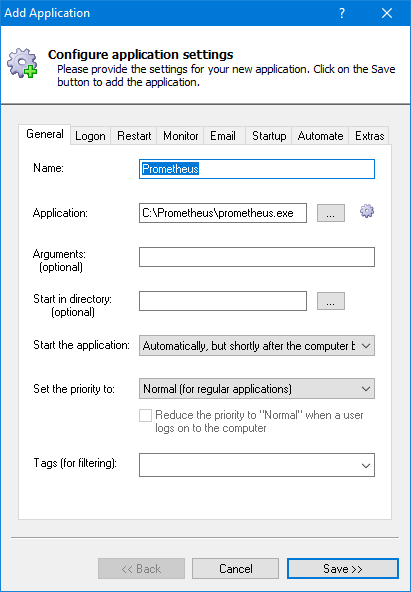
On the General tab:
-
In the Application field, enter the full path to the Prometheus executable, prometheus.exe.
Since we installed Prometheus in "C:\Prometheus", our path is "C:\Prometheus\prometheus.exe".
-
In the Name field, enter the name that you will call the application in AlwaysUp.
We have stuck with the default of Prometheus but you can specify another name if you like.
-
And in the Start the application field, select Automatically, but shortly after the computer boots.
This setting tells AlwaysUp to launch prometheus.exe 1-2 minutes after a reboot — enough time to ensure that all critical services
are primed and ready to go.
-
If you're interested in monitoring Prometheus and detecting when it stops serving pages (at http://localhost:9090),
move to the Monitor tab. We'll set up a
web server health check
to detect when the Prometheus web components fails.
-
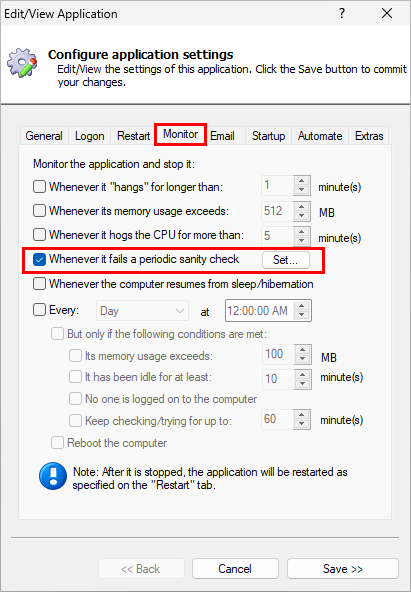
On the Monitor tab, check the Whenever it fails a periodic sanity check box and click the Set button on the right:
-
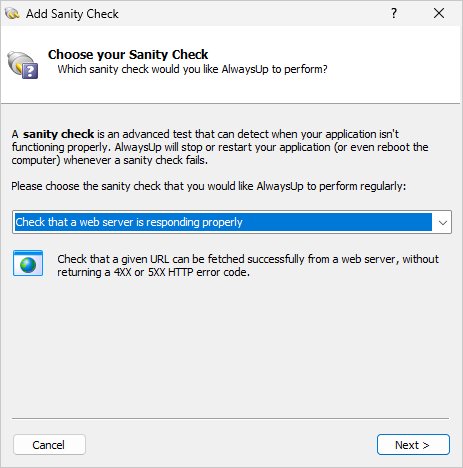
In the Add Sanity Check window, select the Check that a web server is responding properly
option and click Next to proceed:
-
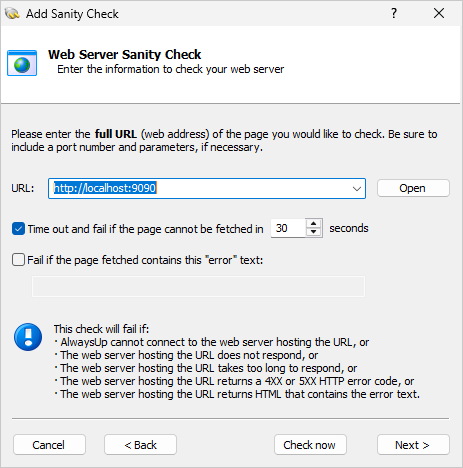
Enter the web address where you access Prometheus in your browser. On our machine, where Prometheus is running on port 9090, that's:
http://localhost:9090
Click Next to continue.
-
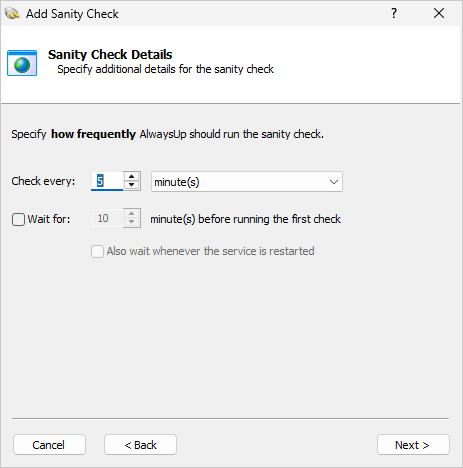
On this page, specify how often AlwaysUp should check Prometheus's HTTP connection.
The default of every 5 minutes should be fine but you can have AlwaysUp check more often (or less often) if you like.
After you're done, click Next to move on.
-
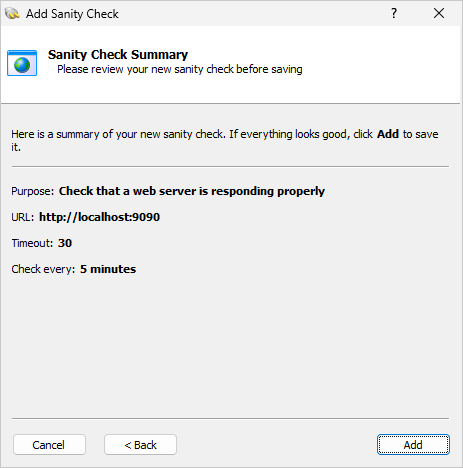
And finally, confirm your settings:
If everything looks good, click Add
to record your new sanity check and return to the Monitor tab.
-
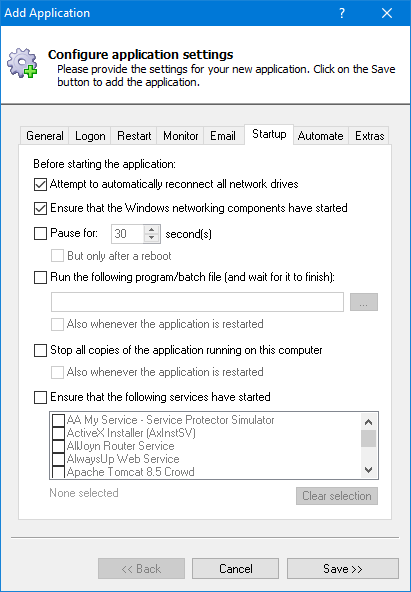
Move to the Startup tab and check the Ensure that the Windows networking components have started box.
This will ensure that the
TCP/IP stack
— necessary to support the web interface — is fully initialized before Prometheus starts:
-
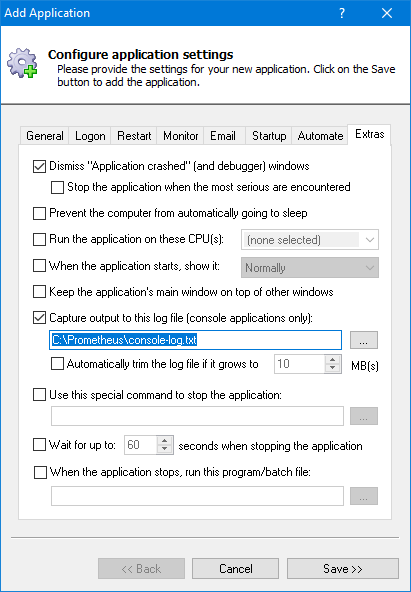
When Prometheus is running in the background as a Windows Service, the console window won't come up on your desktop.
We recommend capturing the console output to a text file so that the information will be available for troubleshooting if necessary.
Move to the Extras tab.
Check the Capture output to this log file box and enter the full path to a text file that will receive the console output from the prometheus.exe process:
-
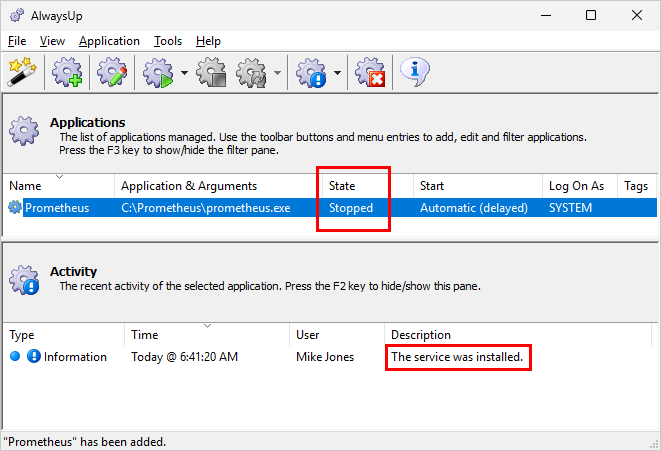
We're done configuring Prometheus as a Windows Service so click the Save button to record your settings.
In a couple of seconds, an application called Prometheus (or whatever you called it) will show up in the AlwaysUp window.
It's not yet running though and the state will be "Stopped":
-
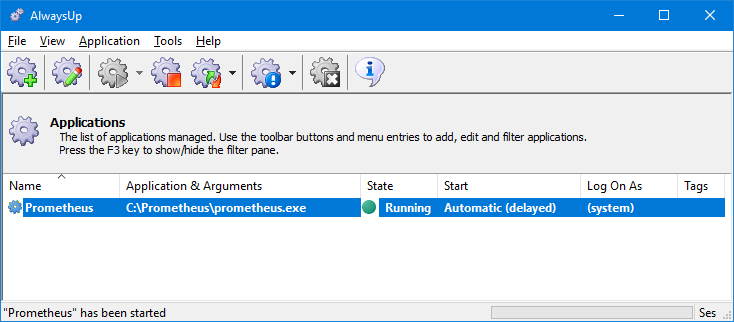
To start Prometheus from AlwaysUp, choose Application > Start "Prometheus".
In a few seconds, the state will change to "Running" and Prometheus will start working in the background
(in the isolated Session 0):
-
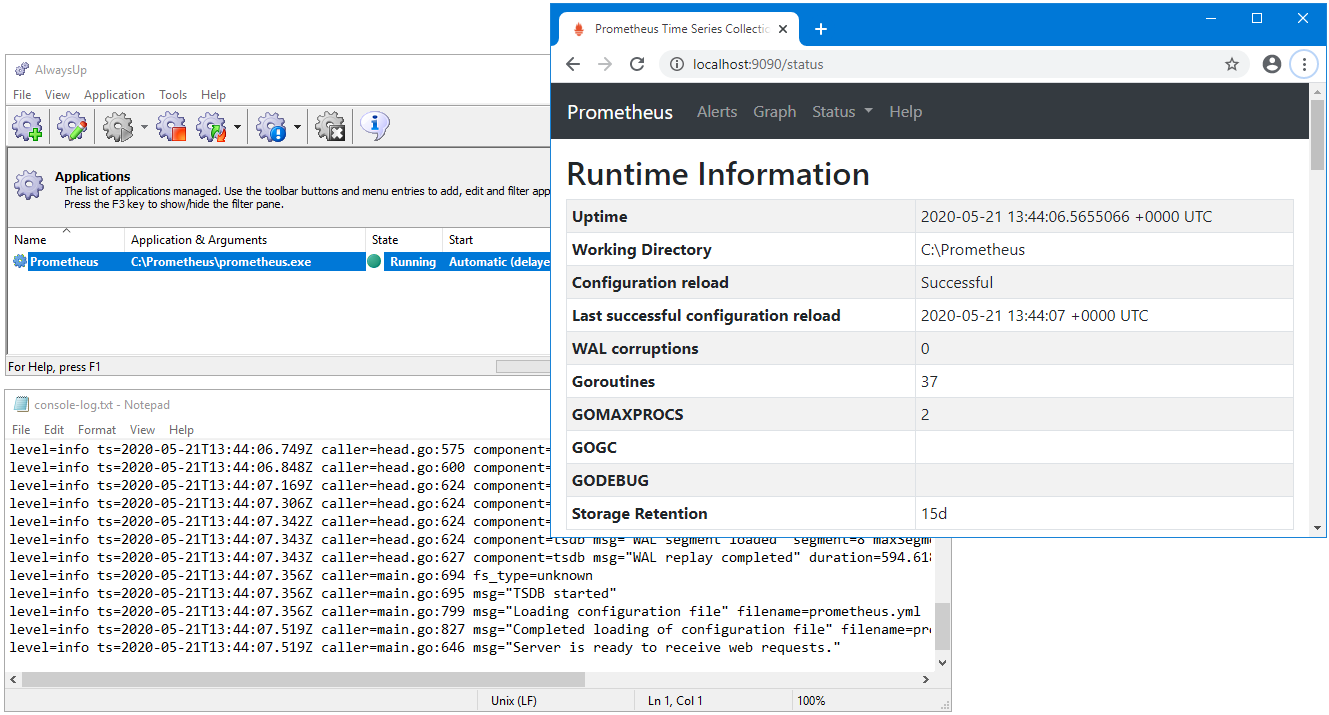
And finally, now that Prometheus is running as a service, please confirm that the server is operating as expected.
Is the web server responding? Browse to http://localhost:9090 to confirm.
Is the console text being captured to the log file? Does the file contain any errors?
Everything was fine in our setup:
-
That's it! Next time your computer reboots, Prometheus will start up immediately in the background, without anyone needing to log on.
Please restart your machine now and confirm that everything works as expected after Windows comes back to life.
And please feel free to edit Prometheus in AlwaysUp and explore the many other settings that may be appropriate for your environment.
For example, you can:
Prometheus not working properly as a Windows Service?
Consult the AlwaysUp Troubleshooter — our online tool that can help you resolve the most common problems encountered when running an application as a Windows Service.
From AlwaysUp, select Application > Report Activity > Today to bring up an HTML report detailing the interaction between AlwaysUp and Prometheus. The AlwaysUp Event Log Messages page explains what each message means.
Browse the AlwaysUp FAQ for answers to commonly asked questions and troubleshooting tips. Contact us and we will be happy to help!
|
Over 97,000 installations, and counting!
|
 |

|
Rock-solid for the past 20+ years!
|
Fully Compatible with 160+ Applications...
|