|
How to Run UFTP Daemon as a Windows Service with AlwaysUp |
Automatically start UFTPD whenever your computer boots, to keep your file transfers going 24/7/365
Last Updated on August 31, 2026
UFTP is an encrypted multicast file transfer program.
The UFTP client daemon (UFTPD) runs headless, waiting for clients to connect and request files.
Old versions of the UFTP Windows package included Microsoft's free srvany & instsrv utilities to run
UFTPD as a service, but
AlwaysUp does a much better job of launching and controlling the UFTP daemon at boot.
To run UFTPD as a Windows Service with AlwaysUp:
-
If necessary, download the UFTP Zip package and extract it to your hard drive.
We extracted it to "C:\UFTP" so that location will appear throughout this tutorial.
-
Compose your UFTPD command line
and make sure that the program operates as expected.
If not, UFTPD won't work as a Windows Service either.
For this tutorial, we'll use the following command line — which sets a temporary folder to support file transfer resume and relocates the log file:
uftpd.exe -T C:\UFTP\Temp -L C:\UFTP\uftpd_log.txt
-
Download and install AlwaysUp, if necessary.
-
Start AlwaysUp.
-
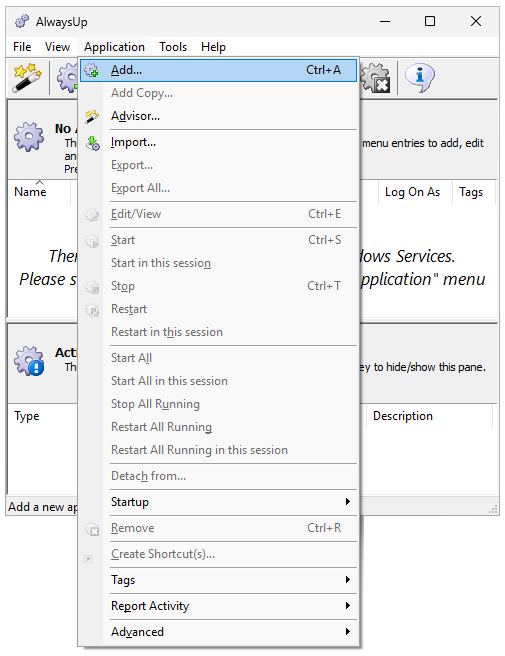
Select Application > Add to open the Add Application window:
-
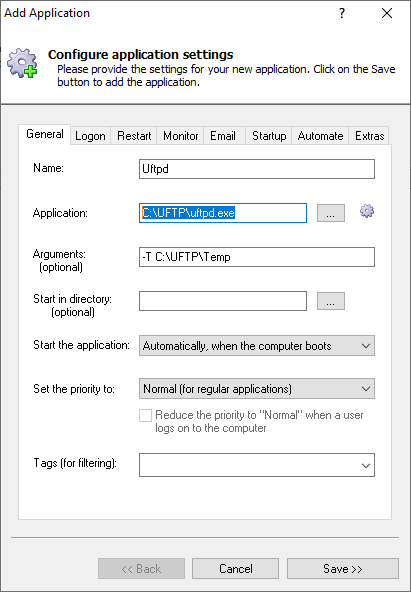
On the General tab:
-
In the Application field, enter the full path to the UFTPD executable, uftpd.exe.
Since we installed UFTP in "C:\UFTP", we'll specify "C:\UFTP\uftpd.exe".
-
In the Arguments field, enter your parameters to uftpd.exe (from step 2).
-
And in the Name field, enter the name that you will call this application in AlwaysUp.
We stuck with the default — Uftpd:
-
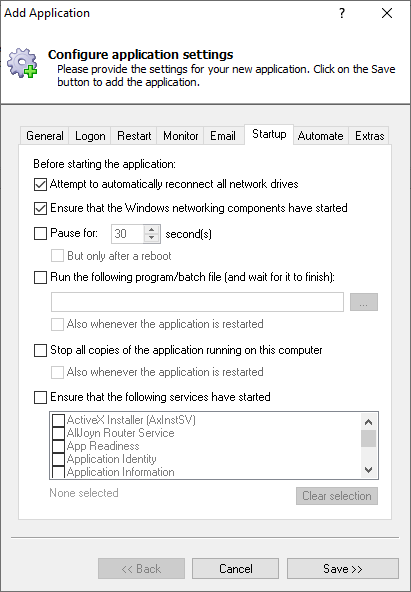
Click over to the Startup tab and check the Ensure that the Windows Networking components have started box.
This informs AlwaysUp that UFTP needs the IP networking layer to do its work:
-
We're now done configuring UFTPD as a service, so click the Save button to record your settings.
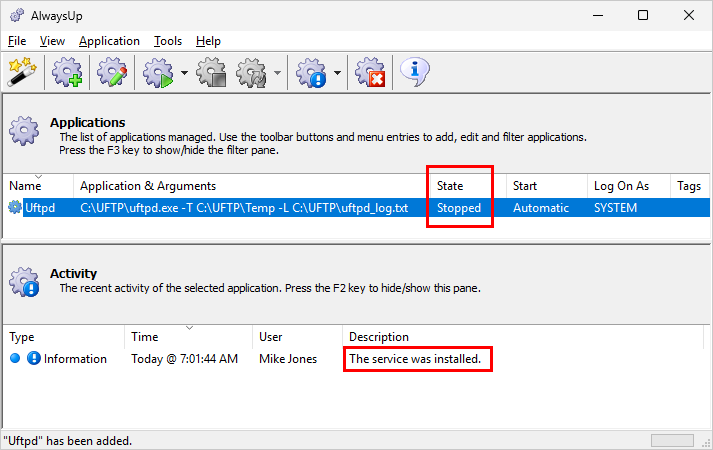
In a couple of seconds, an application called Uftpd will appear in the AlwaysUp window.
The state will be "Stopped" because it's not yet running:
-
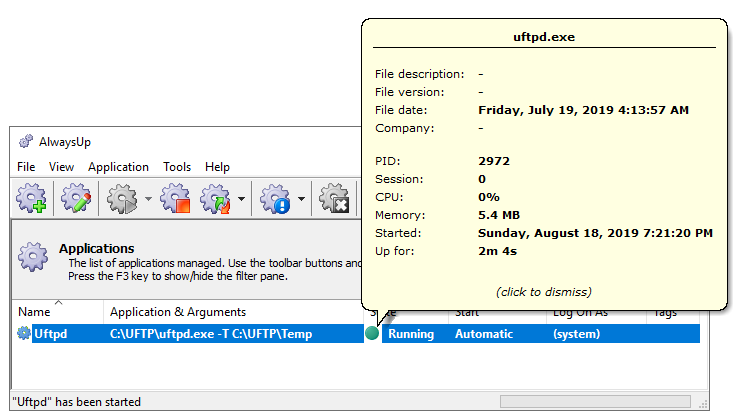
To start UFTP, choose Application > Start "Uftpd" from the menu.
The state of the entry should transition from Stopped to Running and the UFTP daemon should be available in a few seconds.
-
That's it! Next time your computer boots, your UFTPD service will be launched immediately, before anyone logs on.
Feel free to edit the entry in AlwaysUp and add more advanced options. For example,
boost the priority of the uftpd.exe process,
send an email if the server crashes,
setup a weekly restart to cure memory leaks,
and much more.
UFTP Daemon not working properly as a Windows Service?
Enable verbose logging by adding the "-x 5" parameter to the uftpd.exe command line. Hopefully UFTP will tell you what is going wrong.
Consult the AlwaysUp Troubleshooter — our online tool that can help you resolve the most common problems encountered when running an application as a Windows Service.
From AlwaysUp, select Application > Report Activity > Today to bring up an HTML report detailing the interaction between AlwaysUp and UFTP. The AlwaysUp Event Log Messages page explains what each message means.
Browse the AlwaysUp FAQ for answers to commonly asked questions and troubleshooting tips. Contact us and we will be happy to help!
|
Over 97,000 installations, and counting!
|
 |

|
Rock-solid for the past 20+ years!
|
Fully Compatible with 160+ Applications...
|