|
How to Run Waitress as a Windows Service with AlwaysUp |
Automatically start your Waitress web server as soon as your computer boots and keep it running 24/7 in the background
Last Updated on April 24, 2026
Waitress is a pure Python
Web Server Gateway Interface (WSGI)
server that supports HTTP/1.0 and HTTP/1.1.
To install Waitress as a bulletproof Windows Service:
-
Install Waitress, if necessary.
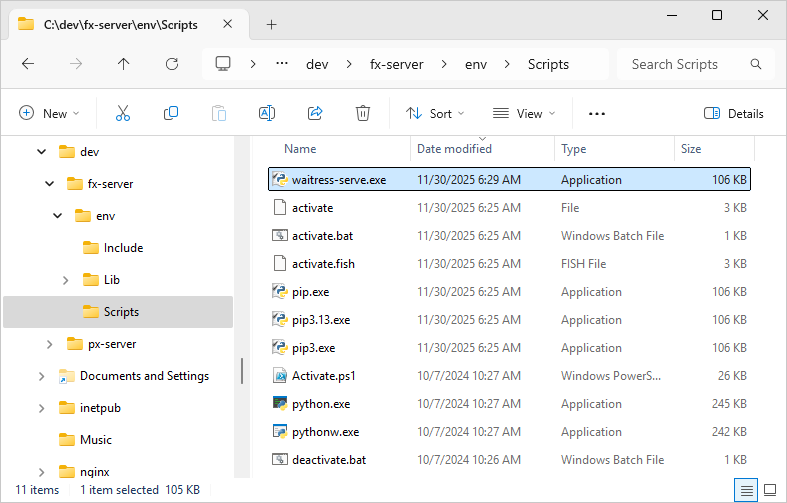
For this tutorial, we created a virtual environment (in C:\Dev\fx-server\env) and installed Waitress and
Flask
there:
-
Next, construct the command line to run your Python application. You'll run waitress-serve.exe with the
set of arguments
that work for your situation.
Make sure that Waitress runs as you expect before moving on.
If you can't run Waitress now AlwaysUp won't be able to run it either!
Anyway, this is the super simple app we deployed for this guide:
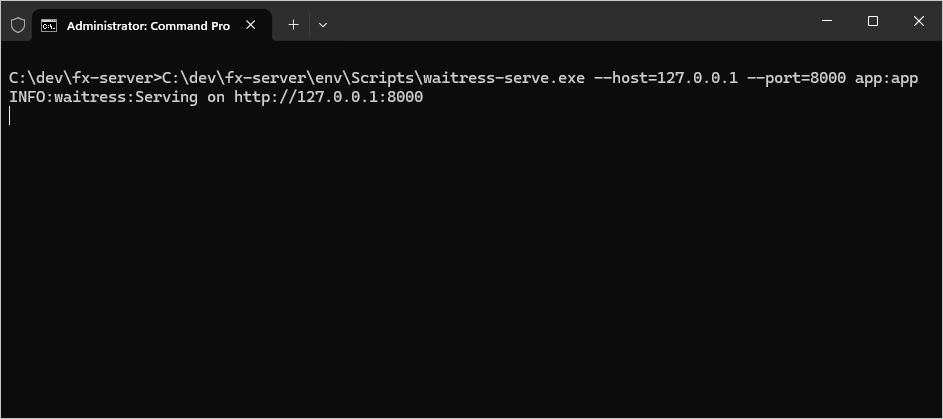
And this command launched Waitress on our server:
C:\dev\fx-server\env\Scripts\waitress-serve.exe --host=127.0.0.1
--port=8000 app:app
You can see it working here:
-
Now that we're done preparing Waitress to run in the background,
download and install AlwaysUp, if necessary.
-
Start AlwaysUp.
-
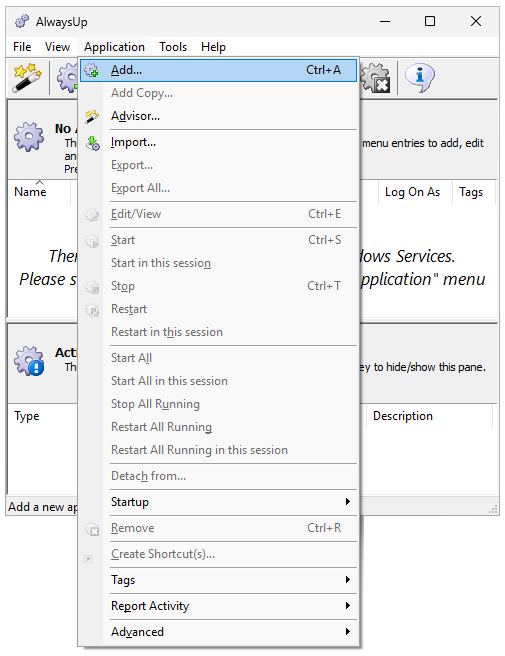
Select Application > Add to open the Add Application window:
-
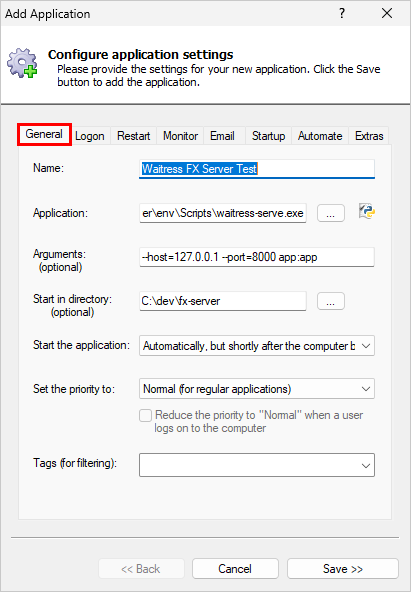
On the General tab:
-
In the Application field, enter the full path to your Waitress executable, waitress-serve.exe.
-
In the Arguments field, add all the parameters from your Waitress command (whatever you used in step 2).
-
With our command line, waitress-serve.exe must run in the folder containing our Python script.
Otherwise, Waitress won't find the "app" module mentioned in our app.py script.
If you're in the same situation, make sure to enter the full path of the folder containing your main Python script in the
Start in directory field.
-
In the Start the application field, choose Automatically, but shortly after the computer boots.
With this setting, Waitress will start a couple of minutes after boot — after all the machine's critical
networking services are up and running.
-
And in the Name field, enter the name that you will call your application in AlwaysUp.
We went with "Waitress FX Server":
-
Since you're running a web server, let's set up a
sanity check
that will restart Waitress if it ever stops serving pages.
-
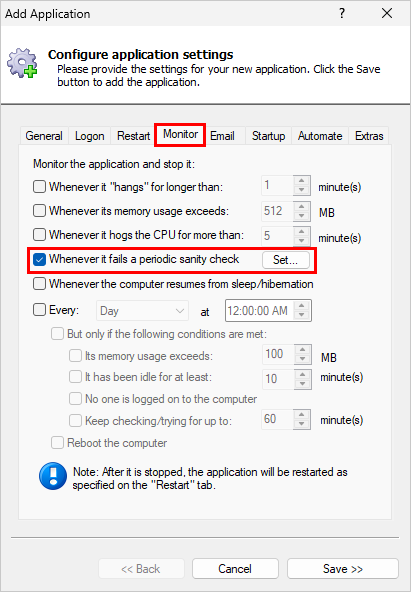
Check the Whenever it fails a periodic sanity check box and click the Set button on the right:
-
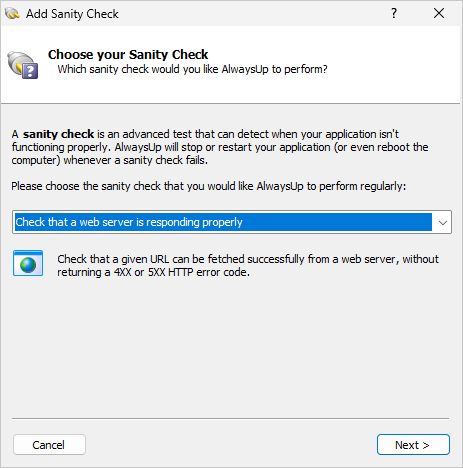
In the Add Sanity Check window, select the Check that a web server is responding properly
option and click Next to proceed:
-
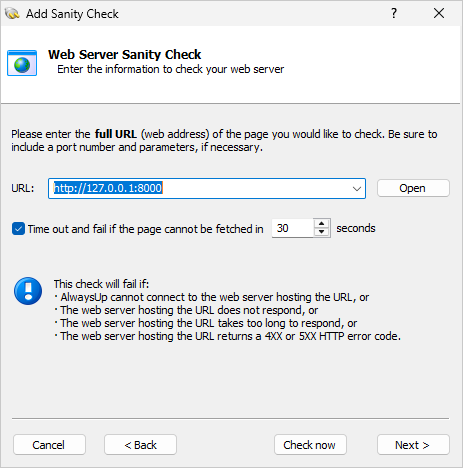
Enter the URL for your Waitress app.
Since our app is listening on port 8000, we entered "http://127.0.0.1:8000":
Click Next to continue.
-
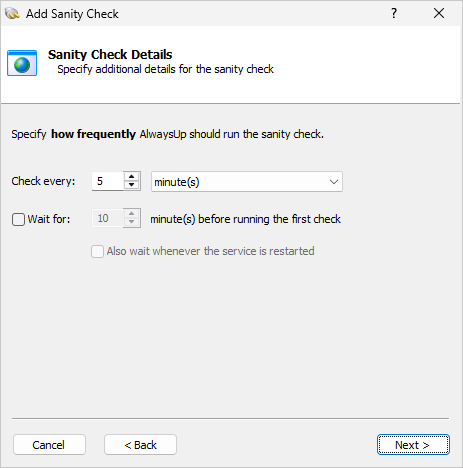
Specify how often AlwaysUp should ping your app at the given URL.
The default of every 5 minutes should be fine but you can have AlwaysUp check more often (or less often) if you like.
After you're done, click Next to move on.
-
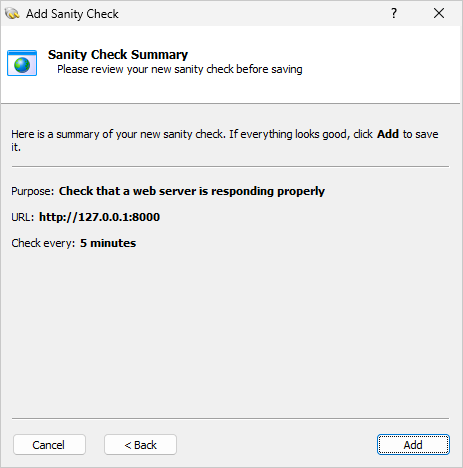
And finally, confirm your settings:
If everything looks good, click Add
to record your new sanity check and return to the Monitor tab.
-
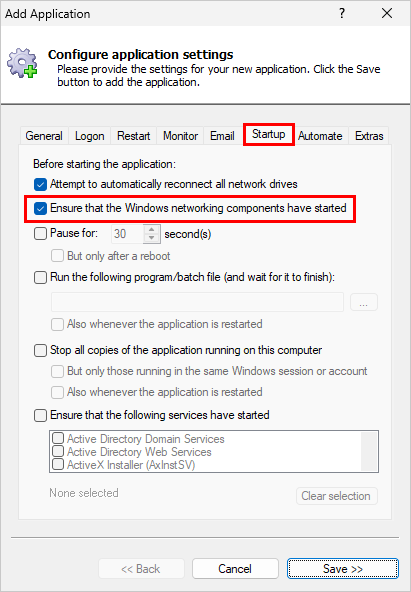
Switch to the Startup tab.
Since Waitress and Flask rely on the TCP/IP stack to so their work, check the
Ensure that the Windows networking components have started option:
-
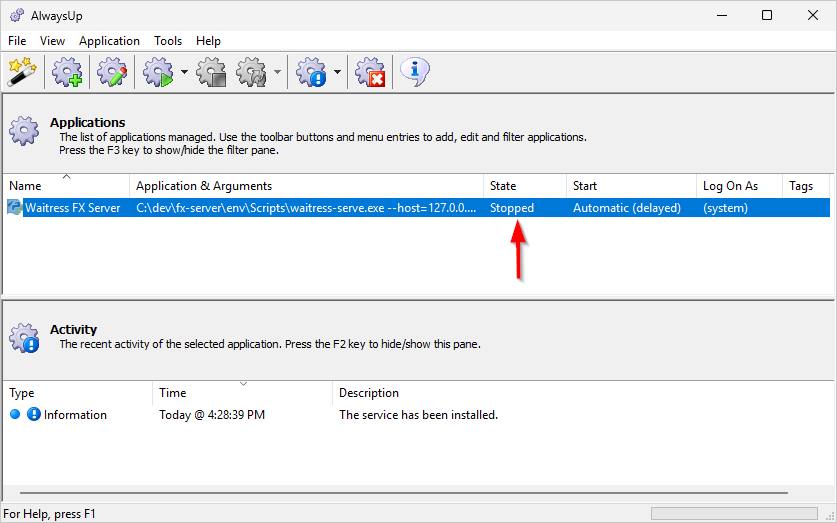
We're done configuring Waitress as a Windows Service so click the Save button to record your settings.
In a couple of seconds, an application called Waitress (or whatever you called it) will show up in the AlwaysUp window.
It is not yet running though and the state will be "Stopped":
-
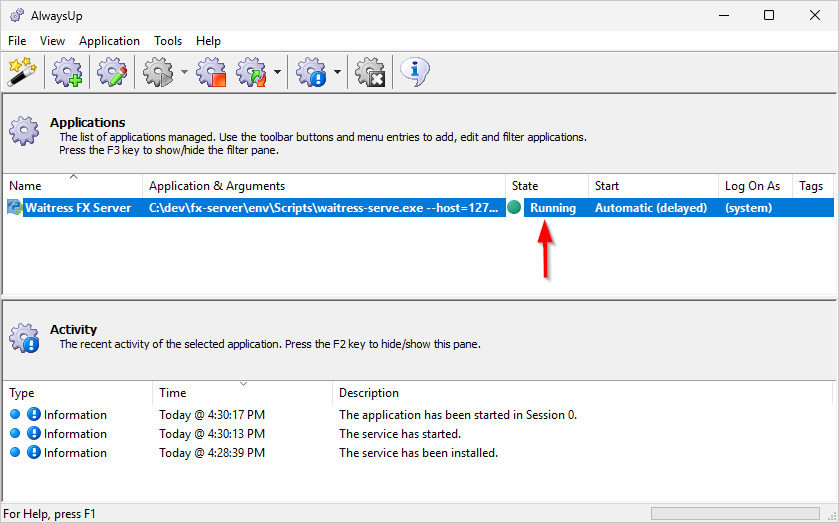
To start Waitress from AlwaysUp, choose Application > Start "Waitress".
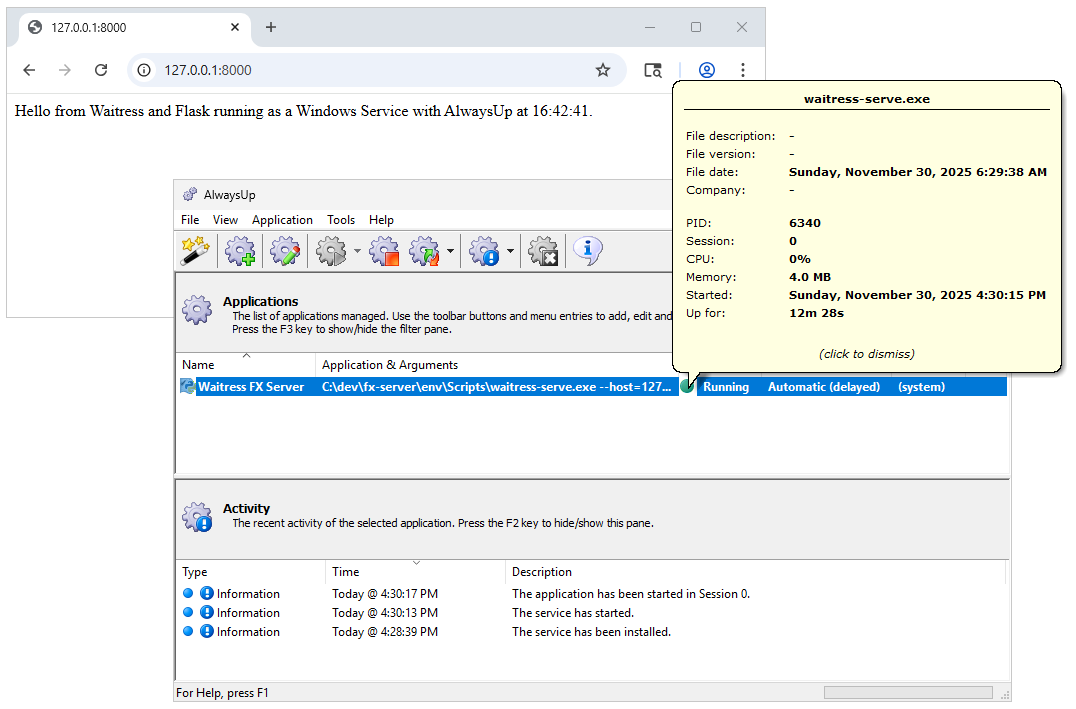
In a few seconds, the status column will change to "Running" and Waitress will be serving your content in the background:
Now would be a good time to fire up your web browser and confirm that Waitress is responding as expected.
Things looked great on our server:
-
And that's it! Next time your computer boots, Waitress will start up immediately, in the background,
without anyone needing to log on.
Please restart your PC now and test that everything works as expected after your operating system comes back to life.
Finally, please feel free to edit your Waitress service in AlwaysUp and explore the many other settings
that may be appropriate for your environment.
For example, you can:
Waitress not working properly as a Windows Service?
Consult the AlwaysUp Troubleshooter — our online tool that can help you resolve the most common problems encountered when running an application as a Windows Service.
From AlwaysUp, select Application > Report Activity > Today to bring up an HTML report detailing the interaction between AlwaysUp and Waitress. The AlwaysUp Event Log Messages page explains what each message means.
Browse the AlwaysUp FAQ for answers to commonly asked questions and troubleshooting tips. Contact us and we will be happy to help!
|
Over 97,000 installations, and counting!
|
 |

|
Rock-solid for the past 20+ years!
|
Fully Compatible with 160+ Applications...
|