|
How to Launch ngrok as a Windows Service with AlwaysUp |
Establish your ngrok tunnel as soon as your computer boots and keep it open 24x7 in the background. Easily survive accidental shutdowns, crashes and other frustrating interruptions
Last Updated on May 7, 2026
ngrok allows you to expose a web server running on your local machine to the Internet.
It's a great solution when you need a public URL for a local resource.
To launch ngrok tunneling as a Windows Service:
-
Download and install ngrok, if necessary.
Be sure to connect your account (by installing your authtoken)
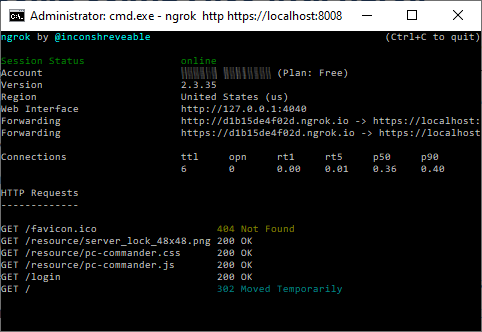
and ensure that you can run ngrok successfully from a Windows command prompt.
For this tutorial, we have installed ngrok (free plan) in C:\ngrok and configured the utility to provide a tunnel to our
PC Commander software
running on an internal server at port 8008. This command line works for us:
C:\ngrok\ngrok.exe http https://localhost:8008
Of course, your command line will be different — perhaps with the -config option and a .yaml file. Be sure to use your command line in the steps below.
-
Download and install AlwaysUp, if necessary.
-
Start AlwaysUp.
-
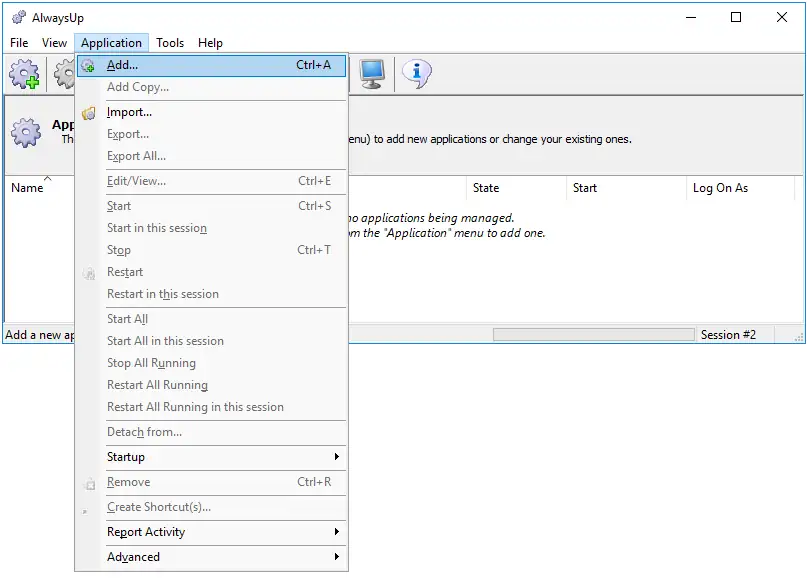
Select Application > Add to open the Add Application window:
-
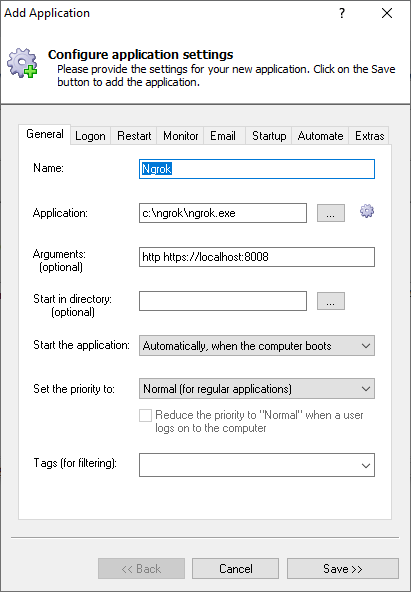
On the General tab:
-
In the Application field, enter the full path to the ngrok executable, ngrok.exe.
-
In the Arguments field, enter the parameters to ngrok.exe (from the command line you identified step 1).
-
And in the Name field, enter the name that you will call this application in AlwaysUp.
We have stuck with the default of Ngrok but you can specify another name if you like.
-
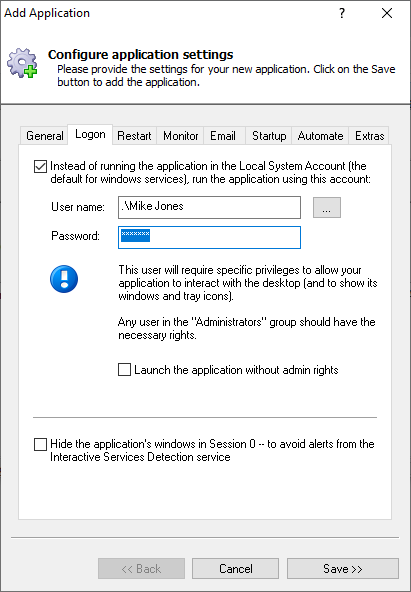
Click over to the Logon tab, check the box at the top and enter the username and password of the Windows account where you installed ngrok.
This is important if you installed your authtoken in the default configuration file (C:\Users\<USERNAME>\.ngrok2\ngrok.yml).
-
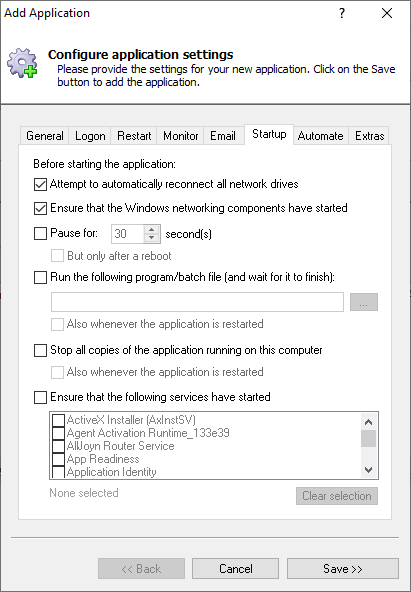
Switch to the Startup tab and check the Ensure that the Windows Networking components have started box.
This informs AlwaysUp that ngrok needs TCP/IP networking support to do its work.
-
We're done configuring ngrok to run as a service so click the Save button to record your settings.
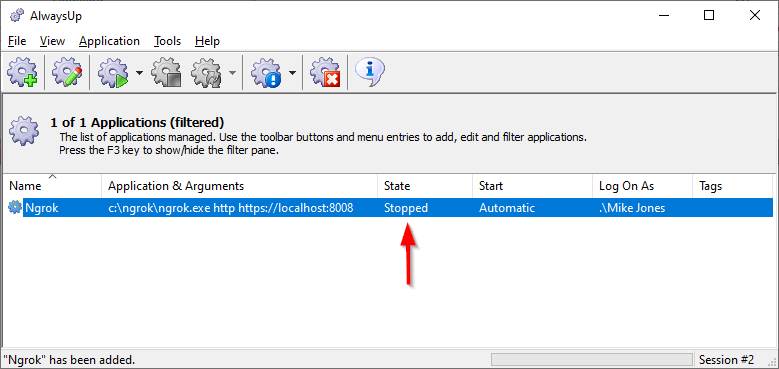
In a few seconds, an entry for ngrok will show up in the AlwaysUp window.
It's not yet running though, and the state will be "Stopped":
-
To start ngrok from AlwaysUp, choose Application > Start "ngrok".
In a few seconds, the utility will start invisibly in the background, on the
isolated Session 0.
ngrok's familiar command window will NOT appear on your desktop.
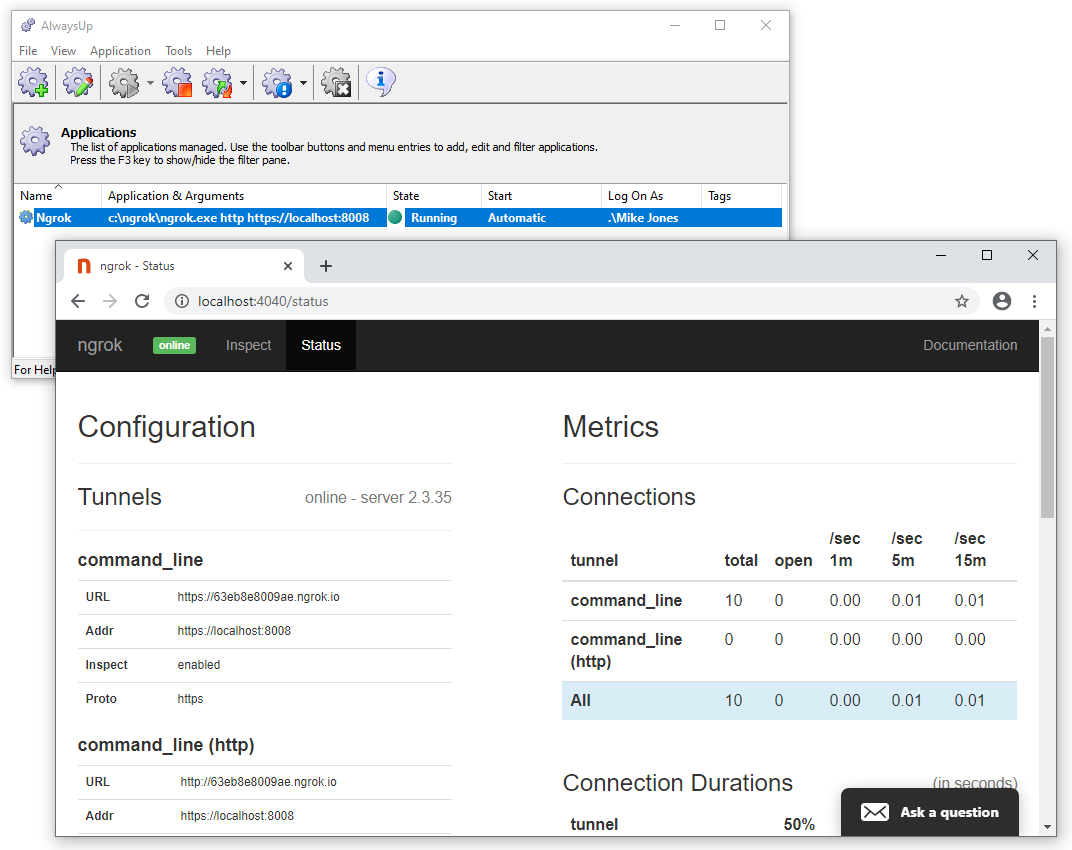
Fire up your web browser and browse to the ngrok web interface. Confirm that the tunnel is working from there:
-
That's it! Next time your computer boots, ngrok will start up immediately, before anyone logs on.
We encourage you to edit ngrok in AlwaysUp and check out the many other settings that may be appropriate for your environment.
For example, you can:
ngrok not working properly as a Windows Service?
If accessible, review the ngrok web interface for errors and warnings.
Consult the AlwaysUp Troubleshooter — our online tool that can help you resolve the most common problems encountered when running an application as a Windows Service.
From AlwaysUp, select Application > Report Activity > Today to bring up an HTML report detailing the interaction between AlwaysUp and ngrok. The AlwaysUp Event Log Messages page explains what each message means.
Browse the AlwaysUp FAQ for answers to commonly asked questions and troubleshooting tips. Contact us and we will be happy to help!
|
Over 97,000 installations, and counting!
|
 |

|
Rock-solid for the past 20+ years!
|
Fully Compatible with 160+ Applications...
|