|
How to Run any AutoIt Script as a Windows Service with AlwaysUp |
Automatically launch your AutoIt automation in the background whenever your computer boots, before you log in. Keep it running 24/7 or schedule it to restart several times a day
Last Updated on July 16, 2026
AutoIt
is a powerful scripting language and set of utilities for automating the Windows GUI.
To run your AutoIt script (*.AU3) as a Windows Service with AlwaysUp:
-
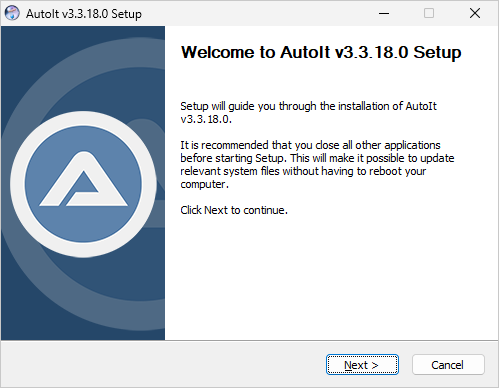
Download and install AutoIt if
you haven't already done so:
Please ensure that your AutoIt script (*.AU3) runs normally when executed from your desktop.
If your script doesn't work at this point, it won't run as a Windows Service with AlwaysUp either.
-
Download and install AlwaysUp, if necessary.
-
Start AlwaysUp.
-
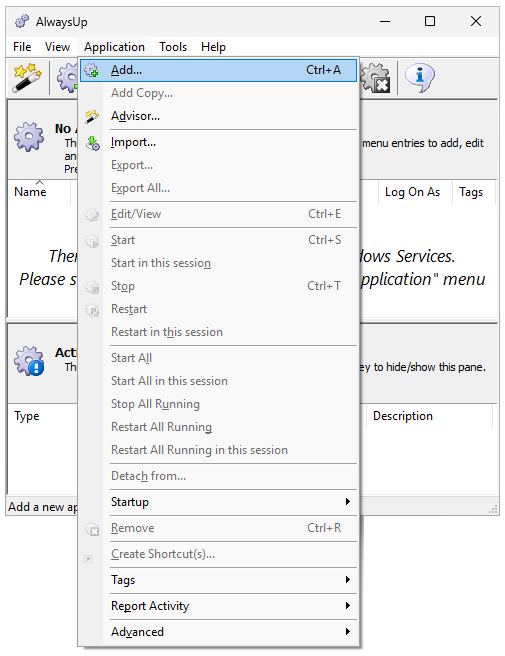
Select Application > Add to open the Add Application window:
-
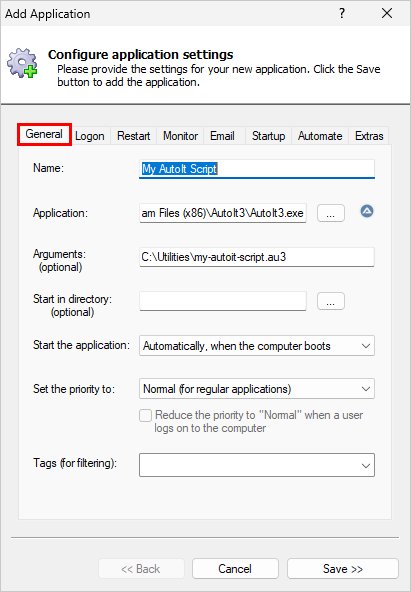
On the General tab:
-
In the Application field, enter the full path to the AutoIt executable (AutoIt3.exe).
If you installed AutoIt in the default location, this should be:
C:\Program Files (x86)\AutoIt3\AutoIt3.exe
-
In the Arguments field, enter the full path to your AutoIt script.
We want to run our sample script, "C:\Utilities\my-autoit-script.au3".
-
In the Name field, enter the name that you will call this application in AlwaysUp.
We used "My AutoIt Script" but you can specify something else if you like.
Note: Instead of running the AutoIt compilation engine each time, you may want to consider
compiling your script to a standalone executable.
The resulting .exe file can be run on any computer, even those without AutoIt installed.
If you compile to an executable, simply enter the full path to the executable in the
Application field and leave the Arguments field blank.
-
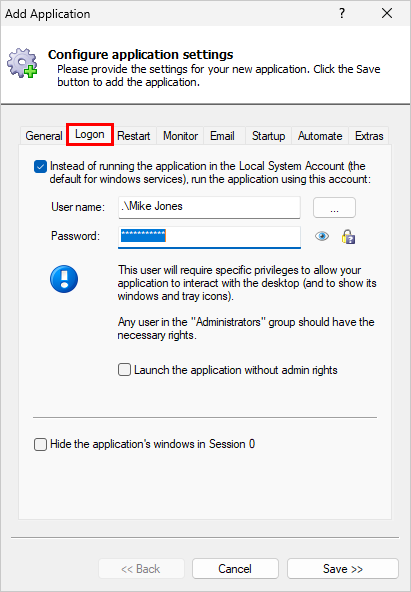
Move to the Logon tab and enter the user name and password of the account in which you
installed and configured AutoIt.
Your script must run in this account so that AutoIt can find its configuration & settings.
-
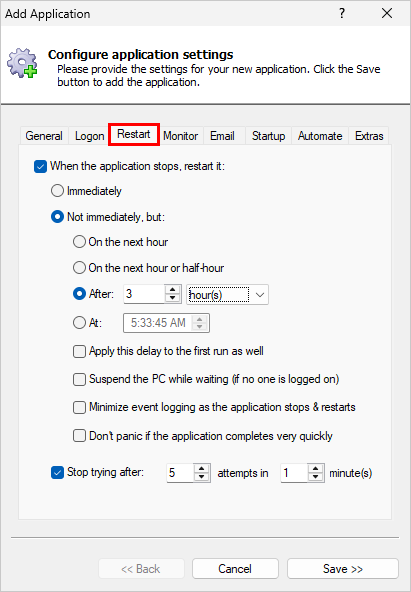
By default, AlwaysUp will run your script all the time, restarting it immediately after it stops.
To run your script periodically, click over to the Restart tab and choose when to run.
For example, we would like to kick off our script every 3 hours, so we have checked the Not immediately
and After boxes and entered 3 hours in the associated field.
-
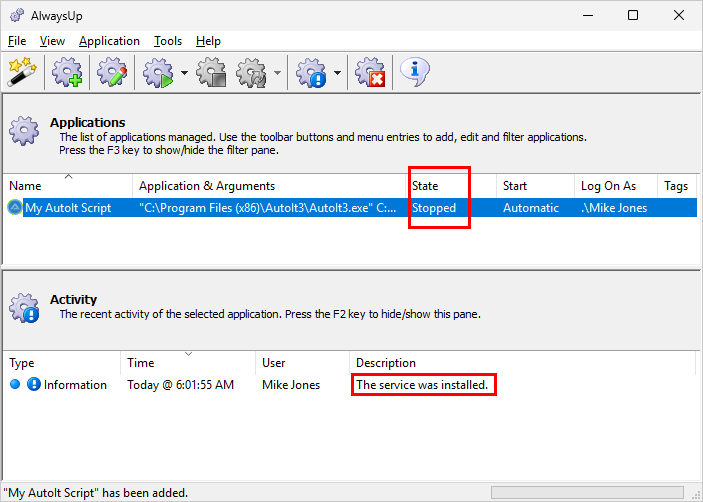
We are now done setting up your Windows Service so click the Save button to record your settings.
In a couple of seconds, an application called My AutoIt Script will show up in the AlwaysUp window.
It is not yet running though and the state will be "Stopped":
-
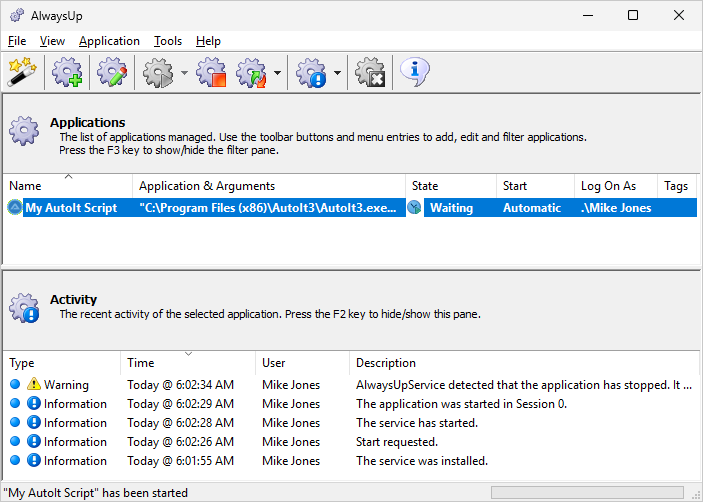
To start the service, which will kick off the AutoIt script, choose Application > Start "My AutoIt Script".
In a few seconds, the state should transition to "Running" (or "Waiting", if your script executes quickly and needs
to be restarted after a while, like ours did):
Note that your AutoIt script will be running in the background on the
isolated Session 0.
It won't be able to interact with any windows on your desktop.
-
That's it. Next time your computer boots, your AutoIt script be started immediately, before anyone logs on.
We encourage you to explore the many other AlwaysUp settings that may be appropriate for your environment.
Boost priority, send regular reports by email, and much more.
AutoIt not working properly as a Windows Service?
Consult the AlwaysUp Troubleshooter — our online tool that can help you resolve the most common problems encountered when running an application as a Windows Service.
From AlwaysUp, select Application > Report Activity > Today to bring up an HTML report detailing the interaction between AlwaysUp and your AutoIt script. The AlwaysUp Event Log Messages page explains what each message means.
Browse the AlwaysUp FAQ for answers to commonly asked questions and troubleshooting tips. Contact us and we will be happy to help!
|
Over 97,000 installations, and counting!
|
 |

|
Rock-solid for the past 20+ years!
|
Fully Compatible with 160+ Applications...
|