|
How to Run Safari 24/7 as a Windows Service with AlwaysUp |
Start the Safari browser automatically when your PC boots; Keep it running 24/7, even in the face of hangs, crashes or memory leaks
Note: Safari for Windows was discontinued in 2012. The software is no longer supported, updated, or available for download from Apple.
This guide remains here for reference only.
Safari is Apple's web browser available on its wildly popular i-devices. It also runs on Windows (XP SP2 and later).
To setup Safari as a Windows Service with AlwaysUp:
-
Download and install AlwaysUp, if necessary.
-
Download and install Safari if necessary.
By default, Safari is installed to C:\Program Files (x86)\Safari (or C:\Program Files\Safari on 32-bit versions of Windows)
and we will use that setting in the steps below.
-
Start AlwaysUp.
-
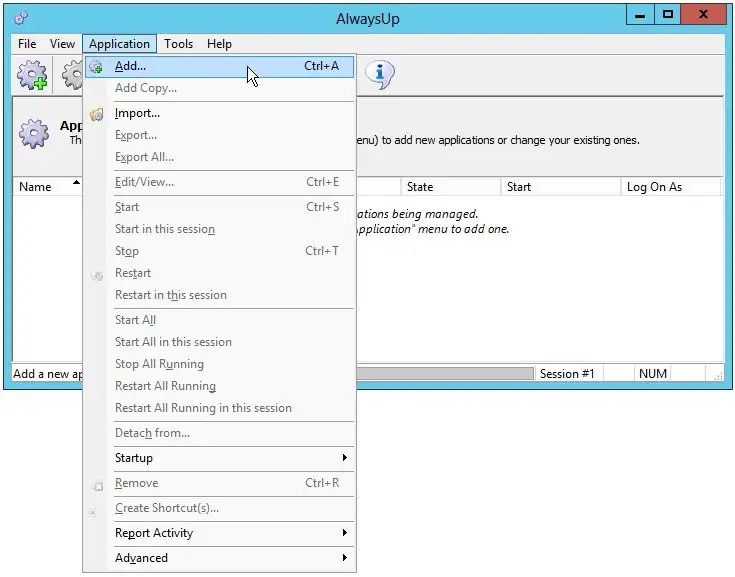
Select Application > Add to open the Add Application window:
-
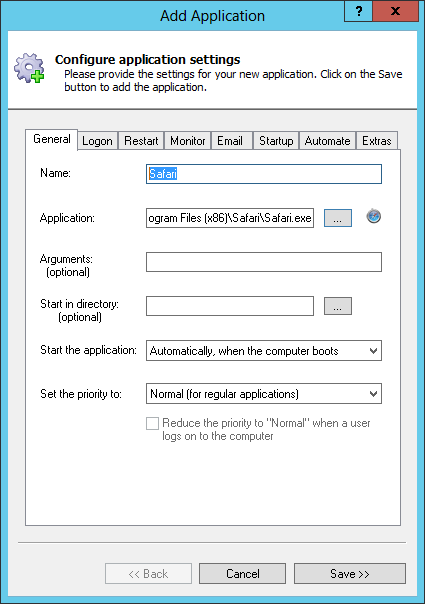
On the General tab:
-
In the Application field, enter the full path to the Safari executable file, Safari.exe.
Since we installed Safari in the default folder, we have specified:
C:\Program Files (x86)\Safari\Safari.exe
-
In the Name field, enter the name that you will call the application in AlwaysUp.
We have used Safari but feel free to specify almost any name you like.
-
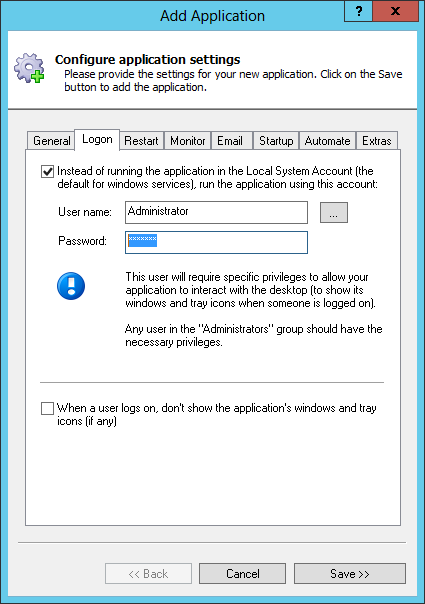
Click on to the Logon tab and enter the user name and password of the Windows account where you installed and configured Safari.
Safari must run in this account so that it can find its settings, bookmarks, etc.
-
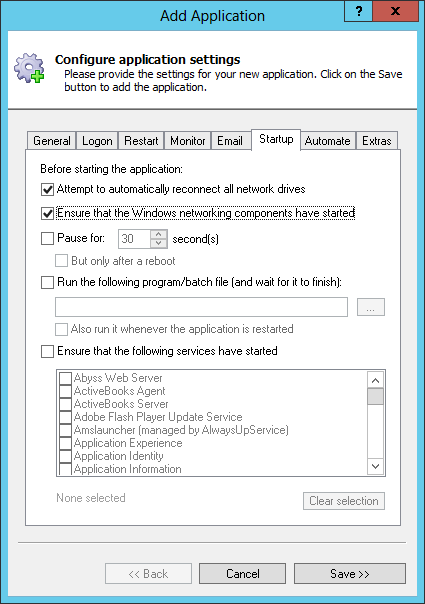
Click over to the Startup tab and check the Ensure that the Windows Networking components have started box.
Safari uses TCP/IP, the language of the Internet, and AlwaysUp must ensure that all the infrastructure is in place before Safari tries to open a web page.
-
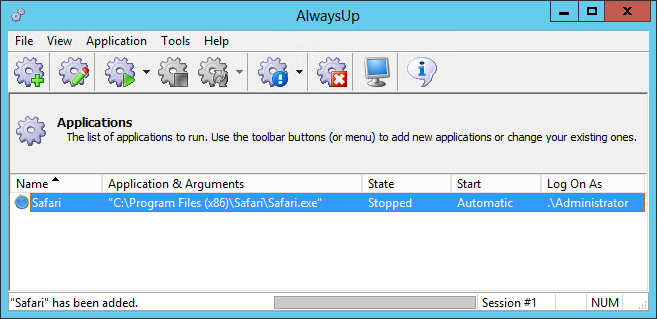
Almost there! Click the Save >> button and in a couple of seconds, an application called Safari will show up in the AlwaysUp window.
It is not yet running though (notice the State column).
-
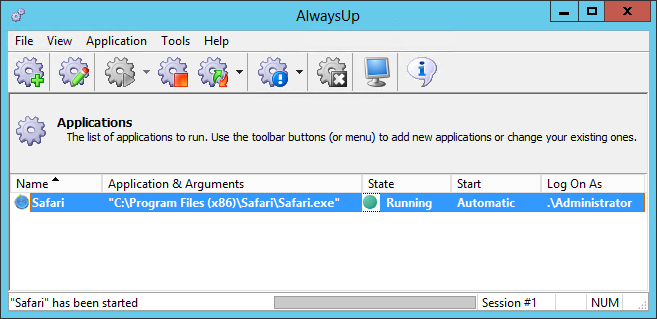
To start Safari, choose Application > Start "Safari". The state should transition to Running:
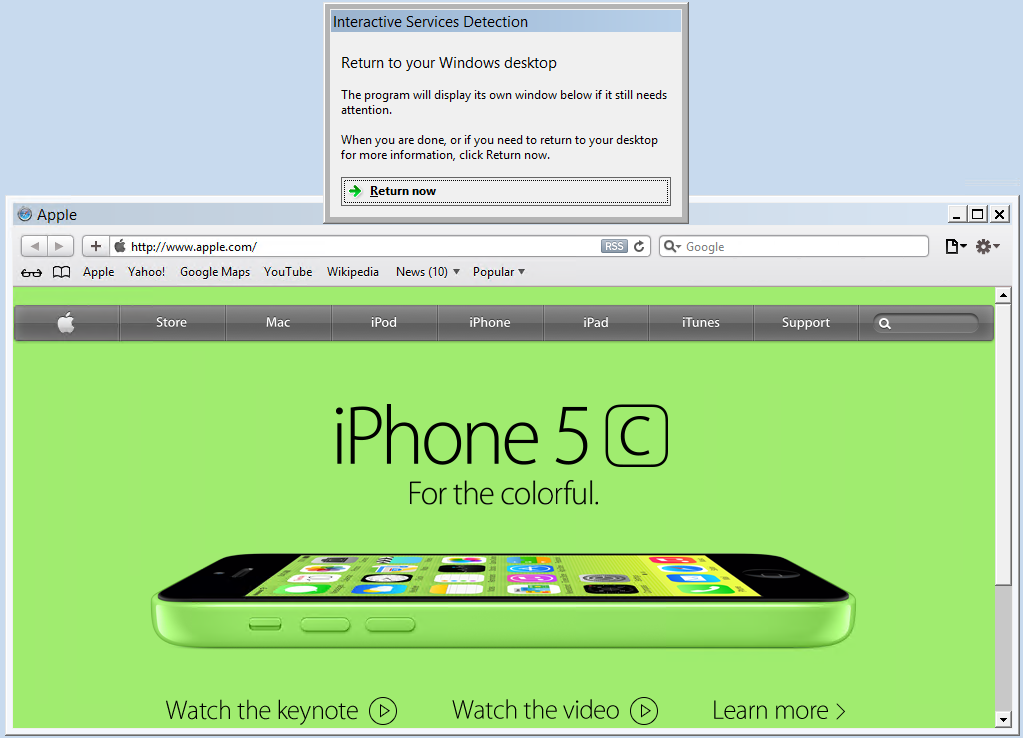
On Windows 8/7/Vista/XP and Server 2008/2012, Safari will be running in the background on the isolated Session 0.
Select Tools > Switch to Session 0 to see it:
-
Note: If running in the background in Session 0 is not an option and Safari must be visible on screen all the time (for example, if you are constructing a Kiosk application), you may want to
follow these instructions to run Safari in a "regular" user session.
-
That's it! Next time your computer boots, Safari will start up immediately, before anyone logs on.
We encourage you to edit Safari in AlwaysUp and check out the many other settings that may be appropriate for your environment.
Safari not working properly as a Windows Service?
Consult the AlwaysUp Troubleshooter — our online tool that can help you resolve the most common problems encountered when running an application as a Windows Service.
From AlwaysUp, select Application > Report Activity > Today to bring up an HTML report detailing the interaction between AlwaysUp and Safari. The AlwaysUp Event Log Messages page explains what each message means.
Browse the AlwaysUp FAQ for answers to commonly asked questions and troubleshooting tips. Contact us and we will be happy to help!
|
Over 97,000 installations, and counting!
|
 |

|
Rock-solid for the past 20+ years!
|
Fully Compatible with 160+ Applications...
|