-
First, compose the full command line that starts your application.
Since we followed the Spring Quickstart guide to generate the application used in this tutorial, our Maven command line is:
C:\Maven\bin\mvn.cmd spring-boot:run
Now would be a good time to open a command prompt and ensure that the command launches your application as you expect.
If your command doesn't work here, it won't work as a service either.
-
Download and install AlwaysUp, if necessary.
-
Start AlwaysUp.
-
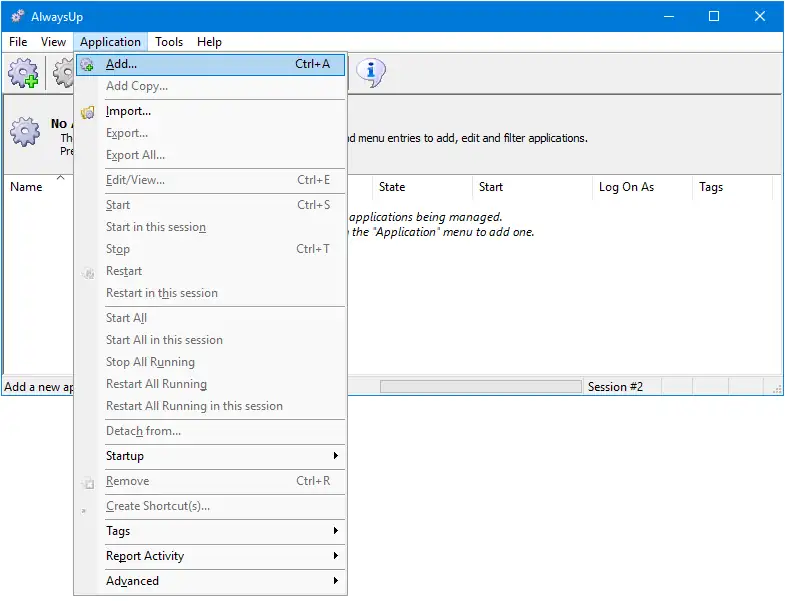
Select Application > Add to open the Add Application window:
-
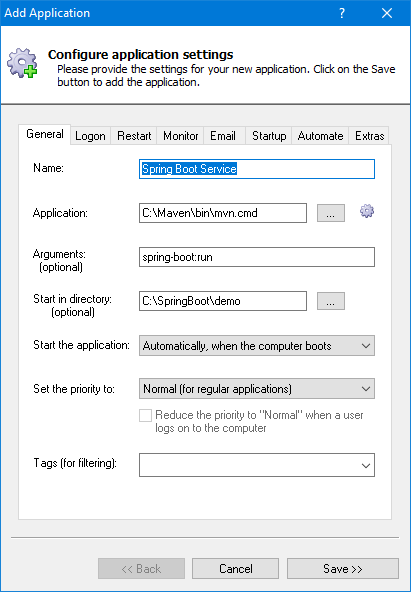
On the General tab:
-
In the Application field, enter the full path to the Maven executable, mvn.cmd.
This is C:\Maven\bin\mvn.cmd for us.
-
In the Arguments field, enter your parameters to Maven.
-
In the Start in directory field, enter the folder holding the Spring Boot project files (where the "pom.xml" configuration file lives).
-
And in the Name field, enter the name that you would like call this application in AlwaysUp.
We've gone with "Spring Boot Service" but you can choose a better name for your situation:
-
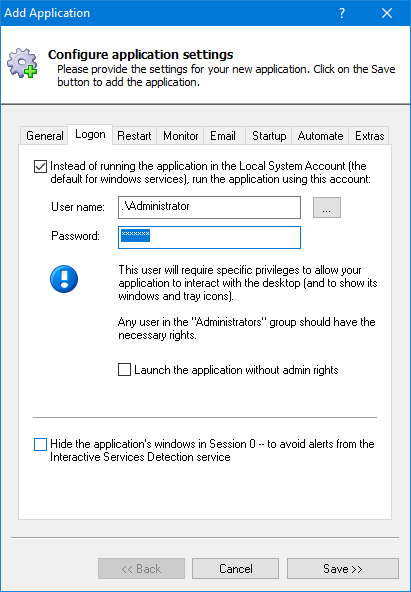
Click over to the Logon tab and enter the user name and password of the Windows account in which you installed and configured Maven and Java.
Your service needs to run in this account, to find your environment variables (such as JAVA_HOME and MAVEN_HOME) and other required settings:
-
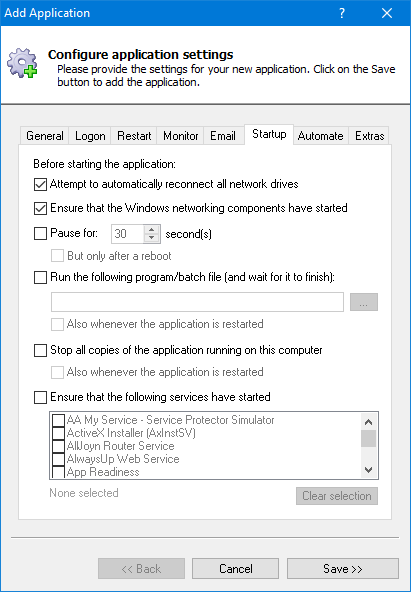
Move to the Startup tab and check the Ensure that the Windows Networking components have started box.
This informs AlwaysUp that Spring Boot needs the TCP/IP networking stack to do its work:
-
When Spring Boot is running as a background Windows Service
(in the isolated Session 0),
its informative console window will not be visible on your desktop. You won't be able to see if Maven or Java is failing.
To get around that issue, we recommend capturing the console output to a text file.
You can then open the file in Notepad — or better yet, use the
free Tail for Win32 utility
to follow the file's contents.
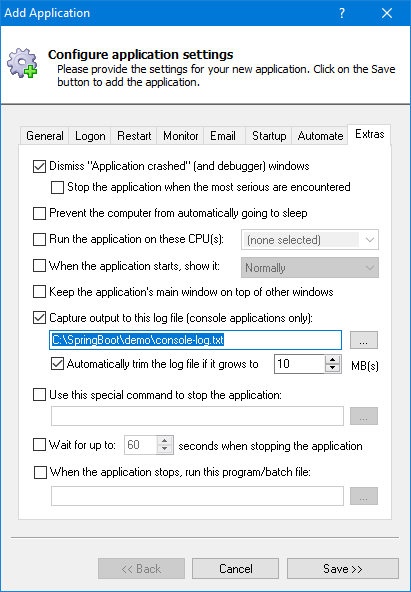
To set this up, switch to the Extras tab and enter the full path to a log file in the
Capture output to this log file section.
We recommend automatically trimming the file to prevent it growing too large:
-
We're done configuring Spring Boot so click the Save button to record your settings.
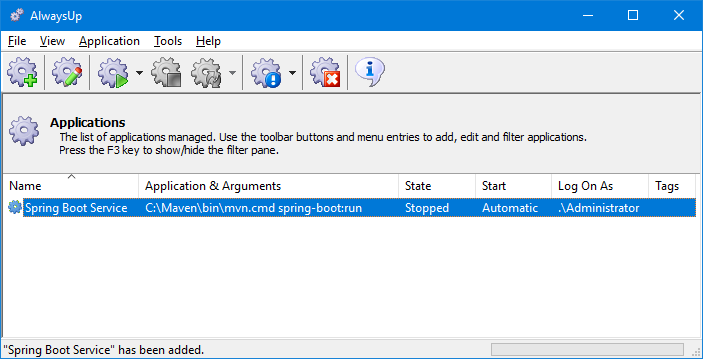
In a couple of seconds, an application called Spring Boot Service (or whatever you called it) will show up in the AlwaysUp window.
The service has been installed but it's not yet running and the state will be "Stopped":
-
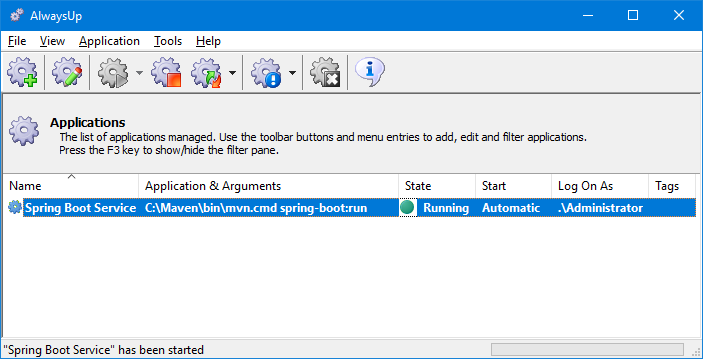
To start your Spring Boot app, choose Application > Start "Spring Boot Service". The state will transition to "Running":
-
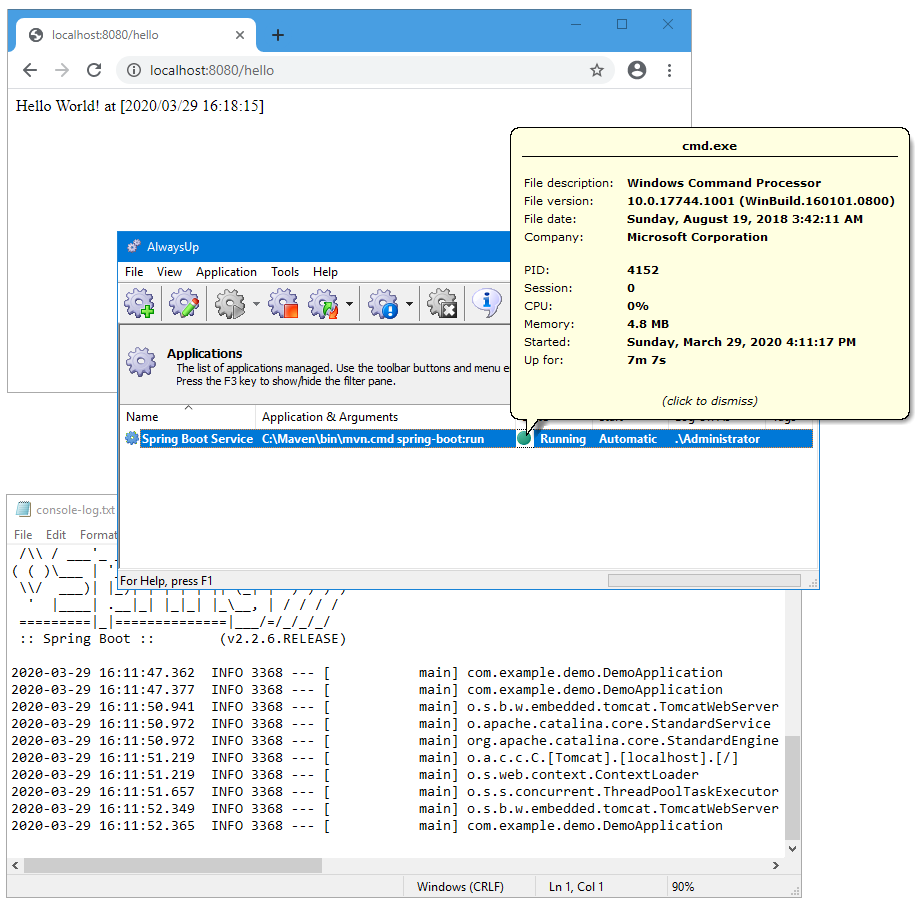
Finally, confirm that your web application is working as expected. Check both the browser and the console log file you configured in step 8.
Our simple service is working fine:
-
That's it! Next time your computer boots, AlwaysUp will launch your Spring Boot application, before anyone logs on.
Feel free to edit the entry in AlwaysUp and explore the many advanced options available to you.
For example, you can: