|
How to Install & Run Jaeger as a Windows Service with AlwaysUp |
Automatically start Jaeger in the background whenever your computer reboots. Ensure that you can monitor your distributed workflows 24/7, to actively troubleshoot poor performance, errors and more
Last Updated on May 6, 2026
Jaeger is an open source, distributed tracing platform that provides
actionable insights into complex/busy microservices architectures.
On Windows, Jaeger runs as a regular command-line executable (jaeger.exe). But because it doesn't integrate with the
Windows Service Control Manager,
Jaeger can't be configured to start automatically when your server boots.
Not to worry though; that's a shortcoming that AlwaysUp can help you fix.
With AlwaysUp on the job, Jaeger will start promptly after a reboot —
even if no one is around to log in first.
To install Jaeger as a Windows Service with AlwaysUp:
-
If necessary, install and configure Jaeger.
Ensure that everything works as you expect when you run the Jaeger executable from a Windows command prompt.
For this tutorial, we
downloaded the Jaeger zip file
and extracted its contents to "C:\Jaeger". Our Jaeger configuration file is "C:\Jaeger\config.yaml".
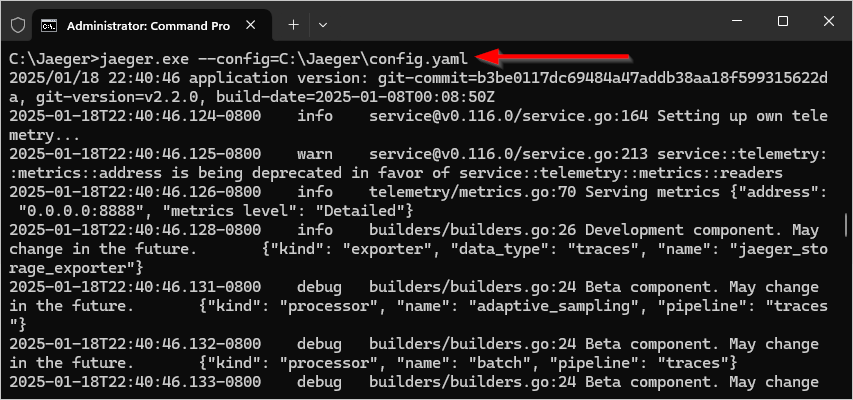
And with those in place, we were able to launch Jaeger successfully from an elevated command prompt:
-
Next, download and install AlwaysUp, if necessary.
-
Start AlwaysUp.
-
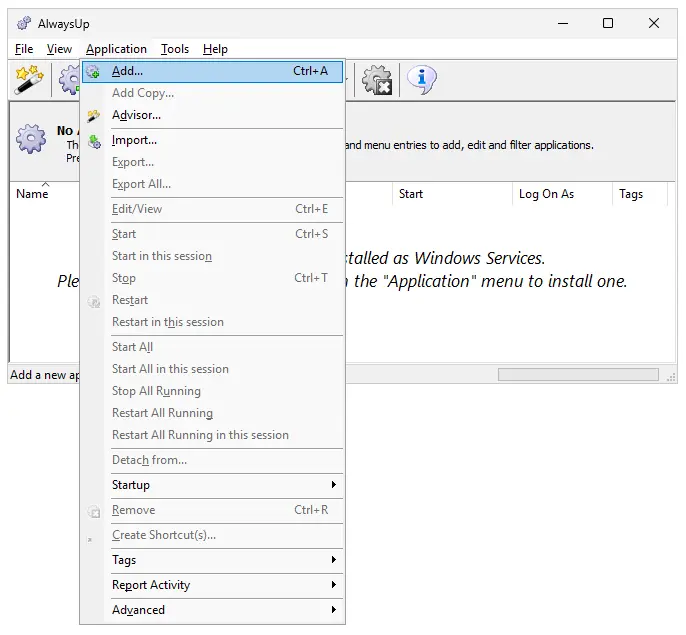
Select Application > Add to open the Add Application window:
-
On the General tab:
-
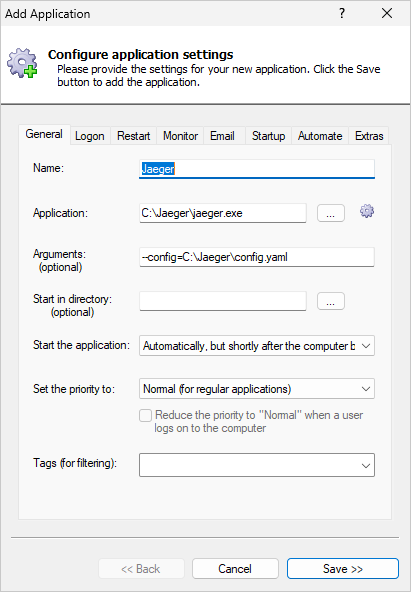
In the Application field, enter the full path to the Jaeger executable, jaeger.exe.
Since we installed Jaeger in "C:\Jaeger", our path is "C:\Jaeger\jaeger.exe".
-
In the Arguments field, enter any parameters you need to run the Jaeger executable.
Since we run Jaeger with the "--config" switch (as illustrated in step 1), that's what we added in this field.
-
In the Start the application field, select Automatically, but shortly after the computer boots.
This setting tells AlwaysUp to launch jaeger.exe 1-2 minutes after a reboot — enough time to ensure that all critical services
are primed and ready to go.
-
And in the Name field, enter the name that you will call the application in AlwaysUp.
We have stuck with the default of Jaeger but you can specify another name if you like:
-
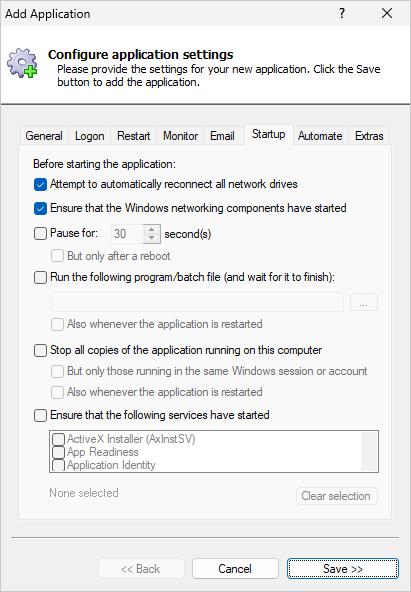
Switch to the Startup tab and check the Ensure that the Windows networking components have started box.
This will guarantee that the
TCP/IP networking stack
is fully initialized before Jaeger starts.
-
When Jaeger is running in the background as a Windows Service, you won't be able to see its console output.
For that reason, it's a good idea to capture the console output to a text file,
to make that information available for later troubleshooting if necessary.
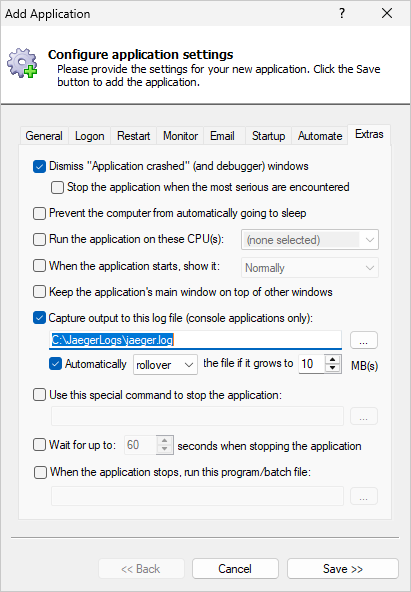
Move to the Extras tab. Check the Capture output to this log file box and enter the full path to a text file that will
receive the output
(both stdout and stderr)
from the jaeger.exe process.
Note that if you put the output file inside the Jaeger folder, Jaeger's file watcher component will spring into action whenever the file is updated.
And because of that, the log file will contain messages about writing to the log file!
To avoid that useless cycle, we recommend placing the output file outside of the Jaeger folder.
We created "C:\JaegerLogs\" for that purpose — and configured automatic rollover to preserve all the files:
-
We're done configuring the tracing platform as a Windows Service so click the Save button to record your settings.
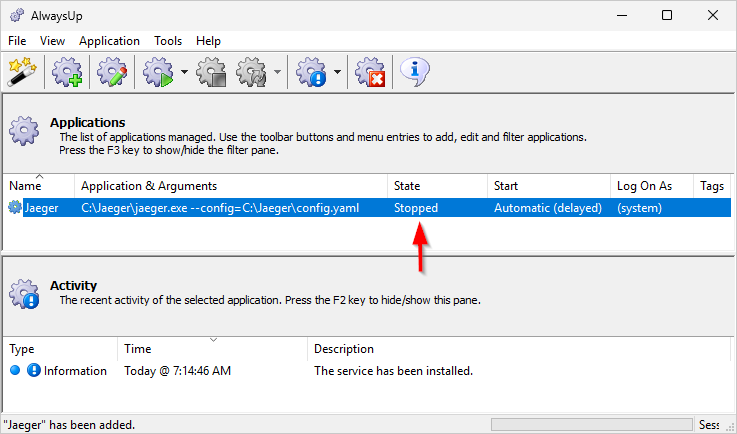
In a couple of seconds, an application called Jaeger (or whatever you called it) will show up in the AlwaysUp window.
It is not yet running though and the state will be "Stopped":
-
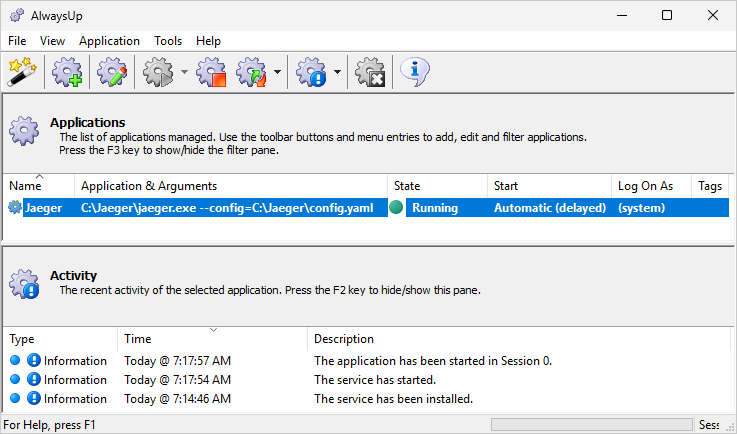
To start Jaeger from AlwaysUp, choose Application > Start "Jaeger".
In a few seconds, the status will change to "Running" and Jaeger will be doing its thing in the background:
-
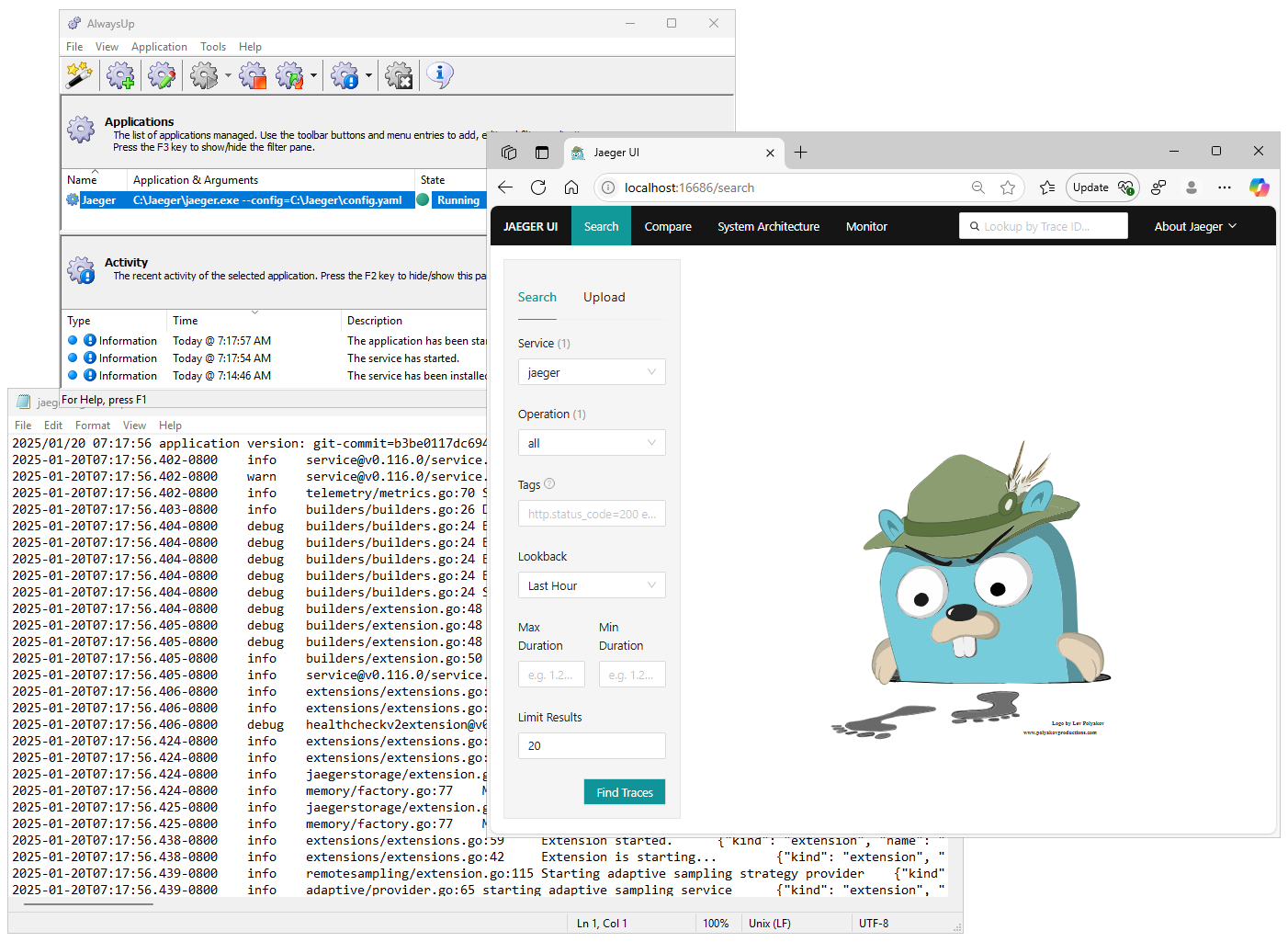
And finally, now that Jaeger is running as a service, please confirm that the platform is operating as expected.
Is Jaeger UI available? Browse to http://localhost:16686 (or whatever URL you configured) to check.
Is the console text being captured to the log file? Does the file contain any errors?
Everything looked good on our server:
-
That's it! Next time your computer boots, Jaeger will start up immediately in the background, without anyone needing to log on.
Please restart your PC now and test that everything works as expected after Windows returns to life.
(But please remember that because of the delayed start configured in step 5, it will take Jaeger a couple of minutes to start after your server boots.)
Please feel free to edit Jaeger in AlwaysUp to check out the many other settings that may be appropriate for your environment.
For example, send email alerts if it crashes, boost the priority of jaeger.exe to support CPU intensive tasks, and much more.
Jaeger not working properly as a Windows Service?
Consult the AlwaysUp Troubleshooter — our online tool that can help you resolve the most common problems encountered when running an application as a Windows Service.
From AlwaysUp, select Application > Report Activity > Today to bring up an HTML report detailing the interaction between AlwaysUp and Jaeger. The AlwaysUp Event Log Messages page explains what each message means.
Browse the AlwaysUp FAQ for answers to commonly asked questions and troubleshooting tips. Contact us and we will be happy to help!
|
Over 97,000 installations, and counting!
|
 |

|
Rock-solid for the past 20+ years!
|
Fully Compatible with 160+ Applications...
|