OpenClaw
is an open-source, self-hosted AI agent that taps into your computer (and your services) to perform helpful tasks on your behalf.
OpenClaw installs a scheduled task that launches the
Gateway — a back-end component that powers the agent.
However, that task only starts when someone logs on:
In that configuration, OpenClaw Gateway won't start if your computer is suddenly rebooted (for example, after a power failure).
You'll have to log back in to restart the agent.
But we can fix that. Follow the steps below to set up the Gateway as a bulletproof
Windows Service.
And once we're done, the OpenClaw back-end will:
- Start automatically whenever your computer boots (before anyone logs on)
- Automatically restart if it crashes or encounters a problem and stops listening to your requests
- Automatically restart if anyone stops the gateway — accidentally or on purpose
- Run continuously in the background
To install OpenClaw Gateway with AlwaysUp:
-
Install OpenClaw, if necessary.
Make sure that you can connect to OpenClaw from your browser and chat with the agent.
Everything looked good on our server after we connected OpenClaw to our OpenAI account
(with GPT-5.4):
-
Next, download and install AlwaysUp, if necessary.
-
Start AlwaysUp.
-
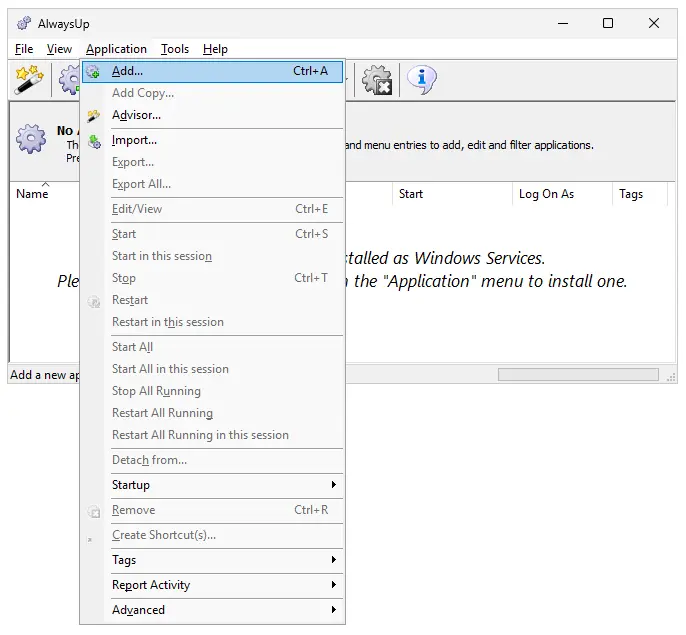
Select Application > Add to open the Add Application window:
-
On the General tab:
-
In the Application field, enter the full path to your OpenClaw Gateway batch file, gateway.cmd.
If you installed OpenClaw in the default location, this will be:
C:\Users\<USER-NAME>\.openclaw\gateway.cmd
where <USER-NAME> is the name of the Windows account where you installed OpenClaw.
That account is "Mike Jones" in this tutorial.
-
In the Start the application field, choose Automatically, but shortly after the computer boots.
With this setting, OpenClaw will start a couple of minutes after boot — after all the machine's critical
networking services are up and running.
-
And in the Name field, enter the name that you want to give your application in AlwaysUp.
We went with "OpenClaw Gateway":
Click over to the Logon tab and enter the user name and password of the Windows account where you installed OpenClaw.
The Gateway should run in this account so that it can find
Node.js
(which powers the software) and all its settings.

Important Security Considerations
Choose the Windows account carefully.
If the user is an administrator, that may allow OpenClaw to run commands on your computer with full admin rights.
You see, when you run an application as a Windows Service,
UAC/dynamic elevation protections
are not in play. As a result, the application is always run with the maximum rights available to the user.
We tried running OpenClaw without admin rights (by checking the Launch the application without admin rights box on the Logon tab) but it didn't work.
In that case, OpenClaw failed to run its exec command because of esoteric Windows security constraints in place for non-admin console applications.
It's our hope that a future version of OpenClaw (or Windows) will fix the problem and allow AlwaysUp to sandbox the Gateway more securely with reduced rights.
Until then, consider installing OpenClaw in non-admin account and providing that account on the Logon tab.
In any case, be sure to configure OpenClaw's exec command with the security restrictions you need.
OpenClaw Gateway runs a web server that should always be attentive to your commands.
To ensure that's the case, let's set up a
sanity check
to restart OpenClaw if it ever stops responding.
-
Move to the Monitor tab.
Check the Whenever it fails a periodic sanity check box and click the Set button on the right:
-
In the Add Sanity Check window, select the Check that a web server is responding properly
option and click Next to proceed:
-
Enter the web address where you chat with OpenClaw. Since the default network port for the Gateway is 18789, that URL is likely:
http://127.0.0.1:18789/chat
Click Next to continue.
-
On this page, specify how often AlwaysUp should check OpenClaw's HTTP connection.
The default of every 5 minutes should be fine but you can have AlwaysUp check more often (or less often) if you like.
After you're done, click Next to move on.
-
And finally, confirm your settings:
If everything looks good, click Add
to record your new sanity check and return to the Monitor tab.
Switch to the Startup tab.
Since OpenClaw relies on the TCP/IP stack to do its work, check the
Ensure that the Windows networking components have started option:
Finally, move to the Extras tab. This is where we'll tell AlwaysUp how to gracefully shut down OpenClaw Gateway with the
"openclaw gateway stop" command.
-
Near the bottom of the window, check the Use this special command to stop the application box.
-
In the text area, enter the full path to the "openclaw.cmd" file on your system.
If you stuck with the default values when you installed OpenClaw (and NPM), this will probably be:
C:\Users\<USER-NAME>\AppData\Roaming\npm\openclaw.cmd
where <USER-NAME> is the name of the Windows account where you installed OpenClaw.
Important: Enclose the path in quotes if it contains a space.
-
After the path, add gateway stop.
For example, on our system with user "Mike Jones", the full stop command is:
"C:\Users\Mike Jones\AppData\Roaming\npm\openclaw.cmd" gateway stop
We're done configuring OpenClaw as a Windows Service so click the Save button to record your settings.
In a couple of seconds, an application called OpenClaw Gateway (or whatever you called it) will show up in the AlwaysUp window.
It's not yet running though and the state will be "Stopped":
If OpenClaw Gateway is currently running, stop it now.
If you leave it running, that existing process may prevent AlwaysUp from running its own copy of the Gateway
(because the network port will already be taken).
Run openclaw gateway stop from a command prompt.
To start OpenClaw from AlwaysUp, choose Application > Start "OpenClaw Gateway".
In a few seconds, the status column will change to "Running" and OpenClaw will be chugging away in the background:
Now is an excellent time to fire up your web browser and confirm that OpenClaw is working as expected.
Things looked great on our server, as we chatted with the agent:
And that's it! Next time your computer boots, OpenClaw Gateway will start up immediately, in the background,
without anyone needing to log on.
Please restart your PC now and test that everything works as expected after your operating system comes back to life.
Finally, please feel free to edit OpenClaw Gateway in AlwaysUp and explore the many other settings
that may be appropriate for your environment.
For example, schedule a weekly restart to keep things fresh,
send an email if OpenClaw crashes or stops,
and much more.
OpenClaw not working properly as a Windows Service?
-
First, you should determine if the problem is with OpenClaw itself.
Stop OpenClaw Gateway in AlwaysUp and troubleshoot it from a normal command prompt.
Try running openclaw doctor — the health check tool for OpenClaw — to see if it helps.
For example, if an update broke OpenClaw
(as happened on our server),
you must fix that outside of AlwaysUp.
Only return to AlwaysUp once you have OpenClaw working well on your desktop.
-
Have OpenClaw log its internal workings to a text file. You can do that from the Settings > Config section:
Afterwards, check the file for errors and warnings. Hopefully it will reveal what's going wrong.
Consult the AlwaysUp Troubleshooter —
our online tool that can help you resolve the most common problems encountered when running an application as a Windows Service.
From AlwaysUp, select Application > Report Activity > Today to bring up an HTML report detailing the interaction
between AlwaysUp and OpenClaw.
The AlwaysUp Event Log Messages page
explains the messages that may appear.
Browse the AlwaysUp FAQ
for answers to commonly asked questions and troubleshooting tips.
Contact us and we'll be happy to help!